00191369-01.pdf - 第134页
4 Placement Functions User’s Manual SIPLACE HS -50 4.1 Setup Display Software Version SR.501.xx Edition 01/99 132 5HIL OOLQJ DQ( PSW\ 7UDFN:LWK 5H ILOO WUDF N As soon as a feede r in an e mpty trac k has…
User’s Manual SIPLACE HS-50 4 Placement Functions
Software Version SR.501.xx Edition 01/99 4.1 Setup Display
131
0DQXDO,QSXWRIW K H&RP SRQHQW%DUFRGHV
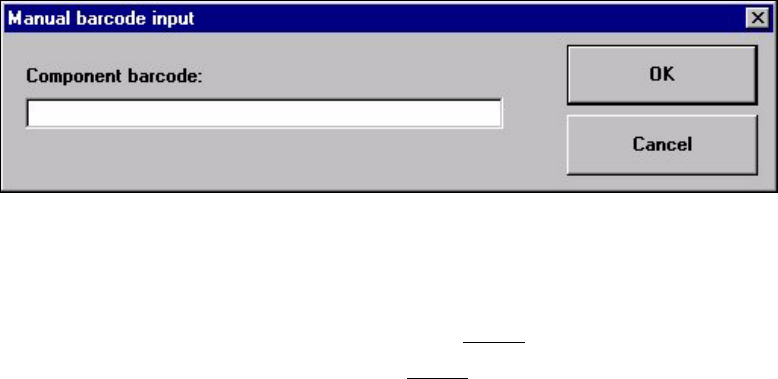
Å Click on the 0DQXDOLQSXW button to enter the barcode by hand.
The following input box is opened.
Å Enter the barcode in the input field and close the input box using 2..
The barcode comparison is started.
The results of the barcode comparison will be displayed in the display field of the "Compo-
nent verification with barcode" window (see Section 4.1.2.1
).
Å The further procedure is described in Section 4.1.2.1.
4 Placement Functions User’s Manual SIPLACE HS-50
4.1 Setup Display Software Version SR.501.xx Edition 01/99
132
5HILOOLQJDQ(PSW\7UDFN:LWK5HILOOWUDFN
As soon as a feeder in an empty track has been refilled with components, this fact must be
confirmed so that the placement head can access this track again. This is done with the help
of the "Refill track" function.
3URFHGXUH
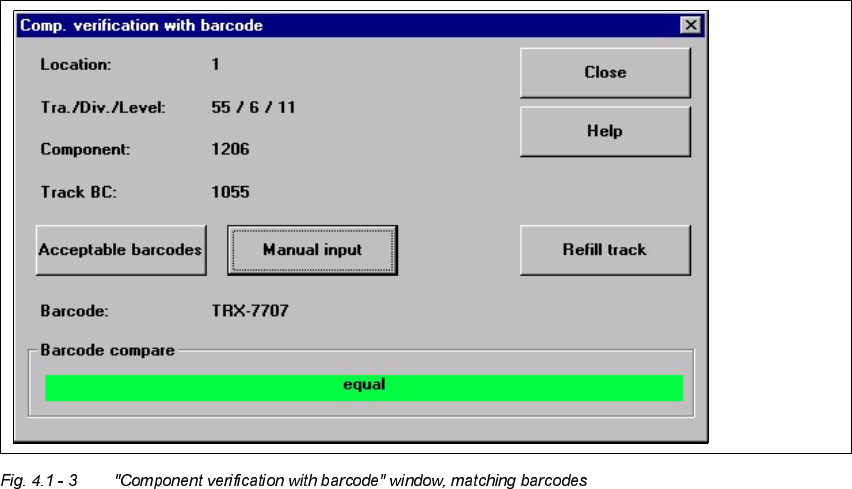
Å The track barcode of the corresponding track is read in.
Å The component barcode of the corresponding component reel is read in.
The "Refill track" button is active when the barcodes match (see the following figure).
Å If the feeder in the current track is full, then click on the 5HILOOWUDFNbutton to confirm this
or read in the return barcode on the barcode bar.
Å Close the window with &ORVH.
User’s Manual SIPLACE HS-50 4 Placement Functions
Software Version SR.501.xx Edition 01/99 4.2 Error Display
133
(UURU'LVSOD\
The errors are listed in tabular form according to their type, and each type has its own view
containing its list of errors.
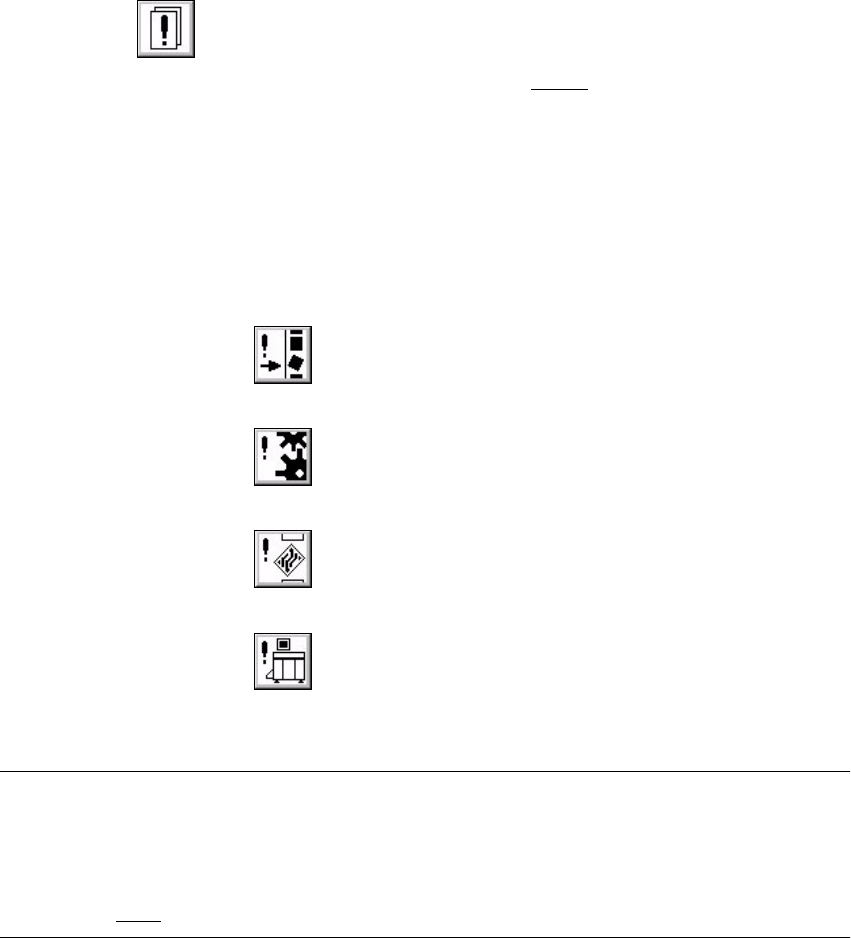
Å Click on the icon in the toolbar in the Main view.
The user interface switches to the error display (see Fig. 4.2 - 1
, Track errors, for example).
All errors of the current error type that have occurred are displayed in the display area.
Å If you want to switch the display area to a different type of error, then click on the icon for
the desired error type in the toolbar.
The display area switches to the selected error type.
(UURUW\SH LFRQ
–Track error
– Machine error
– Transport error
– General error
NOTE
The error that occurred last is always displayed in the top position in the table.
The error counter is incremented whenever the same error arises ("#E" column).
Information and an error diagnostics can be called up for every error displayed
(see Section 4.2.1 for this procedure).