00191369-01.pdf - 第174页
5 Single Functions User’s Manual SIPLACE HS-50 5.3 Single functions, T ransport Software Version SR.501.xx Edition 01/99 172 )XQFWL RQV &HUDPLFVXEVW FHQW NOTE The c erami c sub strat e cente rin g func…
User’s Manual SIPLACE HS-50 5 Single Functions
Software Version SR.501.xx Edition 01/99 5.3 Single functions, Transport
171
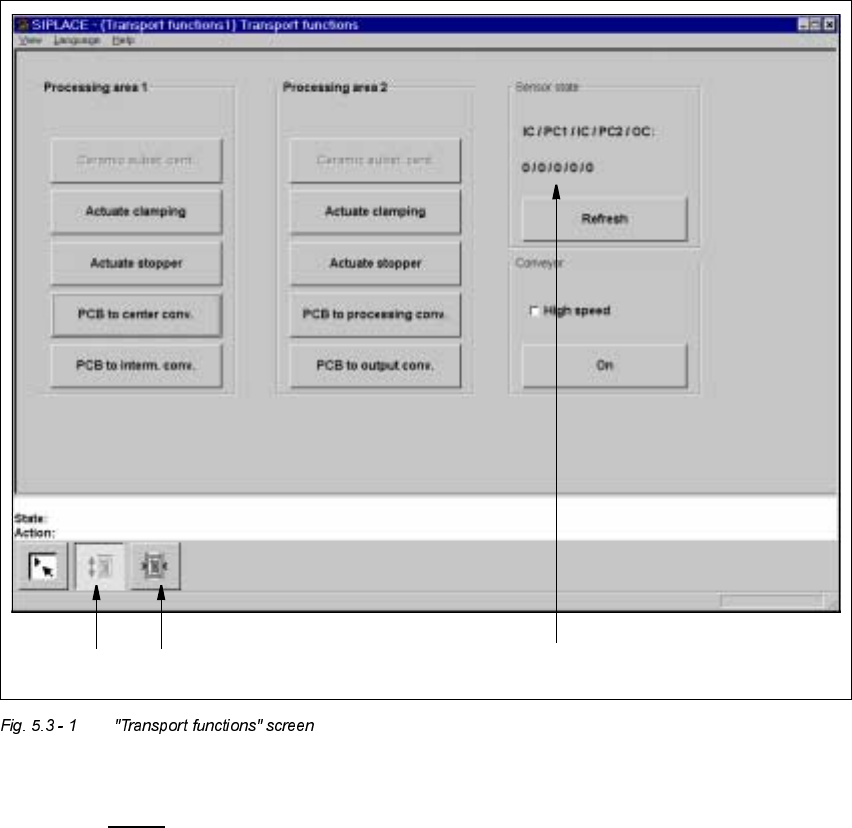
7UDQVSRUWIXQFWLRQVVFUHHQ
The transport functions are used for checking and adjusting the functional modules of the
board conveying systems.
.H\WR)LJ
(1) Functions for the board conveying systems
(2) Functions for adjusting the transport conveyor width
(3) Functions to display state of the ultrasonic sensors
12
3

5 Single Functions User’s Manual SIPLACE HS-50
5.3 Single functions, Transport Software Version SR.501.xx Edition 01/99
172
)XQFWLRQV
&HUDPLFVXEVWFHQW
NOTE
The ceramic substrate centering function can only be activated if the "Ceramic substrate center-
ing" option is installed and entered in the machine options.
This function can be found in both "Processing area 1" and "Processing area 2" and is used
to check the centering (clamping) of ceramic substrate for each of the processing conveyors.
Å Click the 3&%WRSURFHVVLQJFRQYbutton in "Processing area 1".
The ceramic substrate is moved to processing conveyor 1.
Å Click the &HUDPLFVXEVWFHQWbutton in "Processing area 1".
The ceramic sustrate is centered (clamped).
Å Click the &HUDPLFVXEVWFHQWbutton again.
The centering is released again.
Å Click the 3&%WRSURFHVVLQJFRQYin "Processing area 2".
The ceramic substrate is moved to processing conveyor 2.
Å Click the &HUDPLFVXEVWFHQWbutton in "Processing area 2".
The ceramic sustrate is centered (clamped).
Å Click the &HUDPLFVXEVWFHQWbutton again.
The centering is released again.
$ FWXDWHFODPSLQJ
This function is available for both "Processing area 1" and "Processing area 2" and can be used
to check board clamping for the corresponding processing conveyors.
Å Use the 3&%WRSURFHVVLQJFRQY function in "Processing area 1" to move the board to
processing conveyor 1.
Å Click the $ FWXDWHFODPSLQJbutton in "Processing area 1".
The board is clamped to processing conveyor 1.
Å Click the $ FWXDWHFODPSLQJbutton again.
The clamping is released again.
Å Use the 3&%WRSURFHVVLQJFRQY function in "Processing area 2" to move the board to
processing conveyor 2 and check the board clamping for this area as described above.
User’s Manual SIPLACE HS-50 5 Single Functions
Software Version SR.501.xx Edition 01/99 5.3 Single functions, Transport
173
$FWXDWHV WRS SHU
This function is available in both "Processing area 1" and "Processing area 2" and can be
used to check the operation of each stopper as it is extended and then retracted. The func-
tion can be executed either with or without a board.
Å Click the $FWXDWHVWRSSHUbutton in "Processing area 1".
The stopper for processing conveyor 1 is extended and then returned to its original posi-
tion.
Å Click the $FWXDWHVWRSSHUbutton in "Processing area 2".
The stopper for processing conveyor 2 is extended and then returned to its original posi-
tion.
3&%WRSURFHVVLQJFRQY
This function is available in both "Processing area 1" and "Processing area 2" and can be used
to move a board which is on the input or intermediate conveyor to the appropriate processing
conveyor, stop it there and clamp it.
Å Click the 3&%WRSURFHVVLQJFRQYbutton in "Processing area 1".
The board currently located on the input conveyor is moved to processing conveyor 1.
Å Click the 3&%WRSURFHVVLQJFRQYbutton in "Processing area 2".
The board currently located on the intermediate conveyor is moved to processing conveyor
2.
3&%WRLQWHUPFRQY
This function is used to move a board from processing area 1 to the intermediate conveyor,
to stop it there and clamp it.
Å Click the 3&%WRLQWHUPFRQ Ybutton in "Processing area 1".
The board currently located on processing conveyor 1 is moved to the intermediate con-
veyor.
3&%WRRXWSXWFRQY
This function is used to move a board currently in processing area 2 to the output conveyor.
Å Click the 3&%WRRXWSXWFRQYbutton in "Processing area 2".
The board currently located on processing conveyor 2 is moved to the output conveyor.