00191369-01.pdf - 第205页
User Manual HS-50 6 Vision functions Software-Version 5.01Edition 01/99 6.5 Teach Fiducial 203 NOTE Section 3 inc ludes a g enera l descr iption of – usin g the menus with tra ckball, touch sc reen and function keys …
6 Vision functions User Manual HS-50
6.4 Access to the ’Teach Fiducial’ and ’Test Component’ Options Software-Version 5.01 Edition 01/99
202
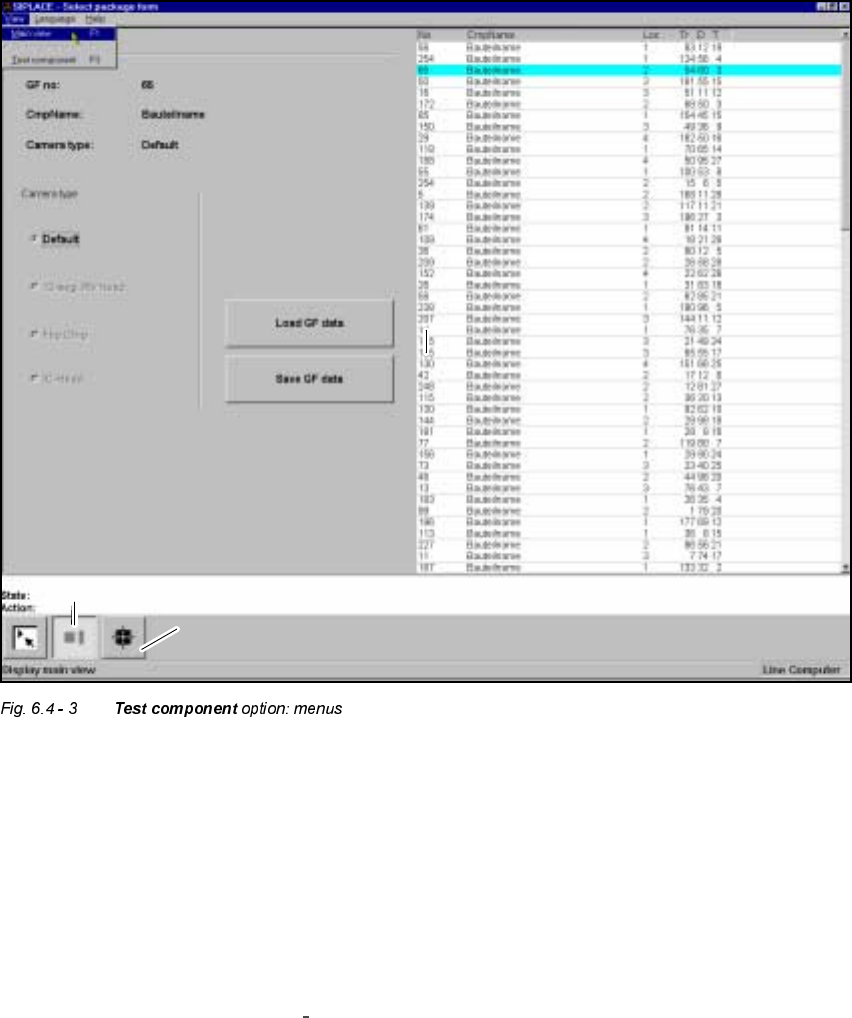
You can select the following menus from the 7HVWFRPSRQHQWoption either by clicking on the
icons (buttons) or by pressing function keys F2 to F3:
– Select package form
– Test component
You can return to the 0DLQYLHZmenu either by clicking on the 0DLQYLHZicon or by pressing
function key F1.
The options 7HDFKILGXFLDO and 7HVW F RPSRQHQWare described in Section 6.5 from page 6 - 203
and Section 6.6 from page 6 - 235.
To provide you with some orientation, at the start of each section you will find a flow chart and a
brief description for the 7HDFK ILGXFLDOand 7HVW FRPSRQHQW options. Each flow chart begins with
0DLQYLHZ menu and shows you the hierarchical structure of all of the menu options.
’Select package form’ icon
’Test component’ icon

User Manual HS-50 6 Vision functions
Software-Version 5.01Edition 01/99 6.5 Teach Fiducial
203
NOTE
Section 3 includes a general description of
– using the menus with trackball, touch screen and function keys F1 to F12.
– the layout of the screen.
– the screen displays.
7HDFK)LGXFLDO
7HDFK)LGXFLDO)ORZ&KDUW
The 7HDFKILGXFLDOflow chart shows in graphic form all menu options together with their sub-func-
tions. The menus are indicated by being bordered with a solid line, while the option boxes use a
dashed line and the input boxes a dotted line.
,QIRUPDWLRQRQWKH)ORZ&KDUW
0HQXV
The 7HD FKILGXFLDO option includes the following menus:
– Select fiducial
– Teach fiducial
– Contrast sensitivity
– Test fiducial
The 6DYHILGXFLDOGDWD option box will be displayed each time you quit the 7HDFKI LGXFLDO option
after having created or modified fiducial data. You are thus given the choice of saving these fidu-
cial parameters or of discarding them.
You can quit the individual menus by clicking on either the icon of another menu or on the 0DLQ
YLHZicon.
,QSXW%R[HV2SWLRQ%R[HV
The system provides the following input boxes for entering data, for displaying values and for ex-
ecuting actions:
– Define new fiducial
– Change fiducial name
6 Vision functions User Manual HS-50
6.5 Teach Fiducial Software-Version 5.01 Edition 01/99
204
– Program transform 5
You can quit the input boxes with 2., $FFHSW or &DQFHO.
–Click on 2. or $FFHSW with the mouse and the data will be transferred to the program and
saved. The input box closes.
– Click on the &DQF HO button and the data will be discarded and the input box closed.
%XWWRQV
For selecting options the system provides the following buttons:
– 6H OHFWWKHWHDFKLQJJDQWU\
Use the mouse to select the teaching gantry.
– 6DYHILGXFLDO
The fiducial parameters just generated will be saved when you click on this button.
– /RDGILGXFLDO
Once you have selected the desired fiducial from the lists field, click on the /RDGILGXFLDO but-
ton. The fiducial parameters will be loaded.
9LGHR,PDJHV
The camera image of the MVS system (vision analysis unit) can be displayed on the screen of the
station computer. In addition the screen will include header and footers:
– The header includes, for example, the currently selected menu option, the fiducial number,
analysis criteria, measurement results and so on.
– The footers include command sequences, keyboard commands, camera coordinates and so
on.
You can always quit displays of video images with the (6& key. The corresponding menu window
will then reappear.
:DUQLQJDQG0HVVDJH%R[HV
Messages are text fields which contain information regarding actions, warnings and so on. They
will appear under the following circumstances:
– incorrect operator actions (for example, a board still on the processing conveyor).
– requests to the operator to carry out certain actions (for example, remove board).
– instructions (for example, input the name of a fiducial).
– indicates the system is busy performing an action (for example, loading fiducial data).