00191369-01.pdf - 第344页
8 Error Informat ion User’s Manual SIP LACE HS-50 8.2 Calling error information Software Version SR.501.xx Edition 01/99 342 'LVSOD\LQJLQIRUPDWLRQRQWKHFXUUHQWHUURU Å In th e main v iew , cli ck the ( UURU…
User’s Manual SIPLACE HS-50 8 Error Information
Software Version SR.501.xx Edition 01/99 8.2 Calling error information
341
&DOOLQJHUURULQIRUPDWLRQ
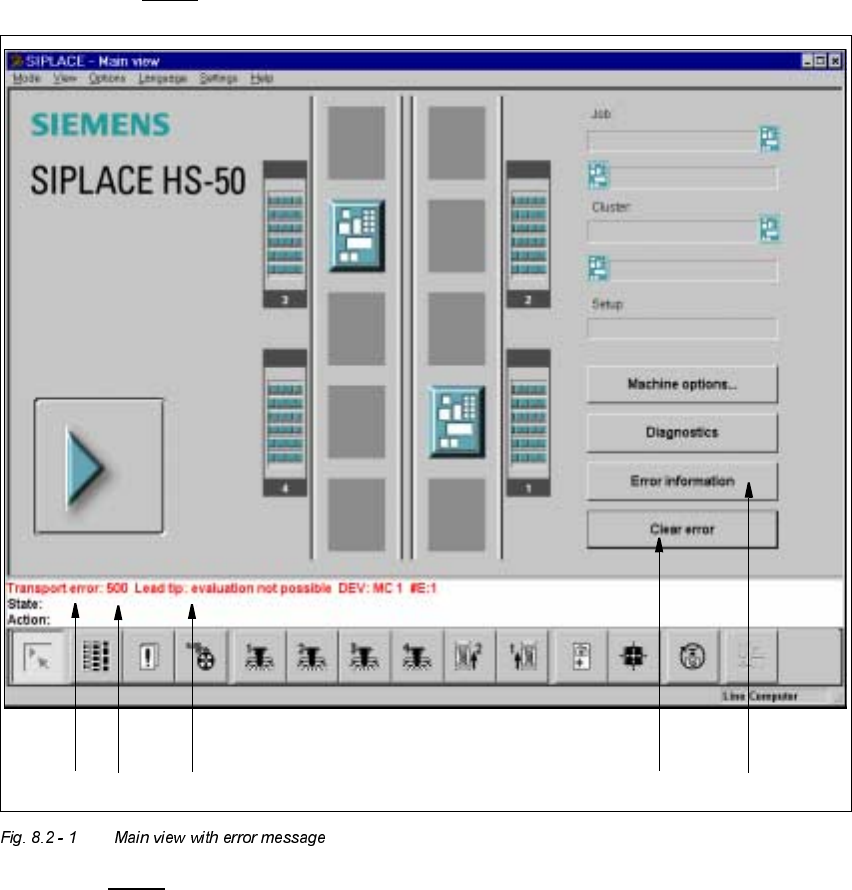
If an error occurs during operation, a corresponding error message is displayed in the status
bar in the user interface. In main view, the (UURULQIRUPDWLRQ and& OHD UHUURU buttons are
active (see Fig. 8.2 - 1
).
.H\WR)LJ
(1) Type of error (track, machine, transport or general error)
(2) Error number (the error number assigned to the error)
(3) Error message (summary information on error)
(4) "Clear error" button (to acknowledge the error after error elimination)
(5) "Error information" button (to call up help on the current error)
12 3 4 5
8 Error Information User’s Manual SIPLACE HS-50
8.2 Calling error information Software Version SR.501.xx Edition 01/99
342
'LVSOD\LQJLQIRUPDWLRQRQWKHFXUUHQWHUURU
Å In the main view, click the (UURULQIRUPDWLRQ button.
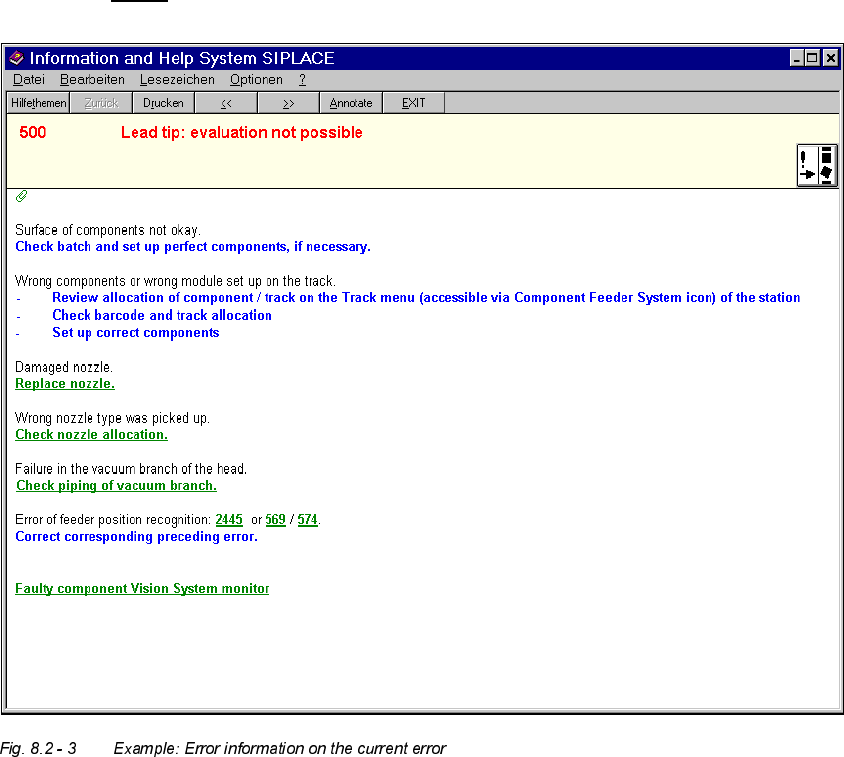
The main help system window is opened with error information on the current error (see
example in Fig. 8.2 - 3
).
'LVSOD\LQJLQIRUPDWLRQRQDVHOHFWHGHUURU
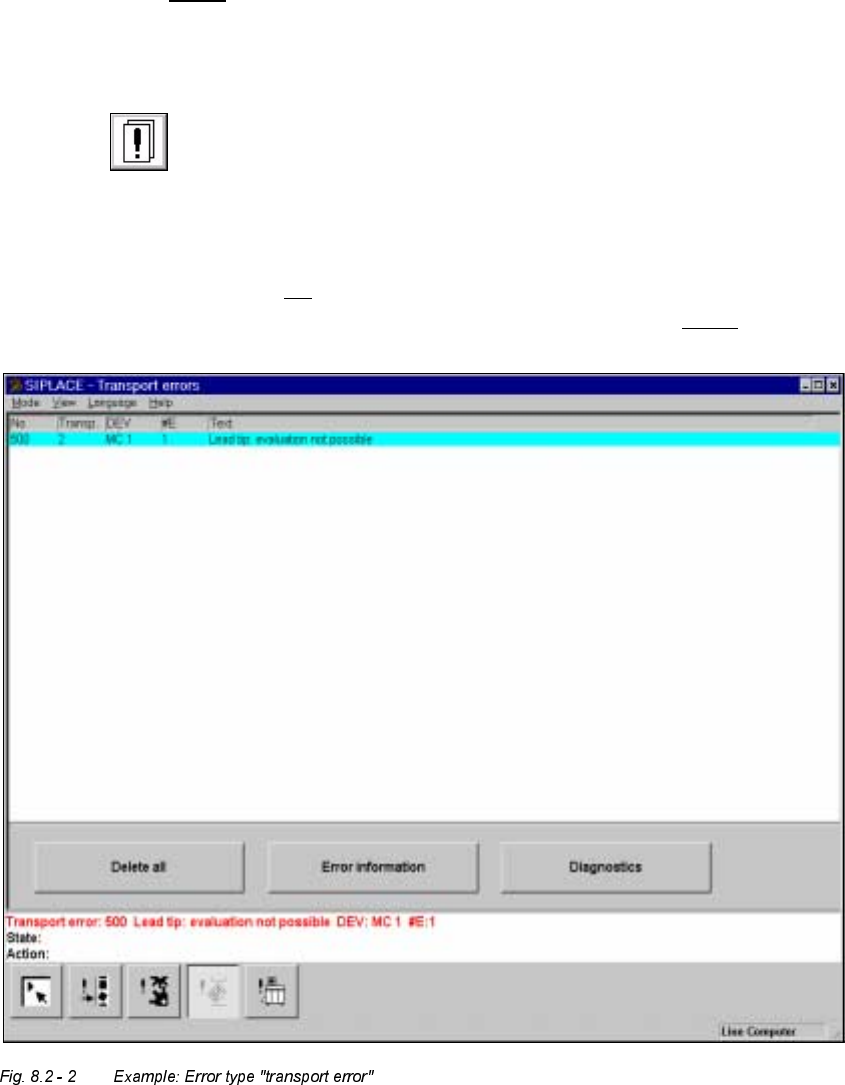
Å Click the icon in the toolbar in main view.
The user interface switches to the error display for the last error type to be active. All the
errors of the current error type which have occurred are listed in the display area.
Å If necessary, use the corresponding toolbar icon to switch the view to the required error
type (see Chapter 4, section 4.2
).
The display area is switched to the selected error type (see example in Fig. 8.2 - 2
).
User’s Manual SIPLACE HS-50 8 Error Information
Software Version SR.501.xx Edition 01/99 8.2 Calling error information
343
Å In the error table, select the entry for the error about which you want to be informed. The
selected line is displayed in light blue in the table. The "Error information" button is now
active.
Å Click the (UURULQIRUPDWLRQ button.
The main help system window is opened with information on the currently selected error
(see Fig. 8.2 - 3
).
0HDQLQJRIWKHFRORUVLQWKHHUURULQIRUPDWLRQGLVSOD\
– Red text Error number and error message
– Black text Possible cause(s) of the error
– Blue text Instructions on how to eliminate the error
– Green, underlined text Click to call up additional information on the cause of the
error
and further instructions on how to handle the error