00191369-01.pdf - 第405页
User’s Manual SIPLACE HS-50 12 Station Extensions - Software Software Vers ion SR.501.xx E dition 01/99 12.2 GE M In terfac e 403 *(0 ,QWHUIDFH *HQHUDO ([SODQDWLRQ RI 7 HUPV GEM => * eneric ( qui pmen…
12 Station Extensions - Software User’s Manual SIPLACE HS-50
12.1 Remote Support Software Version SR.501.xx Edition 01/99
402
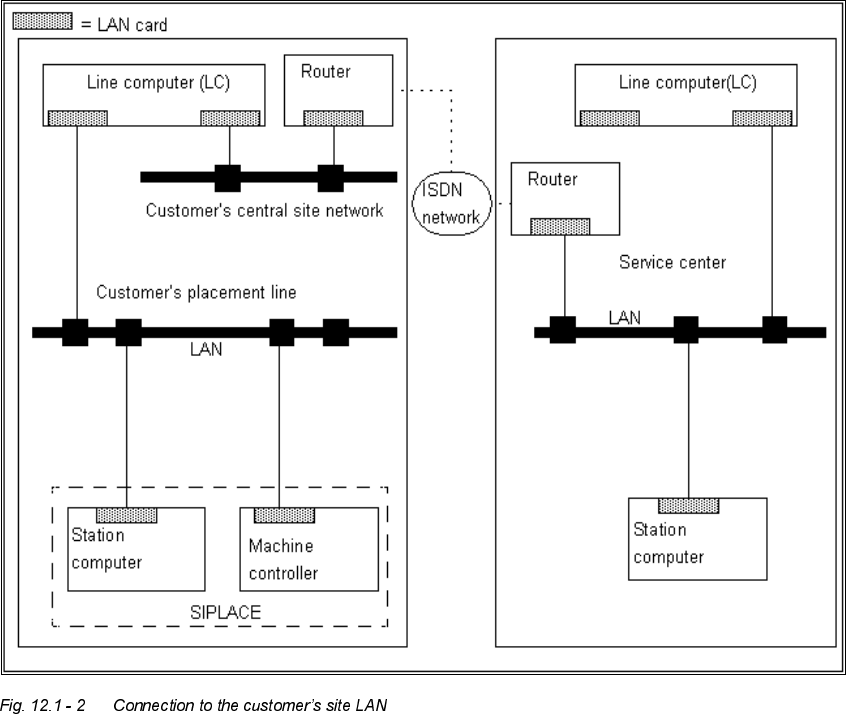
&RQQHFWLQJWKH ,6' 1URXWHU WRWKHFXVWRPHU¶VVLWH/$1
The advantage of this alternative is that several placement lines can be addressed via a single
router.
3URFHGXUHDQG2SHUDWLRQ
Å Contact our service center (Munich, Norcross or Singapore).
Å Follow the instructions given by the engineer.
User’s Manual SIPLACE HS-50 12 Station Extensions - Software
Software Version SR.501.xx Edition 01/99 12.2 GEM Interface
403
*(0 ,QWHUIDFH
*HQHUDO
([SODQDWLRQ RI7HUPV
GEM => *eneric(quipment0odel
SECS-II => 6emiconductor (quipment &ommunication 6tandard, 3art 2
Host computer => Communications computer
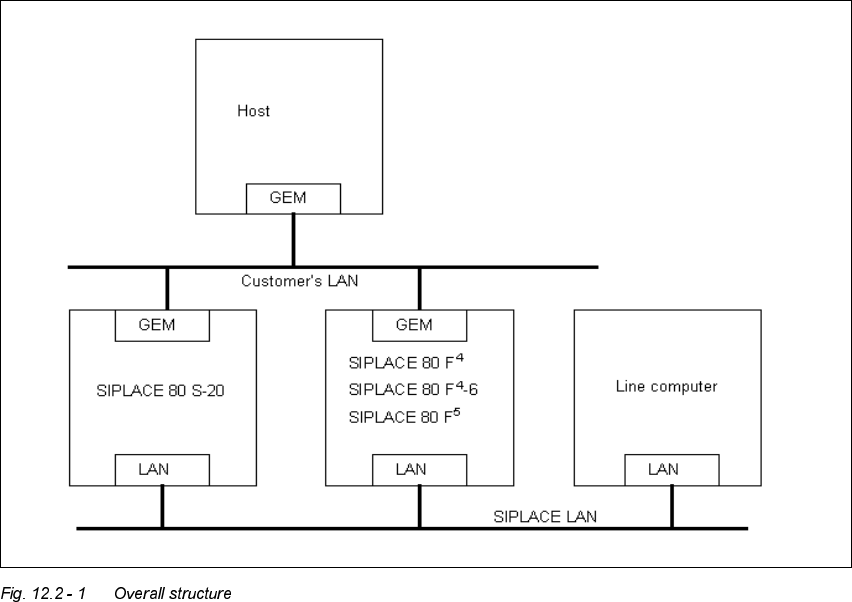
WIth the GEM/SECS-II interface, it is possible to control a SIPLACE station using any host
computer which is compatible with GEM. However, the station computer at the SIPLACE sta-
tion must be left connected to the line computer to allow the machine, set-up and cluster data
to be programmed and loaded into the station computer. The station computer packs this data
in a placement program and makes this available to the host computer for uploading. During
operation, and depending on the control mode, the host or line computer provides the SI-
PLACE station with the necessary machine, set-up and cluster data or with the placement pro-
gram.
12 Station Extensions - Software User’s Manual SIPLACE HS-50
12.2 GEM Interface Software Version SR.501.xx Edition 01/99
404
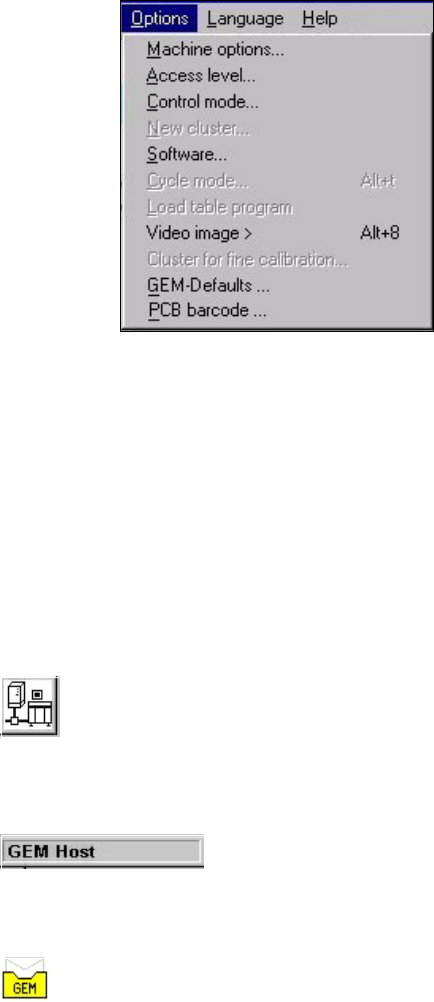
The figure below presents the "Options" menu which is present in the menu bar of the user
interface. This menu contains the options for the GEM interface settings.
0HQX2SWLRQVIRUWKH*(0,QWHUIDFH
– &RQWUROPRGH
This opens a dialog box which is used to set the control mode at the GEM computer.
– *(0'HIDXOWV
This opens the window used to specify the default settings for the GEM interface.
&RQWUROVDQG,QGLFDWRUVLQWKH*(0,QWHUIDFH
This button switches the user interface to "State view" mode. (Load placement program, send/
receive message)
The current control mode is displayed in a separate area in the user interface’s information
bar.
The icon displayed in the user interface’s status area (on the right-hand side) indicates the cur-
rent status of the connection to the GEM computer.