00197787-02_SI_SIPLACE_HeadVerification_EN.pdf - 第14页
3 Head verification principles 3.1 Starting the offline head verification 14 Software Manual SIPLACE Head Verification 03/2018 3.1.3 Helpful HCS functions 3.1.3.1 Adding users The operator is set up by default. If more p…
3 Head verification principles
3.1 Starting the offline head verification
Software Manual SIPLACE Head Verification 03/2018 13
3.1.2 Head not recognized
To be able to verify a head with the HCS, the embedded software (eSW) of the head must match
the installed Serio version. If the firmware version of the installed head is older than required, the
eSW must be updated.
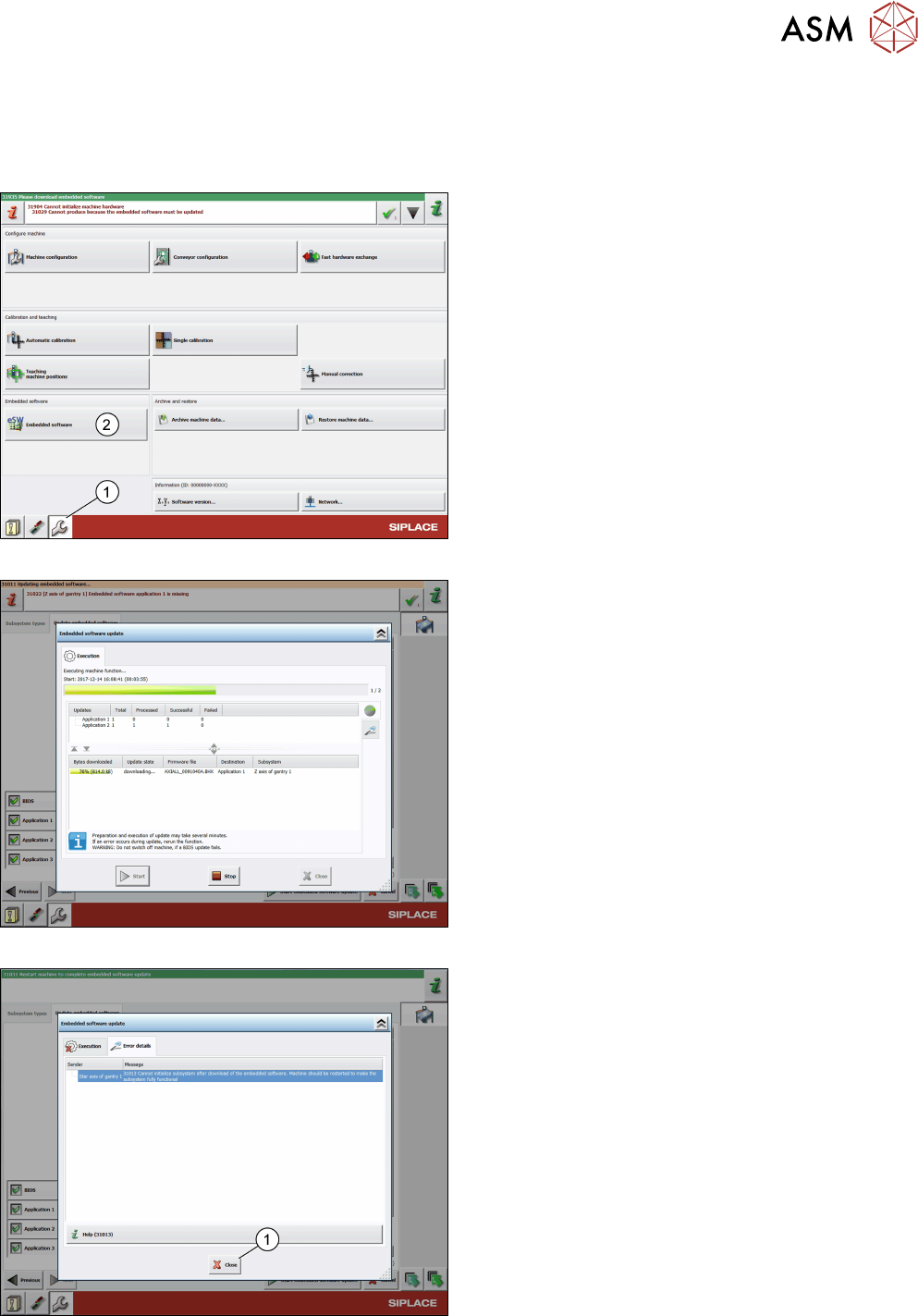
Fig.6: eSW download
Update the eSW:
► Log on as machine service.
► Click the Configure, update and calibrate the
machine icon(1).
► Click the Embedded software button(2).
Fig.7: eSW download in progress
► Click Update machine.
► Click Next.
► Click Start embedded software update.
Fig.8: eSW download finished
► Click Close.
► Shut down the HCS.
► Switch off and restart the system.
3 Head verification principles
3.1 Starting the offline head verification
14 Software Manual SIPLACE Head Verification 03/2018
3.1.3 Helpful HCS functions
3.1.3.1 Adding users
The operator is set up by default. If more persons are required, they can be added to the list using
the Add user function:
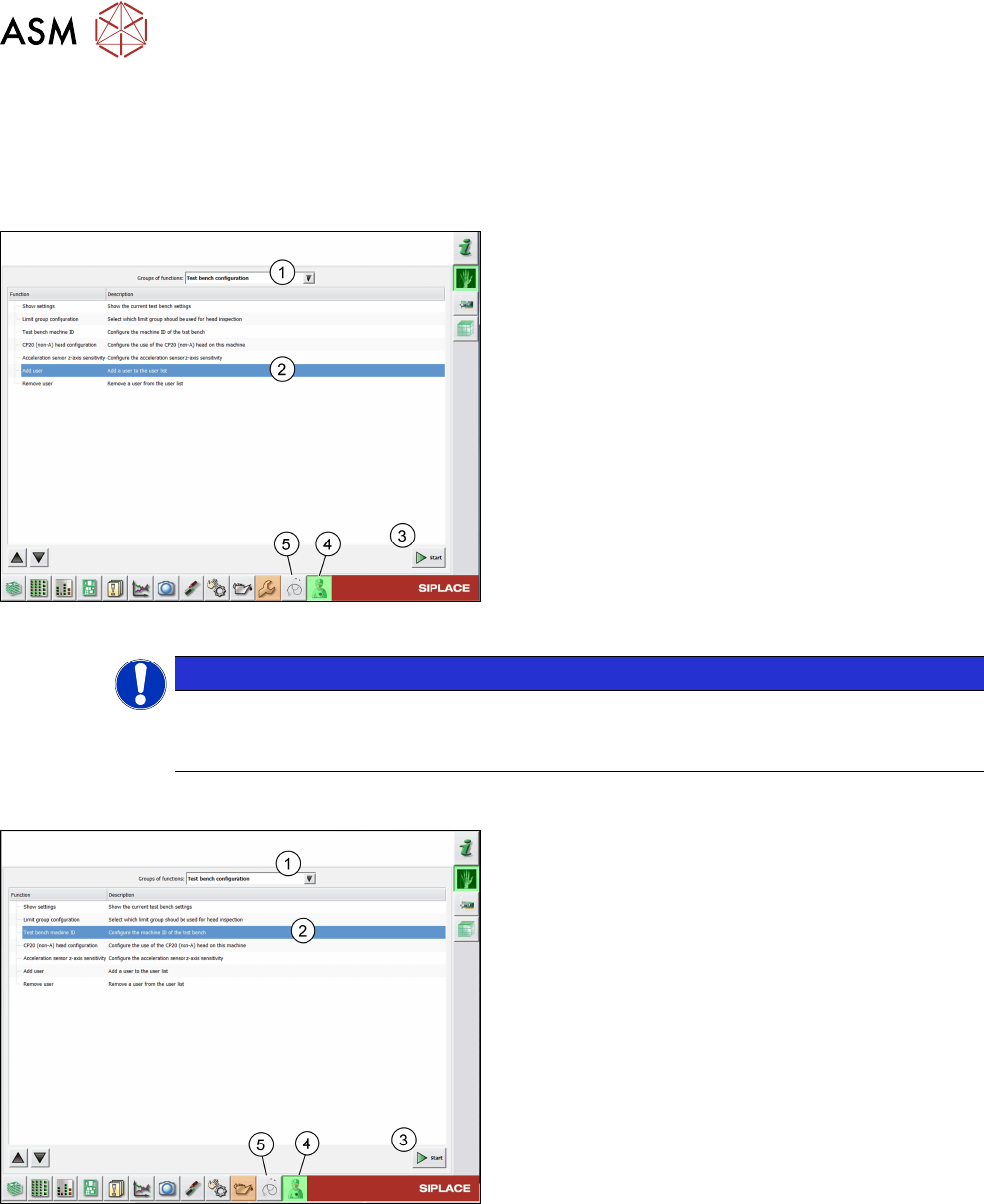
Fig.9: Add user function
► Click the Test bench service icon(4).
► From the list, select Test bench configura-
tion(1).
► Select the Add user function(2).
► Click the Start button(3).
► Enter a name and click OK.
ð The user is now available in the Tester list on
the Meta data tab.
► Click the Test bench inspection icon(5) to re-
turn to the Meta data tab.
NOTICE
Removing users
To remove a user, select the Remove user function and proceed as described for Adding
users.
3.1.3.2 Modifying the test bench configuration
Fig.10: Test bench machine ID function
► Click the Test bench service icon(4).
► From the list, select Test bench configura-
tion(1).
► Select the Test bench machine ID function(2).
► Click the Start button(3).
► Enter the HCS ID written on the type plate or on
the label below the pneumatic unit and click OK.
► Click the Test bench inspection icon(5) to re-
turn to the Meta data tab.
3 Head verification principles
3.1 Starting the offline head verification
Software Manual SIPLACE Head Verification 03/2018 15
3.1.3.3 Checking / modifying the zero point correction
The individual measurements of a head verification process are performed using the data that is
stored in the SIPLACEmachine configuration. In some cases, the data readout from the machine
does not match the machine data of the HCS. Therefore, it is recommended to check / modify the
data before running the head verification.
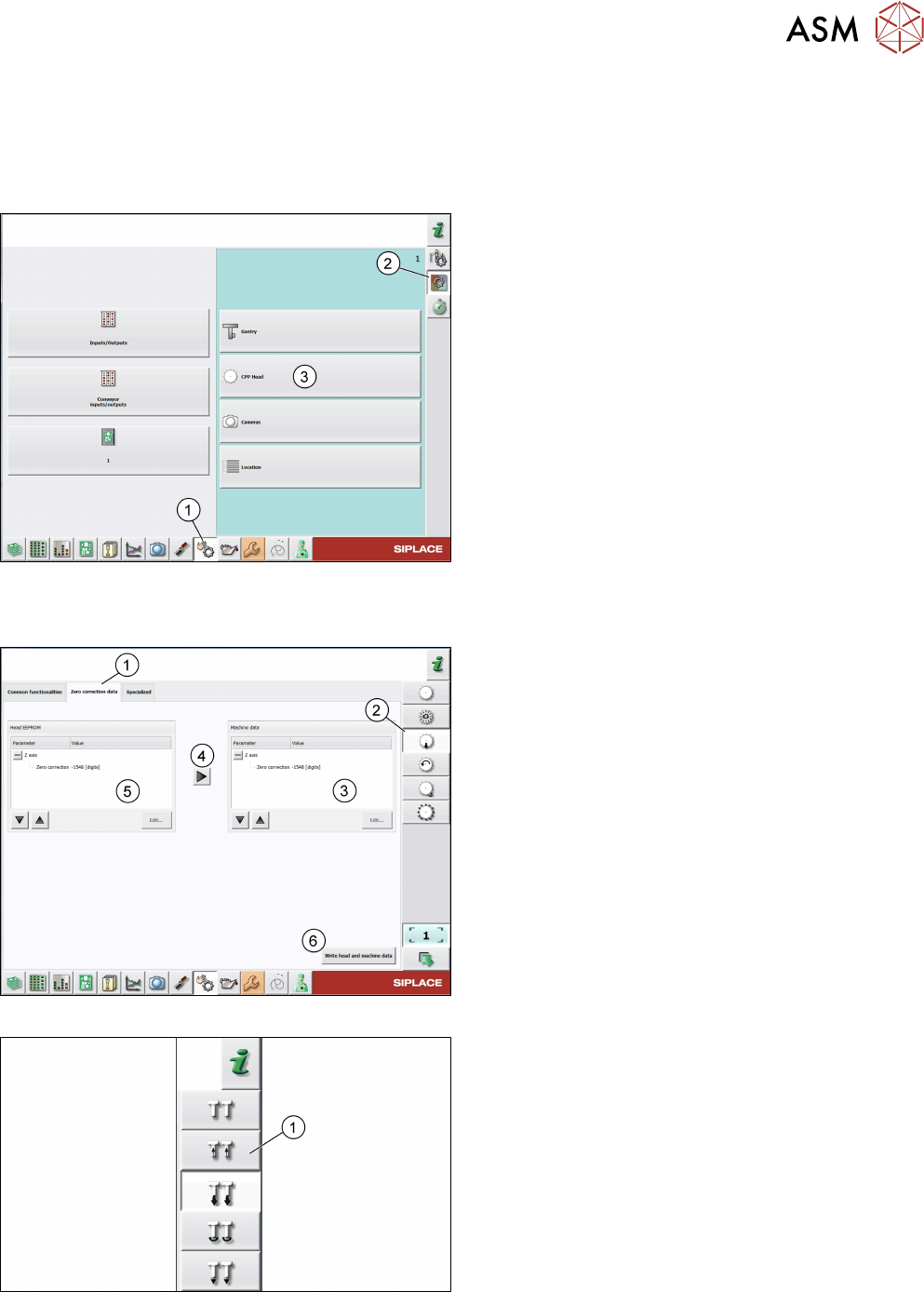
Fig.11: Check sensors and functions
► Click the Check sensors and functions icon(1).
► Click the Check sensors and functions of spe-
cific components icon(2).
► Open the head functions for the installed
head(3), for example, the CPP head.
Checking the zero correction data of the Z-axis
Fig.12: Zero correction data of Z-axis of C&P heads
For C&P heads, proceed as follows:
► Log on as machine service.
► Click the Check sensors and functions of Z-
axis icon(2).
► Click the Zero correction data tab(1).
► Compare the machine data(3) to the head
EPROM data(5).
► If the head EPROM data(5) is to be used, click
the arrow(4) to overwrite the machine data(3) or
click Edit… and enter the zero correction data.
► To save your settings, click the Write head and
machine data button(6).
Fig.13: Zero correction data of Z-axis of P&P modules
► For P&P modules, proceed as for C&P heads,
but note that the Check sensors and functions
of Z-axis icon(1) is different.