00197787-02_SI_SIPLACE_HeadVerification_EN.pdf - 第22页
3 Head verification principles 3.3 Head verification software 22 Software Manual SIPLACE Head Verification 03/2018 3.3.6 End of measurement – Summary When all measurements are finished, the system automatically opens the…

3 Head verification principles
3.3 Head verification software
Software Manual SIPLACE Head Verification 03/2018 21
3.3.5 Test details
During the head verification you can investigate on the test details achieved.
Fig.22: Force LS (dynamic) test – Details view
1 Different graphs showing the measurement details for each segment:
●
The red lines indicate the limits shown in the header of the table below the graph.
●
The values for each segment are indicated by blue or green dots and lines.
2 Button to expand the graph for a more detailed view.
3 Table showing the measured segments, the defined limits, the individual data and the
achieved results.
4 Show overview button to return to the Progress view.
5 Arrow buttons to navigate through individual measurements.
6 Red arrow buttons to navigate through failed measurements.
7 Stop/Cancel buttons
NOTICE
Live image display
For measurements using the camera, a live image is displayed in the right corner of the
Progress tab.
3 Head verification principles
3.3 Head verification software
22 Software Manual SIPLACE Head Verification 03/2018
3.3.6 End of measurement – Summary
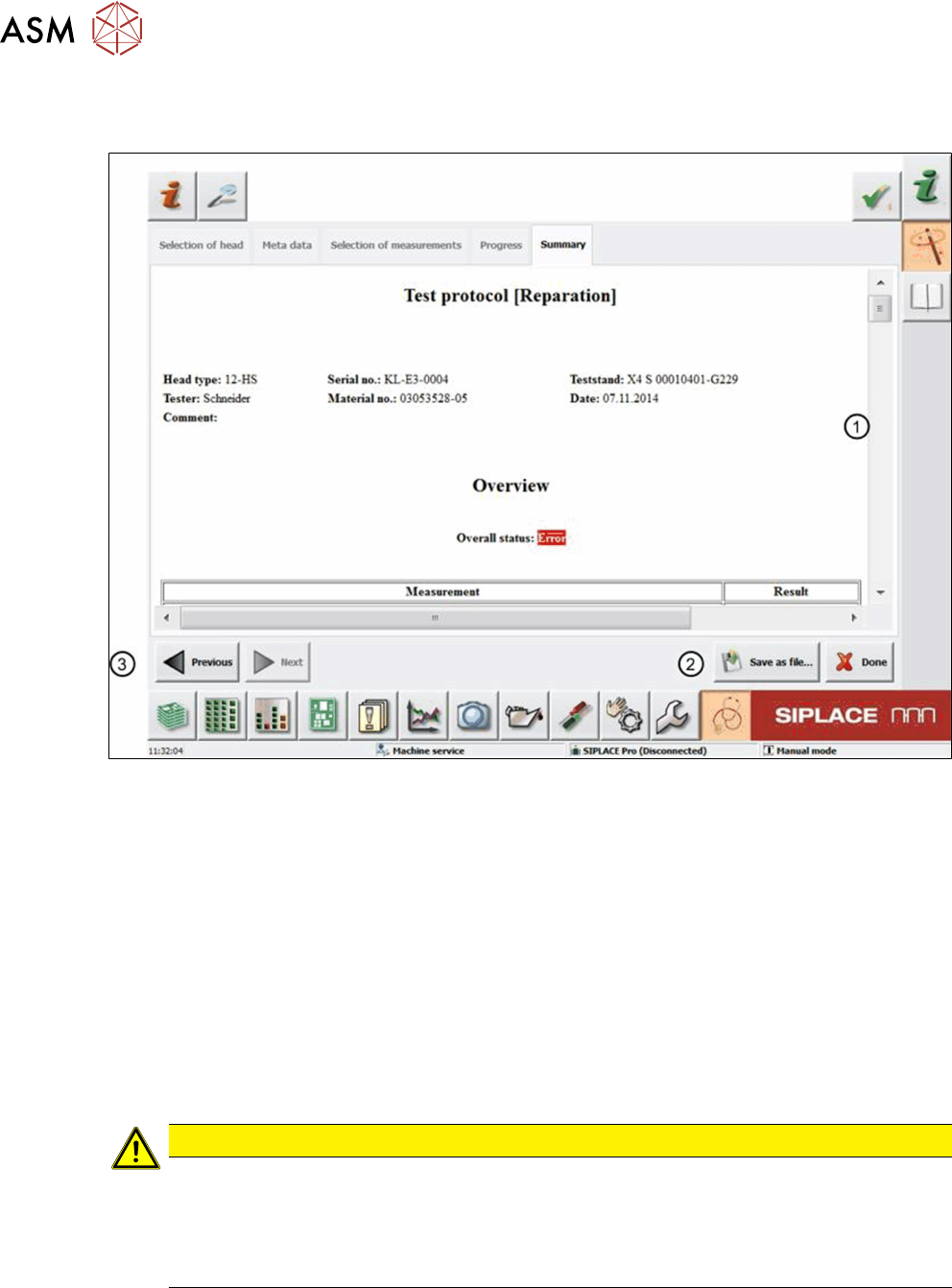
When all measurements are finished, the system automatically opens the protocolview(1).
Fig.23: Summary tab
1 Protocol overview
2 Save as file button
3 Previous button
If the Overall status shows an ‘Error’, one or more tests failed or could not be finished.
Following the Overall status, an overview of all measurements is displayed indicating if a meas-
urement was successful or failed, or if the test was skipped. Following that, test details for each
measurement are shown.
The protocol is automatically saved to a PDF file in D:\Protocols to a specified folder correspond-
ing to the verified head. Nevertheless, you can still save the protocol to a favored target folder:
► To close the current head verification, click the Done button.
CAUTION
Head verification process data removed
If you click the Done button, the current head verification will be closed and all temporary
data will be deleted. In this case, the result is only available in the PDF that is automatically
saved to D:\Protocols.
► Only click Done when you are sure to close the current head verification.

4 Offline head verification
4.1 Preliminary steps
Software Manual SIPLACE Head Verification 03/2018 23
4 Offline head verification
4.1 Preliminary steps
NOTICE
Complete head required
A comprehensive C&Phead verification requires a component camera.
For the offline head verification, the HCS needs to be prepared in accordance with the head to be
verified. The table below provides an overview of the preparations required.
For more information, see the SIPLACE Head Care Station User Manual [00197262-04].
Task C&P20A C&P20P CPP P&P
(TH)
► Install the "Stopper CP20-CPP”. x x x
► Install the "Stopper P+P". --- --- --- x
► Prepare the "Calibration tool pocket" for
"Calibration tool version SST23".
x x --- ---
► Prepare the "Calibration tool pocket" for
"Calibration part version 3".
--- --- x ---
► Connect the cable at the back to the "Ad-
apter-LP CPP/CP20-HCSII".
x x x ---
► Connect the cable at the back to the "Board
Adapter-LP TWIN-HCSII".
--- --- --- x
► Set the switch at the back. 40V 40V 150V ---
► Mount the head equipped with nozzles. 1235 4235 2057 517
► Connect the camera cables. 2x 2x 2x ---
► Connect the flat ribbon cables. 2x 2x 2x 2x
► Connect the compressed air / vacuum pump
supply.
2x 2x 2x 2x
► Connect the exhaust hose. x x x x
► Switch on the control box. x x x x
► Switch on the head. x x x x
► Start the Test Bench software. x x x x
► Log in as “Machine Service”. x x x x
► Check / adjust the zero point corrections. Z / Star Z / Star Z / Star D
► Start the head verification. x x x x
► Adjust the force sensor. x x x x
► Open the main compressed air supply at the
back.
x x x x
► Open the valves for the required compressed
air / vacuum supply.
x x x x
► Check / adapt the meta data x x x x