00197457-01_IM_EDM_2.2_en.pdf - 第17页
EDM V2.2 / I nstal lation M anual 10/2013 Edit ion 17 5 Upgra ding t o the EDM 2.2 Vers ion This chapter des cribes whi ch steps you have to attend when up grading f rom previous s oftware ver sions. 5.1 Conditi ons / D …
EDM V2.2 / Installation Manual 10/2013 Edition
16
4.7 File System Folder Structure
By default, the EDM Setup creates the following subdirectories on the computer's file system.
4.7.1 Standard Installation Path
Default value: "%ProgramFiles%\SIPLACE\SIPLACE EDM"
This path points to the installation directories of the EDM files that are considered read-only during
"normal" operation. During installation, the user has the possibility to change this path to another
location (the actual EDM Installation folder can be determined by examining the registry value of:
"HKEY_LOCAL_MACHINE\SOFTWARE\Wow6432Node\Siemens SIPLACE\EDM\SetupLog\CurrentVersion\Path")
Folder Contents
SIPLACE EDM Applications and libraries
Database Database for change notifications and Clearing Pool
(Master Server only )
DBScripts Scripts to create and access the database (Master Server only)
de, en, … Language-dependent resources
help Online documentation
Table 4-1: Folders of the default installation path
4.7.2 EDM Data Path
Default value: "%ProgramData%\SIPLACE\SIPLACE EDM"
This path is the location where SIPLACE EDM puts its variable data and log files. This location can
be changed by modifying the "DataDir" and "ConfigDir" EDM registry settings, see EDM User
Guide.
Folder Contents
config Application configuration, client workflow configuration, filter
configuration, email configuration and logging configuration.
See EDM User Guide for details about the contents of this folder.
logs Log files (for debugging among other things)
config\templateStorage Storage location for application templates
Table 4-2: Folders of the EDM data path
NOTICE
Under Windows XP, the config, templateStorage and logs folders are located under the
standard installation path.
EDM V2.2 / Installation Manual 10/2013 Edition
17
5 Upgrading to the EDM 2.2 Version
This chapter describes which steps you have to attend when upgrading from previous software
versions.
5.1 Conditions / Downward Compatibility
Installing different versions of EDM on Master and Client should be avoided. If different versions of
SIPLACE Pro are used on the EDM Master and the EDM lines, some restrictions apply because
the format of the data transferred depends on the SIPLACE Pro version used. During an upgrade,
the Master Server, all Line Servers and all Clearing Pools must therefore be converted to EDM 2.2
(and thus to SIPLACE Pro 11.1).
EDM 2.2 can use all templates that were created for EDM 1.1 or later, as well as custom workflows
from EDM 1.1 or later.
CAUTION
Please read section Notifications / Rules… in the EDM User Guide (item no.:
[00197458-xx]) before converting any filter from EDM 2.0 or earlier to EDM 2.2.
Existing filter settings on the EDM Master are retained and updated, but it is recommended that
you manually inspect the converted file (it may be that your own custom changes have been
superseded by improvements to the default configuration).
5.2 Simultaneous Upgrade over All Lines
Where possible, production on all the lines to be upgraded should be suspended for the duration of
the upgrade. As soon as all the components have been converted, production can be restarted.
Perform the upgrade operation as follows:
1. Interrupt production on all the lines to be upgraded.
2. Transfer all notifications from the Line Servers to the Master Server.
3. Accept/reject all notifications in the Clearing Pool.
4. Close all EDM applications.
5. Install SIPLACE Pro and then the EDM Master Server (with Configuration Server) on the
Master Server.
6. Install SIPLACE Pro and then EDM Line Server on all lines. After installing an EDM Line
Server, the production on that EDM Line can be resumed immediately.
CAUTION
To avoid all notifications still in the Clearing Pool from being lost, the EDM database
must not be deleted.
7. Resume production.
Simultaneous upgrade across all the lines is to be preferred to a step-by-step upgrade of individual
lines (insofar as this is possible).
EDM V2.2 / Installation Manual 10/2013 Edition
18
5.3 Step-by-step Upgrade of Individual Lines
Since it is not always possible to perform a simultaneous upgrade across all the lines, EDM
provides a step-by-step upgrade procedure that permits restricted operation of an EDM 2.2 Line
Server in conjunction with a Master Server from an earlier version for the duration of the upgrade.
CAUTION
This compatibility mode should not be used for long-term mixed operation of an EDM 2.2
Line Server with a Master Server from an earlier version of EDM.
During the step-by-step upgrade, it is still possible for an EDM Line Server to pull/push data from
the Master Server. However, it is not possible to transfer modified objects into the Master Server.
All the notifications that arise during that period are saved in the Clearing Pool and can be
transferred to the EDM Master Server when the step-by-step upgrade has been terminated by
upgrading the Master Server.
It is recommended to carry out gradual upgrading of individual lines as follows:
1. Prepare another computer to hold a temporary, standalone EDM Configuration Server (EDM
2.2) and run the EDM Configuration Server setup type EDM Configuration Server. If another
computer or virtual machine is not available, the Configuration Server may be installed along
with the first upgraded EDM Line in step 5. The current configuration should be copied to the
new Configuration Server before installing EDM – otherwise it will not be upgraded correctly.
2. Interrupt production on one of the lines to be upgraded.
3. Transfer all notifications from the Line Server of this line to the Master Server.
4. Upgrade SIPLACE Pro to the new version on the Line Server of this line.
5. Install the EDM Line on the Line Server of this line and make it using the standalone
configuration server. If you have chosen not to use a standalone server for upgrading the first
Line server, proceed as follows instead:
► Select the "EDM Line" and "Configuration Server" options within the "Custom Setup" setup,
in order to provide a Configuration Server.
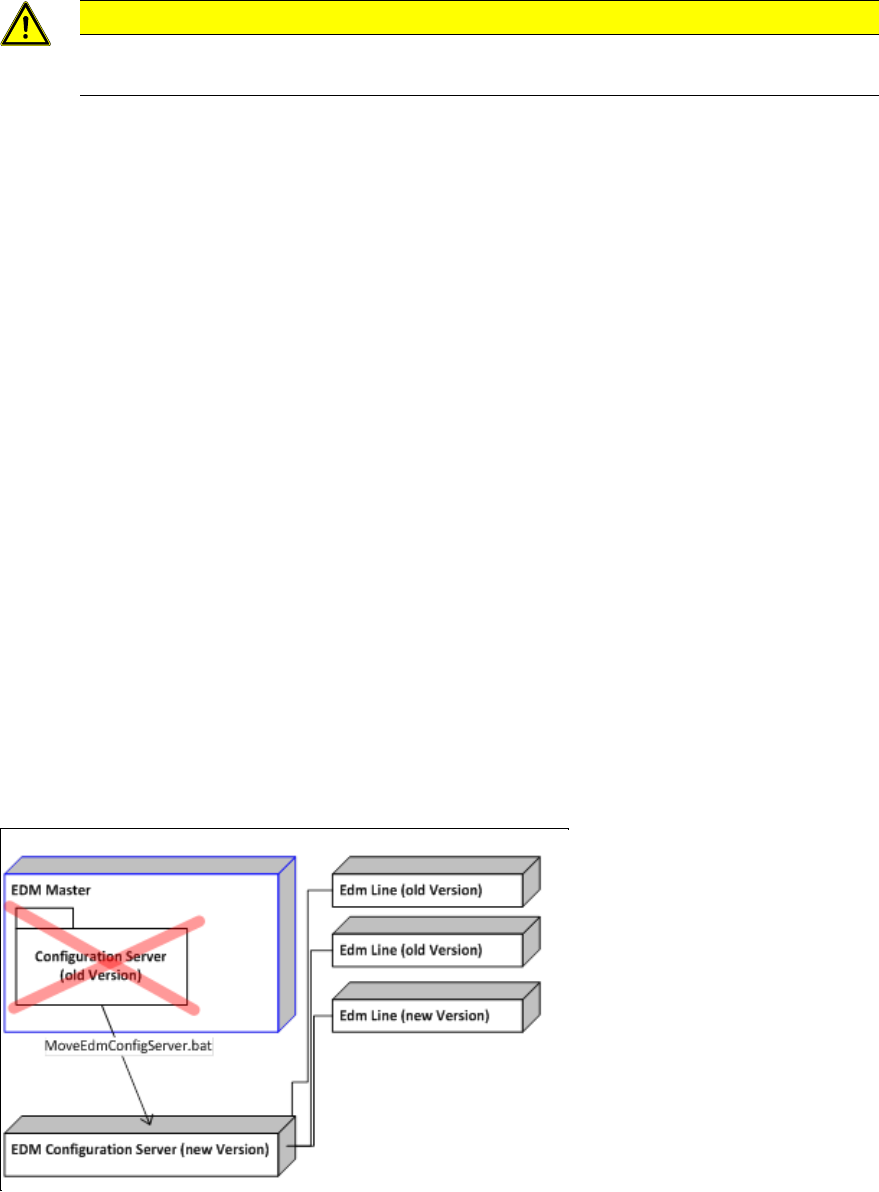
6. If the old version already uses a Configuration Server (e.g. EDM 2.0), run the script
MoveEdmConfigServer.bat, located in the Tools subdirectory of the EDM installation path, on
the temporary Configuration Server to move all the EDM Clients attached to the old
configuration server as well as all configuration settings to the temporary EDM 2.2
Configuration Server.
7. Resume production on this line.
Figure 6-1: Configuration Server distribution after step 6, if upgrading from EDM 2.0
8. Repeat steps 1-5 for the other lines to be upgraded.