00197457-01_IM_EDM_2.2_en.pdf - 第19页
EDM V2.2 / I nstal lation M anual 10/2013 Edit ion 19 As soon as each ED M Line Server has been u pgraded , you sho uld proc eed to update the EDM Master: C AU T I O N To avoid a ll notif ications still in th e Cleari ng…
EDM V2.2 / Installation Manual 10/2013 Edition
18
5.3 Step-by-step Upgrade of Individual Lines
Since it is not always possible to perform a simultaneous upgrade across all the lines, EDM
provides a step-by-step upgrade procedure that permits restricted operation of an EDM 2.2 Line
Server in conjunction with a Master Server from an earlier version for the duration of the upgrade.
CAUTION
This compatibility mode should not be used for long-term mixed operation of an EDM 2.2
Line Server with a Master Server from an earlier version of EDM.
During the step-by-step upgrade, it is still possible for an EDM Line Server to pull/push data from
the Master Server. However, it is not possible to transfer modified objects into the Master Server.
All the notifications that arise during that period are saved in the Clearing Pool and can be
transferred to the EDM Master Server when the step-by-step upgrade has been terminated by
upgrading the Master Server.
It is recommended to carry out gradual upgrading of individual lines as follows:
1. Prepare another computer to hold a temporary, standalone EDM Configuration Server (EDM
2.2) and run the EDM Configuration Server setup type EDM Configuration Server. If another
computer or virtual machine is not available, the Configuration Server may be installed along
with the first upgraded EDM Line in step 5. The current configuration should be copied to the
new Configuration Server before installing EDM – otherwise it will not be upgraded correctly.
2. Interrupt production on one of the lines to be upgraded.
3. Transfer all notifications from the Line Server of this line to the Master Server.
4. Upgrade SIPLACE Pro to the new version on the Line Server of this line.
5. Install the EDM Line on the Line Server of this line and make it using the standalone
configuration server. If you have chosen not to use a standalone server for upgrading the first
Line server, proceed as follows instead:
► Select the "EDM Line" and "Configuration Server" options within the "Custom Setup" setup,
in order to provide a Configuration Server.
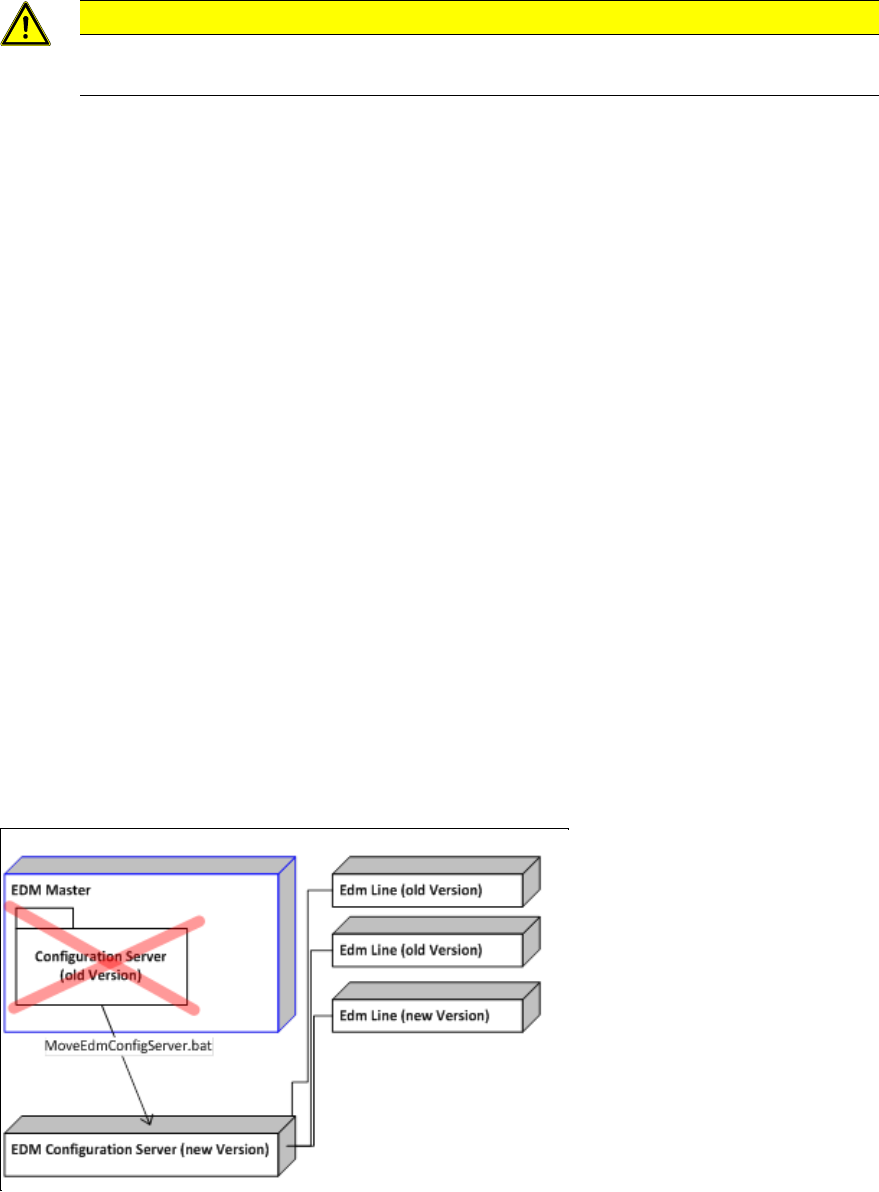
6. If the old version already uses a Configuration Server (e.g. EDM 2.0), run the script
MoveEdmConfigServer.bat, located in the Tools subdirectory of the EDM installation path, on
the temporary Configuration Server to move all the EDM Clients attached to the old
configuration server as well as all configuration settings to the temporary EDM 2.2
Configuration Server.
7. Resume production on this line.
Figure 6-1: Configuration Server distribution after step 6, if upgrading from EDM 2.0
8. Repeat steps 1-5 for the other lines to be upgraded.
EDM V2.2 / Installation Manual 10/2013 Edition
19
As soon as each EDM Line Server has been upgraded, you should proceed to update the EDM
Master:
CAUTION
To avoid all notifications still in the Clearing Pool from being lost, the EDM database
must not be deleted.
9. Shut down the EDM service and stop all EDM applications on the Master Server.
10. Upgrade SIPLACE Pro on the Master Server.
11. Upgrade SIPLACE EDM on the EDM Master Server using the EDM Master or EDM Master
with Clearing Pool setup type.
NOTICE
You might also want to keep the current configuration server. In this case, select
"Custom Setup" and choose the EDM Master and – if needed – the EDM ClearingPool
option, but leave the Configuration Server checkbox unchecked. Step 13 should be
omitted then.
12. Restart the Master Server.
13. Conclude the transition to the new Configuration Server instance with one of these options:
► Manually change the Configuration Server setting on all EDM Lines that used the
temporary Configuration Server to point to the Master Configuration Server (see EDM User
Guide, item no.:[00197458-xx].
► Run the script MoveEdmConfigServer.bat, located in the Tools subdirectory of the EDM
installation path, on the new Configuration Server to move all the EDM Clients attached to
the temporary configuration server as well as all configuration settings to the local
Configuration Server.
CAUTION
This script deletes all settings on the local configuration server, overwriting them with
copies of the source configuration server.

EDM V2.2 / Installation Manual 10/2013 Edition
20
6 Basic Configuration
This chapter describes some basic settings that have to be adapted after installation. Further
configuration steps and advanced settings can be found in the EDM User Guide, item no.
[00197458-xx].
6.1 Settings in SIPLACE Pro Desk
To guarantee proper operation of SIPLACE EDM, it is necessary to change some settings in
SIPLACE Pro Desk.
● SIPLACE EDM associates objects on the Master Server and the Line Servers using their
names, i.e. an object must have the same name on all computers. It is recommended to
suppress the ability to rename and create objects on EDM lines using the user permissions
management facilities in SIPLACE Pro.
● The Vision Data Manager (VDM) must be activated on all SIPLACE Pro Desk installations that
are to participate in EDM to allow Vision data (BLOBs), camera parameters and illumination
parameters to be processed for the line and the station.
● Some settings for SIPLACE Pro Desk (under Tools – Settings - General Settings) must be
consistent across all EDM Client computers and the EDM Master. Currently, this only applies to
the two options for the extended custom nozzle number range (Twin Head and CPP head)
6.2 EDM-specific Settings
CAUTION
After any change has been made (and saved) to the configuration, the changes will
immediately be applied to the local EDM service. If the "Send configuration" prompt is
confirmed, the changes will be distributed immediately to all selected EDM Configuration
Clients.
6.2.1 Basic EDM Configuration Dialogs
During the setup procedure, the user might want to adjust several vital settings. Based on the setup
type, two different dialogs are available.
6.2.1.1 Basic Configuration for Configuration Server
The Configuration Server Basic Configuration dialog is presented during the setup procedure.
If needed, the dialog is recalled via the EDM Post-Configuration Tool shortcut in the
SIPLACE EDM\Tools start menu.