Printer 710_810 v8 High Throughput Conveyor Module.pdf - 第21页
HIGH THROUG HPUT CONVE YOR (HTC ) MODULE ADJUS TMENT S AND SET TINGS Chapter Issue 3 Oct 06 Technical Reference Manual 17.21 Snugger Base Plate Height Adjustment NOTE The Board Clamp Sett ing is als o valid for snuggers,…
HIGH THROUGHPUT CONVEYOR (HTC) MODULE
ADJUSTMENTS AND SETTINGS
17.20 Technical Reference Manual Chapter Issue 3 Oct 06
19. Repeat Steps 17 - 18 for the front rail.
20. Refit the belt guide to either side of the rear rail belt support plate.
21. Refit the belt guide to either side of the front rail belt support plate.
22. Ensure correct operation of the board clamps after any adjustment is made.
Board Clamp
Regulator
For information on setting the board clamp regulator, refer to the Pneumatic
Module chapter.
Foil-less Clamp
Height Adjustment
NOTE
The Board Clamp Setting above is also valid for foil-less clamps, this is factory
set and shouldn’t normally need to be adjusted. If adjustment is necessary carry
out the above procedure, substituting foil-less clamp for board clamp.
The foil-less clamps are height adjustable to accommodate for different board
thicknesses.
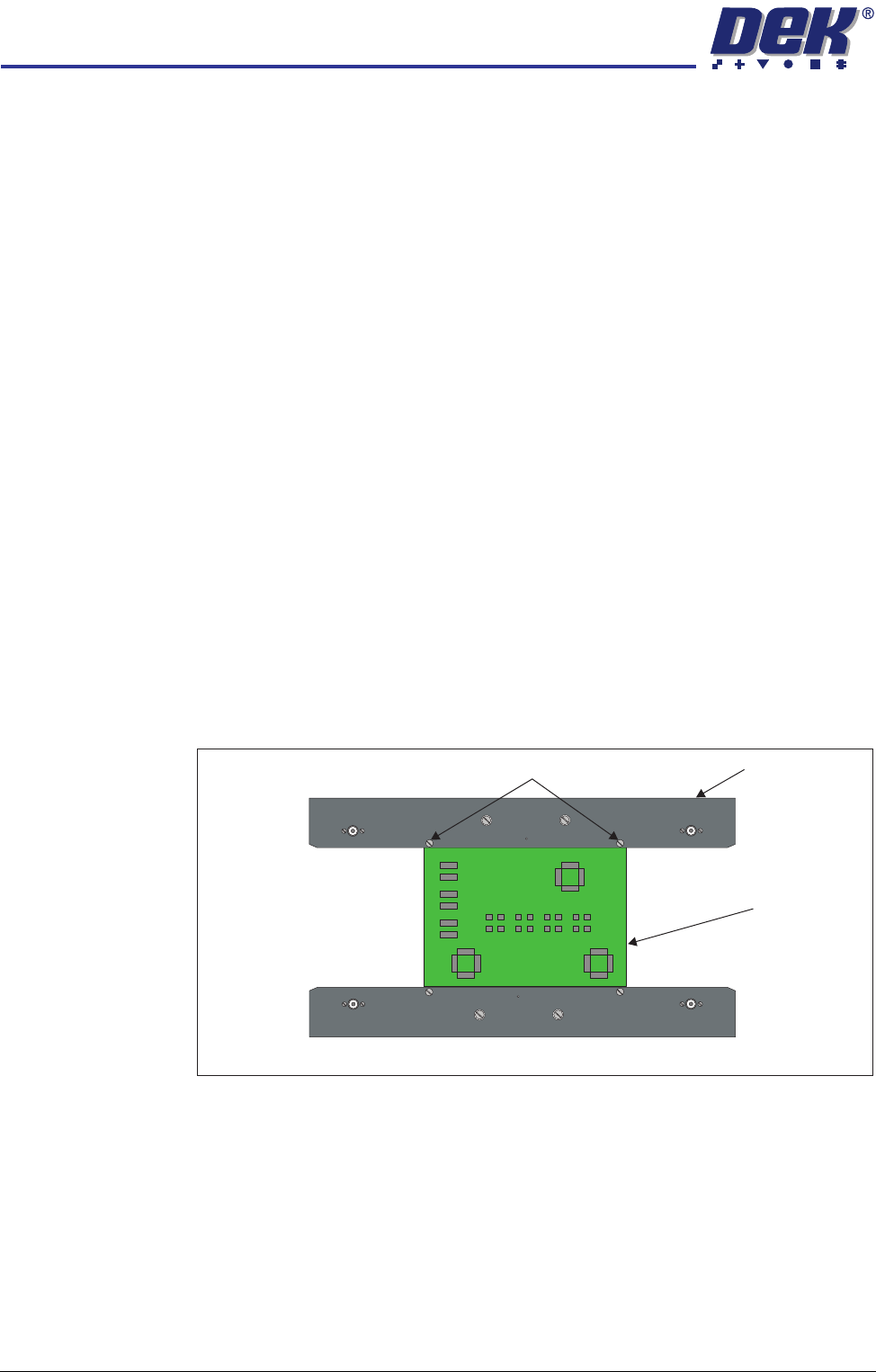
1. Place a product board centrally between the foil-less clamps.
2. In Diagnostics select Rail System.
3. Select Select Module.
4. Select Toggle Board Clamp.
5. Select Run Diagnost.
6. Open the front printhead cover.
7. Adjust the two downstop screws on each foil-less clamp so that the top of
the board and the foil-less clamps are aligned.
8. Close the front printhead cover.
9. Press the System button.
10. Select Toggle Board Clamp.
11. Select Run Diagnost.
12. Remove the product board from the machine and exit from diagnostics.
Downstop Screw
Foil-less Clamp
Product Board
Plan View of Foil-less Clamps
HIGH THROUGHPUT CONVEYOR (HTC) MODULE
ADJUSTMENTS AND SETTINGS
Chapter Issue 3 Oct 06 Technical Reference Manual 17.21
Snugger Base
Plate Height
Adjustment
NOTE
The Board Clamp Setting is also valid for snuggers, this is factory set and
shouldn’t normally need to be adjusted. If adjustment is necessary carry out
Board Clamp Setting, substituting snugger base plate for rear board clamp and
fixed snugger plate for front board clamp.
The snugger base plate and the front snugger plate are height adjustable to
accommodate for different board thicknesses.
1. Place a product board centrally between the snuggers.
2. In Diagnostics select Rail System.
3. Select Select Module.
4. Select Toggle Board Clamp.
5. Select Run Diagnost.
6. Open the front printhead cover.
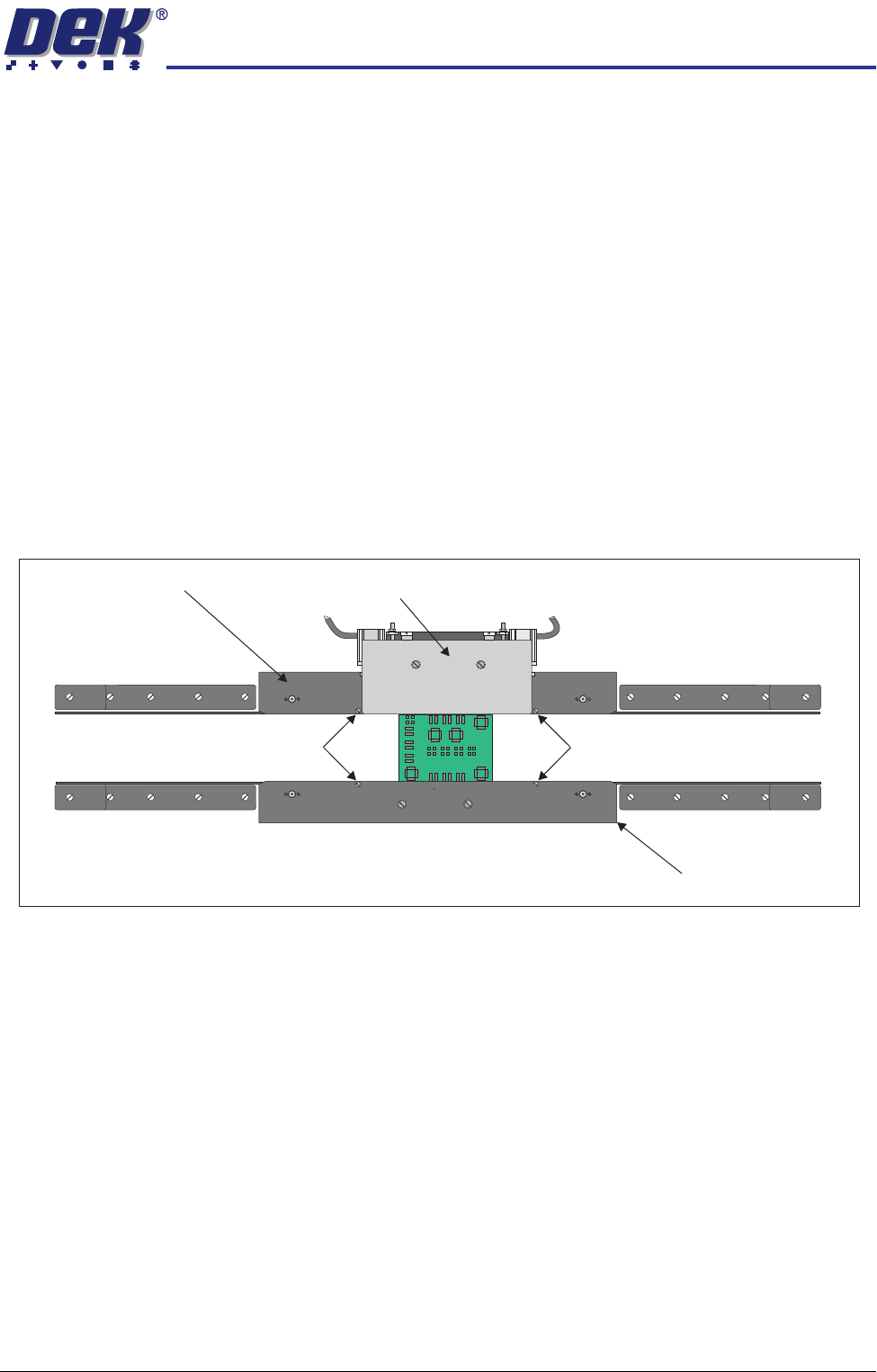
7. Adjust the two downstop screws on the snugger base plate so that the top
of the board and the rear snugger plate are aligned.
8. Adjust the two downstop screws on the front snugger plate so that the top
of the board and the front snugger plate are aligned.
9. Close the front printhead cover.
10. Press the System button.
11. Select Toggle Board Clamp.
12. Select Run Diagnost.
13. Remove the product board from the machine and exit from diagnostics.
Downstop Screws
Downstop Screws
Fixed Rail
Moving Rail
Rear Snugger Plate
Front Snugger Plate
Plan View of Rail System (Showing Board Clamped)
Snugger Base Plate
HIGH THROUGHPUT CONVEYOR (HTC) MODULE
ADJUSTMENTS AND SETTINGS
17.22 Technical Reference Manual Chapter Issue 3 Oct 06
Rear Snugger
Plate Parallelism
1. Open the front printhead cover/shutter.
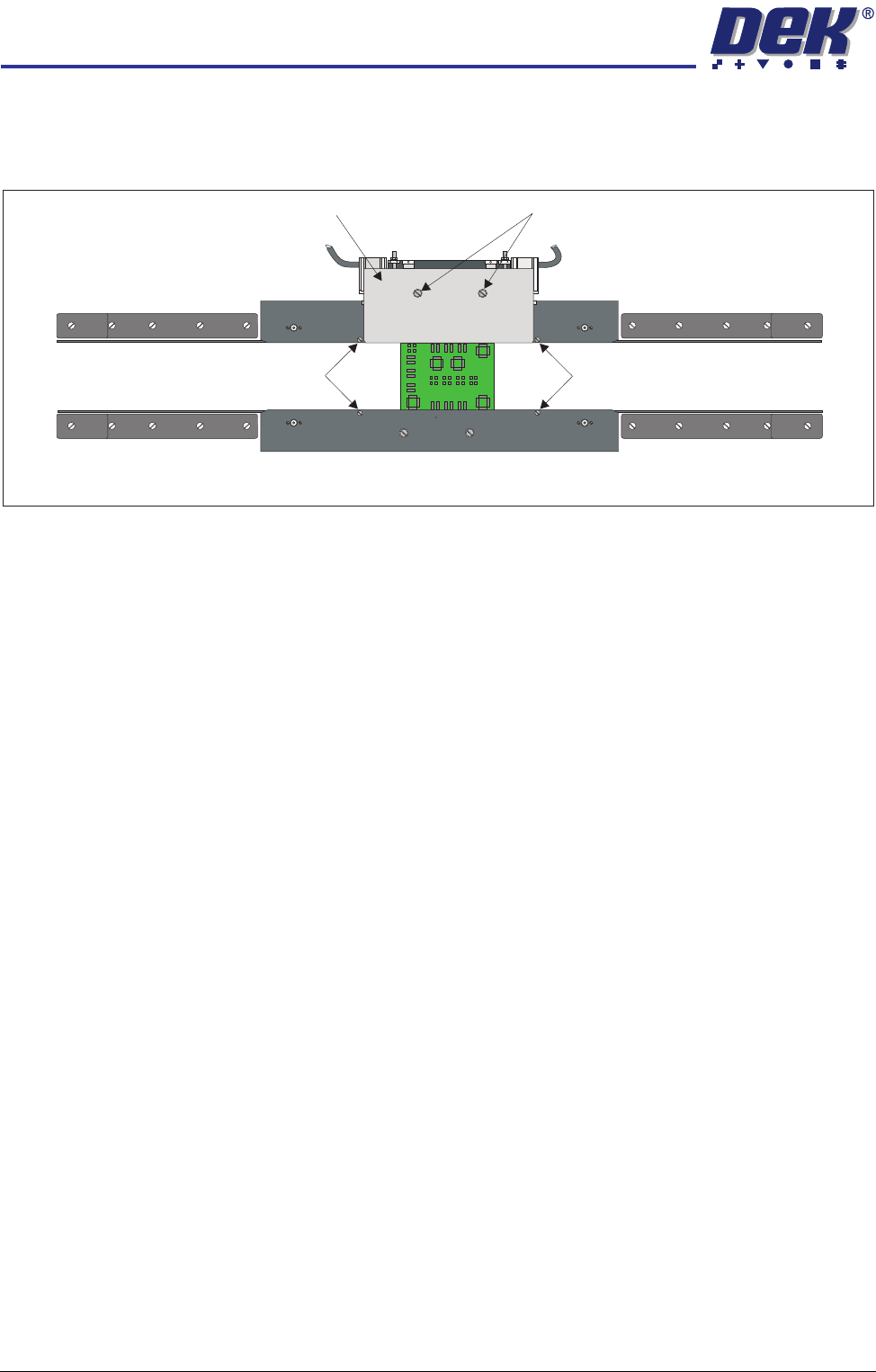
2. Slacken the two rear snugger plate securing screws.
3. Place a product board centrally between the snuggers.
4. In Diagnostics select Rail System.
5. Select Select Module.
6. Select Toggle Board Clamp.
7. Select Run Diagnost. The edge of the rear snugger plate aligns with the
edge of the board.
8. Tighten the two rear snugger plate securing screws.
9. Remove the product board from the machine and exit from diagnostics.
Home Position Rail
Width Check
Ensure that board clamps are fitted and that the Board Clamp Setting procedure
(this section refers) has been carried out.
1. In Diagnostics select Rail System.
2. Select Select Module.
3. Select Home Rail Width.
4. Select Run Diagnost.
5. Select Adjust and set board width to 250mm.
6. Select Exit.
7. Select Drive Rail to Board Width.
8. Select Run Diagnost.
9. Open the front printhead cover/shutter.
Downstop Screws
Downstop Screws
Rear Snugger Plate Rear Snugger Plate Securing Screws
Plan View of Rail System