SIPLACE Station Software 7xx to 714 介绍.pdf - 第108页
Station Software 7xx to 714.0 (R20-2) / Feature Description 11/2020 Edition 108 In the setup overview, the icons are displayed for both proble m situations and the concerne d track is additionally highlighted in orange. …
Station Software 7xx to 714.0 (R20-2) / Feature Description 11/2020 Edition
107
Example
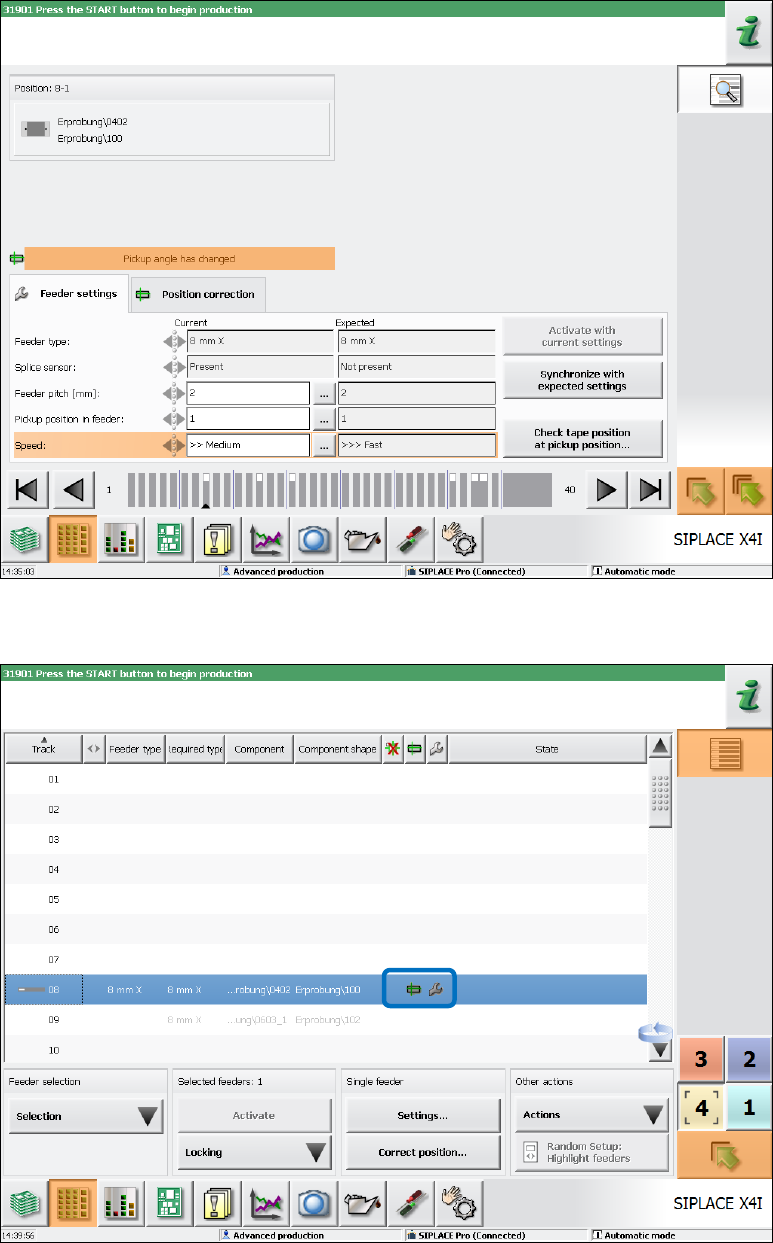
In the following example the pick-up angle is adjusted simultaneously with the problem situation in
Figure 7-36 (Settings mismatch, because the speed was changed). Thus, the Pickup angle has
changed warning is activated and the warning text for the mismatching settings is overlain.
Figure 7-37: Changed pick-up angle
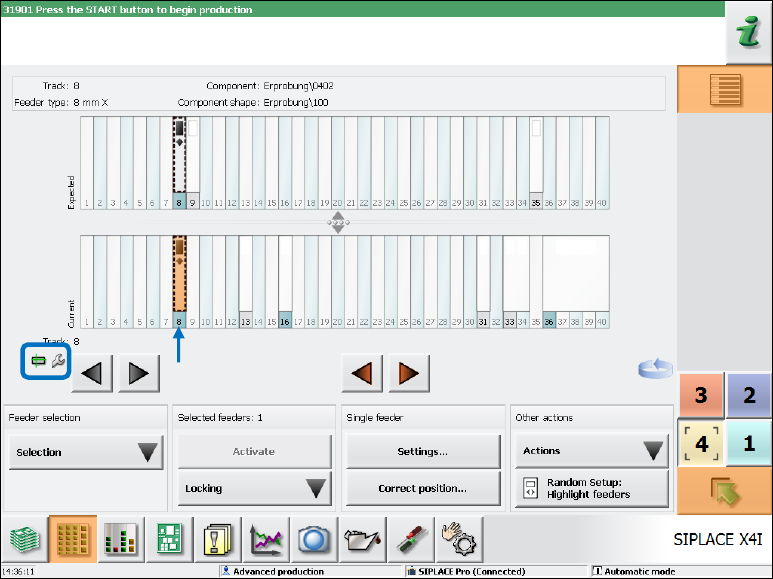
In the setup view of the locations, the icons are displayed for both problem situations.
Figure 7-38: Warning icons in setup view
Station Software 7xx to 714.0 (R20-2) / Feature Description 11/2020 Edition
108
In the setup overview, the icons are displayed for both problem situations and the concerned track
is additionally highlighted in orange.
Figure 7-39: Setup overview
7.38.6 Limited Correction Area for the Pick-up Position
Compatible mode: Complete
To avoid that components are picked up from an incorrect position, the allowed correction area has
been limited on the Basic production and Advanced Production activity levels.
The maximum offset that can be set during teaching is derived from the following information:
– Specific component length and width measurements that are defined in the component shape.
– The 50% percentage factor that is stored in the software configuration and is used for all
component and feeder types.
The allowed offset then comes out in the direction of the component length as +/- component
length * percentage factor, in the direction of the component width as +/- component
width * percentage factor.
I.e., for a component with a length of 6mm and a width of 4mm and percentage factor 50%, the
pick-up position may be changed by 3mm und 2mm respectively in the corresponding directions.
Station Software 7xx to 714.0 (R20-2) / Feature Description 11/2020 Edition
109
Example
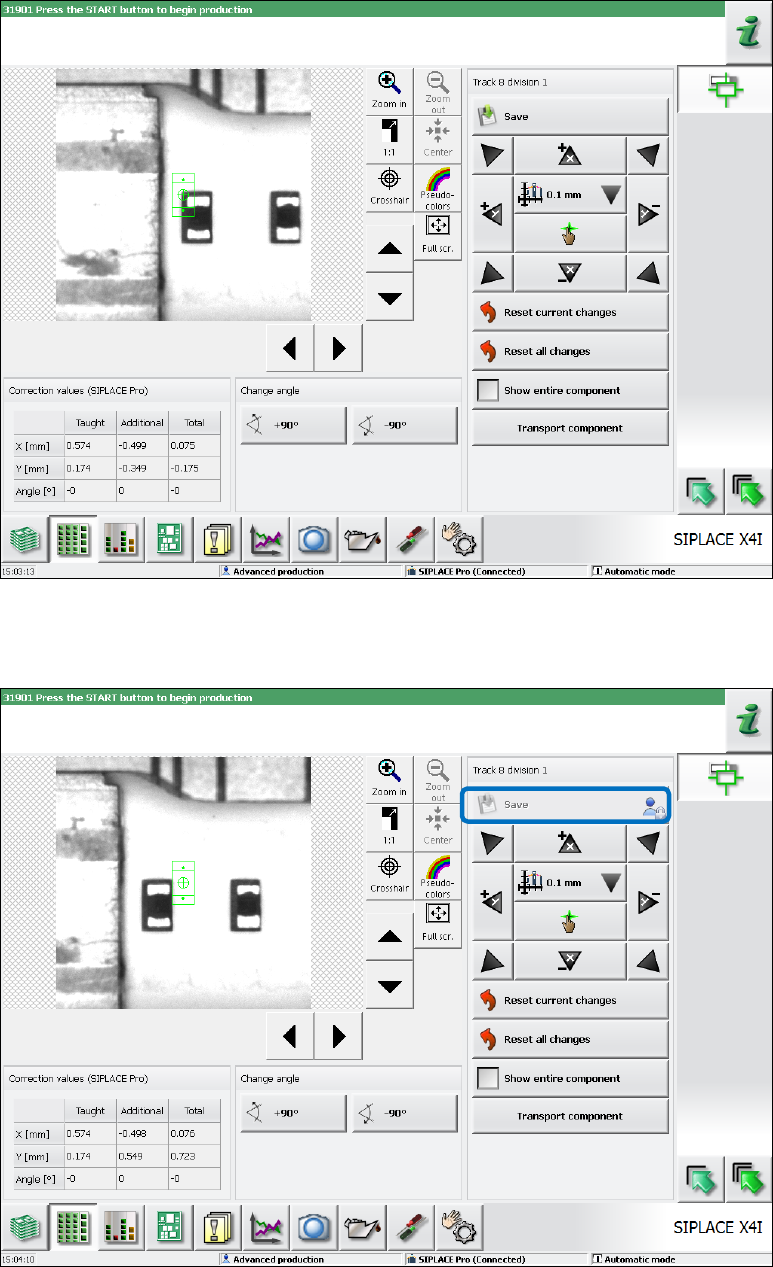
The allowed correction area is displayed in the following figure.
Figure 7-40: Allowed correction area
The operator can navigate to any position with the camera during the setting procedure. If the
allowed correction area is exceeded, the Save button will be deactivated (greyed out).
Figure 7-41: Allowed correction area exceeded