SIPLACE Station Software 7xx to 714 介绍.pdf - 第161页
Station Software 7xx to 714.0 (R20-2) / Feature Description 11/2020 Edition 161 Features (V708.1: Compatible Mode V707.3) 9.16 Reading Individual Barcode Fiducials with Board Camera Compatible mode: Not supporte d For tr…
Station Software 7xx to 714.0 (R20-2) / Feature Description 11/2020 Edition
160
9.14 Wizard for Teaching Fiducials
Compatible mode: Complete
In previous SIPLACE Vision versions, the taught fiducials were created with an editor. In version
5.2.1, the editor has been replaced by a wizard with which the teaching can be performed in a
guided sequence. The intuitive user guidance ensures easy and safe creating of the taught fiducial
since the necessary actions are performed successively in the wizard.
The wizard consists of 4 views with the following actions:
1. Setting illumination
2. Specifying region of interest
3. Setting reference point
4. Checking result / Accepting data
The data remains completely compatible to previous SIPLACE Vision versions. I.e., the wizard
displays the data correctly if the fiducial has been taught with a previous version and the data that
has been taught with the wizard will be correctly used by previous versions.
9.15 No Support as of Station Software Version 708.0
– The "Modify/Change the component supply of a packaging unit" function has been removed
from the station software GUI. This function can only be performed in SIPLACE Setup Center.
The Configure package button has been removed from the Filling level view and
consequently, the next Fill level details view is not applicable anymore.
– The button for the SIPLACE service activity level has been removed from the GUI. Most
functions that were only available as of this activity level can now be used as of the Machine
service activity level.
– Messages before production (e.g. Remove the Support Pins) have been replaced by
Error details.
– The EventAnalyzer (EVA) is not supported anymore.
– The station software cannot be installed under the following operating systems anymore:
Windows Server 2003, Windows Server 2008 and Windows Server 2012, Windows XP,
Windows Vista and Windows 8.0.

Station Software 7xx to 714.0 (R20-2) / Feature Description 11/2020 Edition
161
Features (V708.1: Compatible Mode V707.3)
9.16 Reading Individual Barcode Fiducials with Board Camera
Compatible mode: Not supported
For traceability purposes, many components have a 2D-barcode on top of itself or next to the
component pocket at the tape.
As of this station software version, such individual barcode fiducials can be read by the board
camera during pickup and then assigned to the placement position (Reference Designator) in the
provided traceability data.
The option must be defined and enabled in SIPLACE Pro.
Prerequisites
– The "Reading Barcode recognition with PCB Camera" license is available and enabled.
– Traceability is enabled.
If the option is enabled but reading the barcode fiducial fails, the component will be picked up and
rejected in the respective reject bin. As soon as the set number of repicks is achieved, the feeder
gets disabled and a detailed error message is displayed on the GUI. The operator is prompted to
perform an additional teaching. However, the operator is free to ignore this prompt and may
continue placing the components anyway.
9.17 C&P20 P Placement Head on SIPLACE SX1/SX2 (V2)
Compatible mode: Not supported
This station software version supports the C&P20 P placement head on the SIPLACE SX1/SX2
(V2) placement machine.
The functionality and configurations that are valid for the C&P20 placement head are supported for
the C&P20 P placement head, as well.
NOTICE
The C&P20 P and C&P20 placement heads should not be combined at one station!
Station Software 7xx to 714.0 (R20-2) / Feature Description 11/2020 Edition
162
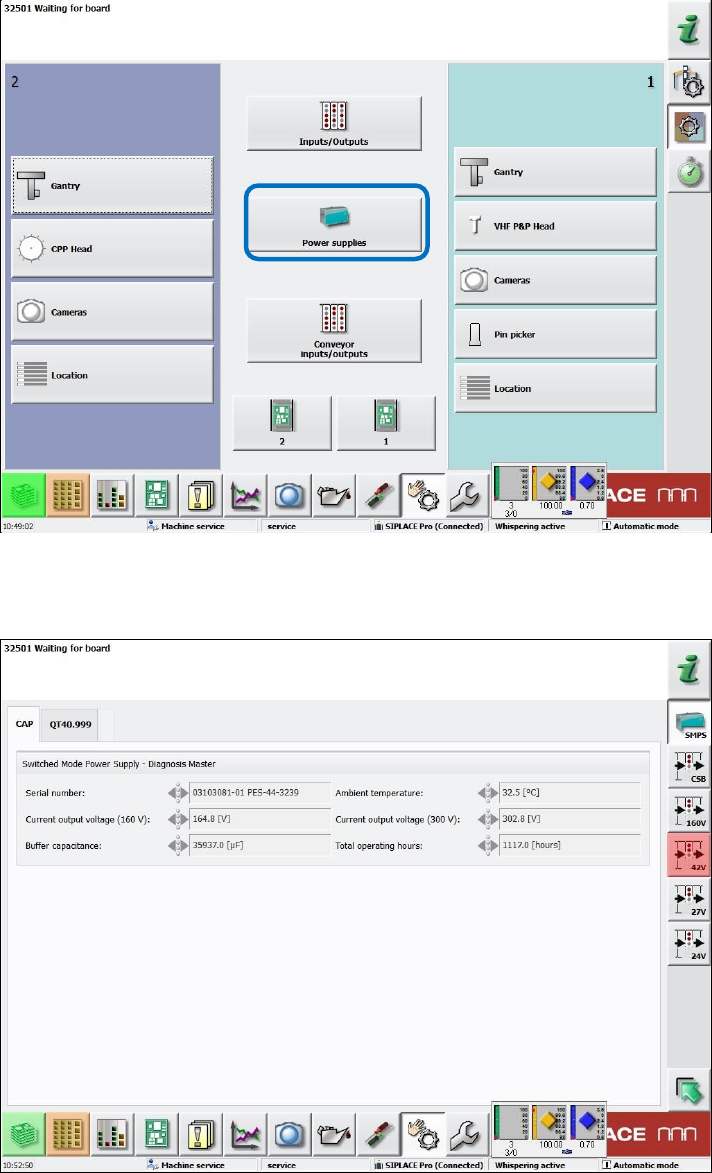
9.18 Power Supply (SMPS) – Status Display on the GUI
Compatible mode: Complete
The SMPS (Switched Mode Power Supply) offers advanced diagnostic checks. As of this station
software version, the SMPS states are additionally displayed on the GUI.
As of the Machine Service activity level, the new Power supplies button is available under
Manual operations – Subsystems.
Figure 9-7: Subsystems dialog – Power supplies
If this button is selected, a new dialog opens in which the states of the power supplies and fuses
are displayed.
Figure 9-8: Diagnosis Master dialog – CAP tab