SIPLACE Station Software 7xx to 714 介绍.pdf - 第186页
Station Software 7xx to 714.0 (R20-2) / Feature Description 11/2020 Edition 186 10.9 Improved Handling of Maintenance Steps The maintenance steps ha ve been bundled into three views a vailable on the GUI under the Mainte…
Station Software 7xx to 714.0 (R20-2) / Feature Description 11/2020 Edition
185
10.7 Heavy Board Option per Board Side
The existing behavior to set a single station into Heavy Board mode for all boards in the setup has
been complemented by a new setting per board side in SIPLACE Pro indicating that this board
shall be produced in Heavy Board mode. Both behaviors coexist, i.e. Heavy Board mode is
always assumed if the option is set in the setup or (if station software version >=709) for the board
side. The setting is sent to the stations by the download. The corresponding license will be checked
by the download. The station software sets all conveyors into Heavy Board mode when this board
is produced. This affects the cycle times for all products of a family setup.
NOTICE
– If the Heavy Board mode is set for the board, no barcode mode is possible.
Barcode mode is only possible if all stations are set into Heavy Board mode.
Otherwise the board will not be produced.
– For Virtual PCB Stack option or boards in synchronous dual conveyor mode:
If the Heavy Board mode is set for at least one board, all boards will be handled as
heavy boards.
10.8 Time Synchronization between Line Computer and Station
Computer
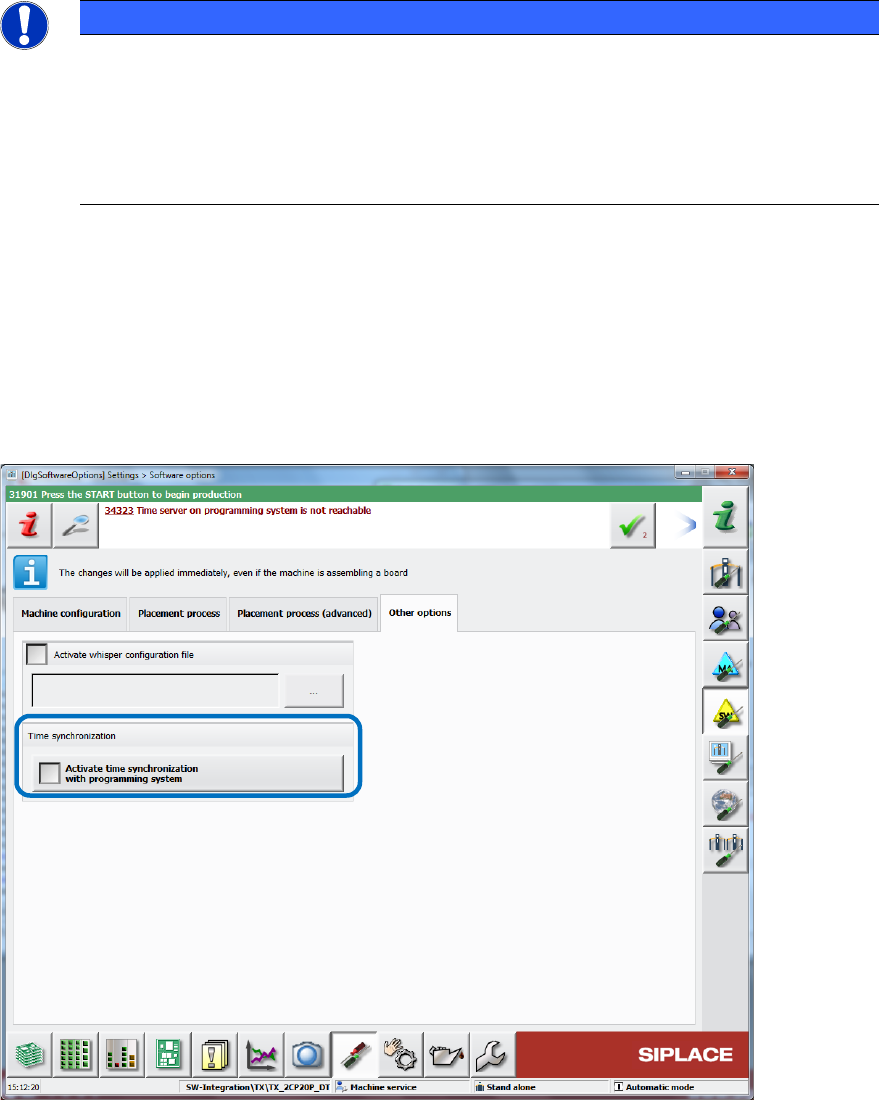
There is a new setting on the station software GUI for synchronizing the time between the line
computer and the station computer. The setting can be enabled under Software Options – Other
options – Activate time synchronization with programming system. If other customer specific
time synchronization tools are used, these must be disabled before enabling this setting.
Figure 10-9: Activating time synchronization
The synchronization will be performed when a new session has been started by SIPLACE Pro.
Station Software 7xx to 714.0 (R20-2) / Feature Description 11/2020 Edition
186
10.9 Improved Handling of Maintenance Steps
The maintenance steps have been bundled into three views available on the GUI under the
Maintenance Tool:
– Preventive maintenance view
– Predictive maintenance view
– Head verification view
The three views are superficially presented in the next sections. Detailed information can be found
in the Online help.
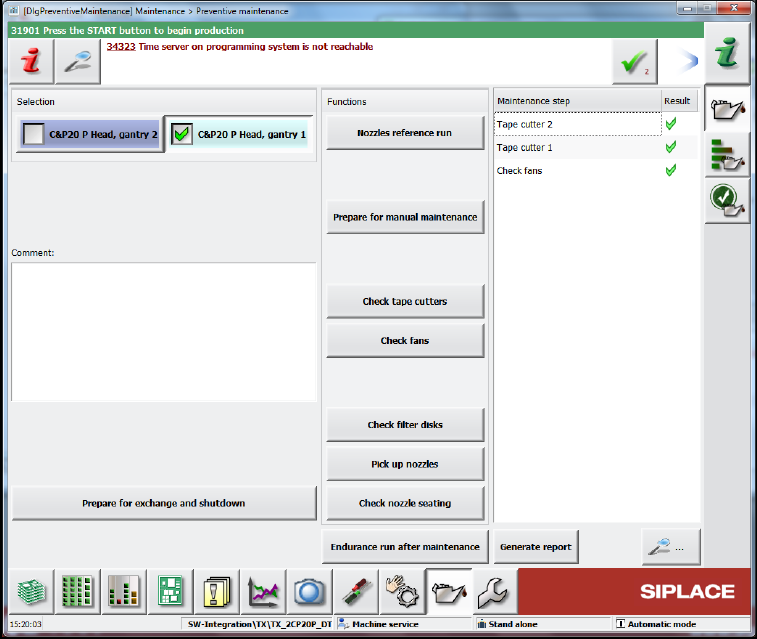
10.9.1 Preventive Maintenance View
The Preventive maintenance view is available as of the Advanced Production activity level.
Figure 10-10: Preventive maintenance view
To the left the placement head(s) can be selected for maintenance. Additionally, a text field is
available for entering comments.
The Prepare for exchange and shutdown option prepares the machine for exchange of the
selected placement head(s). This option also offers to create a report before executing preparation
and shutting down the machine.
Filename: Maintenance_<MachineType>_<MID>_<Date>_<Time>(Exchange).pdf
During preparation the concerned placement heads return currently mounted nozzles, the gantries
move to the setup position and, if possible, tables are moved out of the machine before shutdown.
After exchange, the automatically detected exchanged placement heads are displayed with a
preset calibration type (Standard Calibration or Brief Calibration) and can be selected for
calibration. For the TX-series placement machines, the calibration steps X-axis parametrization,
System identification and Identify head parameter will be performed additionally. After
successful calibration, the placement heads reject the calibration nozzles.
Station Software 7xx to 714.0 (R20-2) / Feature Description 11/2020 Edition
187
In the middle the individual maintenance steps can be selected. The available functions depend on
the head / machine configuration.
To the right the results of the performed maintenance steps are listed. With the button a
detailed view of the selected result entry opens.
The Endurance run after maintenance option performs three machine endurance run cycles.
Upon successful completion of the endurance run the maintenance task is considered finished and
the list of results is cleared. Otherwise, error information is displayed.
With the Generate report button a report with detailed results of all maintenance steps can be
generated and stored into the MaintenanceReports subdirectory in the work directory of the station.
Filename: Maintenance_<MachineType>_<MID>_<Date>_<Time>.pdf
NOTICE
– The reports can be collected by SIPLACE Pro Line Diagnostics.
– The station software deletes maintenance reports older than 90 days automatically.
10.9.2 Predictive Maintenance View
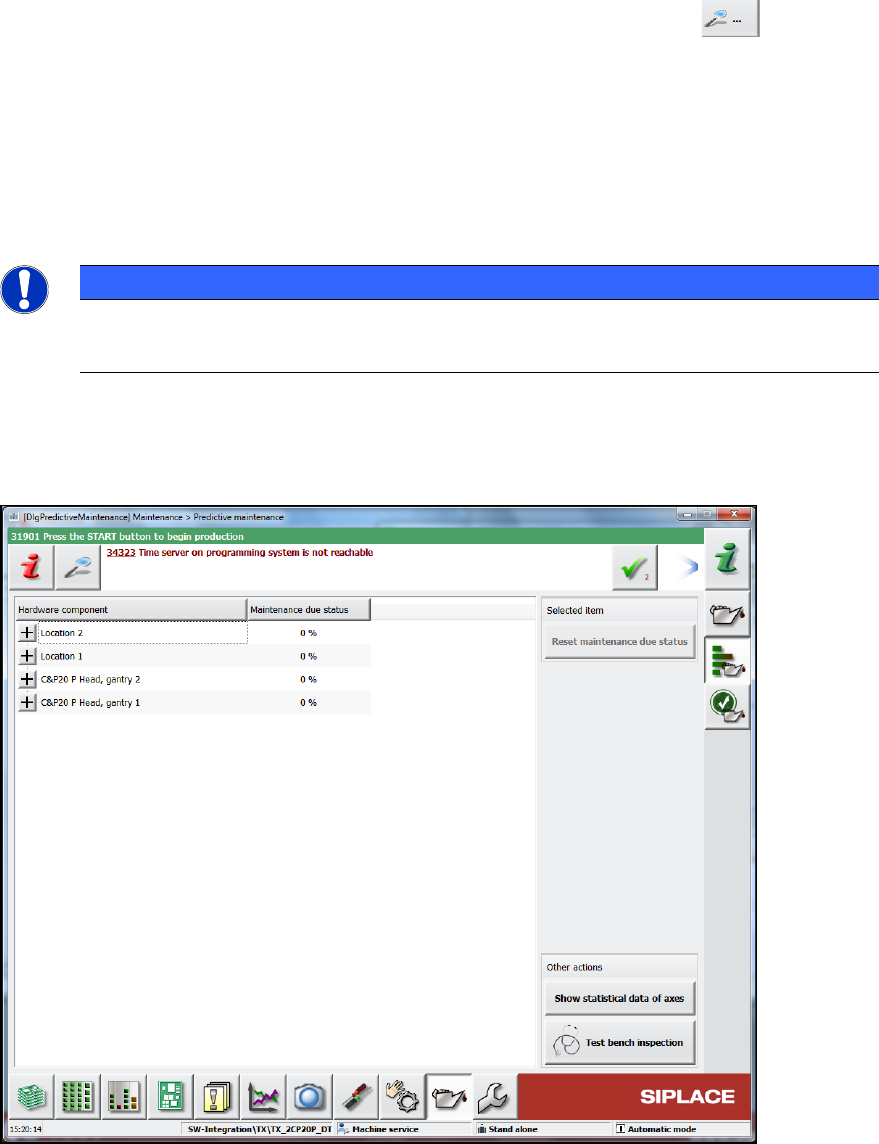
The Predictive maintenance view is available on the Machine Service activity level.
Figure 10-11: Predictive maintenance view
The existing maintenance view from previous station software versions has been integrated into
this view (Displays all available hardware related maintenance data). Additionally, maintenance
data for the vacuum pump and the tape cutters is displayed.
The Show Statistical data of axes button opens the view with statistical data of gantry and head
axis.