SIPLACE Station Software 7xx to 714 介绍.pdf - 第219页
Station Software 7xx to 714.0 (R20-2) / Feature Description 11/2020 Edition 219 11.5.3 Improved Placement of Snap-In Components The feature for placement of snap-in OSC components has been improved. With this feature, t …
Station Software 7xx to 714.0 (R20-2) / Feature Description 11/2020 Edition
218
Following settings are available for the special position evaluation:
Setting
Evaluation
Default
Default value, normal evaluation (X, Y, angle)
Do not use
Group is not used to determine the component position (but for inspection)
Angle
Group is only used to determine the angle
X and Y
Group is only used for X and Y, not for the angle
X
Group is only used for X, not for Y and angle
Y
Group is only used for Y, not for X and angle
X and angle
Group is only used for X and angle, not for Y
Y and angle
Group is only used for Y and angle, not for X
The X- and Y-coordinates always refer to the component coordinate system.
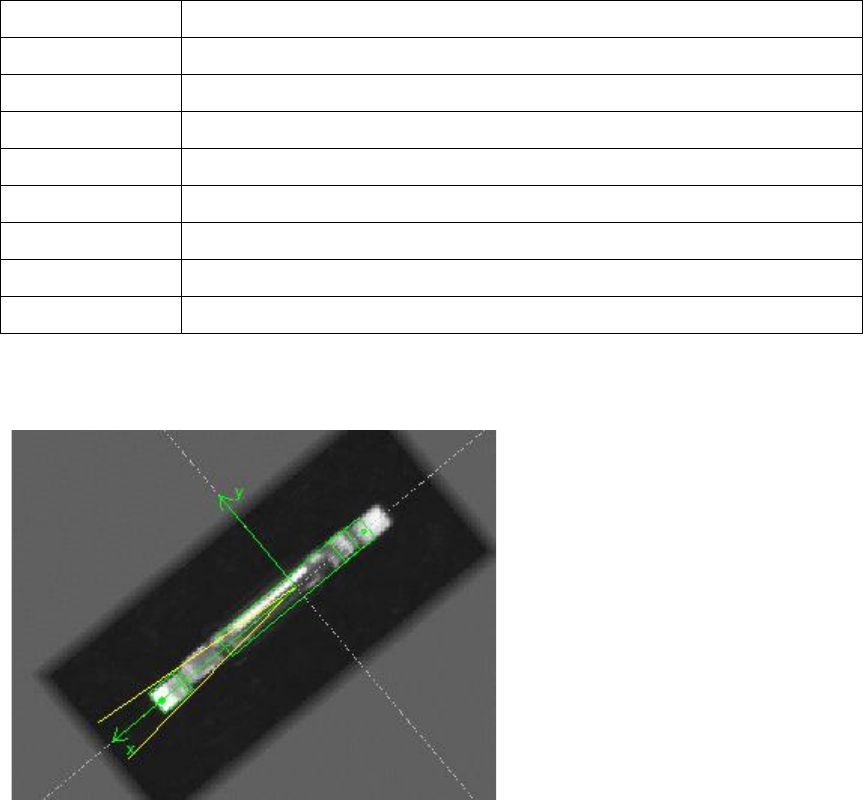
Example
Figure 11-4: Alignment of a twisted pin
The pin shall be placed so that the connector to the left is precisely positioned on the pad even if
the pin length differs from the target. The angle results from the angle between the two ends.
Model:
Alignment for the connector to the left is Default because it shall be used for X, Y and angle.
Alignment for the connector to the right is Angle because it shall only be used to determine the
angle.
Thus, the angle from the two connectors will be determined at first. Then the position will be
determined so that the component is only aligned by the connector to the left.
11.5.2 Increased Placement Force of Twin VHF
The placement force has been increased from 70 N to 100 N for the Twin VHF placement head
with item no. [03096701-03]. The cool down time calculation has been adapted for the new range
from 70 N up to 100 N.
Placements with a force greater than 70 N are not supported on stations with software versions
< 710 and Twin VHF placement heads with a functional status < [-03]. Such placements will be
forced onto stations with station software version >= 710 by SIPLACE Pro.
Station Software 7xx to 714.0 (R20-2) / Feature Description 11/2020 Edition
219
11.5.3 Improved Placement of Snap-In Components
The feature for placement of snap-in OSC components has been improved. With this feature, the
system can check whether the pins of such components are "snapped-in", i.e. completely inserted.
The actual Z-axis position of every snap-in placement will be compared with its corresponding
height reference value. These values must match each other. It is recommended to set support
pins close to the snap-in placement positions.
The snap-in placement process must be enabled for the component shape in SIPLACE Pro.
Additionally, the snap-in threshold that will be used for comparing the two values has to be
specified in mm.
After the first board has been completely produced, it will be transferred to the output section or the
configured inspection location and marked for manual inspection. The operator must inspect every
snap-in placement position and confirm whether the placement is correct or not. If correct, the
corresponding Z-axis position will be stored as reference position and used as placement position
for all subsequent boards. If not correct or if subsequent boards are already produced before the
height reference values have been taught, the measured height will be ignored, and the operator
must confirm the height whenever the next component is placed.
The height reference values are not uploaded to SIPLACE Pro. Thus, when the job at the
placement machine is changed or the machine is shut down, the height reference values must be
taught again.
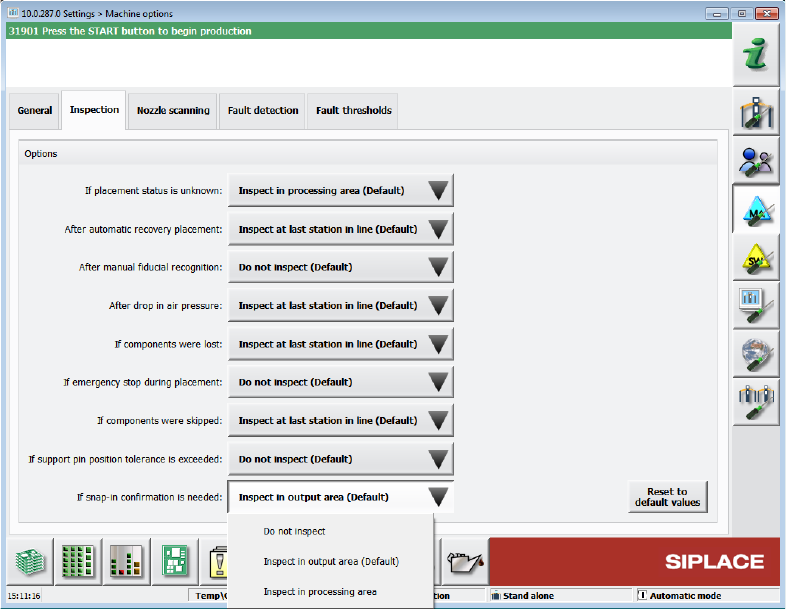
The position where the operator can inspect the board is configurable under Machine options –
Inspection – If snap-in confirmation is needed. Default option: Inspect in output section.
Figure 11-5: If snap-in confirmation is needed
Station Software 7xx to 714.0 (R20-2) / Feature Description 11/2020 Edition
220
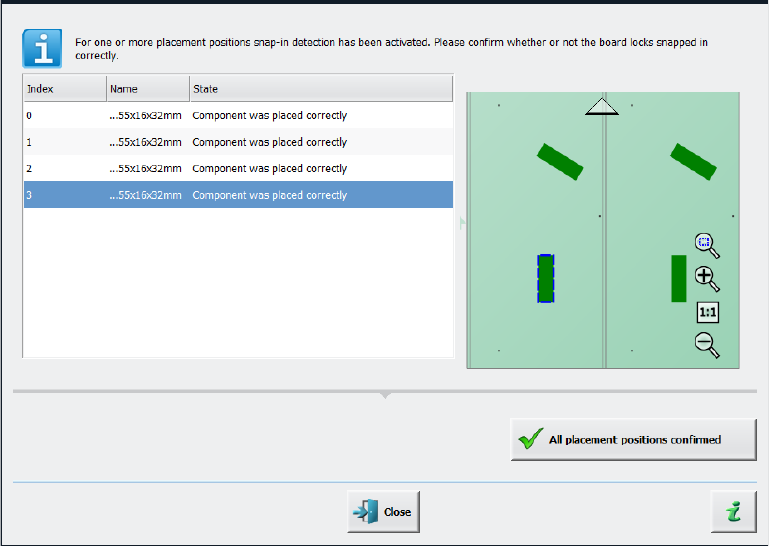
When the board enters the output section, a detailed message is displayed.
Figure 11-6: Confirming placement positions
It contains:
– The position of the board in the machine.
– A list including all placement positions on the board which must be confirmed.
– A graphical board overview in which the selected items in the list are highlighted.
There are two options for each row in the list:
– Component was placed correctly
The Z-height will be set as good for the snap-in detection.
– Repeat measurement
The measured height will be ignored, and the user must confirm the height whenever the next
component is placed. The board keeps marked for inspection.
After setting the results for all placement positions, the settings must be confirmed with the All
placement positions confirmed button.
In the Placement positions view, there are two new icons under the Options column:
– Snap-in confirmation required
is displayed if the correct Z-height has not yet been confirmed by the operator.
– Snap-in detection active
is displayed if the confirmation has already been done by the operator.