SIPLACE Station Software 7xx to 714 介绍.pdf - 第272页
Station Software 7xx to 714.0 (R20-2) / Feature Description 11/2020 Edition 272 Furthermore, the status bar for monitoring the maintenance statu s of hardware components is now divided into different color s ections. If …
Station Software 7xx to 714.0 (R20-2) / Feature Description 11/2020 Edition
271
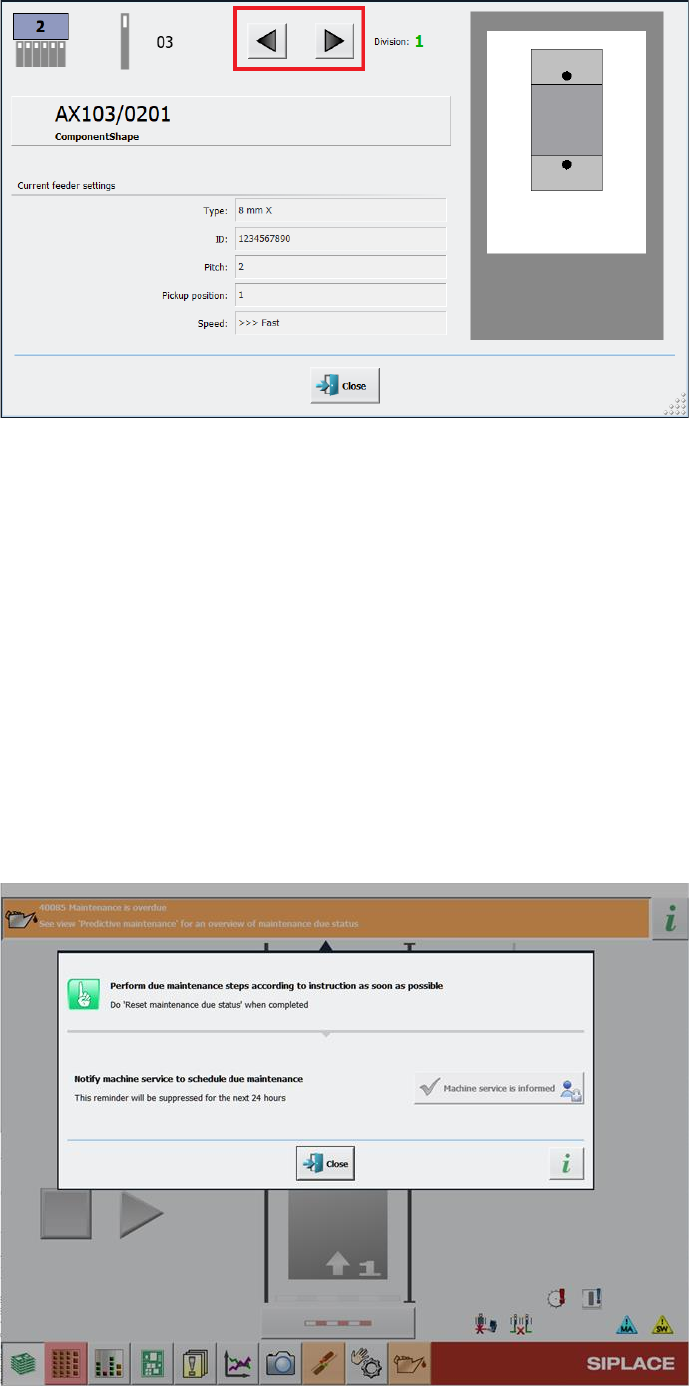
Figure 14-4: Buttons for navigating between divisions in Scan Request dialog
For easier visibility the number of the currently selected feeder division has been further
highlighted. The division number is now displayed in a bigger font in an extra field and blinks.
Restrictions
– The feature is only supported for the following feeder types that have multiple divisions or
channels:
– Smartfeeder 2x8mm Xi Splice, item no. [00141499-xx]
– Smartfeeder 2x8mm Xi, item no. [00141479-xx]
14.20 Monitoring and Logging of Maintenance Status
To improve machine availability and to prevent unplanned machine failures, hardware components
such as the guide cars, guide rails and loose bearings are monitored and, when their service life
setpoints are reached, a detailed error message is issued at the station.
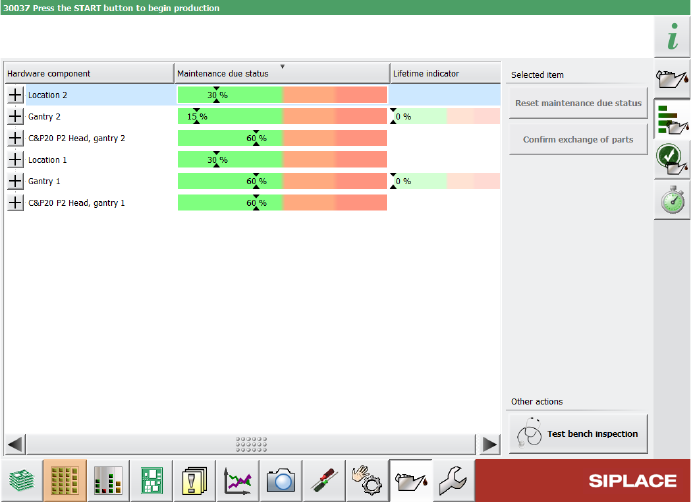
Figure 14-5: Detailed error message for maintenance status
Station Software 7xx to 714.0 (R20-2) / Feature Description 11/2020 Edition
272
Furthermore, the status bar for monitoring the maintenance status of hardware components is now
divided into different color sections. If certain threshold values are exceeded, the maintenance
status in the progress bar switches to a different color.
Figure 14-6: Example for maintenance status indicated in different colors
For further information, please refer to the Technical Information about the maintenance due status
on SIPLACE machines, item no. [TI2020-03D06].
14.21 Synchronizing Recalibrations of All SIPLACE Stations Along the
Line
Compatible mode: Hidden
The recalibration procedure can now be synchronized for all SIPLACE stations along the line to
minimize the overall downtime of that line. When a recalibration is triggered, the first SIPLACE
machine in the line assumes the role of “master station”. All other reachable SIPLACE stations
along the line are then triggered to also start the same recalibration procedure as the master
station.
If a non-master SIPLACE station cannot be reached when the synchronized recalibration is
triggered, e.g. because it is offline at that specific moment, its recalibration is done unsynchronized.
If a station is triggered to start a synchronized recalibration while it is producing, the station stops
production and starts the recalibration procedures. If the station is triggered to start a synchronized
recalibration while it is already recalibrating, the triggered recalibration procedure is added to the
recalibration job queue, i.e. the recalibration procedure is done after the current recalibration
procedure is finished. If a recalibration triggered by the master station is already performed during
the currently running recalibration procedure on the station, it will not be added to the recalibration
job queue. If the station is triggered to start a synchronized recalibration while it is being stopped,
e.g. by a user or due to an error, the recalibration procedure is added to the recalibration job queue
and is done after the station has been restarted.
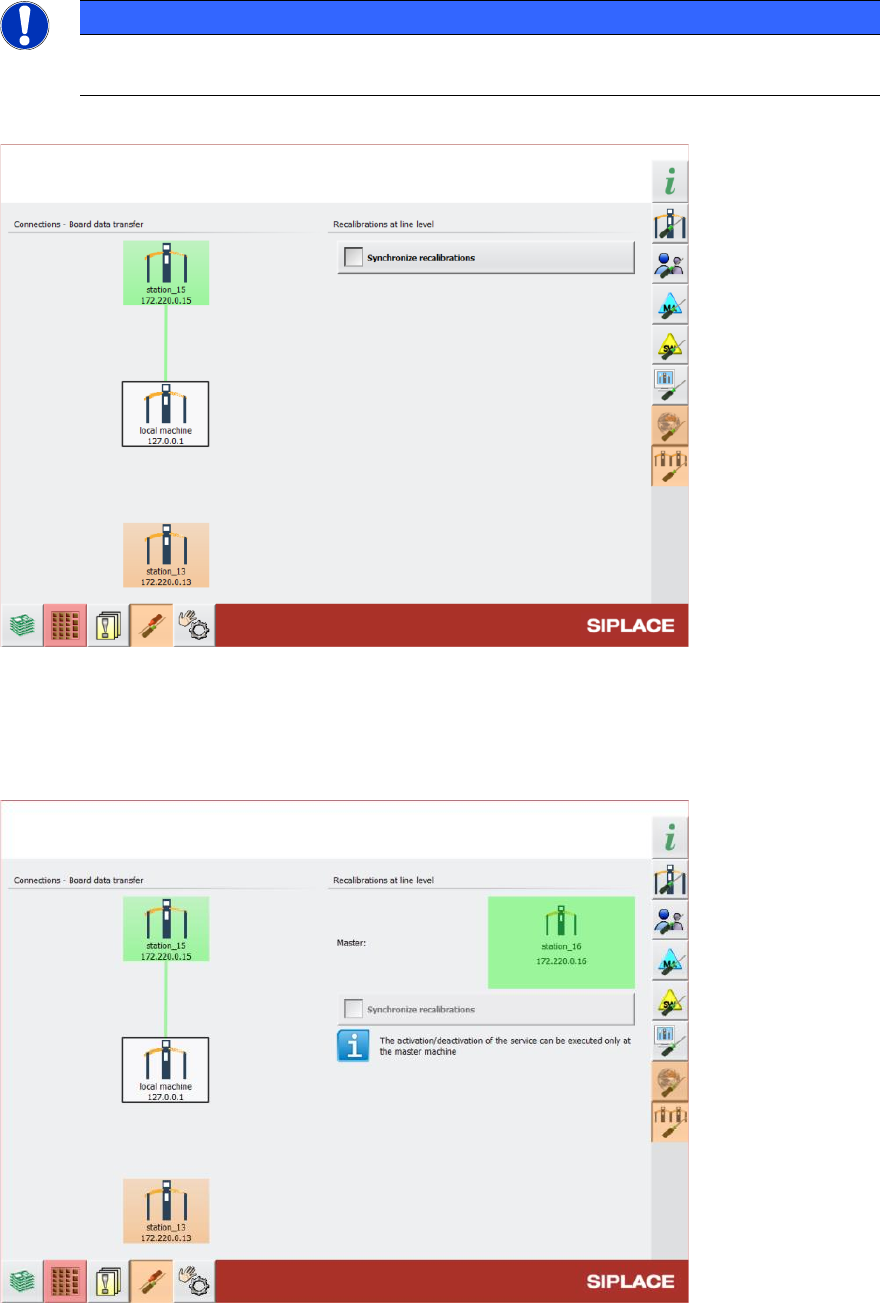
In the Machine neighborhood settings in the station GUI, you can view information on the
synchronized recalibration in the Recalibrations at line level area on the right. Depending on
which role the station has during the synchronized recalibration, different information is displayed.
Station Software 7xx to 714.0 (R20-2) / Feature Description 11/2020 Edition
273
On the master station, only the Synchronize recalibrations option is visible. If the option is
activated, the recalibration is synchronized along the line. If the option is deactivated, all machines
recalibrate independently.
NOTICE
The Synchronize recalibrations option can only be activated or deactivated on the
master station.
Figure 14-7: Machine neighborhood view with recalibration information on a master station
On a non-master station, the name of the master station (if available) and the connection status to
the master station are additionally displayed. If the master station is highlighted in green, the
connection is established successfully. If the master station is highlighted in red, the connection
failed, e.g. because the master station is offline.
Figure 14-8: Machine neighborhood view with recalibration information on a non-master station