SIPLACE Station Software 7xx to 714 介绍.pdf - 第283页
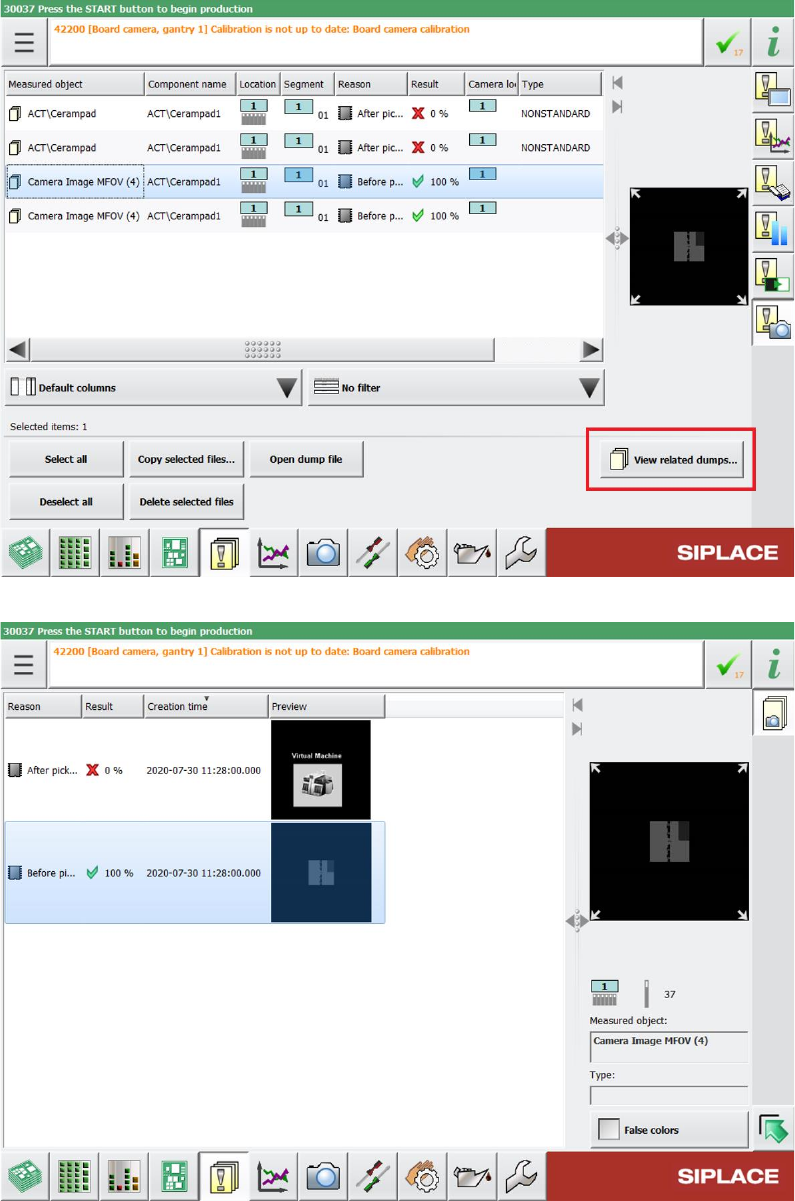
Station Software 7xx to 714.0 (R20-2) / Feature Description 11/2020 Edition 283 Figure 15 -4: Navigating between allocated Vision dump files via View related dumps button Figure 15 -5: Related dumps dial og
Station Software 7xx to 714.0 (R20-2) / Feature Description 11/2020 Edition
282
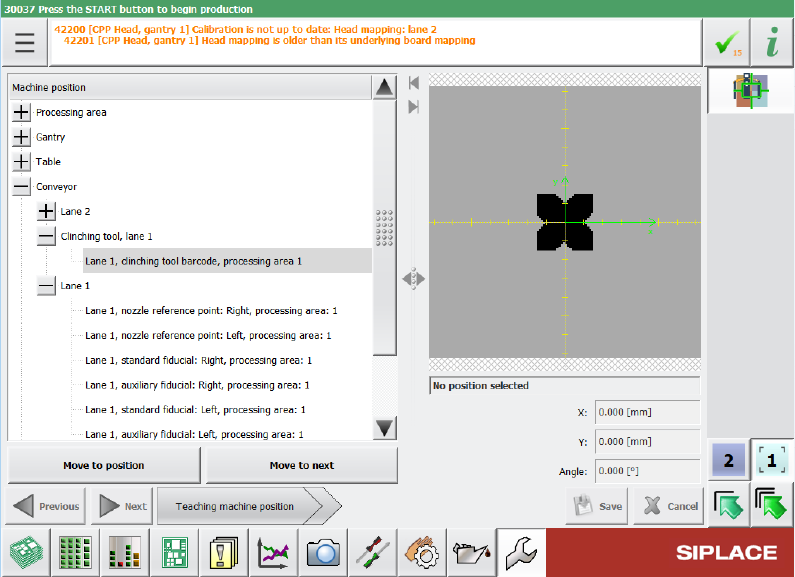
Figure 15-3: Teaching clinching tool
Restrictions:
– Currently, only one clinching tool is supported at a time.
15.10 Navigating Between Related Vision Dump Files
Compatible mode: Complete
The Options for selected positions dialog allows to take additional images of the component
within the pick & place process for the selected placement position. The functionality of this dialog
has now been extended so that, if the Before pick up option and the Dump on error option are
selected at the same time, it is possible to navigate between the two corresponding Vision dump
files to see a component before and after pickup.
For this, all images that have been taken within the same pick & place process are marked
accordingly. You can see the markup in the Measured object column inside the list of saved
Vision dumps. If you select a Vision dump in this list, you can click the new View related dumps
button to open the Related dumps view to see all Vision dumps that have been taken in the same
pick & place process as the selected file. In this view, you can switch between the Vision dump files
showing the component before and after pickup.
Station Software 7xx to 714.0 (R20-2) / Feature Description 11/2020 Edition
283
Figure 15-4: Navigating between allocated Vision dump files via View related dumps button
Figure 15-5: Related dumps dialog
Station Software 7xx to 714.0 (R20-2) / Feature Description 11/2020 Edition
284
15.11 Status of Fans Displayed in Station GUI for SIPLACE SX V3
Placement Machine
Compatible mode: Complete
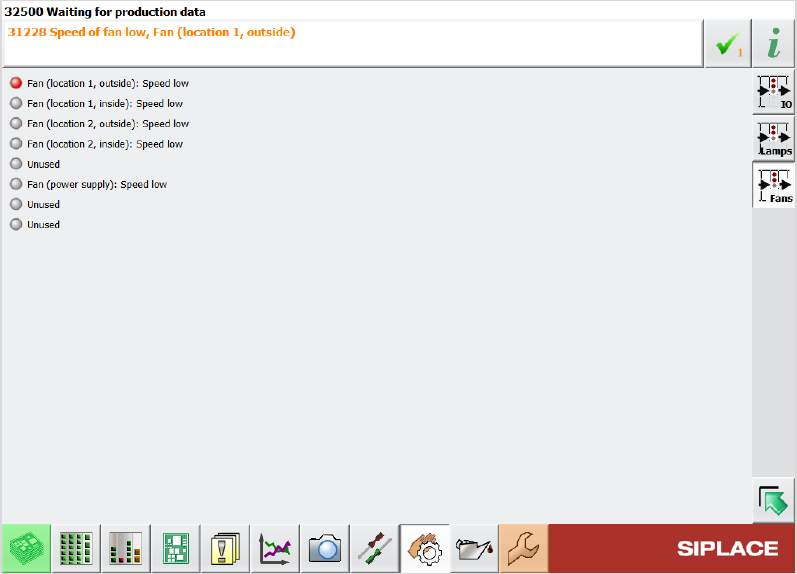
The station GUI on SIPLACE SX V3 placement machines now displays the status of the fans. The
status of the fans can be viewed in the in the following instances:
● Warning messages that are displayed in case of low fan speed
● Fan Ports view under Manual operations – Subsystems – Inputs/Outputs
Figure 15-6: Fan status in Fan Ports view
● Check fans function under Maintenance – Preventive Maintenance and the respective
results dialog