SIPLACE Station Software 7xx to 714 介绍.pdf - 第37页
Station Software 7xx to 714.0 (R20-2) / Feature Description 11/2020 Edition 37 The following figure displays the d efault settings when nozzle scanning is enabled. Figure 5-1 : Default settings when noz zle scanning is e…
Station Software 7xx to 714.0 (R20-2) / Feature Description 11/2020 Edition
36
5.5 Long Board Option
As of this station software version the Long Board option is also supported on the SX1/2 placement
machine in single lane and dual lane transport modes.
With this option boards with a length of up to 610mm can be placed on this machine. For this, the
enlarged positioning range in X-direction is utilized in the SX1/2 placement area. No stepping is
necessary for the board.
The board mapping procedure for the machine has been modified in order to use the option on the
SX1/2 machine. During calibration the mapping plate is measured on two stop positions of the
conveyor. By default, this is performed as the machine is booted for the first time after installation.
By upgrading from station software 703.x to 704 and higher a board mapping must be performed
for the machine, see Installation Manual for the station software, item no. [00196715-xx].
When the Long Board option is used on the SX1/2 machine, the 704 station software checks if
placement shall take place on a position located out of the mapped area. In this case an error is
output that blocks the production. To correct the error a board mapping has to be performed for the
machine. Alternatively, the configuration check may be disabled for the machine. However, then
the specified machine accuracy cannot be ensured anymore.
5.6 Automatic Exchange of Defective Nozzles
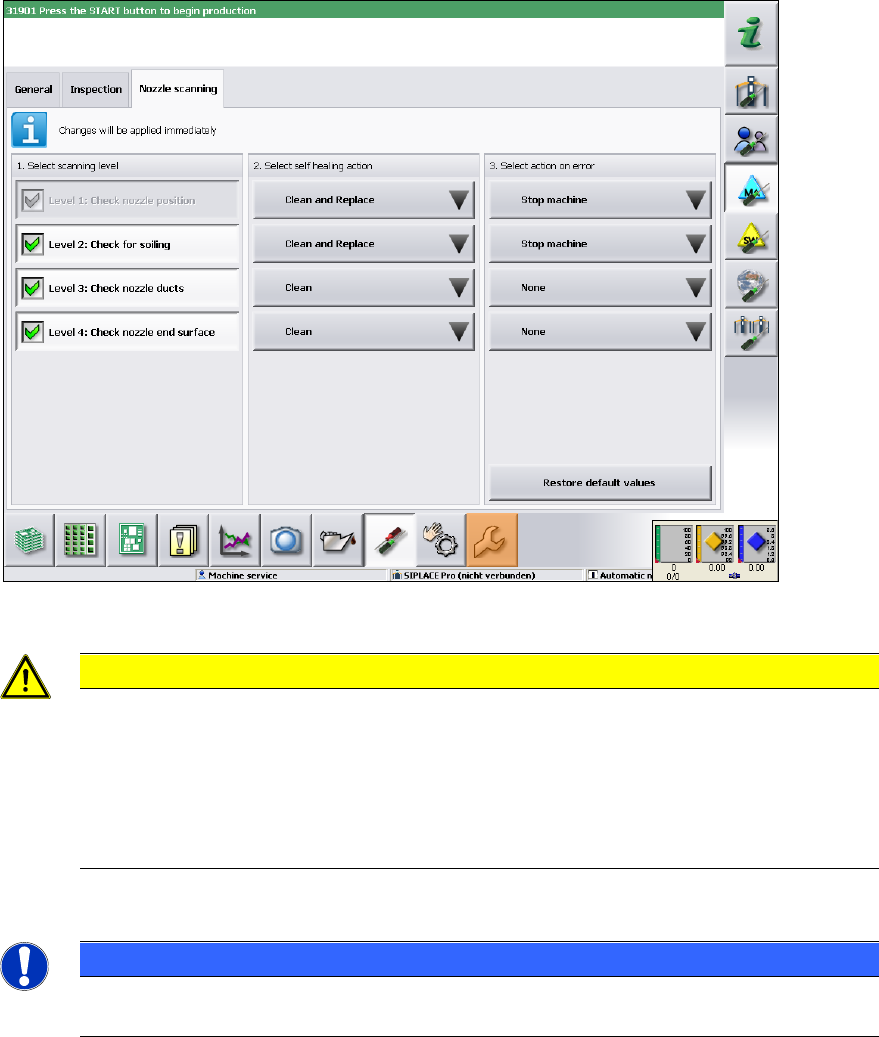
For errors that occur during the nozzle scanning and which would result in an automatic exchange
of defective nozzles, the operator can adjust the corresponding settings for the reaction of the
placement machine on the GUI (ignore, display a warning, stop, only clean or clean and replace).
For this the "Machine Service" activity level is required. The adjusted options get stored and are
available after a reboot or a new installation. This function can be globally enabled or disabled via
the "Skip nozzle scanning" machine option on the GUI.
Station Software 7xx to 714.0 (R20-2) / Feature Description 11/2020 Edition
37
The following figure displays the default settings when nozzle scanning is enabled.
Figure 5-1: Default settings when nozzle scanning is enabled
CAUTION
When selecting the scanning level, please note that the default setting for the self-
healing action has been changed for Level 1 and Level 2 since the last version! If an
error occurs, Clean and Replace is performed for these levels. I.e., the machine attempts
to clean the nozzle with compressed air. If the subsequent nozzle scanning still detects
an error, however; the nozzle is moved to the nozzle reject bin and is replaced by a new
one from the nozzle changer. If not possible (for example, if the nozzle changer is
empty), the placement machine is stopped.
Detailed information on single settings can be found in the online help of the station software.
NOTICE
However, cleaning or automatical nozzle change might be impossible for some
(non-standard) nozzles.
Station Software 7xx to 714.0 (R20-2) / Feature Description 11/2020 Edition
38
5.7 Automatic Recognition of Feeder Pitch
For the 8mm and 2x8mm X-feeders the smallest possible feeder pitch for the next component can
be automatically recognized (Auto Pitch detection). For feeders for which Auto Pitch detection is
offered, "Auto detection" can be selected on the GUI and started with the "Submit changes"
button. The status is displayed directly in the display area of the currently set pitch. The procedure
is automatically terminated when the feeder pitch has been recognized or is canceled with an error
message in the following cases:
– The set feeder pitch differs from the specification in SIPLACE Pro. This is displayed with a
spanner icon in the "Details" view and in the table overview as well.
– The operator changes a feeder parameter on the feeder during the Auto Pitch detection (pitch,
pick-up position or speed).
– The Auto Pitch detection is started manually on a feeder for which a setup change takes place
and feeder data is changed simultaneously (pitch, pick-up position or speed).
After cancelation, the feeder pitch that was set before is restored, except for the case that the
cancelation was caused by a manual feeder pitch change by the operator.
Restrictions
– Track-empty errors are not recognized.
– Only possible, if a direct component recognition through a vacuum or a component sensor is
set in SIPLACE Pro.
– When single functions are used simultaneously (e.g. component or component shape teaching)
not every pick-up trial will be successful.
5.8 Improved Operator Guidance
The error handling on the GUI has been improved so that the operator on the "Basic Production"
and "Advanced Production" activity levels is able to restart the placement faster after an error has
occurred during production. Additionally to the information in the status area, the site where the
error occurred is graphically depicted. A button guides the operator directly to a detailed error/error
correction dialog box. If several errors occurred, an overview dialog is displayed as a table, in
which it is possible to navigate to an error or between the errors. The following errors are
addressed:
– Track empty
– Nozzle dirty
– Torn foil
– Fiducial not recognized
5.9 Automatic Product Changeover (Barcode Controlled Production)
In barcode controlled production the station requires the job from LineControl via a read board
barcode. As soon as the job is specified by LineControl and is active on the station, the station
starts placing automatically. Thus, different products can be placed simultaneously and the
operator does not have to pay attention to the specification of the appropriate job. The active
barcode controlled production is displayed by a correspondent icon in the main view.
If it was impossible to read a barcode, the barcode scanner sends a read error to the station
software and a dialog box opens, in which the operator can enter the barcode manually. Via OIS
the already read board barcodes can be displayed. Additionally, by clicking on a board icon in the
main view of the station software, the barcode that has been read for this board can be displayed.