Nordson_EFD_RV_Series_Operating_Manual - 第25页
RV Series Automated Dispensing Systems 25 www.nordsonefd.com info@nordsonefd.com +1-401-431-7000 Sales and service of Nordson EFD dispensing systems are available worldwide. Overview of the DispenseMotion Softwar e This …
RV Series Automated Dispensing Systems
24 www.nordsonefd.com info@nordsonefd.com +1-401-431-7000 Sales and service of Nordson EFD dispensing systems are available worldwide.
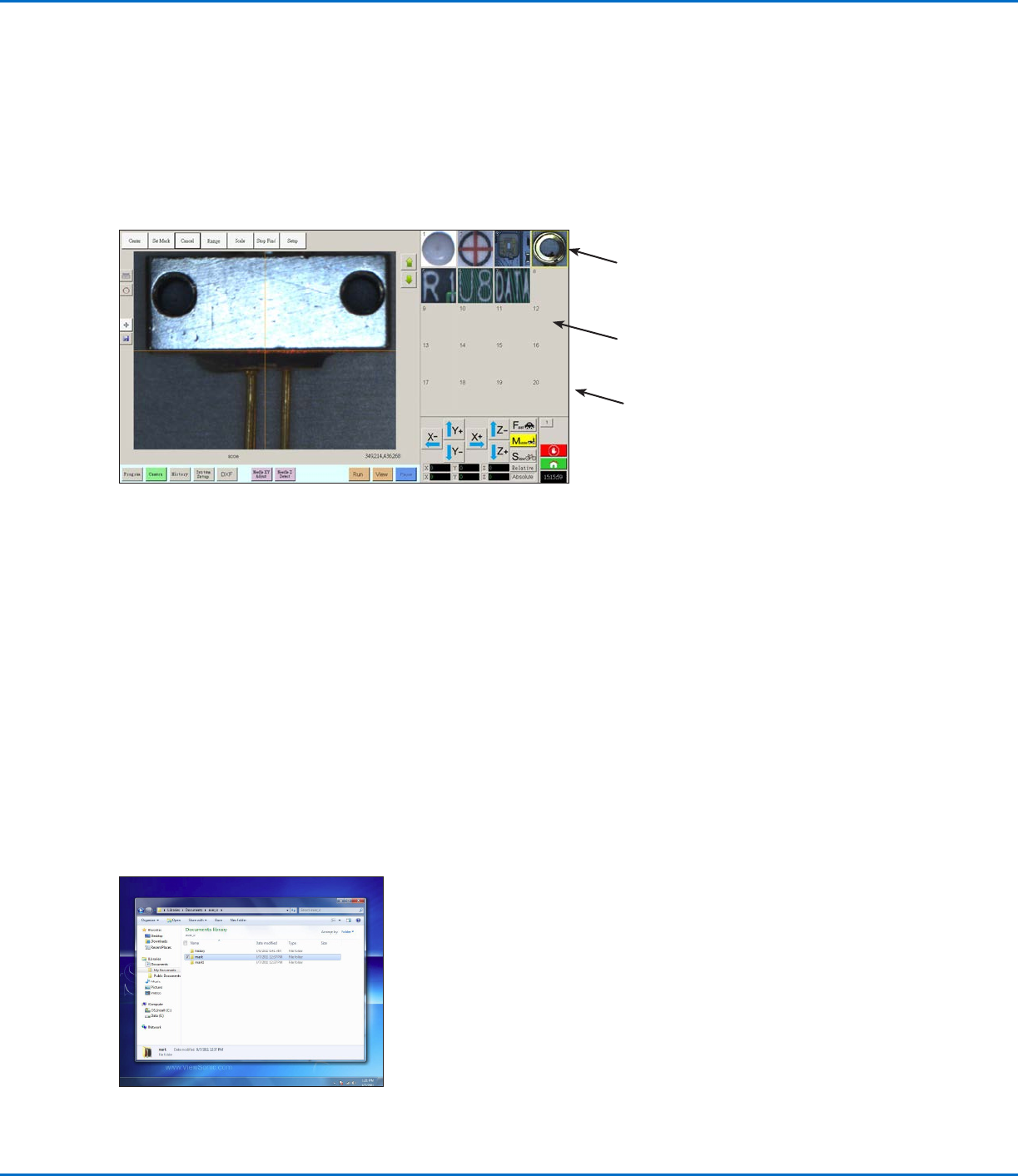
About Marks
To recognize that a workpiece is present or to determine its orientation on the fixture plate, the system uses marks
and fiducial marks. Marks are reference images (pictures of a small area on a workpiece) taken by the camera and
stored in a location called the Mark Library. The Mark Library appears in the Secondary View screen when the
Camera tab is selected. The stored images are shown in sockets in the Mark Library. Picture sockets are blank if
they do not contain a stored image.
A mark is a single image that the system uses to find a specific location on a workpiece. Fiducial marks are two
mark images that are used conjointly to (1) identify whether a workpiece is present in the proper XY location and (2)
to understand its angle of rotation, and then to make automatic adjustments to the program accordingly.
Picture socket with
a stored mark image
Blank picture
socket (no stored
image)
Location of mark image files on the DispenseMotion controller
Best Practices For Selecting a Mark Image
• The selection should be on the actual workpiece (not on the fixture plate) because it is the workpiece position that
the system adjusts to.
• The selection should be unique. There should be only one selection of its kind within the camera view. For
example, don’t choose one of many small circles that are within the camera view.
• Sharp features are best. For example, the intersection of two lines in the capital letter T would be better for a mark
image than the center of a circle, which possesses no finite lines.
• An actual dispensing position, such as the corner of a silk-screened solder pad, is more effective than the broken
corner edge of a pallet of circuit boards because of the differences in their manufacturing precision.
• The further away fiducial marks are from each other, the more precise the system will be in locating them on a
workpiece.
Mark Image Files
You can store 240 mark images in the sockets available in the Mark Library. The Mark Library appears in the
Secondary View screen (refer to “Secondary View Screen” on page30 for more information). These marks are
stored as files on the DispenseMotion controller under D:\ever_sr\mark.
Camera screen shown in the Primary View screen and the Mark Library shown in the Secondary View screen
Mark Library
RV Series Automated Dispensing Systems
25www.nordsonefd.com info@nordsonefd.com +1-401-431-7000 Sales and service of Nordson EFD dispensing systems are available worldwide.
Overview of the DispenseMotion Software
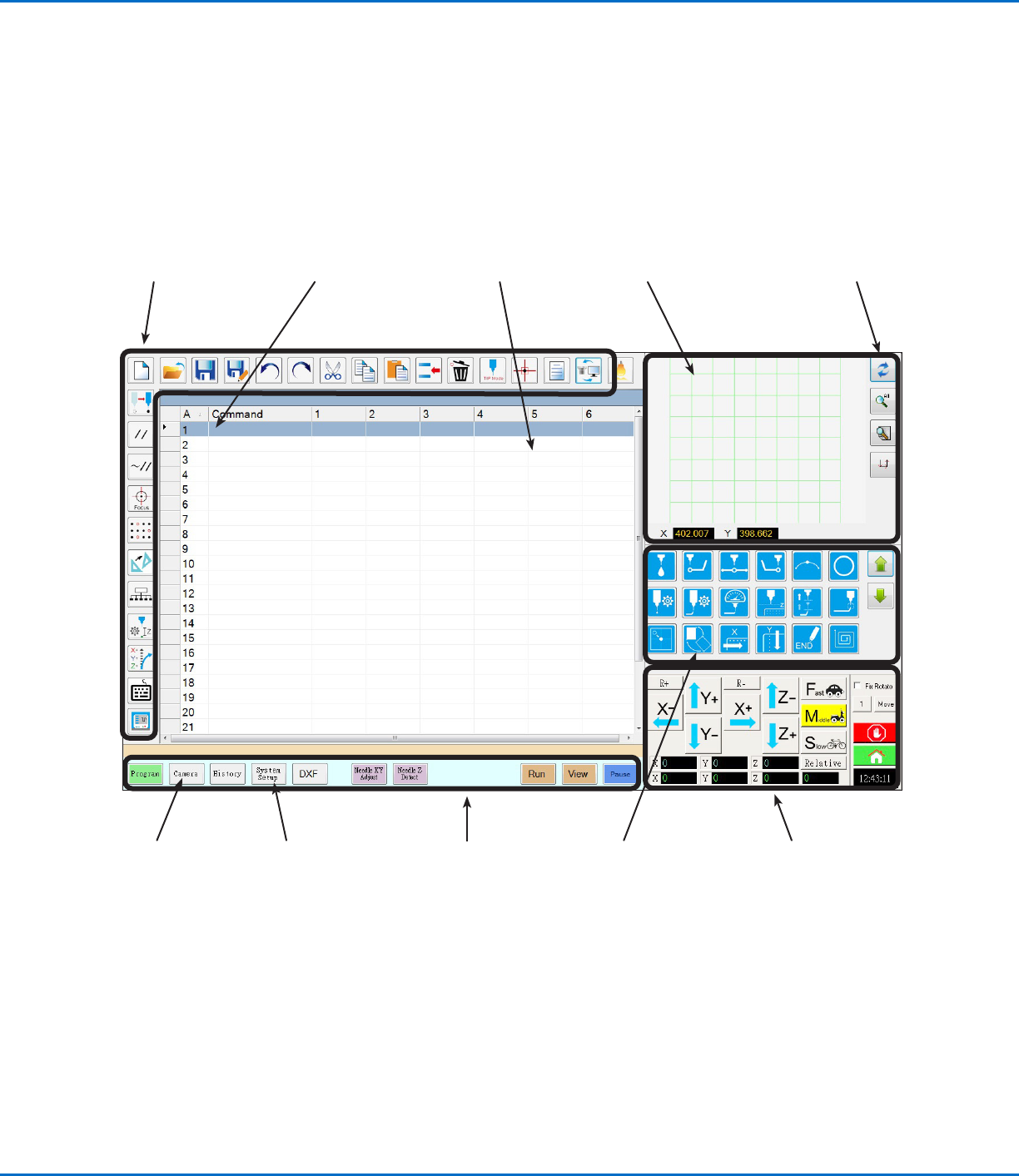
This section provides an overview of all the DispenseMotion software screens, windows, and icons. This information
is provided for your reference as needed. To set up the system and create dispense programs, refer to “Setup” on
page41 and “Programming” on page62. The software opens at the Program screen.
Refer to “Navigation
and Jogging
Window” on
page34.
Refer to “Horizontal
and Vertical
Toolbar Icons” on
page32.
Refer to “Setup and
Dispense Command
Icons” on page33.
Refer to
“Secondary View
Screen” on
page30.
Refer to “System
Setup Screen” on
page36.
Refer to “Camera
Screen, Tab Bar,
and Icons” on
page37.
Refer to “Primary
View Screen
and Tab Bar” on
page27.
Refer to “Primary View
Screen and Tab Bar” on
page27.
Command address (A): Double-
click to open the command
drop-down menu; select a
command to open its command
window. Refer to “Command
Windows” on page26.
Refer to “Horizontal
and Vertical Toolbar
Icons” on page32.
RV Series Automated Dispensing Systems
26 www.nordsonefd.com info@nordsonefd.com +1-401-431-7000 Sales and service of Nordson EFD dispensing systems are available worldwide.
Command Windows
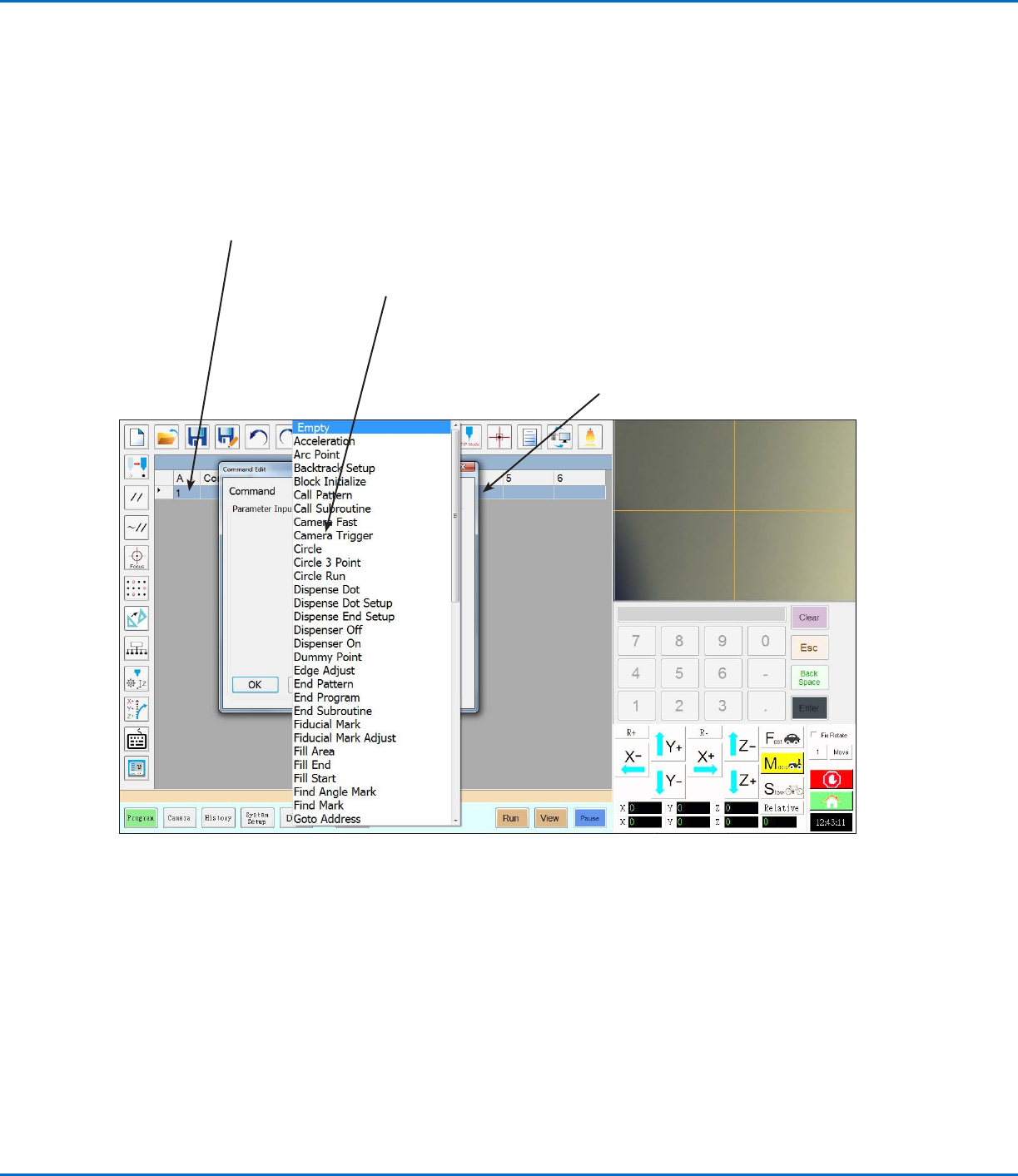
When you double-click a command address line on the Program screen, a drop-down menu of all available
commands appears. Select any command to open the window for that command. Each command window contains
the parameters, if any, that can be set for the command. Refer to “AppendixA, Command Function Reference” on
page98 for detailed information on all commands and associated parameters.
Command window: Enter parameters for
the command in this window. Refer to
“AppendixA, Command Function Reference”
on page98 for detailed information on all
commands.
Command address (A):
Double-click to open the
command drop-down menu.
Command edit drop-down menu:
Click a command to open its
command window.