Nordson_EFD_RV_Series_Operating_Manual - 第44页
RV Series Automated Dispensing Systems 44 www.nordsonefd.com info@nordsonefd.com +1-401-431-7000 Sales and service of Nordson EFD dispensing systems are available worldwide. Setting Passwor d Protection Use the Password …
RV Series Automated Dispensing Systems
43www.nordsonefd.com info@nordsonefd.com +1-401-431-7000 Sales and service of Nordson EFD dispensing systems are available worldwide.
Item Screen Capture Description
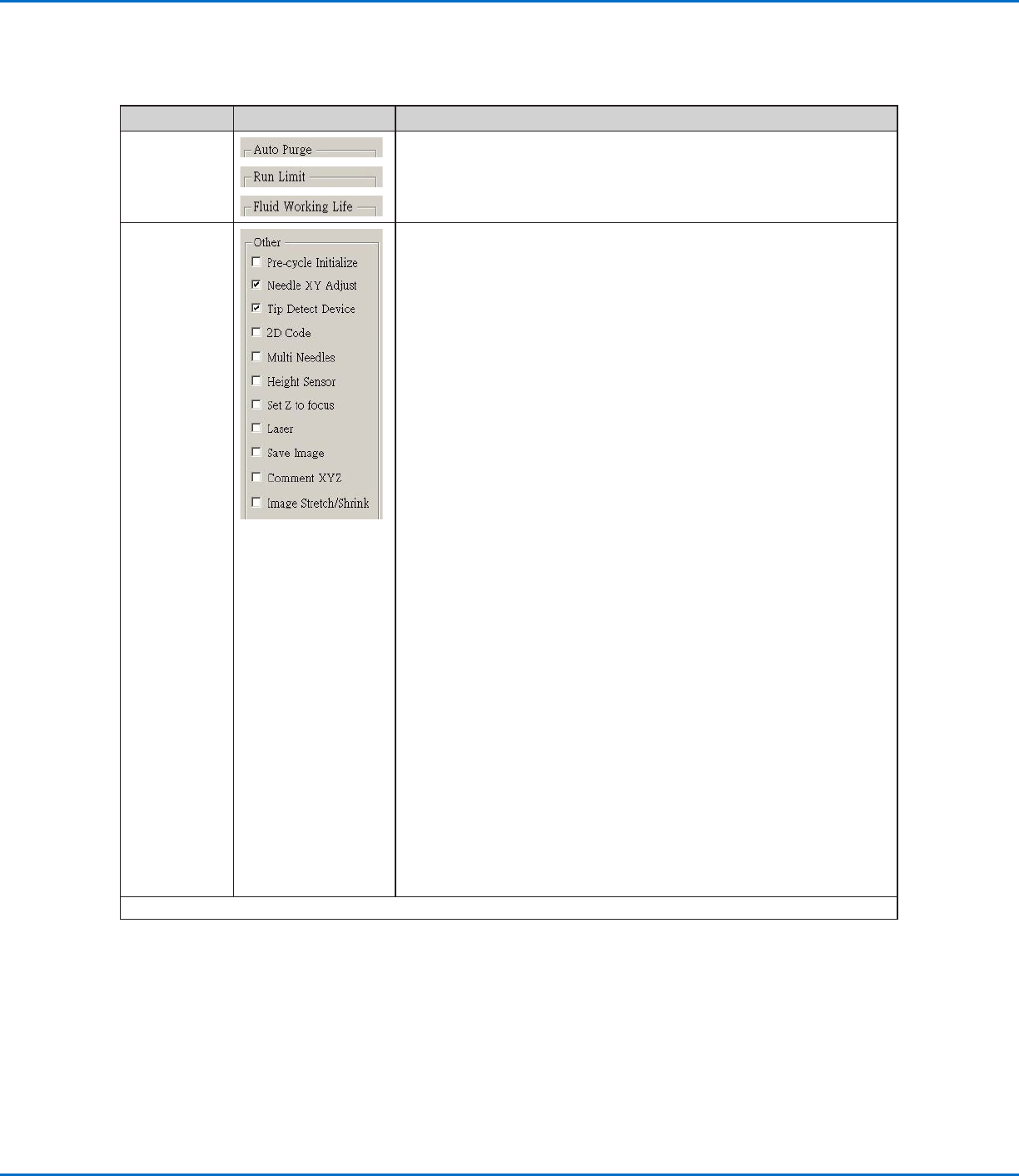
Auto Purge
Run Limit
Fluid Working
Life
To set up automatic purge settings, run limits, or fluid working life limits
for a program, refer to “How to Set Up Auto Purge, Program Cycle
Limits, or Fluid Working Life Limits” on page84.
Other
• Pre-cycle Initialize: If checked, the robot always moves to the home
position (0, 0, 0) before the start of a dispense cycle.
• Needle XY Adjust: Enables or disables the Needle XY Adjust
capability. When Needle XY Adjust is checked, the Needle XY Adjust
button appears on the Program screen.
• Tip Detect Device: Indicates that the system includes the optional tip
detector or tip aligner. When Tip Detect Device is checked, the Needle
Z Detect button appears on the Program screen and the capability is
enabled in the Robot Initial Setup wizard. If unchecked, the capability
is disabled in the Robot Initial Setup wizard.
• 2D Code: Check this box to enable or disable QR code scanning
capability. Refer to “AppendixD, QR Code Scanning Setup” on
page134 to set up QR code scanning.
• Multi Needles: To dispense using more than one dispenser (up to four
dispensers possible), check this box. Refer to “AppendixE, Multi-
Needle Setup and Use” on page137 to set up a multi-dispenser
system.
• Height Sensor: Not currently available.
• Set Z to Focus: Sets whether the system captures the current
Zheight value in command windows. For RV systems, uncheck this
box.
• Save Image (OptiSure AOI only): When checked, the system
automatically saves image files for applicable OptiSure AOI functions.
• Comment XYZ: When checked, any changes made to the tip height
(either the Tip Detect Device or Z Clearance settings on the System
Setup screen) will affect commands, even if a command is disabled.
• Image Stretch/Shrink: This system setting is useful if a workpiece
stretches or shrinks in size after extended use or after a process step
(such as baking). When this setting is checked, the system allows any
fiducial mark to adjust accordingly if a workpiece stretches or shrinks.
NOTE: The fiducial mark must still fit within the camera’s field of view,
which means there is a limit to how much stretching or shrinking the
system can accommodate.
Continued on next page
Setting System Parameters (continued)
System Setup Screen Fields (continued)
RV Series Automated Dispensing Systems
44 www.nordsonefd.com info@nordsonefd.com +1-401-431-7000 Sales and service of Nordson EFD dispensing systems are available worldwide.
Setting Password Protection
Use the Password portion of the System Setup screen to set or reset a password. The purpose of a password is to
protect the system settings from unauthorized editing.
NOTES:
• The default is no password protection.
• If the password is forgotten, contact your Nordson EFD representative for assistance.
• A password is limited to 16 numbers or characters.
#
Click Step
1
>
• Click SYSTEM SETUP > OPEN.
2
>
• Under Password, enter a password or make the field blank to
remove a password, then click CHANGE PASSWORD.
The system confirms and immediately implements the
password change:
- If a password was entered, the system will prompt for the
password before opening the System Setup screen.
- If the Password field was blank, no password will be required
to open the System Setup screen.
Item Screen Capture Description
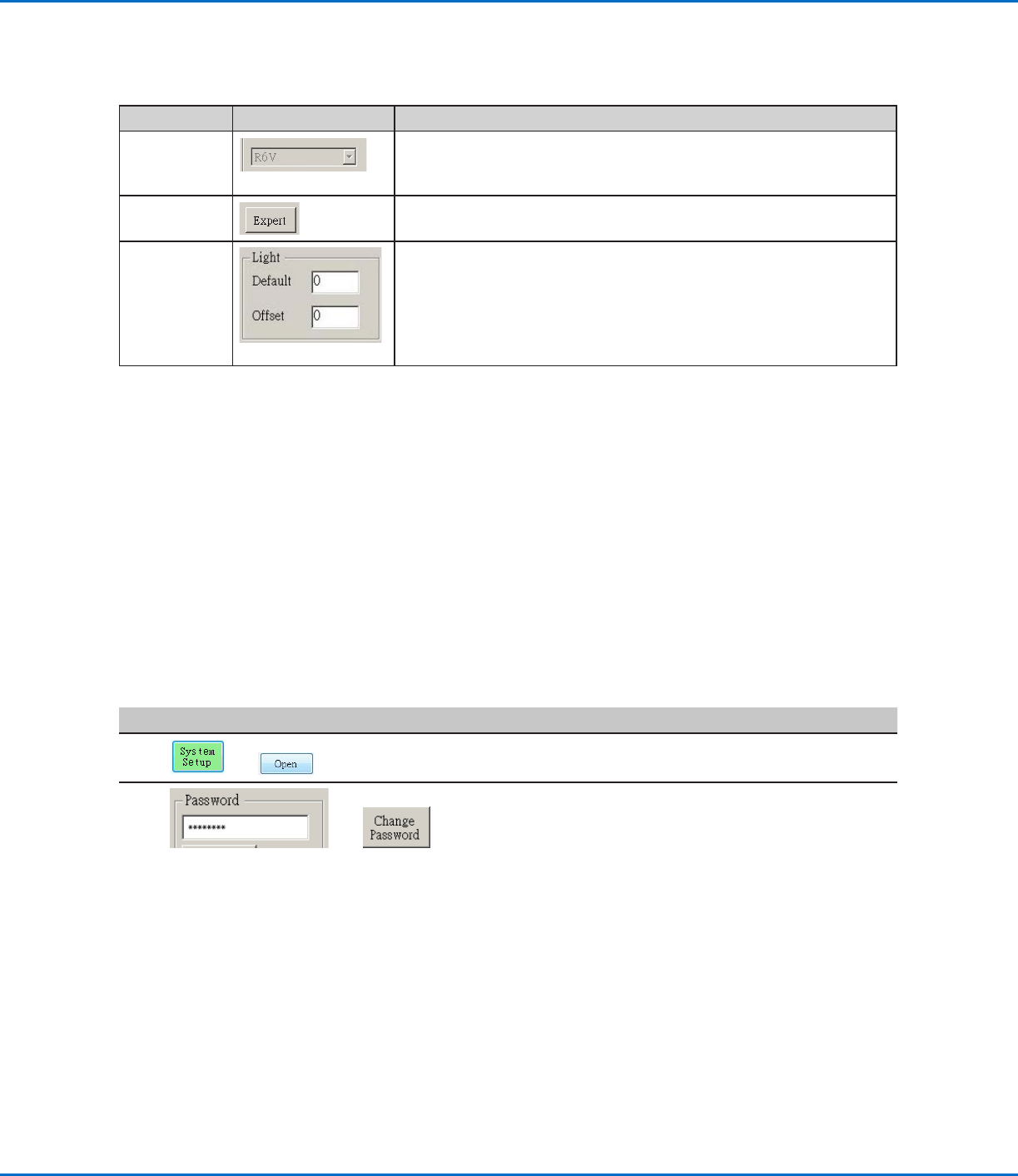
Model drop-
down menu
Sets the dispensing software configuration; this setting must match the
system configuration (model). Any change takes effect upon software
restart.
Expert
For advanced users only.
Light (if
present)
• Default: Allows you to control the light intensity if an external switch is
used to control the light.
• Offset: When the system is in the CCD Mode, automatically changes
the light intensity based on the value entered.
NOTE: The Light settings are present only if an optional light accessory
is installed.
Setting System Parameters (continued)
System Setup Screen Fields (continued)
RV Series Automated Dispensing Systems
45www.nordsonefd.com info@nordsonefd.com +1-401-431-7000 Sales and service of Nordson EFD dispensing systems are available worldwide.
Verifying the Robot Model, Tip Detection, and Set Z to Focus Selections
#
Click Step Reference Image
1
>
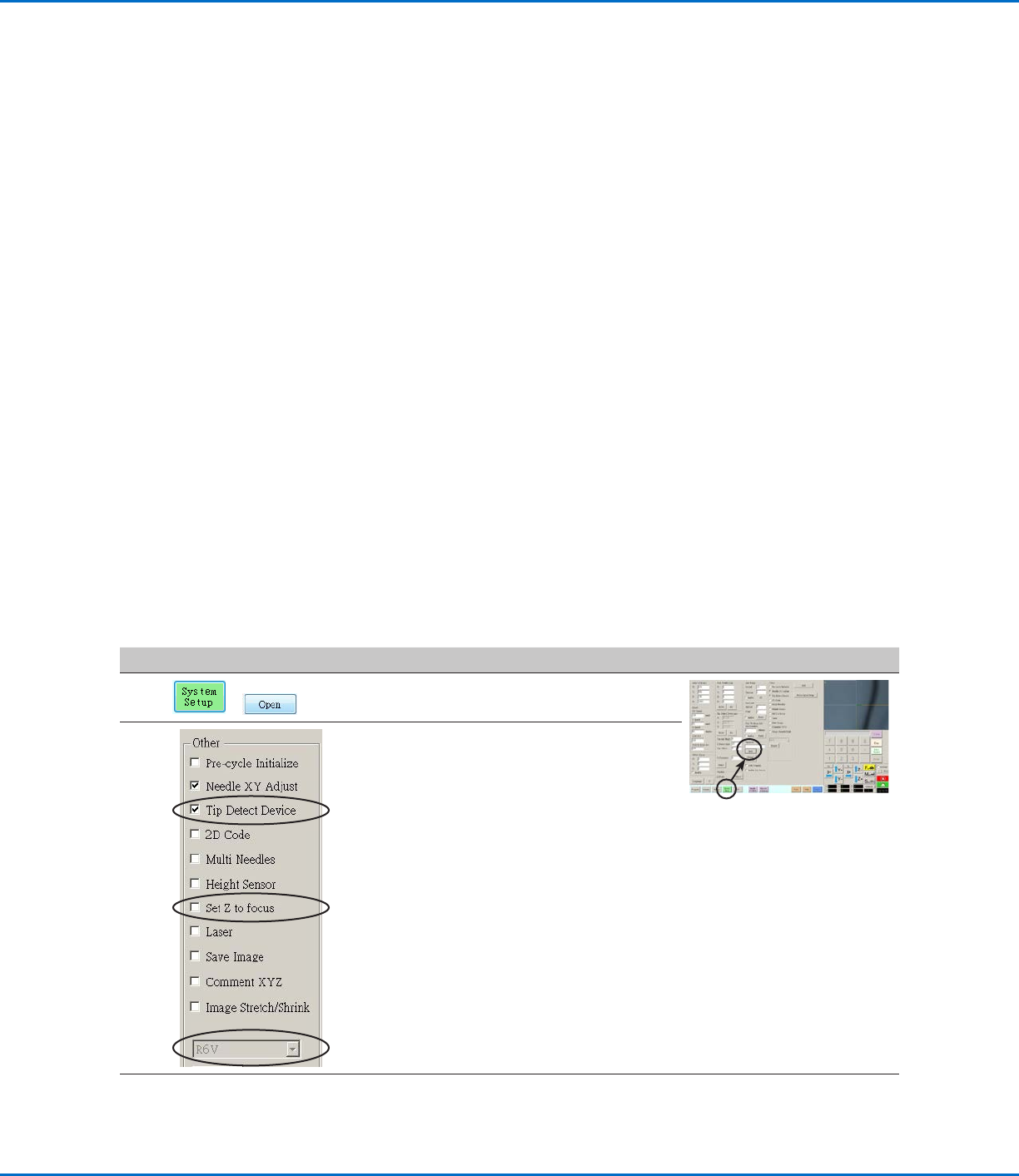
• Click SYSTEM SETUP > OPEN.
2 • Under Other, verify the following:
- If your system includes a tip detector or
tip aligner, Tip Detect Device is checked.
- Set Z to Focus is unchecked (not
checked).
- The correct robot model is shown. If
the robot model is not correct, go to
“Changing the Robot Model Selection”
on page57 to select the correct model.
Return here to continue.
• If you made changes, close and reopen the
DispenseMotion software for the changes to
take effect.
3
• Continue to “Setting the Optional Tip Aligner
Selection” on page46.
Setting Up and Calibrating the System (Required)
Before creating any programs or using the automatic offset update capabilities of the system, you must properly set
up and calibrate the system. Correct system setup and calibration are critical for proper system operation.
The Robot Initial Setup wizard guides you through the complete setup and calibration process. This process must
be performed at initial startup and also after any change to the system.
Examples of system changes include the following:
• Any time a component installed on the Zaxis (such as the syringe barrel or camera) is moved.
• Any time a dispensing tip or nozzle is changed.
Setup and calibration includes the following tasks:
• Verifying the robot model, tip detection, and Set Z to Focus selections
• Setting the optional tip aligner selection (if applicable)
• Setting up the tip detector* or tip alignment device
• Verifying the 4-axis selection
• Opening the robot initial setup wizard and setting the angle of rotation
• Setting up tip detection and tool centering calibration
• Setting the camera-to-tip offset
• Setting a mark
• Setting the camera scale*
• Setting the tip-to-workpiece offset*
• Testing the system setup and calibration
*All required setup and calibration tasks are guided by the Robot Initial Setup wizard. However, the tasks shown above with
an asterisk (*) can be performed individually as needed. Refer to “AppendixB, Non-Wizard Setup Procedures” on page124
for the procedures.
NOTE: Refer to “About Offsets” on page23 for an explanation of offsets.