Nordson_EFD_RV_Series_Operating_Manual - 第59页
RV Series Automated Dispensing Systems 59 www.nordsonefd.com info@nordsonefd.com +1-401-431-7000 Sales and service of Nordson EFD dispensing systems are available worldwide. Setting How the System Finds Marks (Optional) …
RV Series Automated Dispensing Systems
58 www.nordsonefd.com info@nordsonefd.com +1-401-431-7000 Sales and service of Nordson EFD dispensing systems are available worldwide.
Setting Up Inputs / Outputs
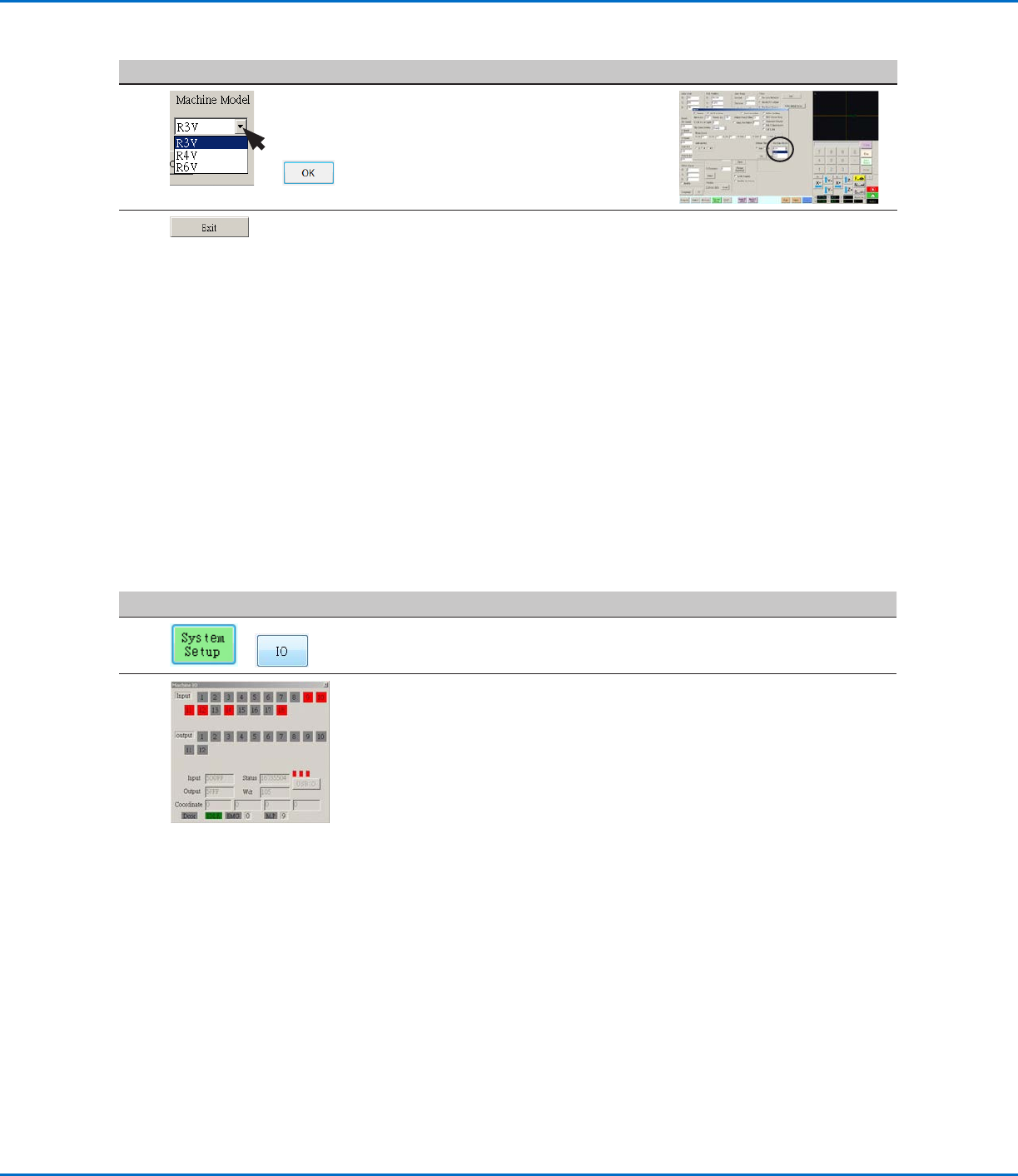
If you connected inputs / outputs, follow this procedure to test input / output connections.
NOTE: All automated dispensing systems provide 8 standard inputs and 8 standard outputs. A kit to expand to
16inputs and 16 outputs is available. Refer to “Accessories” on page91.
PREREQUISITES
The system is properly installed and set up. Refer to “Installation” on page17 and “Setup” on page41.
Input / output wiring is properly connected. Refer to “I/O Port” on page96 for wiring diagrams.
#
Click Step
1
>
• Click SYSTEM SETUP > IO.
2
• Click the outputs you want turn ON or OFF, then click the X to close the
window.
NOTES:
• Inputs flash red when they are turned ON.
• Use only inputs / outputs 1 through 8. The remaining I/Os are reserved for
the system.
Configuring Input / Outputs for a Special Purpose
The IO Pin Function feature provides a set of user-configurable conditions that affect the operation of the robot.
Refer to “AppendixF, I/O Pin Function Setup” on page142.
# Click Step Reference Image
4
>
• Select the correct robot model from
the Machine Model drop-down menu.
• Click OK to save.
5
• Click EXIT to close the software.
• Switch off the robot.
• Re-open the DispenseMotion
software and switch on the robot for
the change to take effect.
Changing the Robot Model Selection (continued)
RV Series Automated Dispensing Systems
59www.nordsonefd.com info@nordsonefd.com +1-401-431-7000 Sales and service of Nordson EFD dispensing systems are available worldwide.
Setting How the System Finds Marks (Optional)
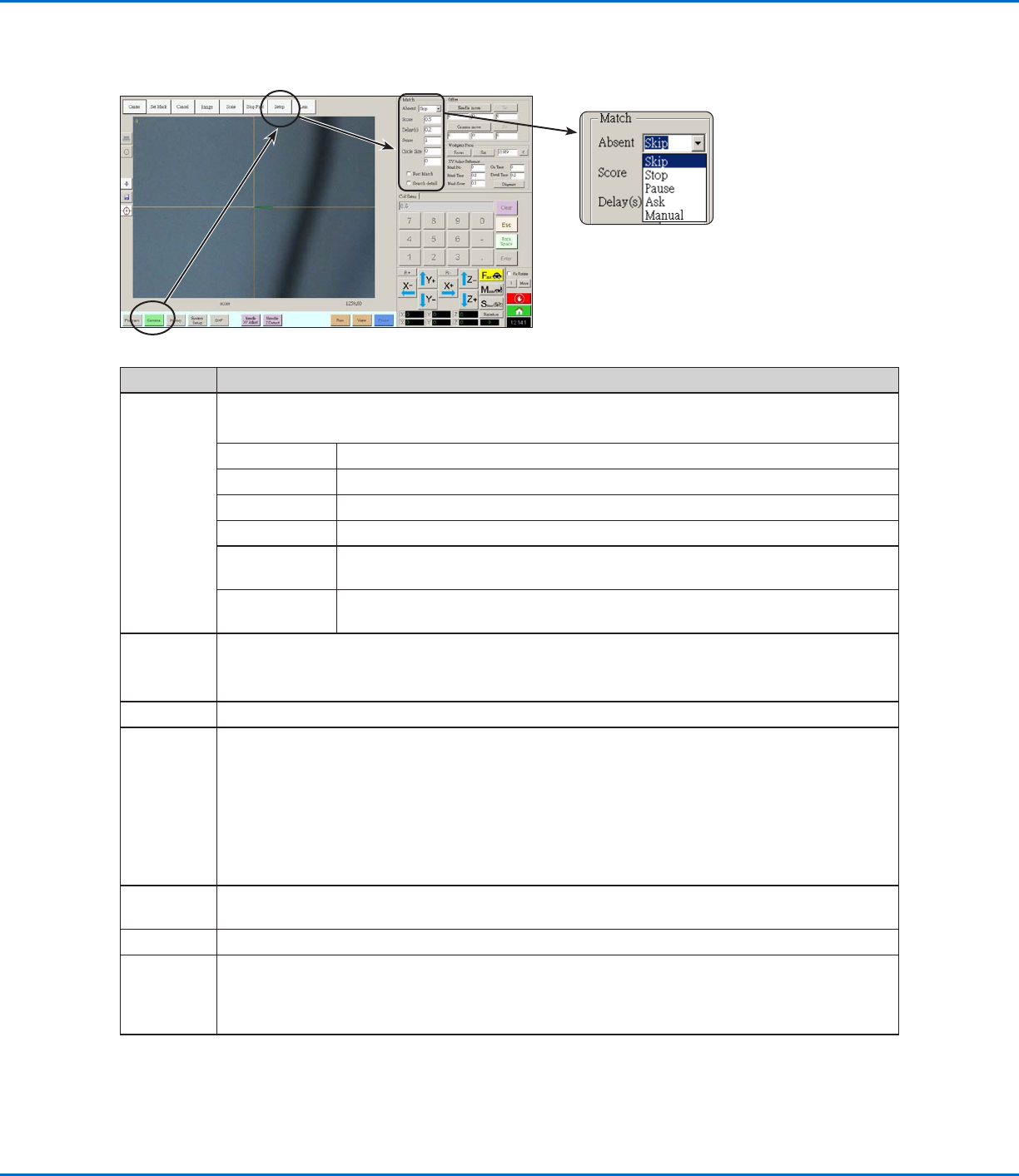
Use the fields under CAMERA > SETUP > MATCH to adjust how the system functions when it searches for marks.
Item Function
Absent Specifies how the system responds when it is unable to recognize a mark.
NOTE: You can assign a specific Absent selection to any saved image in the Mark Library.
Parameter Description
Skip The robot skips to the next program address.
Stop The robot stops.
Pause The robot pauses.
Ask The system asks if you want to: Find Again, Find Next, Stop Find, or use the
Manual mode.
Manual The system asks you to jog the camera to the center of the mark yourself, then to
select CONTINUE to continue the program.
Score Specifies how accurately the camera finds a mark based on a value from 0.1 to 1. A higher value
results in more precise matching. A lower value results in less precise matching.
NOTE: You can assign a specific Score value to any saved image in the Mark Library.
Delay(s) Sets how the long system delays (in seconds) searching for a mark when it reaches the mark area.
Sense Specifies how accurately the camera aligns with the pixels of a mark based on a value from 1 to
200. When the Sense value is low, the camera is slower to align with the mark because it repeatedly
checks the position of the mark to achieve high accuracy. When the Sense value is higher, the
camera aligns with the mark faster, but with less accuracy. For example, a Sense value of 1 means
the deviation cannot be more than one pixel. When the Sense value is 200, the deviation can be up
to 200 pixels.
NOTE: For a slower find speed but better accuracy, enter higher Score and lower Sense values; for
a faster find speed but less accuracy, enter lower Score and higher Sense values.
Circle Size Sets the size of the yellow and green circles on the Camera screen. A higher value results in a
larger circle.
Fast Match If this box is checked, the camera searches for mark more quickly but with less accuracy.
Search
Detail
Sets the area within which the camera searches for a mark. If Search Detail is NOT checked, the
camera looks only within the specified range (set under Range). If Search Detail is checked, the
camera overrides the range settings and performs a full-screen search for the mark. This increases
the chances of finding the mark, but is slower.
RV Series Automated Dispensing Systems
60 www.nordsonefd.com info@nordsonefd.com +1-401-431-7000 Sales and service of Nordson EFD dispensing systems are available worldwide.
Sharing Offset Values Across Multiple Programs
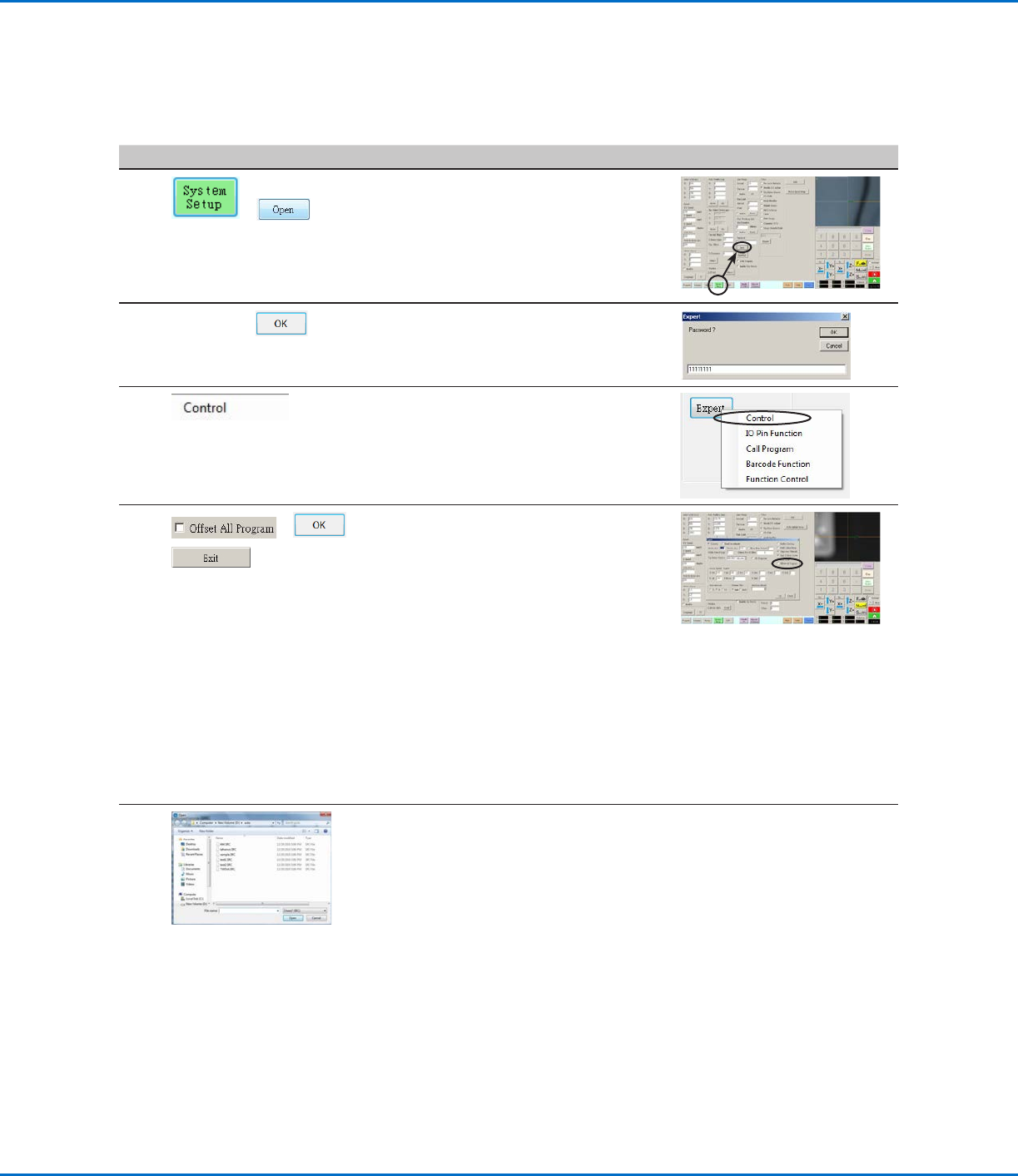
If you want multiple dispense programs to have the same offset values (tip-to-workpiece, camera-to-tip), you can
enable Offset All Program through the System Setup screen. Doing so creates a new directory (D:\auto) — programs
that should have the same offsets are stored in this directory. Enabling Offset All Program causes the Needle Z
Detect (if applicable) and NeedleXY Adjust offsets to affect all files stored in the d:\auto directory.
# Click Step Reference Image
1
>
• Click SYSTEM SETUP > OPEN.
2
11111111 >
• Enter 11111111, then click OK.
3 • Click CONTROL.
4
> >
• In the Expert window, select or
deselect the OFFSET ALL PROGRAM
checkbox.
• Click OK to save the setting.
NOTE: The change takes effect
immediately, but does not change
the directory of the currently open
program. To save the currently open
program in the d:\auto directory, use
Save As.
• Click EXIT to close the
DispenseMotion application, allowing
the system to update the default
directory based on the Offset All
Program selection.
When Offset All Program is enabled:
• The system automatically creates a new directory: D:\auto. Programs
that should share the same offsets must be saved in this directory.
• To ensure that a program is saved to the correct directory for sharing
offsets, create a new program and then select Save or Save As. The
system automatically opens the D:\auto directory.
NOTE: When Offset All Program is disabled, the system automatically
returns to saving programs in the default D:\save directory.