JO-116-001_w.pdf - 第58页
3-9 JO-1 16 1 105-001 3. "T ype Listup" Window T ype Editing The authority "Power User" or higher is required to edit the types. Change the authority level to "Power User" or "Administr…
3-8
JO-116
1105-001
3. "Type Listup" Window
3. "Type Listup" Window
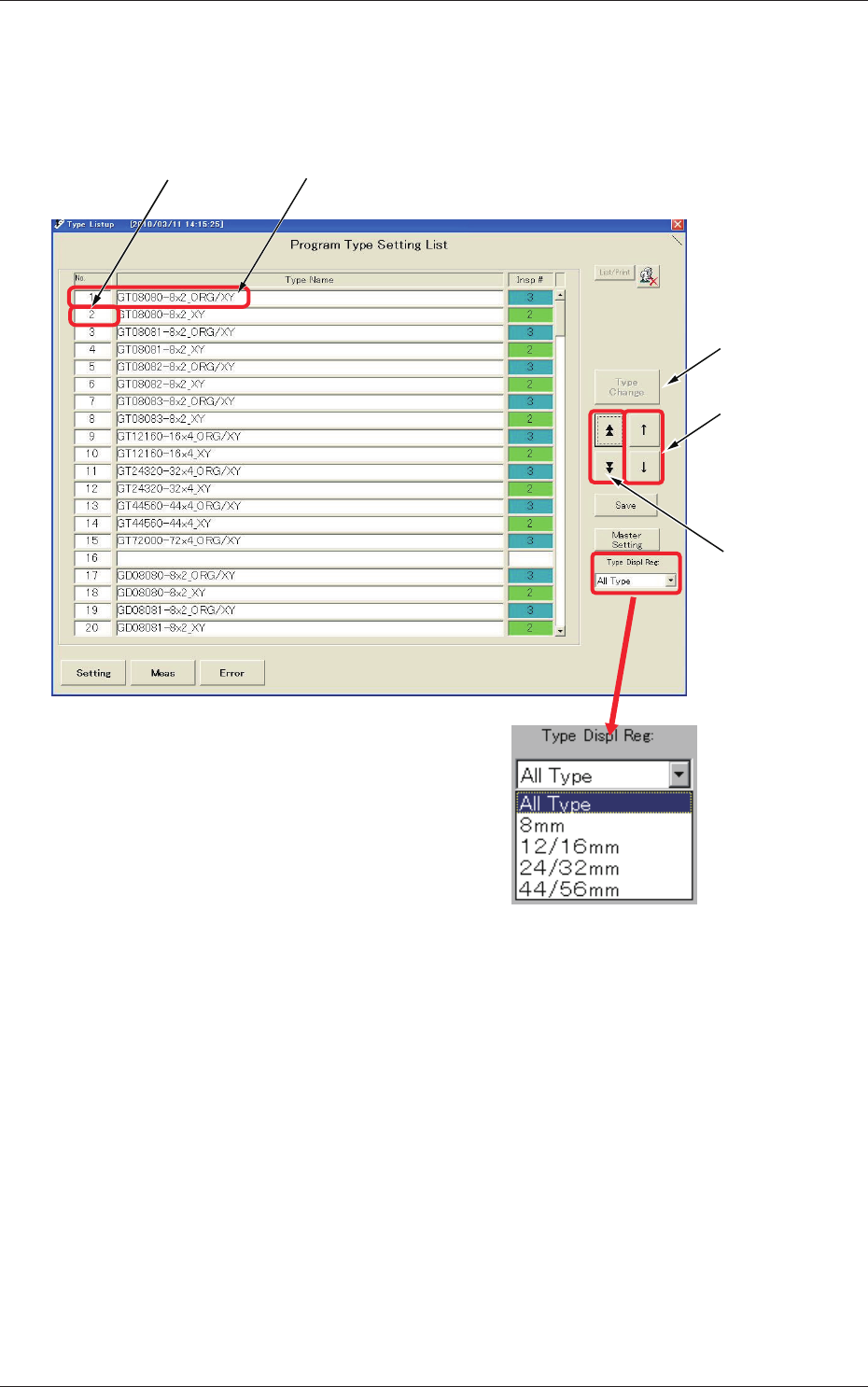
When you press the [Setting] button again while the "Type Setting" window
is active, the "Type Listup" window appears.
Subcursor Currently Selected Type
Used to change
the type.
Used to move
the cursor.
Used to open
another page.
Fig. C11 "Type Listup" Window
Type Display Regulation
It is possible to regulate the types to be displayed according to the option
selected in the "Type Displ Reg" combo box.
As a result, your objective type can quickly be selected from the type list.
Type Sorting
When you press the "No.", the "Type Name" or the "Insp #" area, the data in
the corresponding column is sorted and displayed.
When you press the title area again, the data is rearranged in the ascending or
descending order.
3-9
JO-116
1105-001
3. "Type Listup" Window
Type Editing
The authority "Power User" or higher is required to edit the types.
Change the authority level to "Power User" or "Administrator".
Reference
Refer to "1. Administrative Authority Change" in "Section 3" for details.
(1) Type Copy
It is possible to make a copy of the currently selected type and allocate
it to another type No.
Move the subcursor ("No." Cell in Blue) to the destination type No.
area for copying.
The [Copy] button appears. Press it.
The message box of the conrmation opens. Press the [OK] button.
The data is copied.
(2) Type Deletion
It is possible to delete a type other than the currently selected one.
Move the subcursor ("No." Cell in Blue) to the destination type No.
area of the type to be deleted.
The [Delete] button appears. Press it.
The message box of the conrmation opens. Press the [OK] button.
Notice
Once the data is deleted, it cannot be recovered.
3-10
JO-116
1105-001
4. "Type Setting" Window
4. "Type Setting" Window
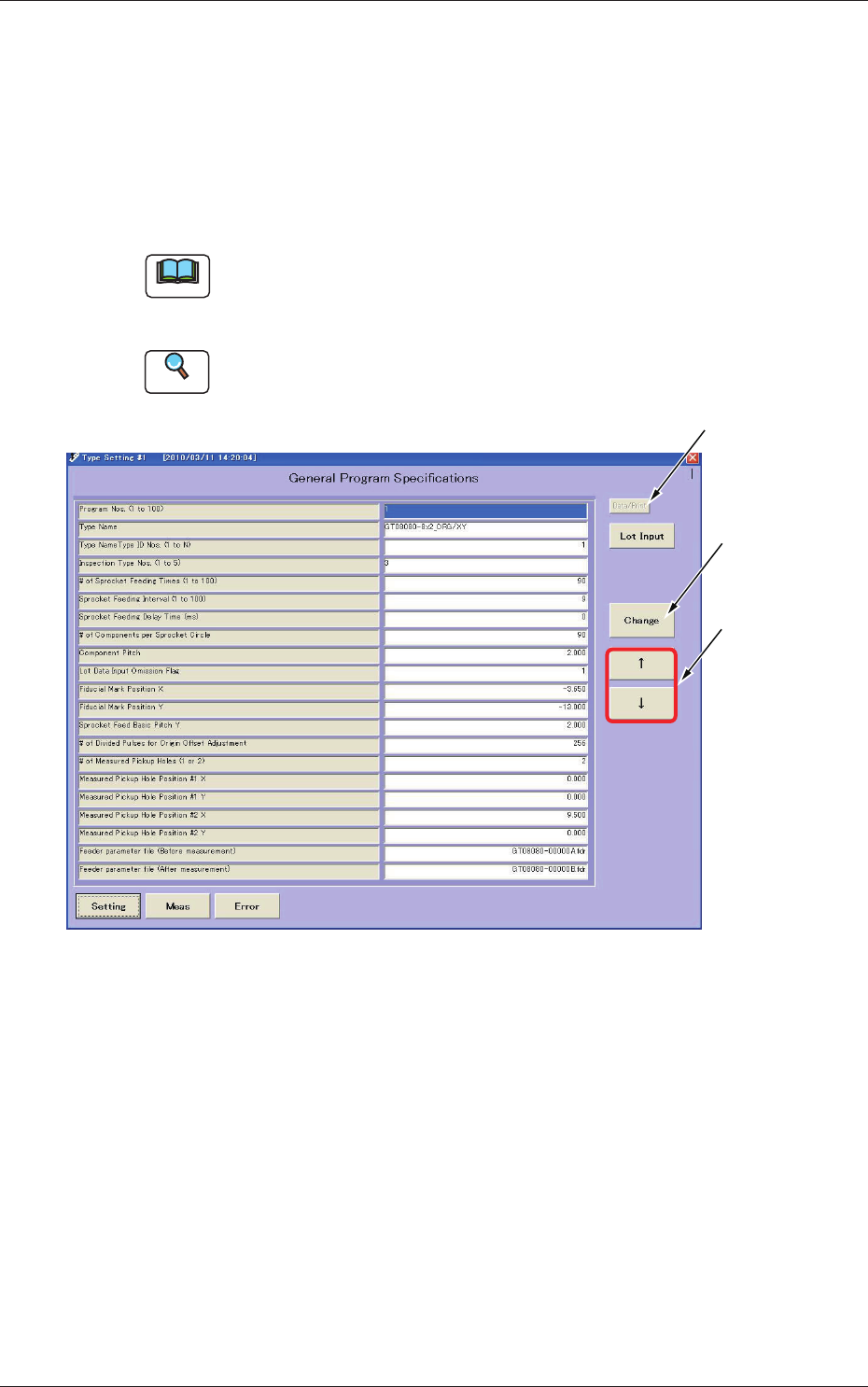
Displayed is the type data.
When you press the [Setting] button at each window, the "Type Setting"
window opens.
Pressing the [Setting] button again opens the "Type Listup" or the "Type
Setting" window or vice versa.
Note
Only "Administrator" or "Power User" can change each executable data in
this window.
"User" can execute only the selection of types.
Reference
Refer to "1. Administrative Authority Change" in "Section 3" for details.
Used to print
the type data.
Used to change
the set value.
Used to move
the cursor.
Fig. C12 "Type Setting" Window