4OM-1011-002.pdf - 第207页
0305-001 Tg0860-PM-MM *5 “X/Y BEAM TEST OPERA TION” [PLACEMENT POSN MOVE (HIGH SPEED)], [PLACEMENT POSN MOVE (MIDDLE SPEED)], and [PLACEMENT POSN MOVE (LOW SPEED)] Keys Every time this key is pressed, the label changes. …
0305-001 Tg0860-PM-MM
7.3 X/Y BEAM TEST Display
When the [X/Y BEAM TEST] key is pressed at the “DEVICE TEST” display,
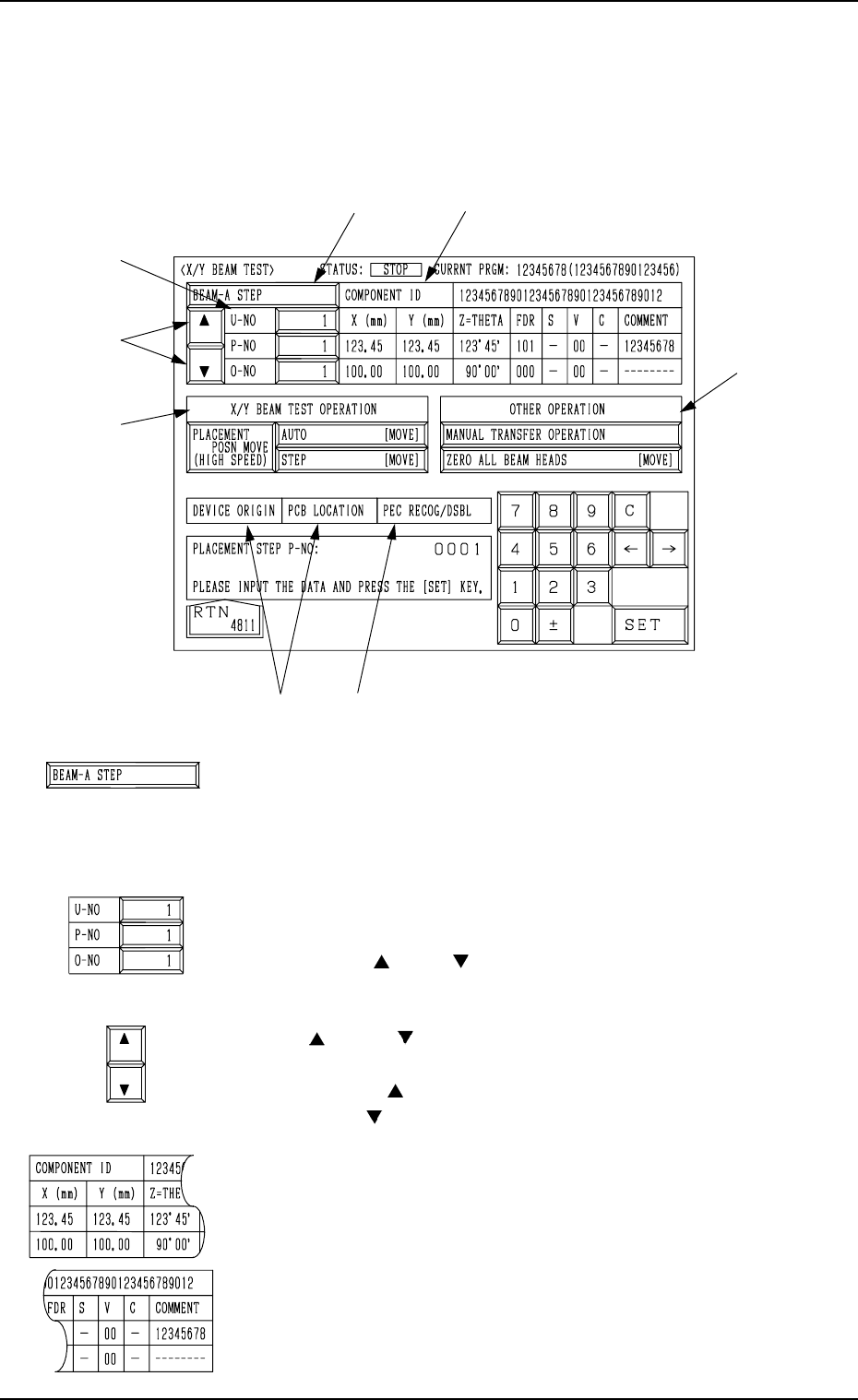
the following display appears on the screen.
*1 [BEAM-A STEP] and [BEAM-B STEP] Keys
The X/Y beam to be tested can be selected.
Every time this key is pressed, the label “BEAM-A STEP”
changes to “BEAM-B STEP” or vice versa.
*2 “U-NO”, “P-NO”, and “O-NO”
Shown are the step Nos. of the placement data.
Use the [ ] and [ ] keys to perform the X/Y beam test,
starting with the desired step.
*3 [ ] and [ ] Keys
Select one of the numeric keys *2 and change the step No.
When the [ ] key is pressed, the step No. increases. Press-
ing the [ ] key decreases the step No.
*4 COMPONENT ID/PLACEMENT DATA
Displayed are the parameters of the placement data selected
as those to be tested through program change operation.
7.3 X/Y BEAM TEST Display
3-155
*2
*3
*5
*6
*1
*7
*4
*8
Fig. 4C322
Fig. 4C323
Fig. 4C324
Fig. 4C325
Fig. 4C326
0305-001 Tg0860-PM-MM
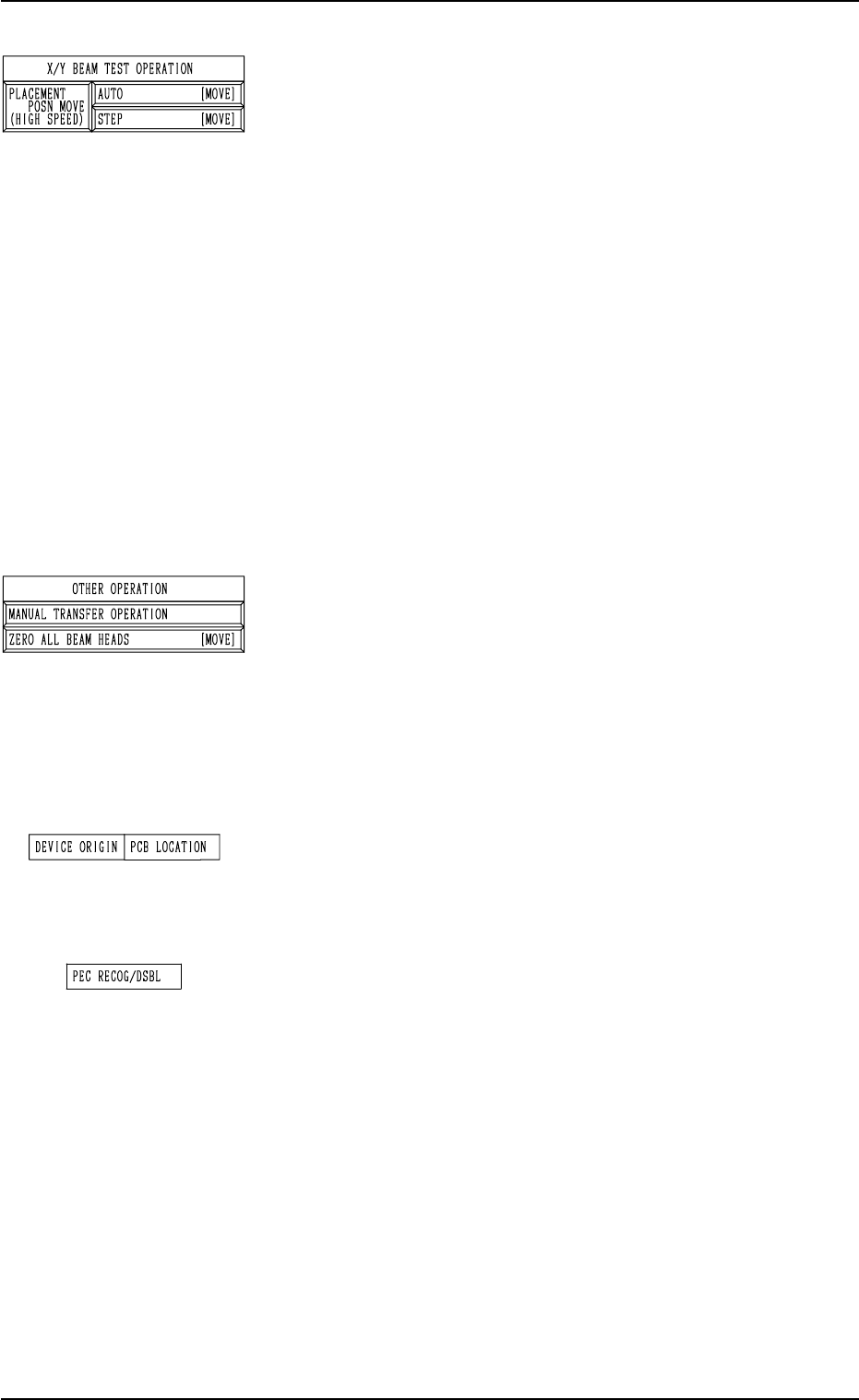
*5 “X/Y BEAM TEST OPERATION”
[PLACEMENT POSN MOVE (HIGH SPEED)],
[PLACEMENT POSN MOVE (MIDDLE SPEED)], and
[PLACEMENT POSN MOVE (LOW SPEED)] Keys
Every time this key is pressed, the label changes.
These keys are used to set the period of time during
which the X/Y beam stays still at the placement point.
• Reference Values
High Speed : 50 msec
Middle Speed : 1,000 msec
Low Speed : 2,000 msec
[AUTO [MOVE]] Key
When this key is selected and the [MOVE] button is
pressed, the X/Y beam moves continuously accord
ing to the pattern program.
[STEP [MOVE]] Key
When this key is selected and the [MOVE] button is
pressed, the X/Y beam moves step by step according
to the pattern program.
*6 “OTHER OPERATION”
[MANUAL TRANSFER OPERATION] Key
When this key is pressed, the “MANUAL TRANSFER
OPERATION” display appears on the screen, enabling
the P.C.B. positioning operation.
[ZERO ALL BEAM HEADS [MOVE]] Key
This key is used to zero both Beams A and B.
When this key is selected and the [MOVE] button is
pressed, the zeroing operation starts.
*7 Set Conditions
When the set-up operations for “DEVICE ORIGIN” and
“PCB LOCATION” are completed, the background color
turns green. Otherwise, the background has no color.
*8 “PEC RECOG/DSBL”
When “DISABLE” is set in the “P.E.C.” data box at the
“TEST MODE” display, the background color of “PEC
RECOG/DSBL” turns light red. (No background color in
normal cases).
7.3 X/Y BEAM TEST Display
3-156
Fig. 4C327
Fig. 4C328
Fig. 4C329
Fig. 4C330

0305-001 Tg0860-PM-MM
7.3 X/Y BEAM TEST Display
3-157
Procedure for X/Y Beam Test
(1) Set the current pattern program to be tested.
Refer to “5.2 Program Change Operation of Section 2 in Volume 1” for
details.
(2) Confirm that the background color of “DEVICE ORIGIN” and “PEC
RECOG/DSBL” is green.
(3) Select the beam to be tested.
(4) Specify the starting step if desired.
(5) Set the period of time during which the X/Y beam stays still at the place-
ment point.
(6) Specify how to move the X/Y beam.
[AUTO [MOVE]] Key:
The X/Y beam moves continuously according to the pattern program.
[STEP [MOVE]] Key:
The X/Y beam moves step by step according to the pattern program.
(7) The X/Y beam test starts.
Selection of [AUTO [MOVE]] Key
• When the [MOVE] button is pressed, the X/Y beam test run is imple-
mented continuously according to the pattern program.
• When the [STOP] button is pressed during test run, the X/Y beam
completes the movement up to the last step of the pattern program, is
zeroed, and then stops there.
• When the [PAUSE] button is pressed during test run, the X/Y beam
stops temporarily.
Selection of [STEP [MOVE]] Key
• Every time the [MOVE] button is pressed, the X/Y beam moves step
by step.