4OM-1011-002.pdf - 第269页
0305-001 Tg0860-PM-MM 3.1 Setting of Password A vailable Areas (1) Enter the password specified as one for the supervisor to issue the “Log In” command. (2) Open the “P ASSWORD A VLBL. AREA SET” display (Fig. 4.3). (Hier…
0305-001 Tg0860-PM-MM
3. Management of Password
This machine is provided with a password function which can be implemented
on specific data editing, preventing various types of data groups in the ma-
chine from being deleted by mistake and keeping unauthorized user (third party)
from not only editing data but also operating the machine.
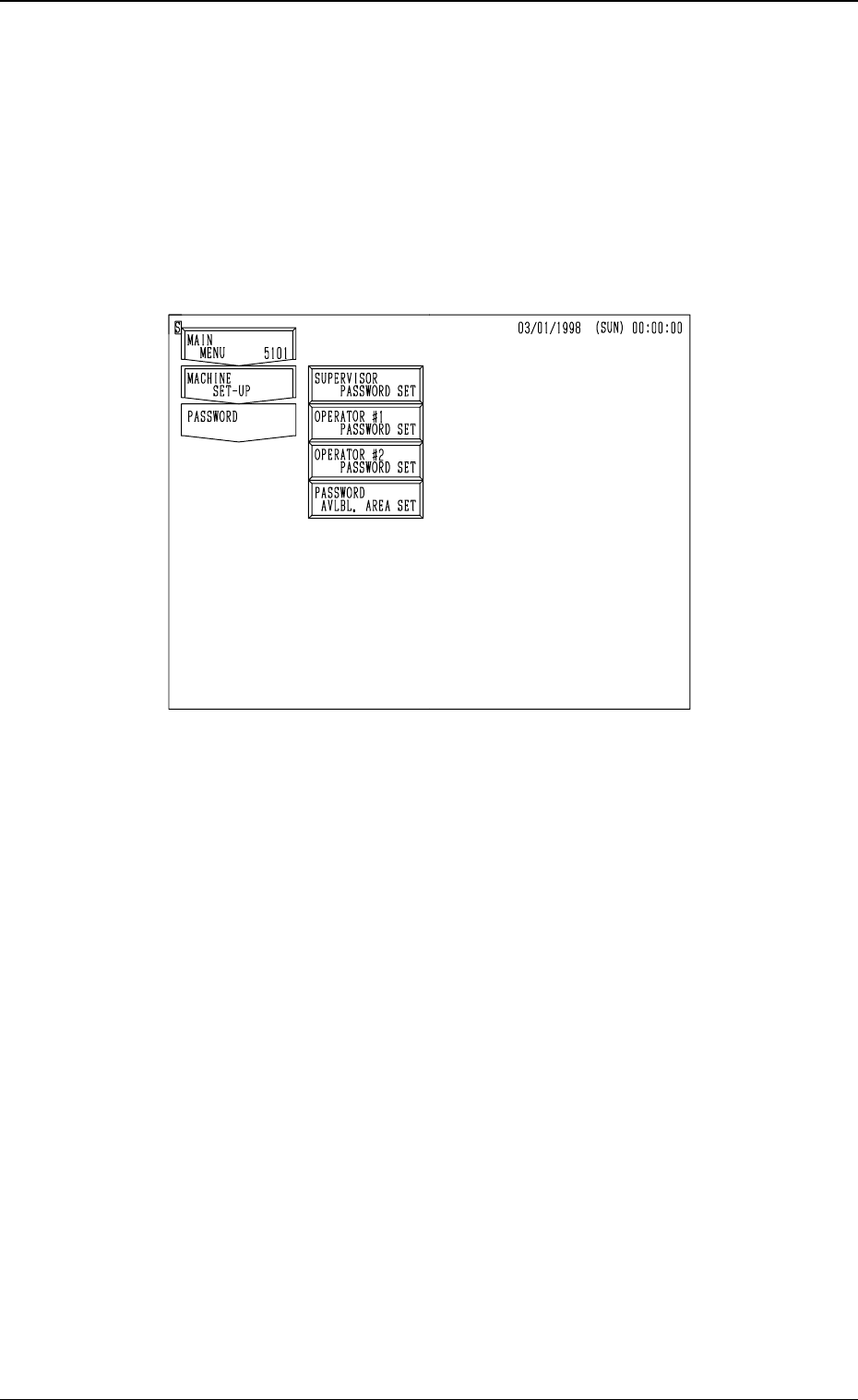
When the [PASSWORD] key is pressed at the “MACHINE SET-UP” display,
the following display appears on the screen.
• The following three kinds of passwords can be set.
SUPERVISOR PASSWORD SET (1st Priority)
OPERATOR #1 PASSWORD SET (2nd Priority)
OPERATOR #2 PASSWORD SET (3rd Priority)
Each password can be set for the supervisor, the operator assigned as #1,
and the operator assigned as #2.
• Available areas for each password can also be allocated, preventing certain
areas from being logged in. For example, by allocating a certain password
for the operator #1 to let the system allow him to both edit data and operate
the machine if he can enter the specified password correctly. On the other
hand, by specifying a password for the operator #2, the system allows him
to operate the machine only.
Notes: (a) Only the personnel designated as a supervisor has the right to set
passwords and available areas.
(b) Although the machine can be operated without setting any pass-
word, it is advisable that at least a password for the supervisor
should be set. If a third party sets a password, the machine cannot
be operated by any other personnel.
(c) When the supervisor forgets his/her password, it becomes impos-
sible to set any passwords and available areas.
To make the password function available again, all memory must
be cleared.
4-3
3. Management of Password
Fig. 4D3
0305-001 Tg0860-PM-MM
3.1 Setting of Password Available Areas
(1) Enter the password specified as one for the supervisor to issue the “Log
In” command.
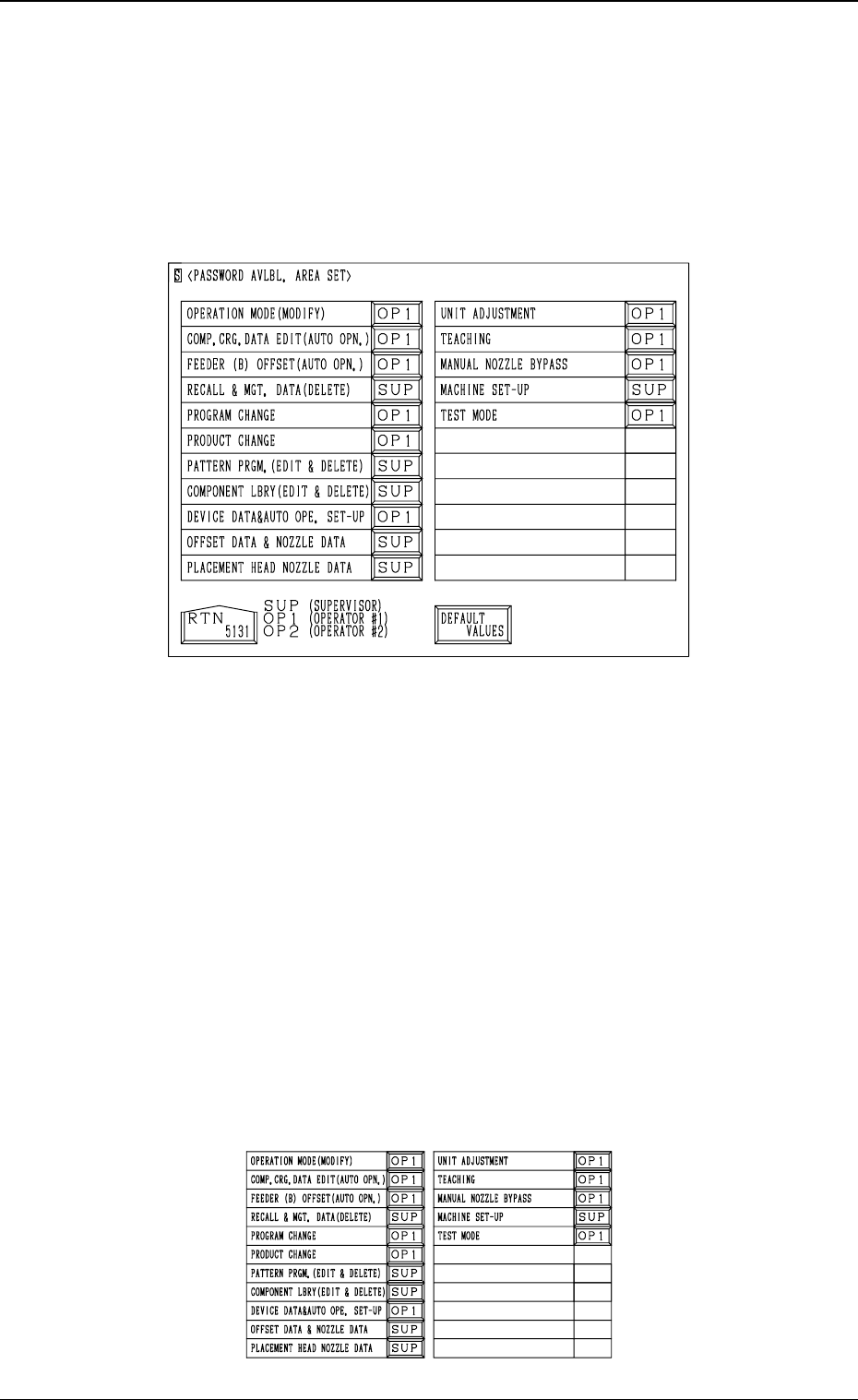
(2) Open the “PASSWORD AVLBL. AREA SET” display (Fig. 4.3). (Hier-
archical Sequence : “MAIN MENU” Display → “MACHINE SET-UP”
Display → “PASSWORD” Display → “PASSWORD AVLBL. AREA
SET” Display)
(3) Set “SUP”, “OP1”, or “OP2” in the data box of each label (items for
which a password type can be allocated). Every time the data box is
pressed, the system allows you to scroll up and down the range of options
(“SUP” → “OP1” → “OP2”).
[SUP]: Operation possible only when the supervisor can success-
fully log on to the system using the supervisor password.
[OP1]: Operation possible only when the supervisor or the opera-
tor #1 can successfully log on to the system using each pass-
word.
[OP2] : Operation possible only when the supervisor, the operator
#1, or the operator #2 can successfully log on to the system
using each password.
Notes: (a) When an operator other than the supervisor issues the “Log
In” command, he cannot set any password available area
but can check how the passwords are set for each function.
(b) It is possible to set password available areas even when
each password is not set.
• When the [DEFAULT VALUES] key is pressed, the default values are
set in each data boxes. The following figure shows the default values.
4-4
3.1 Setting of Password Available Areas
Fig. 4D4
Fig. 4D5
0305-001 Tg0860-PM-MM
3.2 Flow of Operation
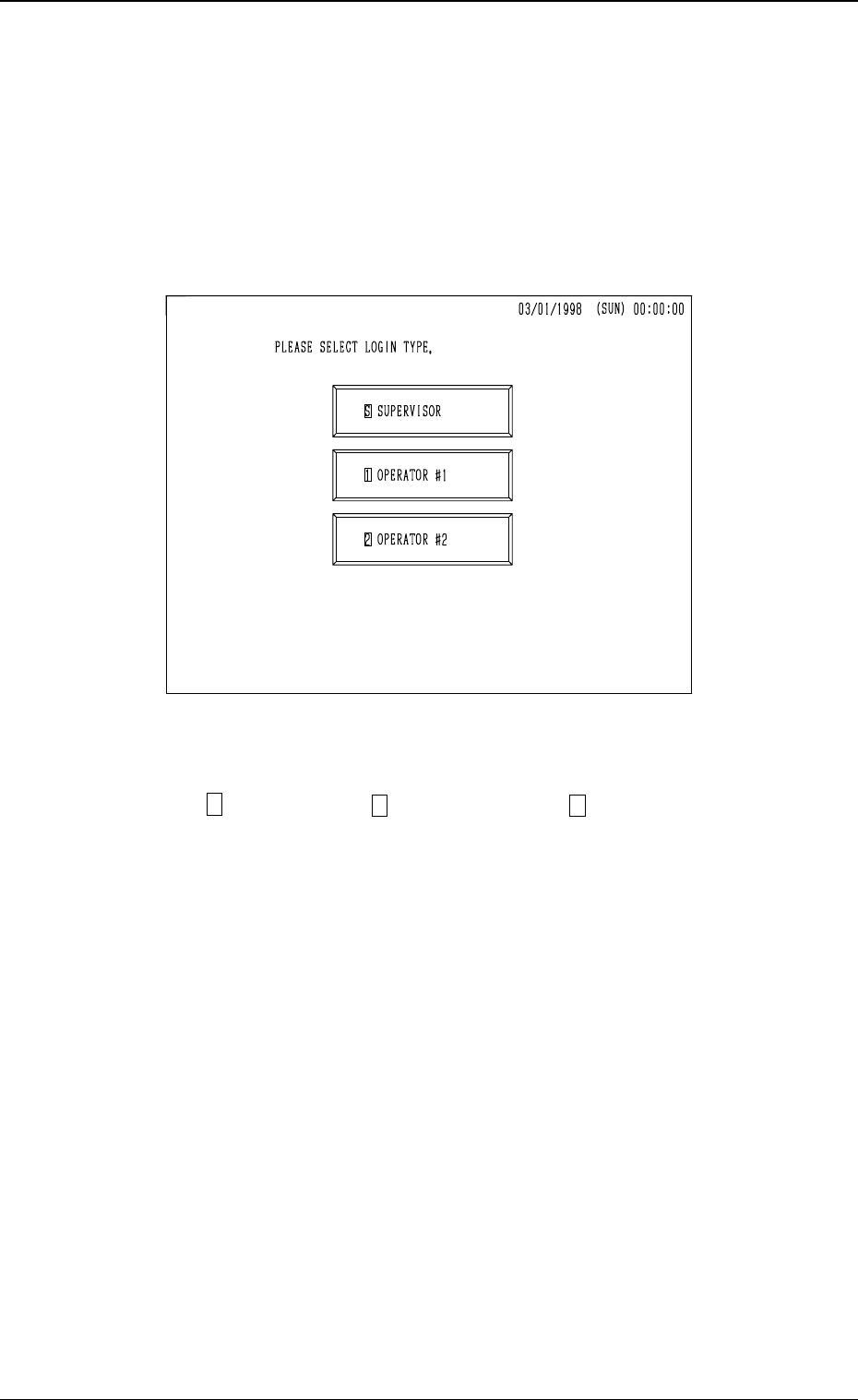
(1) When the machine is powered, the display for system initialization ap-
pears on the screen and the display (Fig. 4D6) for “Log In” type selection
follows.
As long as the operator does not select any “Log In” type, no operation
(including the zeroing operation) becomes available.
Note: The touch screen calibration is excluded.
(2) Select a “Log In” type
(“ S SUPERVISOR”, “ 1 OPERATOR #1”, or “ 2 OPERATOR #2”).
• When a password is set for the selected “Log In” type, the “PASS-
WORD ENTRY” display appears on the screen. (Proceed to (3).)
• When no password is set for the selected “Log In” type, the “MAIN
MENU” display appears on the screen. The “PASSWORD ENTRY”
display is bypassed. (Proceed to (4).)
4-5
3.2 Flow of Operation
Fig. 4D6