4OM-1011-002.pdf - 第270页
0305-001 Tg0860-PM-MM 3.2 Flow of Operation (1) When the machine is powered, the display for system initialization ap- pears on the screen and the display (Fig. 4D6) for “Log In” type selection follows. As long as the op…
0305-001 Tg0860-PM-MM
3.1 Setting of Password Available Areas
(1) Enter the password specified as one for the supervisor to issue the “Log
In” command.
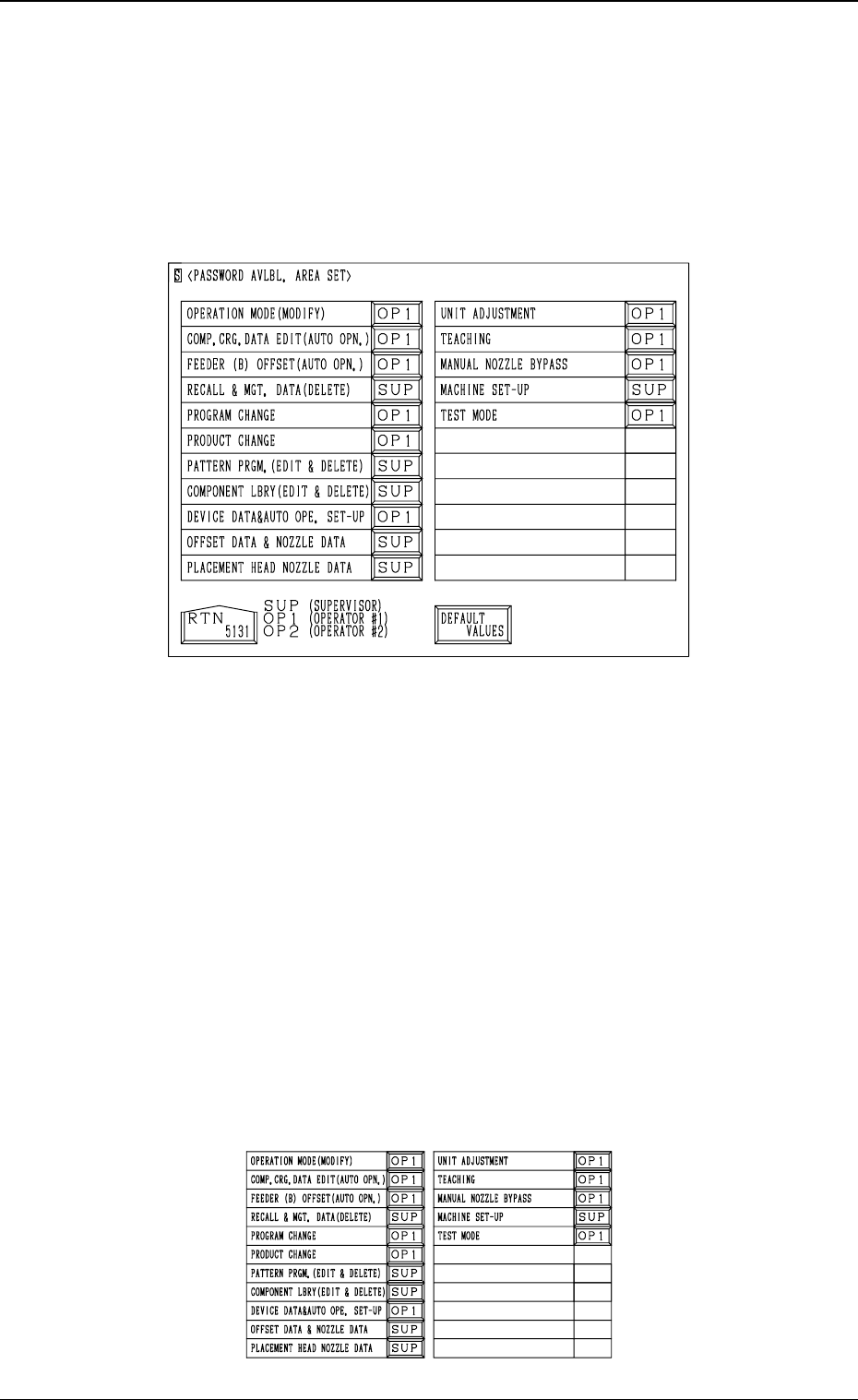
(2) Open the “PASSWORD AVLBL. AREA SET” display (Fig. 4.3). (Hier-
archical Sequence : “MAIN MENU” Display → “MACHINE SET-UP”
Display → “PASSWORD” Display → “PASSWORD AVLBL. AREA
SET” Display)
(3) Set “SUP”, “OP1”, or “OP2” in the data box of each label (items for
which a password type can be allocated). Every time the data box is
pressed, the system allows you to scroll up and down the range of options
(“SUP” → “OP1” → “OP2”).
[SUP]: Operation possible only when the supervisor can success-
fully log on to the system using the supervisor password.
[OP1]: Operation possible only when the supervisor or the opera-
tor #1 can successfully log on to the system using each pass-
word.
[OP2] : Operation possible only when the supervisor, the operator
#1, or the operator #2 can successfully log on to the system
using each password.
Notes: (a) When an operator other than the supervisor issues the “Log
In” command, he cannot set any password available area
but can check how the passwords are set for each function.
(b) It is possible to set password available areas even when
each password is not set.
• When the [DEFAULT VALUES] key is pressed, the default values are
set in each data boxes. The following figure shows the default values.
4-4
3.1 Setting of Password Available Areas
Fig. 4D4
Fig. 4D5
0305-001 Tg0860-PM-MM
3.2 Flow of Operation
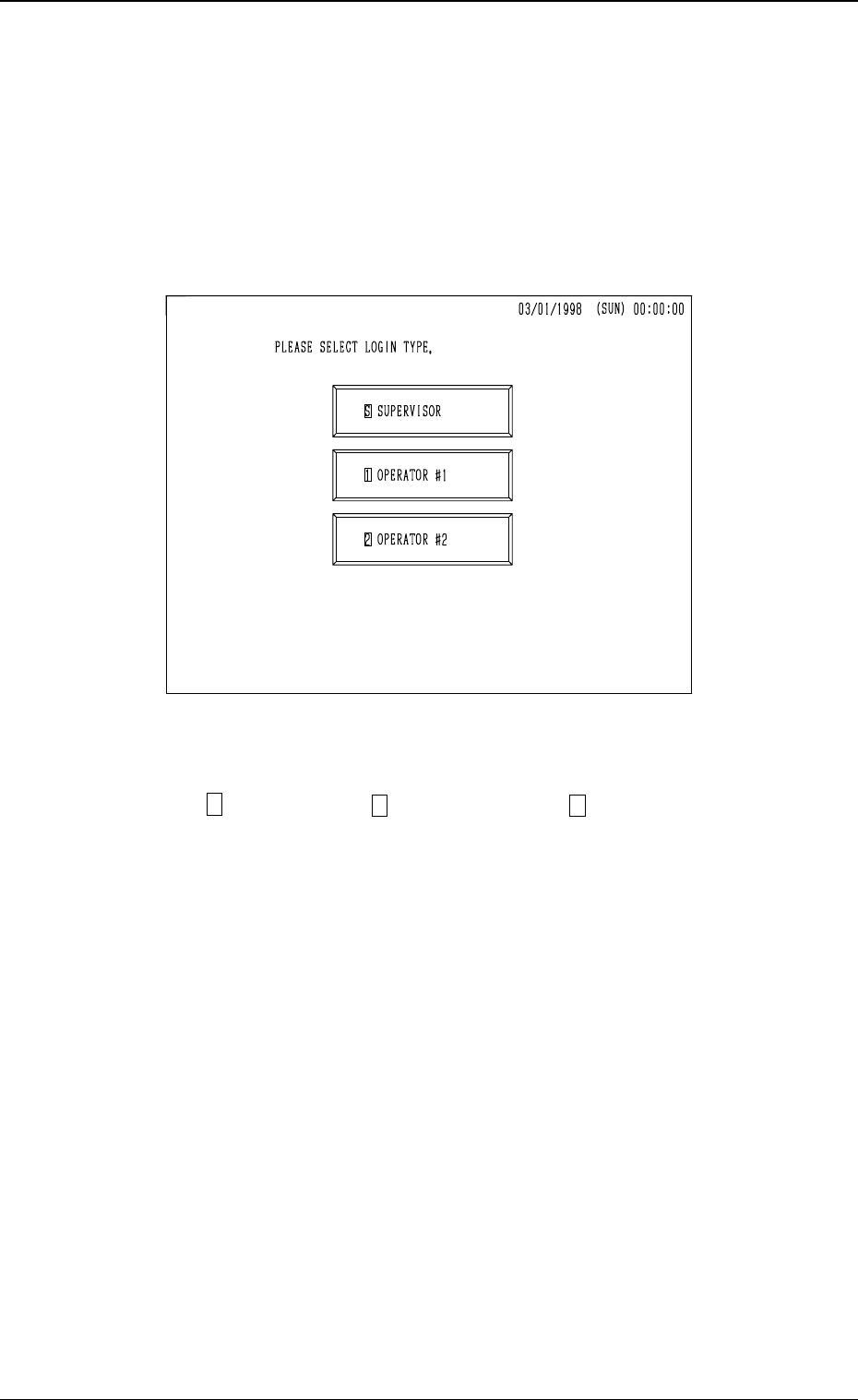
(1) When the machine is powered, the display for system initialization ap-
pears on the screen and the display (Fig. 4D6) for “Log In” type selection
follows.
As long as the operator does not select any “Log In” type, no operation
(including the zeroing operation) becomes available.
Note: The touch screen calibration is excluded.
(2) Select a “Log In” type
(“ S SUPERVISOR”, “ 1 OPERATOR #1”, or “ 2 OPERATOR #2”).
• When a password is set for the selected “Log In” type, the “PASS-
WORD ENTRY” display appears on the screen. (Proceed to (3).)
• When no password is set for the selected “Log In” type, the “MAIN
MENU” display appears on the screen. The “PASSWORD ENTRY”
display is bypassed. (Proceed to (4).)
4-5
3.2 Flow of Operation
Fig. 4D6
0305-001 Tg0860-PM-MM4-6
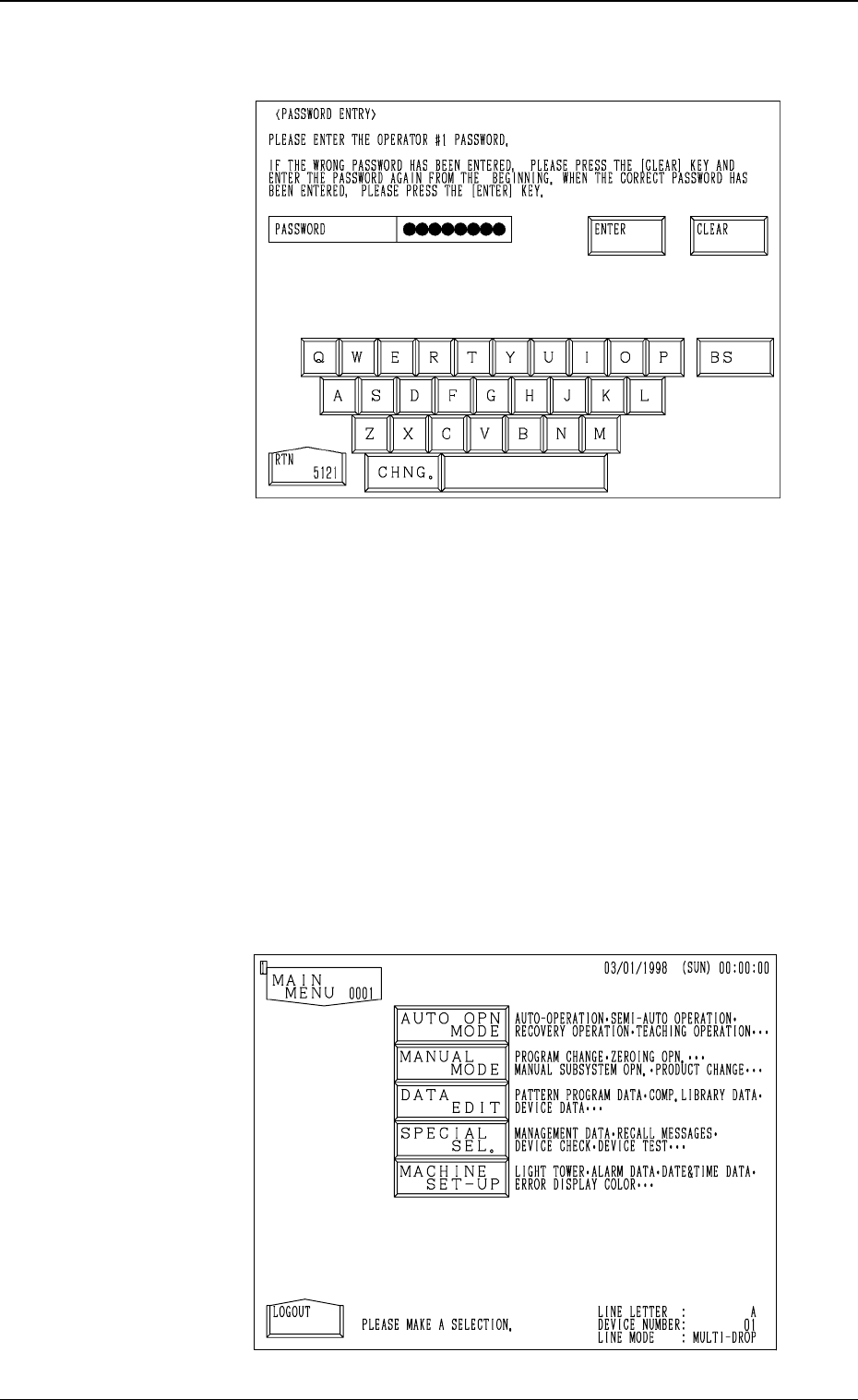
(3) The “PASSWORD ENTRY” display (Fig. 4D7) appears on the screen.
Enter the password and press the [ENTER] key. If the password is cor-
rect, the “MAIN MENU” display appears on the screen.
(Completion of “Log In” Operation)
• If the entered password is not correct, the display for “Log In” type
selection appears on the screen.
Select a “Log In” type again and correctly set the password. Then,
press the [ENTER] key.
• Use the [BS] key to delete a character to the left of the cursor when you
accidentally press the wrong key in the middle of password entry or
press the [CLEAR] key to delete all entries and enter your password
from the beginning.
(4) The “MAIN MENU” display (Fig. 4D8) appears on the screen.
3.2 Flow of Operation
Fig. 4D7
Fig. 4D8