4OM-1011-002.pdf - 第272页
0305-001 Tg0860-PM-MM • All operations set as available at the “P ASSWORD A VLBL. AREA SET” display can be performed. Note: When you open the data edit display corresponding to the item whose editing is prohibited at the…
0305-001 Tg0860-PM-MM4-6
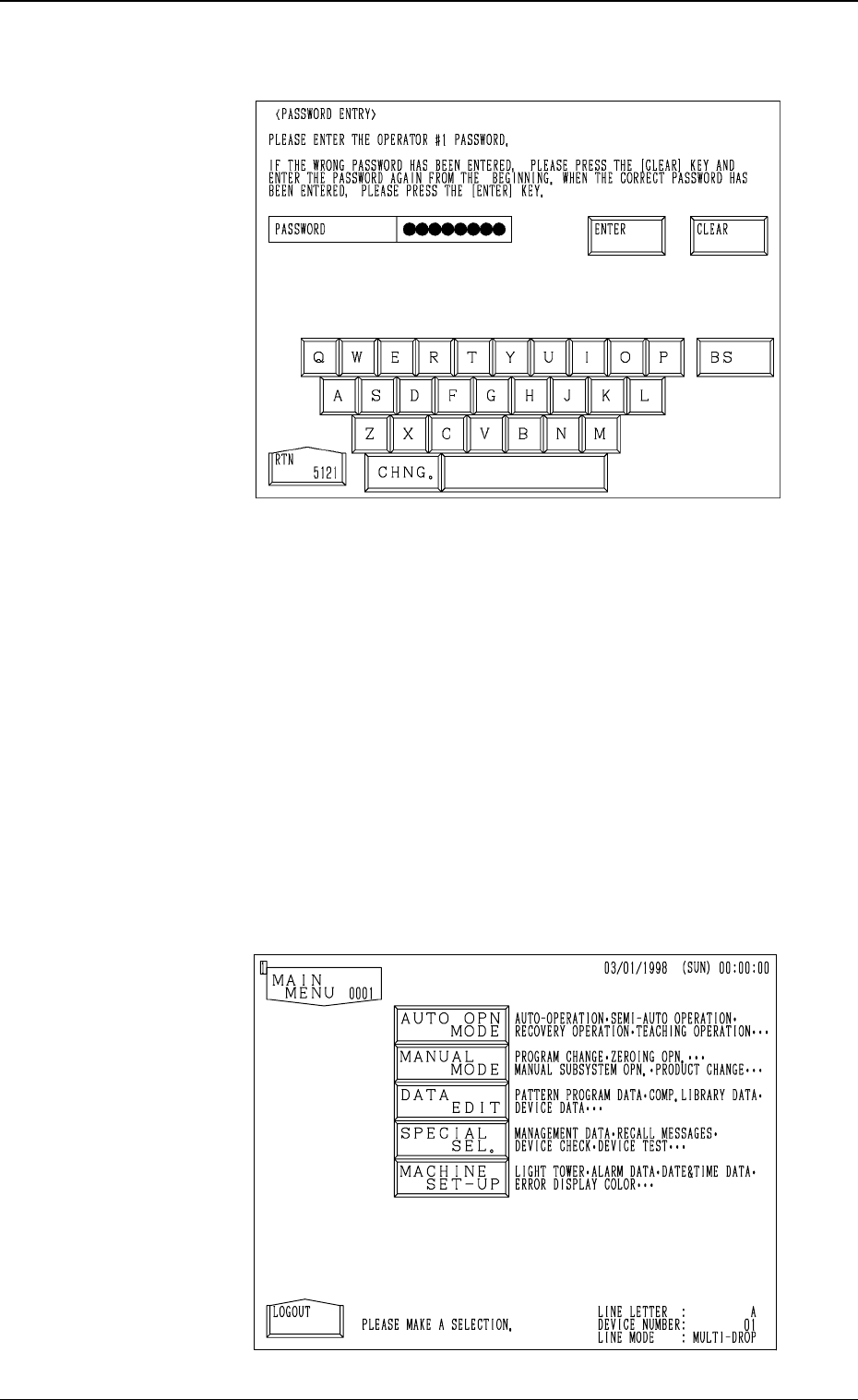
(3) The “PASSWORD ENTRY” display (Fig. 4D7) appears on the screen.
Enter the password and press the [ENTER] key. If the password is cor-
rect, the “MAIN MENU” display appears on the screen.
(Completion of “Log In” Operation)
• If the entered password is not correct, the display for “Log In” type
selection appears on the screen.
Select a “Log In” type again and correctly set the password. Then,
press the [ENTER] key.
• Use the [BS] key to delete a character to the left of the cursor when you
accidentally press the wrong key in the middle of password entry or
press the [CLEAR] key to delete all entries and enter your password
from the beginning.
(4) The “MAIN MENU” display (Fig. 4D8) appears on the screen.
3.2 Flow of Operation
Fig. 4D7
Fig. 4D8

0305-001 Tg0860-PM-MM
• All operations set as available at the “PASSWORD AVLBL. AREA
SET” display can be performed.
Note: When you open the data edit display corresponding to the item
whose editing is prohibited at the “PASSWORD AVLBL.
AREA SET” display, the parameters can be checked but can-
not be edited. A message “CANNOT INPUT THE DATA” ap-
pears in place of “PLEASE INPUT THE DATA AND PRESS
THE [SET] KEY.”.
When a prohibited operation item is selected, a message “OP-
ERATION DENIED BY LOGIN TYPE.” appears in the dis-
play.
• After you finish machine operations, be sure to select the [LOGOUT]
key located at the bottom left of the “MAIN MENU” display. The dis-
play for “Log In” type selection appears on the screen.
Note: If you keep the “MAIN MENU” open for a long period of time
without opening the display for “Log In” type selection, the
password’s security function becomes meaningless.
Especially when the system is logged on to by a highly autho-
rized personnel such as the supervisor, be sure to return to the
display for “Log In” type selection.
4-7
3.2 Flow of Operation
0305-001 Tg0860-PM-MM
3.3 Setting of Passwords
(1) Perform the touch screen calibration operation before setting a password.
(Refer to “Section 5 Touch Screen” for details.)
When the touch screen is not calibrated correctly, the entered password
may not be stored correctly in memory of the machine.
(2) Enter the password specified as one for the supervisor to issue the “Log
In” command.
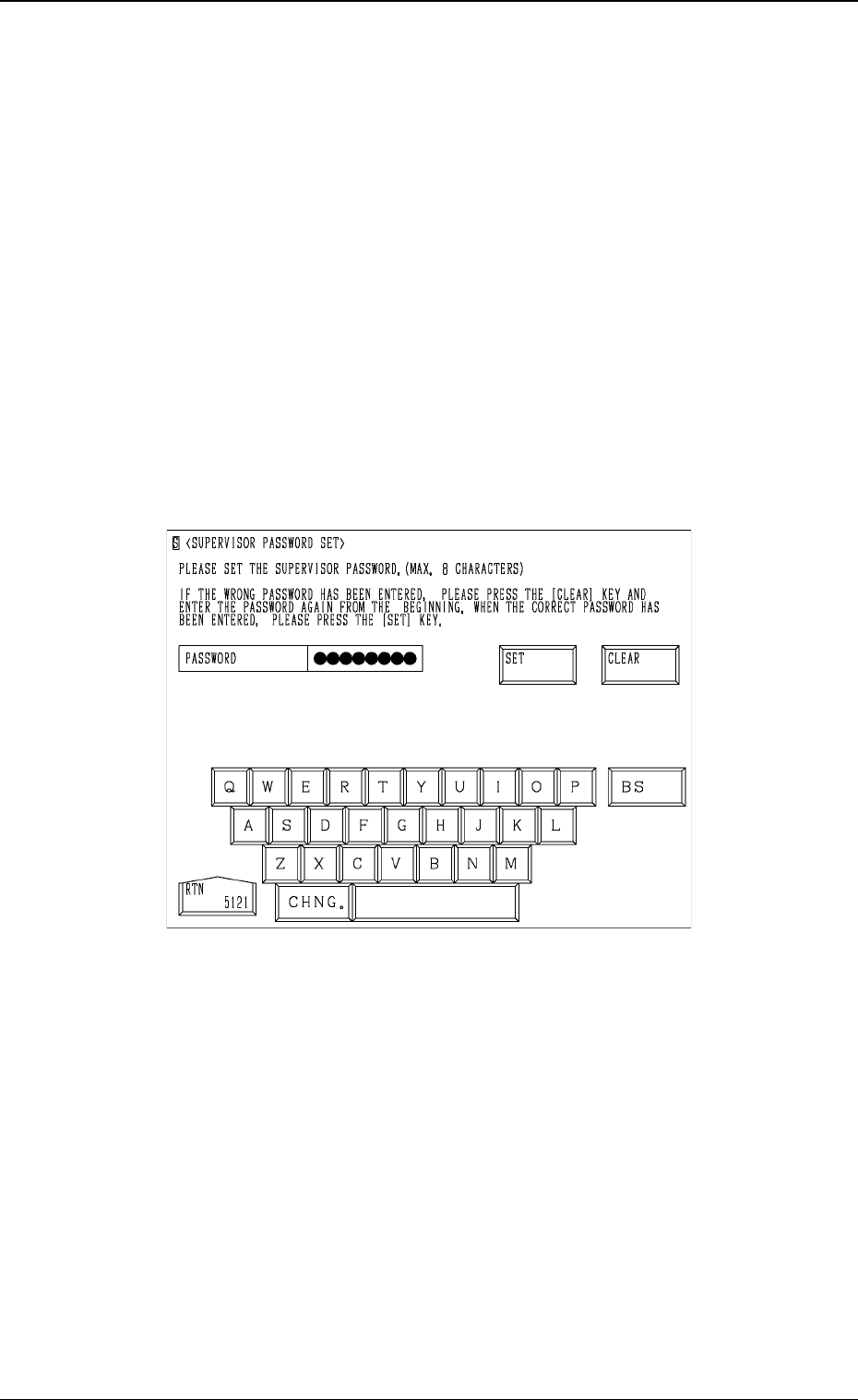
(3) When the [SUPERVISOR PASSWORD SET] key is pressed at the “PASS-
WORD” display, the following display (Fig. 4D9) appears on the screen.
(Hierarchical Sequence: “MAIN MENU” Display → “MACHINE SET-
UP” Display → “PASSWORD” Display → “SUPERVISOR PASSWORD
SET” Display)
Ref.: The “OPERATOR #1 PASSWORD SET” and “OPERATOR #2
PASSWORD SET” displays also look similar to the “SUPERVI-
SOR PASSWORD SET” display.
(4) Enter a password with the keyboard. (Max. 8 characters)
As you type, the system will display z marks instead of characters to
maintain password security.
When you accidentally press the wrong key in the middle of password
entry, use the [CLEAR] key to delete all entries and enter your password
from the beginning or press the [BS] key to delete a character to the left
of the cursor.
(5) After all the entries are correct, press the [SET] key.
• When the password is set for the first time, proceed to Step (7).
• When a password is already set, proceed to Step (6).
Note: If the [SET] or [RTN] key is pressed without entering any pass-
word, the “PASSWORD” display appears on the screen, indicat-
ing that no password is set and the operator can successfully log
on to the system without a password.
4-8
3.3 Setting of Passwords
Fig. 4D9