Oxford-100-Manual.pdf - 第106页
PlasmalabSystem 100 Oxford Instruments Plasma Technology System Manual Recipe step list A scrollable sequential list of steps contained in the recipe. 5.8.5 Chamber 1 process control page Fig 5.16: Chamber 1 process cont…
System
Manual
Oxford
Instruments
Plasma
Technology
PlasmalabSystem100
5.8.4
Production
mode
page
The
production
mode
page
is
automatically
displayed
when
a user logs
on
in
production
mode. To use
the
production
mode
facility,
refer
to
sub-section 5.4.7 (page 5-18).
Note
that
the
System
menu
button
can be used
to
select
the
pumping
option.
This provides
the
facility
of
evacuating and
venting
the
automatic
load lock.
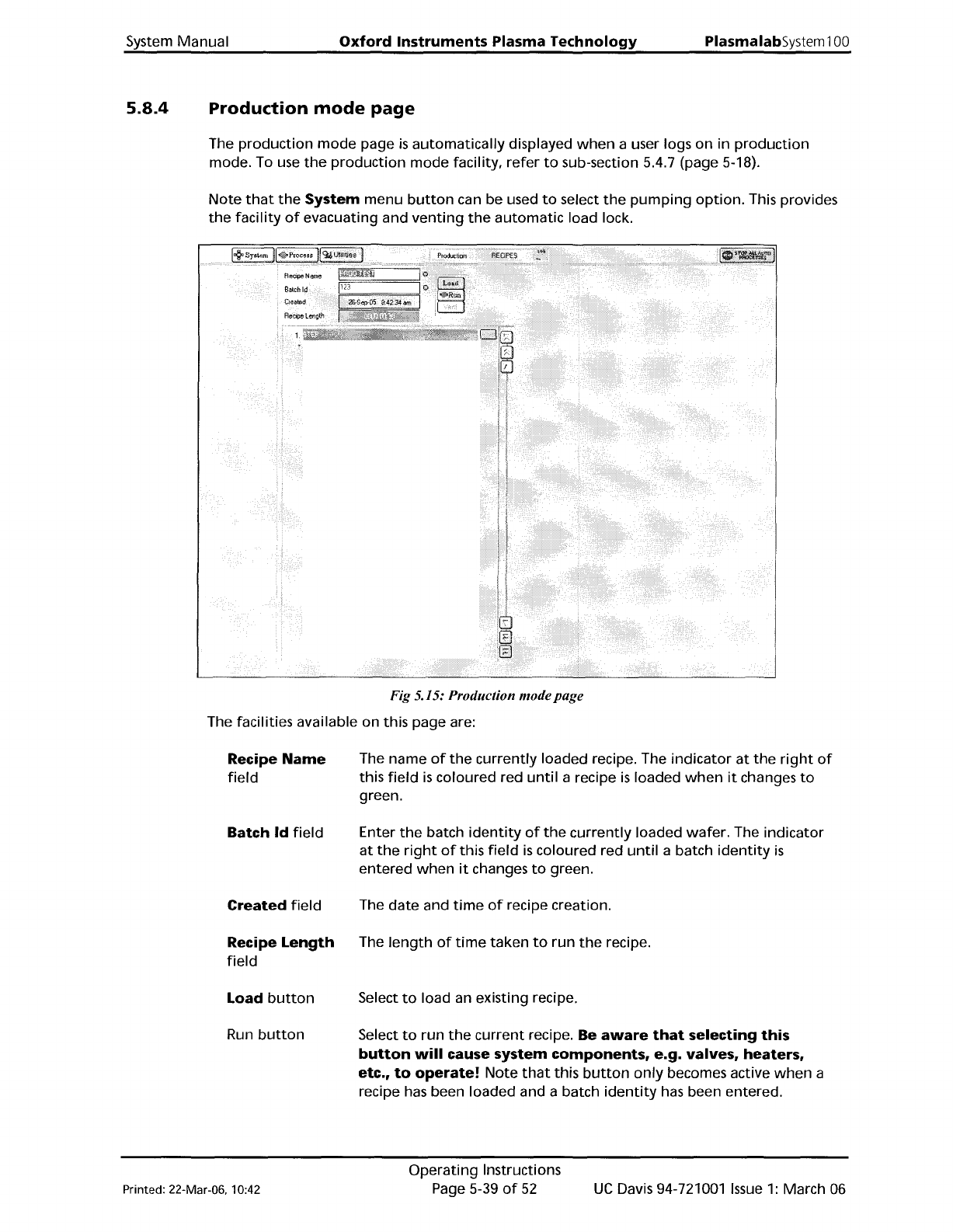
Fig
5.15: Production mode
page
The facilities available on this page are:
Recipe
Name
field
Batch
Id
field
Created
field
Recipe
Length
field
Load
button
Run
button
The
name
of
the
currently
loaded recipe. The
indicator
at
the
right
of
this
field
is
coloured red
until
a recipe
is
loaded
when
it
changes
to
green.
Enter
the
batch
identity
of
the
currently
loaded
wafer.
The
indicator
at
the
right
of
this
field
is
coloured red
until
a batch
identity
is
entered
when
it
changes
to
green.
The
date
and
time
of
recipe creation.
The
length
of
time
taken
to
run
the
recipe.
Select
to
load an existing recipe.
Select
to
run
the
current
recipe. Be
aware
that
selecting
this
button
will
cause system
components,
e.g.
valves,
heaters,
etc.,
to
operate!
Note
that
this
button
only
becomes active
when
a
recipe has been loaded and a batch
identity
has been entered.
Printed: 22-Mar-06, 10:42
Operating
Instructions
Page 5-39
of
52
UC
Davis 94-721001
Issue
1:
March 06
PlasmalabSystem100
Oxford
Instruments
Plasma
Technology
System Manual
Recipe step list
A scrollable sequential list
of
steps
contained
in
the
recipe.
5.8.5
Chamber
1 process
control
page
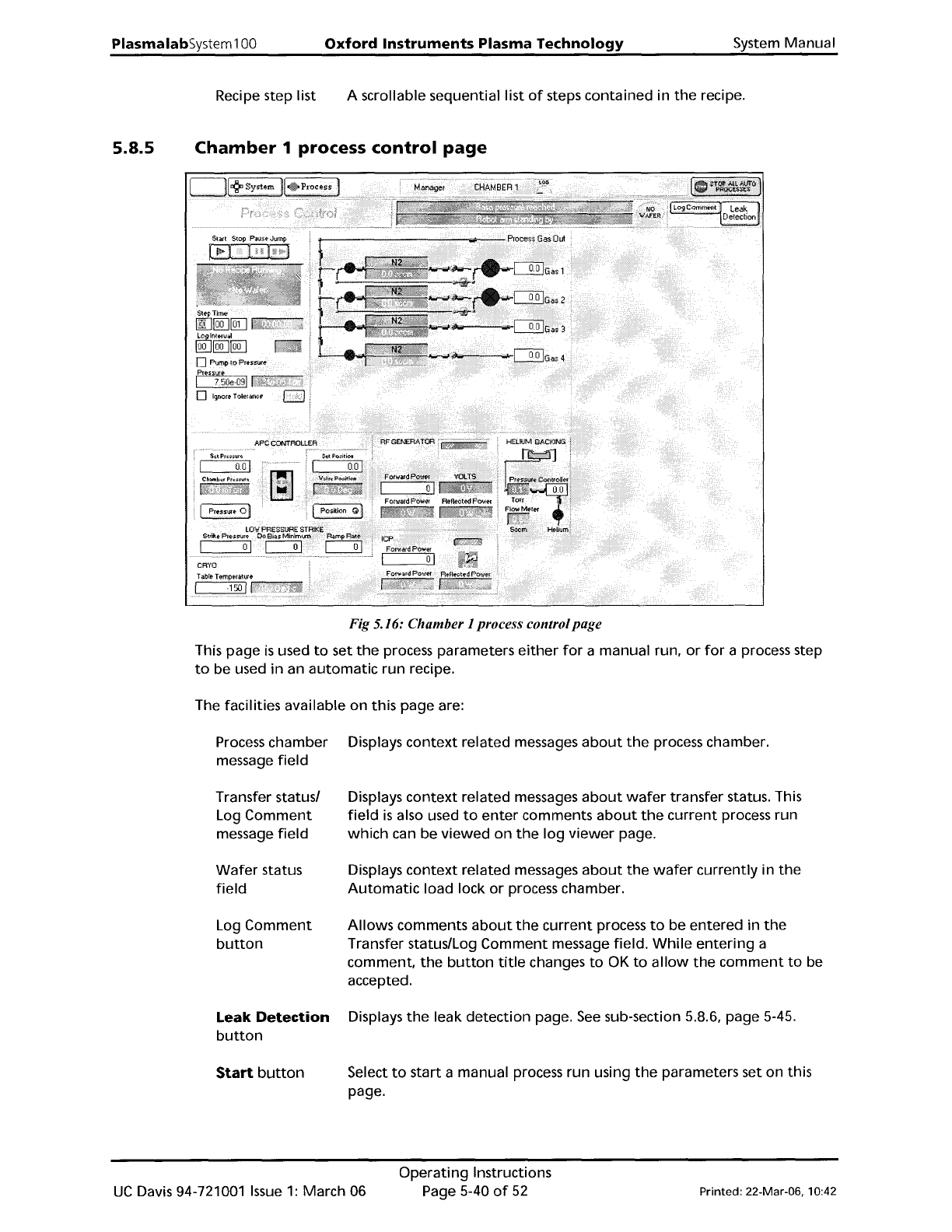
Fig 5.16: Chamber 1 process controlpage
This
page
is
used
to
set
the
process parameters
either
for
a manual run,
or
for
a process step
to
be used
in
an
automatic
run recipe.
The facilities available
on
this page are:
Process chamber
message
field
Transfer status/
Log
Comment
message
field
Wafer
status
field
Log
Comment
button
Leak
Detection
button
Start
button
Displays
context
related messages
about
the
process chamber.
Displays
context
related messages
about
wafer
transfer status. This
field
is
also used
to
enter
comments
about
the
current
process run
which
can be
viewed
on
the
log
viewer
page.
Displays
context
related
messages
about
the
wafer
currently
in
the
Automatic
load lock
or
process chamber.
Allows
comments
about
the
current
process
to
be entered in
the
Transfer status/Log
Comment
message field.
While
entering
a
comment.
the
button
title
changes
to
OK
to
allow
the
comment
to
be
accepted.
Displays
the
leak
detection
page.
See
sub-section 5.8.6, page 5-45.
Select
to
start
a manual process run using
the
parameters set on this
page.
UC
Davis 94-721001
Issue
1:
March 06
Operating
Instructions
Page
5-40
of
52
Printed: 22-Mar-06, 10:42
System
Manual
Stop
button
Pause
button
Jump
button
Oxford
Instruments
Plasma
Technology
Select
to
stop
the
current
process step.
Select
to
pause
the
current
process.
Select
tojump
to
the
next
process step.
PlasmalabSystem
100
Recipe message
field
Step
Time
fields
Log
Interval
fields
Process
status
field
Pump
to
Pressure
checkbox
Pressure fields
Ignore
Tolerances
checkbox
Hold
button
Displays
information
about
the
current
recipe, step, loaded
wafer
identity,
etc
..
Enter
the
required
step
time
in hours:minutes:seconds.
While
a process
is
running,
the
adjacent
field
displays
the
time
remaining
to
the
end
of
the
step.
Enter
the
interval
required
between
data
logging
events.
Indicates
the
process status;
either
Ready,
Auto
or
Manual
Select
to
create a
pumping
step. The system
will
pump
down
until
the
demanded
pressure
is
reached. The step
will
remain active
until
this
condition
is
met. Both
RF
Generators are
automatically
switched
off
during
the
step. (v' Indicates selected).
All
setpoints are
automatically
set
to
zero, except
for
base pressure.
Enter
the
required
Process
Chamber pressure
for
the
step. The
measured pressure
is
displayed
in
the
adjacent field.
Select
to
disable tolerance checking
during
the
current
step.
(V""
indicates selected).
NOTE:
RF
power
turns
on
immediately
without
waiting
for
flows
and
pressure
to
be established.
Used in
multi-step
recipes
to
keep
the
plasma
on
between
steps.
NOTES:
The
Hold
button
is
only
displayed
on
the
Process
Control page
when
a
recipe
is
loaded. The Hold
facility
can be selected
when
creating/editing
a process step using
the
Process
Editor
page.
When
running
the
recipe,
at
the
end
of
the
process
time
for
a process
step
without
the
Hold
button
selected, all process setpoints (chamber
pressure,
helium
backing pressure,
table
temperature,
RF
power,
rcp
power, gas
flow,
etc) are set
to
zero
(off)
before
starting
the
next
process step. This means
that
the
plasma
would
be extinguished
between
two
plasma process steps
if
the
Hold
button
were
not
selected.
When
running
the
recipe,
at
the
end
of
the
process
time
for
a process
step
with
the
Hold
button
selected, all process setpoints (chamber
pressure,
helium
backing pressure,
table
temperature,
RF
power,
ICP
power, gas
flow,
etc) are set
to
the
values
of
the
next
process step
to
run. This means
that
the
plasma remains
on
between
two
plasma
process steps
if
the
Hold
button
is
selected.
Printed: 22-Mar-06, 10:42
Operating
Instructions
Page
5-41
of
52
UC
Davis 94-721001
Issue
1:
March 06