Oxford-100-Manual.pdf - 第117页
System Manual Oxford Instruments Plasma Technology PlasmalabSystem 1 00 5.8.9 System log page Fig 5.21: System log page The system log page allows logged system events to be viewed. A filter facility allows the viewed ev…
PlasmalabSystem100
Oxford
Instruments Plasma Technology
System Manual
The page provides
the
following
facilities:
Show
Pumps
button
Message
field
Add/Kill
Wafer
button
Wafer
transfer
path
Displays
the
Pump
Control
page
Displays status messages
about
the
wafer
transfer.
The
ADD
WAFER
button
is
used
to
inform
the
system
that
a
wafer
is
present. This
facility
would
be used
if
the
machine
were
powered-up
with
a
wafer
in
the
Automatic
load lock. The legend
on
this
button
changes
to
KILL WAFER
when
a
wafer
is
present.
enabling
the
selected
wafer
to
be
removed
from
system memory.
Displayed
when
the
wafer
mimic has been clicked.
An
arrow
indicates
the
direction
of
the
possible transfer. Clicking on
the
destination
will
cause
the
transfer
to
be
carried
out.
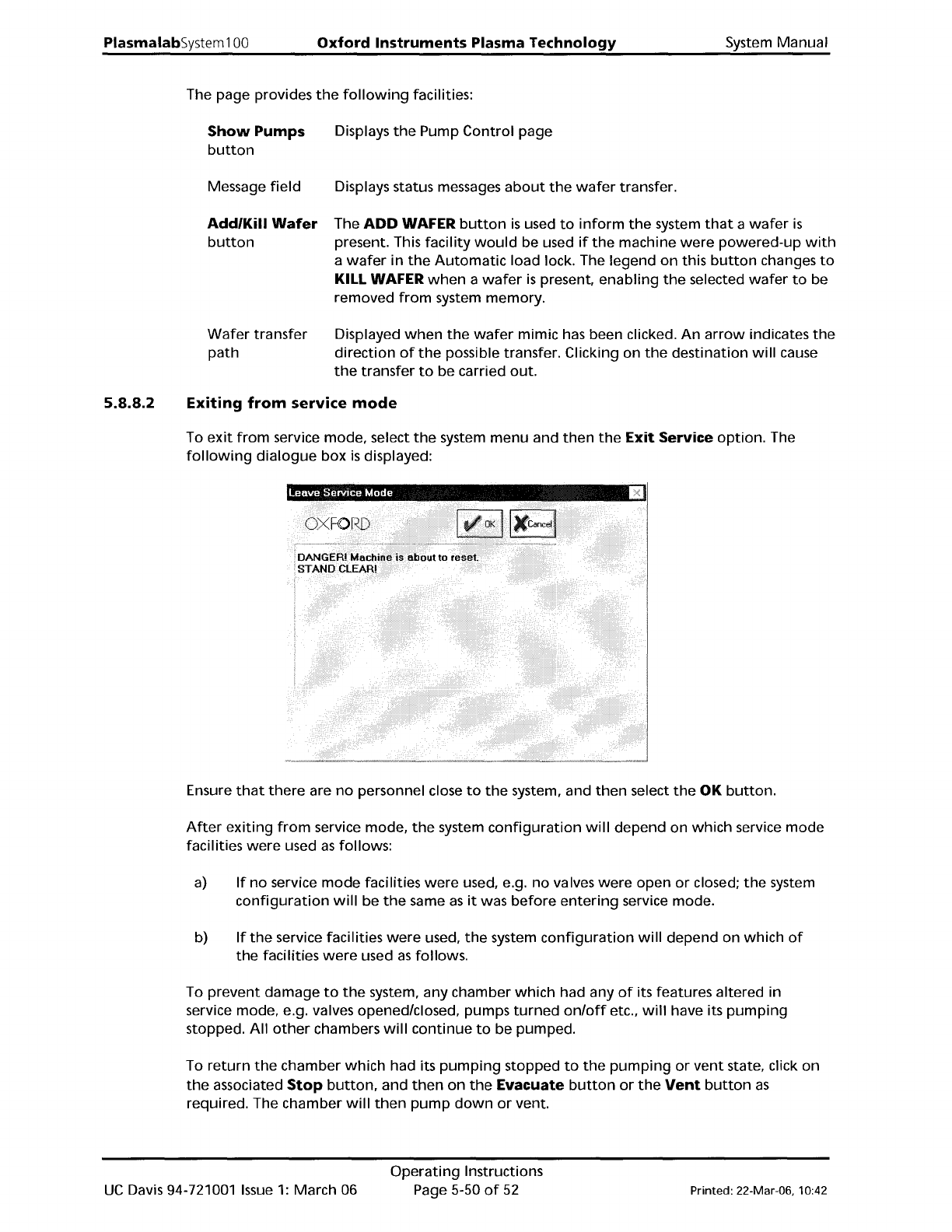
5.8.8.2
Exiting
from
service
mode
To
exit
from
service mode, select
the
system
menu
and
then
the
Exit Service
option.
The
following
dialogue
box
is
displayed:
Ensure
that
there
are
no
personnel close
to
the
system, and
then
select
the
OK
button.
After
exiting
from
service mode,
the
system
configuration
will
depend
on
which
service
mode
facilities
were
used
as
follows:
a)
If
no
service
mode
facilities
were
used, e.g.
no
valves
were
open
or
closed;
the
system
configuration
will
be
the
same
as
it
was
before
entering
service mode.
b)
If
the
service facilities
were
used,
the
system
configuration
will
depend on
which
of
the
facilities
were
used
as
follows.
To
prevent
damage
to
the
system, any chamber
which
had any
of
its features altered in
service mode, e.g. valves opened/closed, pumps
turned
on/off
etc.,
will
have its
pumping
stopped.
All
other
chambers
will
continue
to
be pumped.
To
return
the
chamber
which
had its
pumping
stopped
to
the
pumping
or
vent
state, click on
the
associated
Stop
button,
and
then
on
the
Evacuate
button
or
the
Vent
button
as
required. The chamber
will
then
pump
down
or
vent.
UC
Davis 94-721001
Issue
1:
March 06
Operating
Instructions
Page 5-50
of
52
Printed: 22-Mar-06, 10:42
System
Manual
Oxford
Instruments
Plasma
Technology
PlasmalabSystem
100
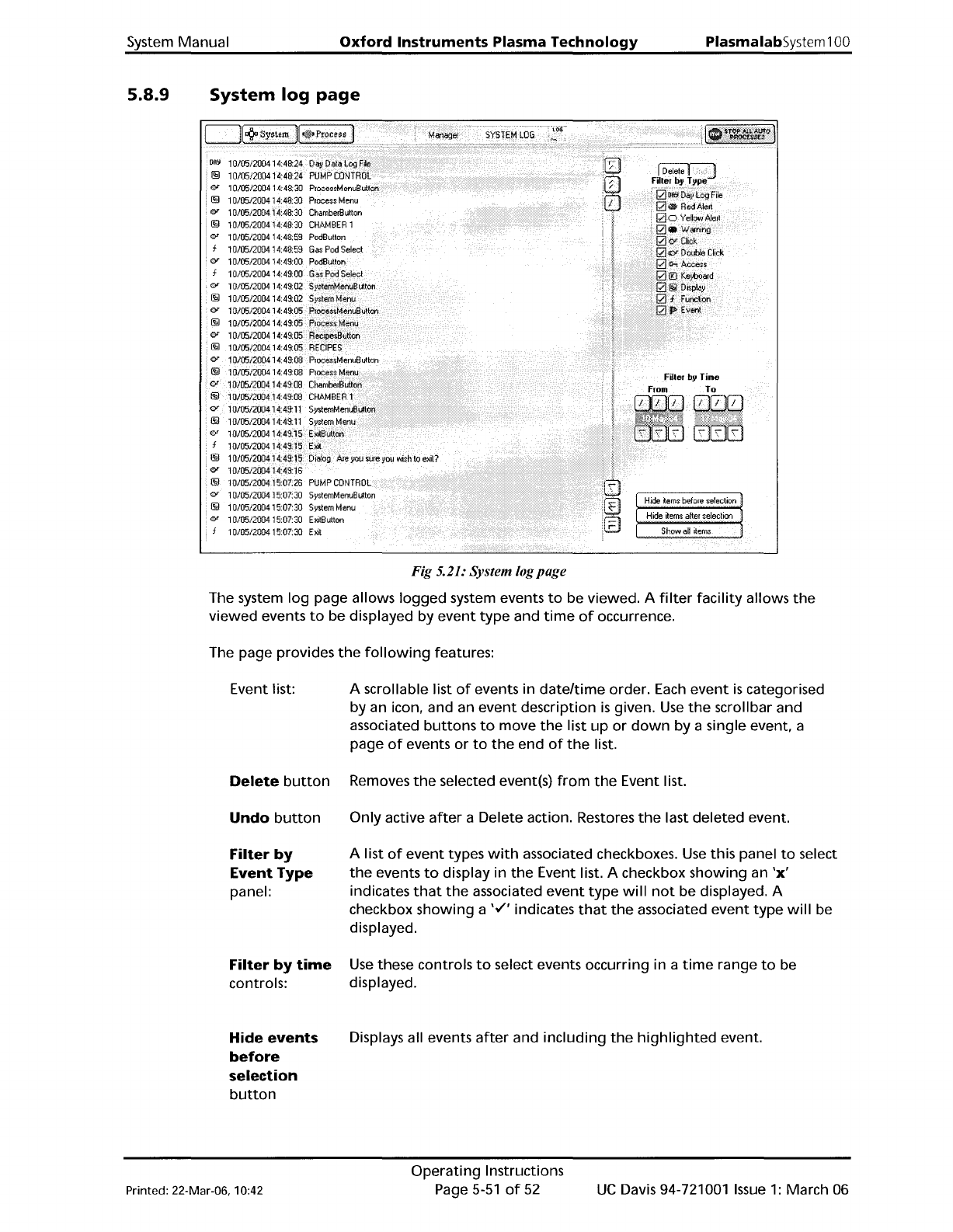
5.8.9
System log
page
Fig 5.21: System logpage
The system
log
page allows
logged
system events
to
be viewed. A
filter
facility
allows
the
viewed events
to
be displayed by
event
type
and
time
of
occurrence.
The page provides
the
following
features:
Event list:
Delete
button
Undo
button
Filter
by
Event
Type
panel:
Filter
by
time
controls:
Hide
events
before
selection
button
A scrollable list
of
events in
dateltime
order.
Each
event
is
categorised
by an icon, and an
event
description
is
given.
Use
the
scrollbar and
associated
buttons
to
move
the
list
up
or
down
by a single event, a
page
of
events
or
to
the
end
of
the
list.
Removes
the
selected event(s)
from
the
Event list.
Only active
after
a Delete action. Restores
the
last
deleted
event.
A list
of
event
types
with
associated checkboxes.
Use
this panel
to
select
the
events
to
display in
the
Event list. A checkbox
showing
an
'x'
indicates
that
the
associated
event
type
will
not
be displayed. A
checkbox
showing
a
'v"
indicates
that
the
associated
event
type
will
be
displayed.
Use
these controls
to
select events occurring in a
time
range
to
be
displayed.
Displays all events
after
and
including
the
highlighted
event.
Printed: 22-Mar-06, 10:42
Operating
Instructions
Page
5-51
of
52
UC
Davis 94-721001
Issue
1:
March 06
PlasmalabSystem100
Oxford
Instruments
Plasma
Technology
System Manual
Hide
events
after
selection
button
Show
all
events
button:
5.9 Log
files
Displays all events
before
and including
the
highlighted
event.
Displays all previously
hidden
events.
While
PC
2000
is
running,
two
log
files are
maintained,
one
for
the
system log and
the
other
for
the
data log. These files are stored
on
your
hard disk in
the
folder
C:\Optsyslg. Details
of
the
log
files are
as
follows.
System
log
file
- The
filename
for
this
file
is
of
the
form
sOCaabb
where
aa
represents
the
month,
e.g. 06
(for
June) and
bb
represents
the
day
of
the
month,
e.g.
11
(for
the
eleventh
day).
Data
log
file
- The
filename
for
this
file
is
of
the
form
p1caabb
where
aa
represents
the
month,
e.g. 06
(for
June) and
bb
represents
the
day
of
the
month,
e.g.
11
(for
the
eleventh
day).
When
PC
2000
is
shut
down
correctly (select
the
System menu,
then
the
Exit
option),
both
log
files are
automatically
saved and closed.
If
PC
2000
is
then
started again,
the
files are
automatically
opened
and
their
data
is
available via
the
System Log page and
the
Select Log
Data page.
If
PC
2000
is
not
shut
down
correctly, e.g.
the
PC
is
switched
off
or
the
PC
'hangs' etc.,
one
or
both
of
the
log
files can become
corrupted.
If
this
happens,
the
next
time
PC
2000
is
started
the
corrupt
log file(s)
will
be
detected
and
reported
on-screen
by
an
error
dialogue. To
correct this
problem,
use
the
following
procedure:
1)
Close
PC
2000.
2)
Use
Windows
Explorer
to
navigate
to
C:\Optsyslg.
3)
Delete
the
reported
log
file.
4)
Re-start
PC
2000.
UC
Davis 94-721001
Issue
1:
March 06
Operating
Instructions
Page 5-52
of
52
Printed: 22-Mar-06. 10:42