Oxford-100-Manual.pdf - 第194页
Plasma lab and lonfab Oxford Instruments Plasma Technology System Manual (10) The next screen displays the destination drive already selected; click on the OK button. (11) The 'Destination Drive Details' dialog…
System Manual
Oxford
Instruments Plasma Technology
Plasma
lab
and
lonfab
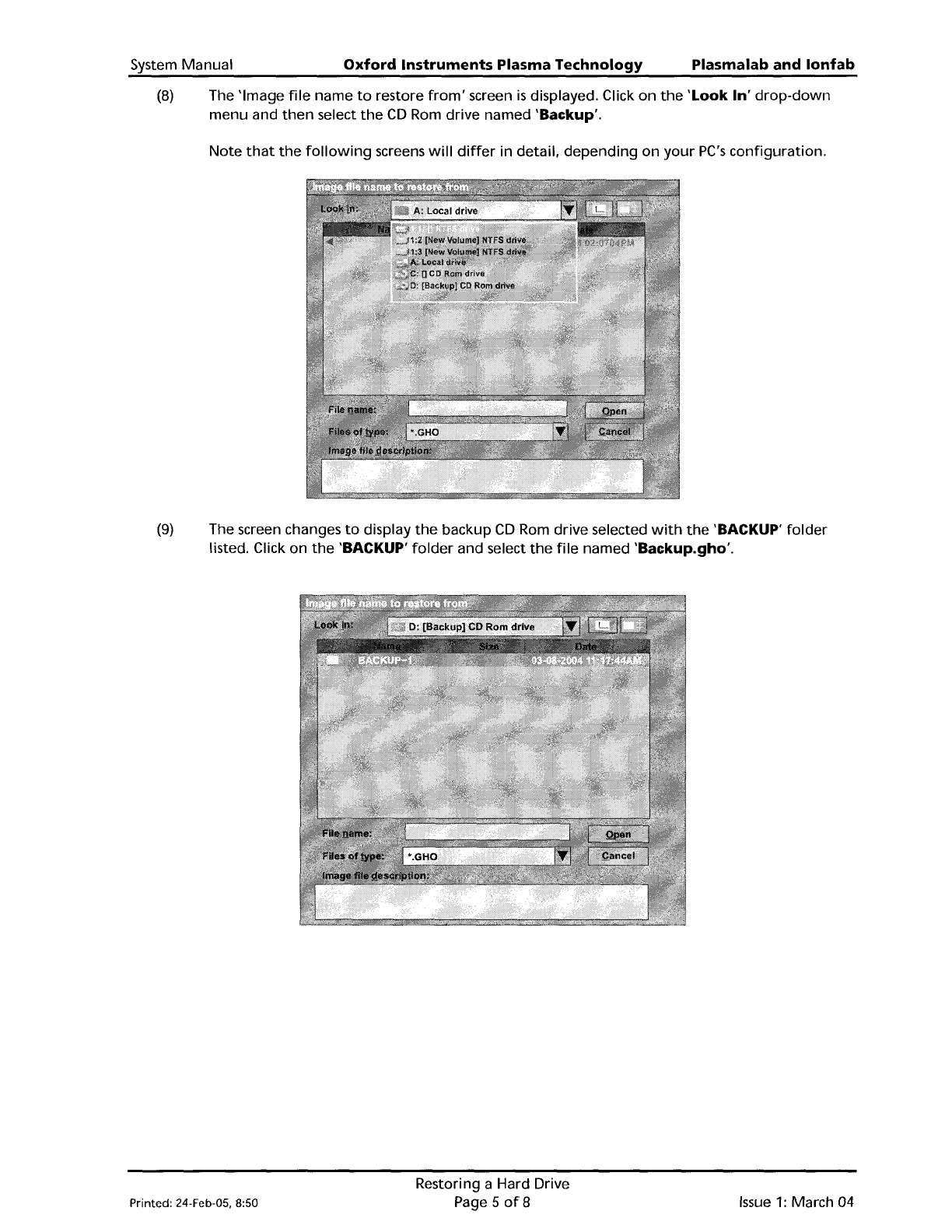
(8)
The 'Image
file
name
to
restore
from'
screen
is
displayed. Click
on
the
'Look In'
drop-down
menu and
then
select
the
CD
Rom
drive named 'Backup'.
Note
that
the
following
screens
will
differ
in detail,
depending
on
your
PC's
configuration.
(9)
The screen changes
to
display
the
backup
CD
Rom
drive selected
with
the
'BACKUP'
folder
listed. Click
on
the
'BACKUP'
folder
and select
the
file
named 'Backup.gho'.
Printed: 24-Feb-05, 8:50
Restoring a Hard Drive
Page 5
of8
Issue
1:
March
04
Plasma
lab
and
lonfab
Oxford
Instruments Plasma Technology
System Manual
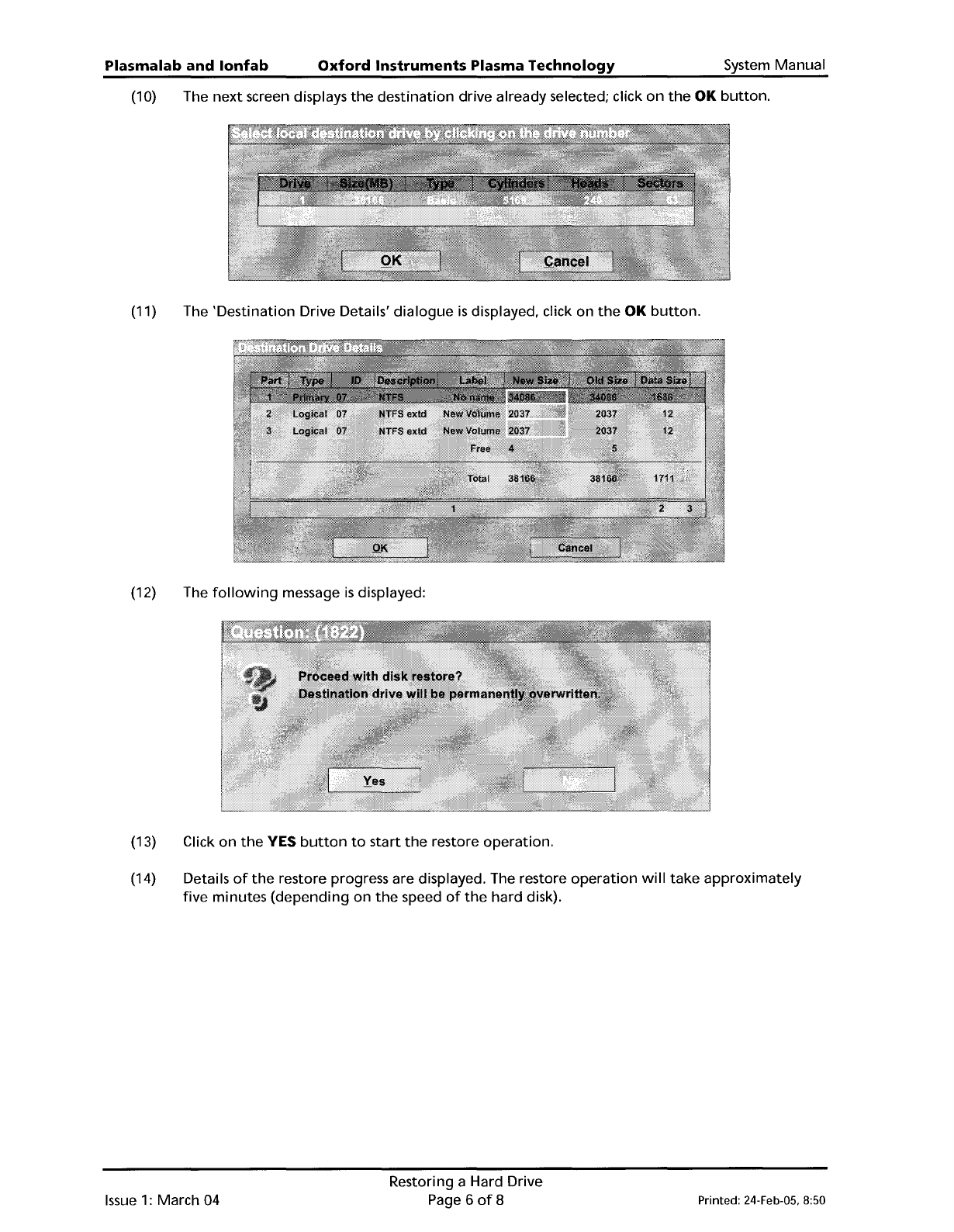
(10) The
next
screen displays
the
destination
drive already selected; click
on
the
OK
button.
(11) The
'Destination
Drive Details'
dialogue
is
displayed, click on
the
OK
button.
(12) The
following
message
is
displayed:
(13) Click
on
the
YES
button
to
start
the
restore
operation.
(14) Details
of
the
restore progress are displayed. The restore
operation
will
take
approximately
five
minutes
(depending
on
the
speed
of
the
hard disk).
Issue
1:
March 04
Restoring a Hard Drive
Page 6
of
8
Printed: 24-Feb-05. 8:50
System
Manual
Oxford
Instruments
Plasma
Technology
Plasma
lab
and
lonfab
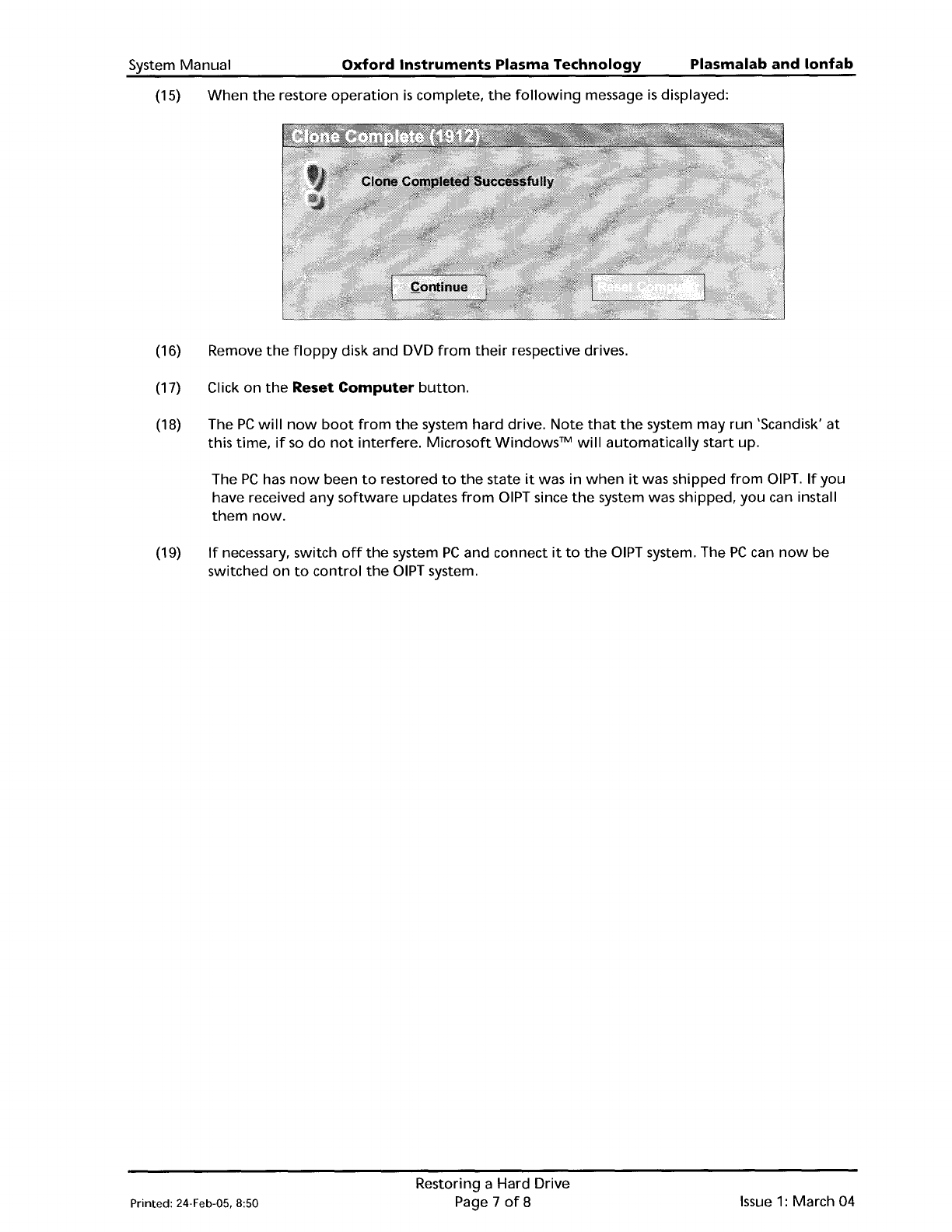
(15)
When
the
restore
operation
is
complete,
the
following
message
is
displayed:
(16) Remove
the
floppy
disk and DVD
from
their
respective drives.
(17) Click
on
the
Reset
Computer
button.
(18) The
PC
will
now
boot
from
the
system hard drive.
Note
that
the
system may
run
'Scandisk'
at
this
time,
if
so
do
not
interfere.
Microsoft
Windows™
will
automatically
start
up.
The
PC
has
now
been
to
restored
to
the
state
it
was in
when
it
was shipped
from
DIPT.
If
you
have received any
software
updates
from
DIPT since
the
system was shipped,
you
can install
them
now.
(19)
If
necessary, switch
off
the
system
PC
and connect
it
to
the
DIPT system. The
PC
can
now
be
switched
on
to
control
the
DIPT system.
Printed: 24·Feb·05, 8:50
Restoring a Hard Drive
Page 7
of
8
Issue
1:
March 04