Oxford-100-Manual.pdf - 第84页
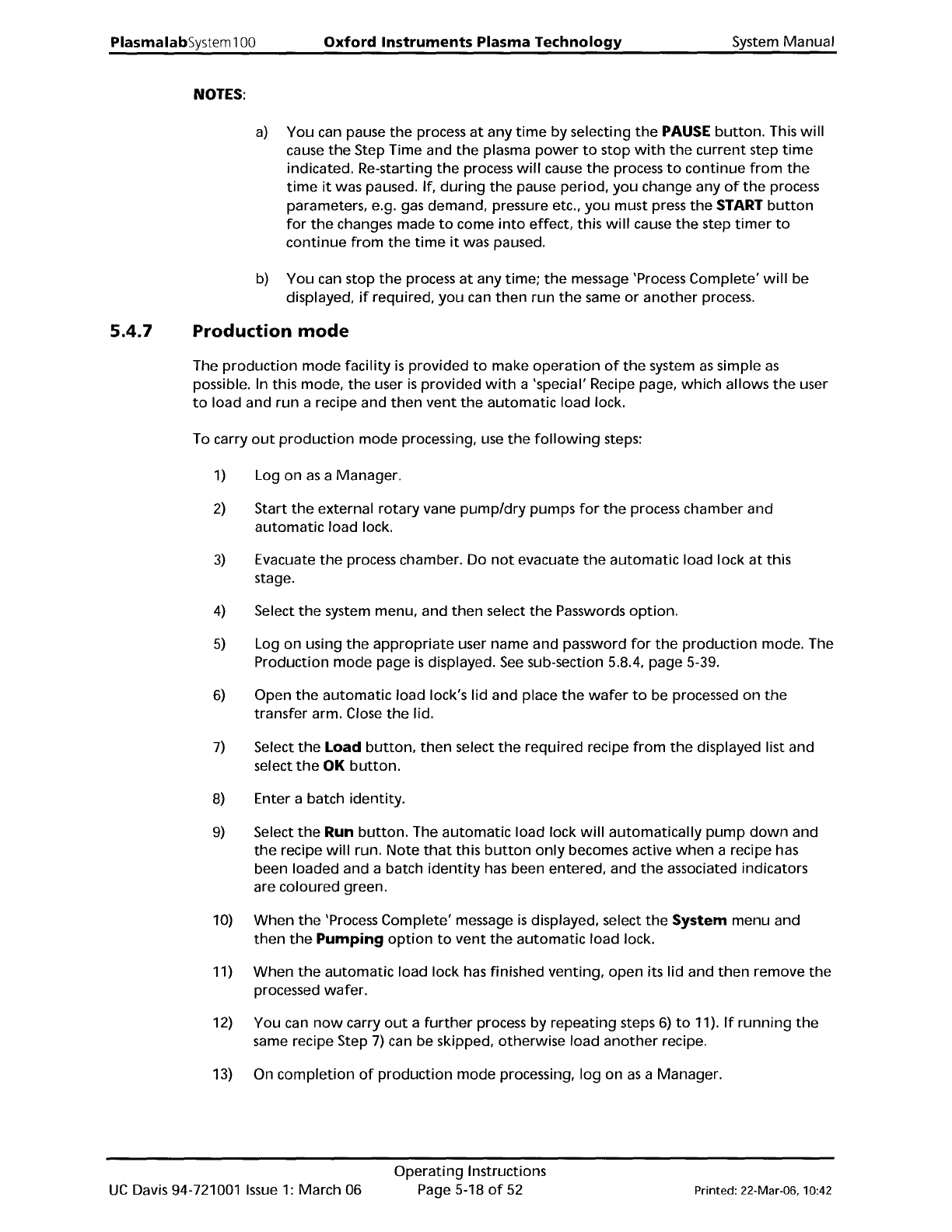
PlasmalabSystem 100 NOTES: Oxford Instruments Plasma Technology System Manual 5.4.7 a) You can pause the process at any time by selecting the PAUSE button. This will cause the Step Time and the plasma power to stop with …
System
Manual
Oxford
Instruments
Plasma Technology
PlasmalabSystem
100
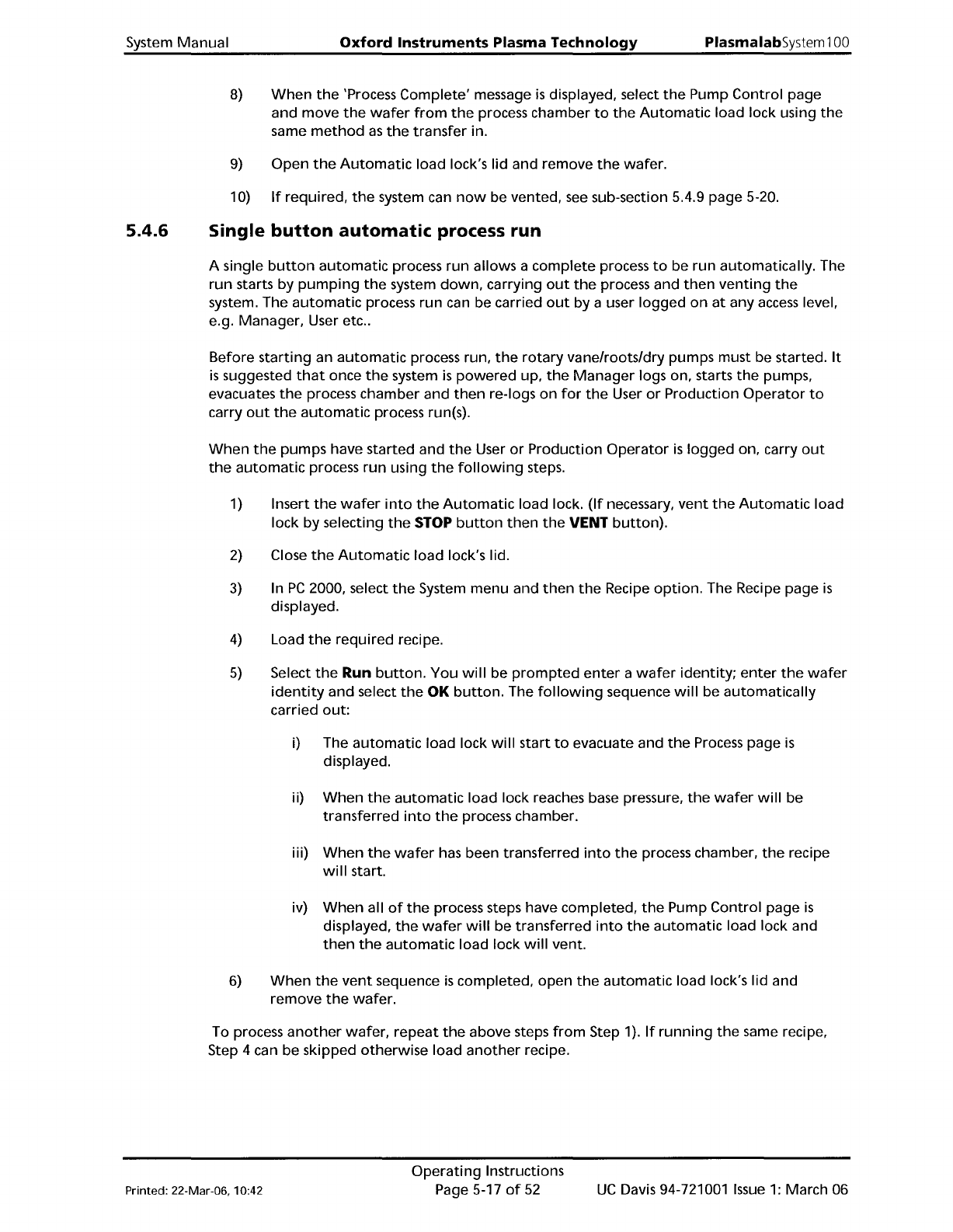
5.4.6
8)
When
the
'Process
Complete'
message
is
displayed, select
the
Pump Control page
and
move
the
wafer
from
the
process chamber
to
the
Automatic
load lock using
the
same
method
as
the
transfer
in.
9)
Open
the
Automatic
load
lock's lid and remove
the
wafer.
10)
If
required,
the
system can
now
be vented,
see
sub-section 5.4.9 page 5-20.
Single
button
automatic
process run
A single
button
automatic
process
run
allows a
complete
process
to
be run automatically. The
run
starts
by
pumping
the
system
down,
carrying
out
the
process and
then
venting
the
system. The
automatic
process run can be carried
out
by a user
logged
on
at
any
access
level,
e.g. Manager, User etc
..
Before
starting
an
automatic
process run,
the
rotary
vanelroots/dry pumps must be started.
It
is
suggested
that
once
the
system
is
powered
up,
the
Manager
logs on, starts
the
pumps,
evacuates
the
process chamber and
then
re-Iogs
on
for
the
User
or
Production
Operator
to
carry
out
the
automatic
process run(s).
When
the
pumps have started and
the
User
or
Production
Operator
is
logged
on, carry
out
the
automatic
process
run
using
the
following
steps.
1) Insert
the
wafer
into
the
Automatic
load lock.
(If
necessary,
vent
the
Automatic
load
lock
by
selecting
the
STOP
button
then
the
VENT
button).
2)
Close
the
Automatic
load
lock's lid.
3)
In
PC
2000, select
the
System menu and
then
the
Recipe
option.
The Recipe page
is
displayed.
4)
Load
the
required
recipe.
5)
Select
the
Run
button.
You
will
be
prompted
enter
a
wafer
identity;
enter
the
wafer
identity
and select
the
OK
button.
The
following
sequence
will
be
automatically
carried
out:
i) The
automatic
load lock
will
start
to
evacuate and
the
Process
page
is
displayed.
ii)
When
the
automatic
load lock reaches base pressure,
the
wafer
will
be
transferred
into
the
process chamber.
iii)
When
the
wafer
has been transferred
into
the
process chamber,
the
recipe
will
start.
iv)
When
all
of
the
process steps have completed,
the
Pump Control page
is
displayed,
the
wafer
will
be transferred
into
the
automatic
load lock and
then
the
automatic
load lock
will
vent.
6)
When
the
vent
sequence
is
completed, open
the
automatic
load lock's lid and
remove
the
wafer.
To process
another
wafer,
repeat
the
above steps
from
Step 1).
If
running
the
same recipe,
Step 4 can be skipped
otherwise
load
another
recipe.
Printed: 22-Mar-06, 10:42
Operating
Instructions
Page
5-17
of
52
UC
Davis 94-721001
Issue
1:
March 06
PlasmalabSystem100
NOTES:
Oxford
Instruments
Plasma
Technology
System
Manual
5.4.7
a)
You can pause
the
process
at
any
time
by
selecting
the
PAUSE
button.
This
will
cause
the
Step Time and
the
plasma
power
to
stop
with
the
current
step
time
indicated. Re-starting
the
process
will
cause
the
process
to
continue
from
the
time
it
was paused. If,
during
the
pause period,
you
change any
of
the
process
parameters, e.g.
gas
demand, pressure etc.,
you
must press
the
START
button
for
the
changes made
to
come
into
effect,
this
will
cause
the
step
timer
to
continue
from
the
time
it
was paused.
b)
You can stop
the
process
at
any time;
the
message 'Process Complete'
will
be
displayed,
if
required,
you
can
then
run
the
same
or
another
process.
Production
mode
The
production
mode
facility
is
provided
to
make
operation
of
the
system
as
simple
as
possible. In this mode,
the
user
is
provided
with
a 'special' Recipe page,
which
allows
the
user
to
load and
run
a recipe and
then
vent
the
automatic
load lock.
To carry
out
production
mode
processing, use
the
following
steps:
1)
Log
on
as
a Manager.
2)
Start
the
external
rotary
vane
pump/dry
pumps
for
the
process chamber and
automatic
load lock.
3)
Evacuate
the
process chamber. Do
not
evacuate
the
automatic
load lock
at
this
stage.
4)
Select
the
system menu, and
then
select
the
Passwords
option.
5)
Log on using
the
appropriate
user name and password
for
the
production
mode. The
Production
mode
page
is
displayed.
See
sub-section 5.8.4, page 5-39.
6)
Open
the
automatic
load lock's
lid
and place
the
wafer
to
be processed
on
the
transfer arm. Close
the
lid.
7)
Select
the
Load
button,
then
select
the
required
recipe
from
the
displayed list and
select
the
OK
button.
8)
Enter a batch
identity.
9)
Select
the
Run
button.
The
automatic
load lock
will
automatically
pump
down
and
the
recipe
will
run.
Note
that
this
button
only
becomes active
when
a recipe has
been loaded and a batch
identity
has been entered, and
the
associated indicators
are coloured green.
10)
When
the
'Process
Complete'
message
is
displayed, select
the
System
menu and
then
the
Pumping
option
to
vent
the
automatic
load lock.
11)
When
the
automatic
load lock has finished
venting,
open its lid and
then
remove
the
processed
wafer.
12) You can
now
carry
out
a
further
process by
repeating
steps
6)
to
11).
If
running
the
same recipe Step
7)
can be skipped,
otherwise
load
another
recipe.
13) On
completion
of
production
mode
processing,
log
on
as
a Manager.
UC
Davis 94-721001
Issue
1:
March 06
Operating
Instructions
Page 5-18
of
52
Printed: 22-Mar-06, 10:42
System
Manual
Oxford
Instruments
Plasma
Technology
PlasmalabSystem
100
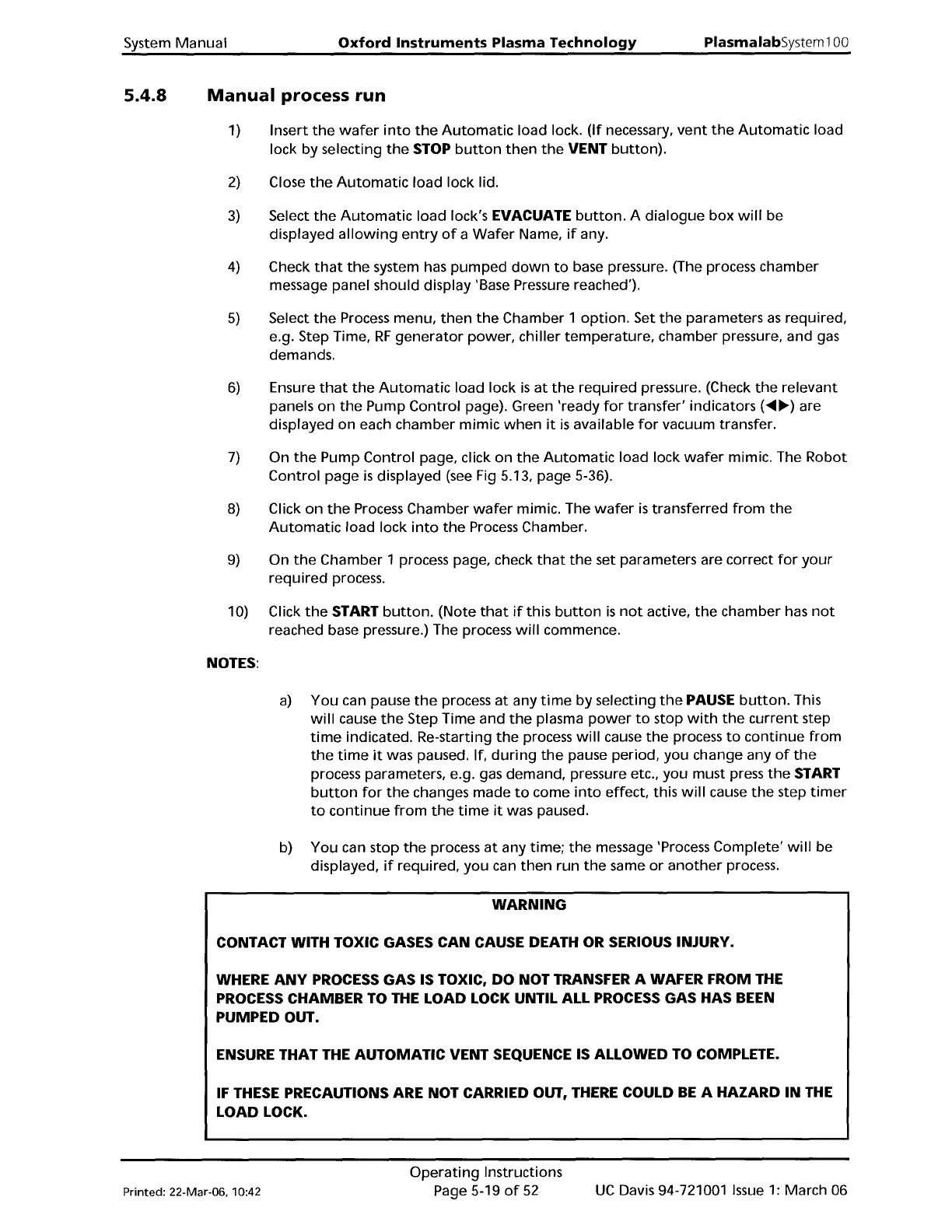
5.4.8
Manual
process
run
1)
Insert
the
wafer
into
the
Automatic
load lock.
(If
necessary,
vent
the
Automatic
load
lock
by
selecting
the
STOP
button
then
the
VENT
button).
2)
Close
the
Automatic
load
lock lid.
3)
Select
the
Automatic
load lock's EVACUATE
button.
A
dialogue
box
will
be
displayed
allowing
entry
of
a
Wafer
Name,
if
any.
4)
Check
that
the
system has
pumped
down
to
base pressure. (The process chamber
message panel should display 'Base Pressure reached').
5)
Select
the
Process menu,
then
the
Chamber 1
option.
Set
the
parameters
as
required,
e.g. Step Time,
RF
generator
power, chiller
temperature,
chamber pressure, and
gas
demands.
6)
Ensure
that
the
Automatic
load lock
is
at
the
required
pressure. (Check
the
relevant
panels
on
the
Pump
Control
page). Green 'ready
for
transfer'
indicators (
....
~)
are
displayed on each chamber mimic
when
it
is
available
for
vacuum transfer.
7)
On
the
Pump
Control
page, click on
the
Automatic
load lock
wafer
mimic. The Robot
Control
page
is
displayed
(see
Fig 5.13, page 5-36).
8)
Click
on
the
Process Chamber
wafer
mimic. The
wafer
is
transferred
from
the
Automatic
load lock
into
the
Process
Chamber.
9)
On
the
Chamber 1 process page, check
that
the
set parameters are correct
for
your
required
process.
10) Click
the
START
button.
(Note
that
if
this
button
is
not
active,
the
chamber has
not
reached base pressure.) The process
will
commence.
NOTES:
a)
You
can pause
the
process
at
any
time
by
selecting
the
PAUSE
button.
This
will
cause
the
Step Time and
the
plasma
power
to
stop
with
the
current
step
time
indicated. Re-starting
the
process
will
cause
the
process
to
continue
from
the
time
it
was paused. If,
during
the
pause period, you change any
of
the
process parameters, e.g. gas demand, pressure etc.,
you
must press
the
START
button
for
the
changes made
to
come
into
effect, this
will
cause
the
step
timer
to
continue
from
the
time
it
was paused.
b)
You
can stop
the
process
at
any time;
the
message 'Process Complete'
will
be
displayed,
if
required,
you
can
then
run
the
same
or
another
process.
WARNING
CONTACT WITH TOXIC GASES CAN CAUSE DEATH OR SERIOUS INJURY.
WHERE
ANY
PROCESS GAS IS TOXIC,
DO
NOT TRANSFER A WAFER FROM
THE
PROCESS CHAMBER TO
THE
LOAD LOCK UNTIL ALL PROCESS GAS HAS BEEN
PUMPED OUT.
ENSURE THAT THE AUTOMATIC VENT SEQUENCE IS ALLOWED TO COMPLETE.
IF THESE PRECAUTIONS ARE NOT CARRIED OUT,
THERE
COULD
BE
A HAZARD
IN
THE
LOAD LOCK.
Printed: 22-Mar-06, 10:42
Operating
Instructions
Page 5-19
of
52
UC
Davis 94-721001
Issue
1:
March 06