00197475-01_IM_Traceability3.6_EN.pdf - 第24页
Installation of Trace Service and Monitor Traceability Option for SIPLACE Explorer 4.3.1 Installation of T race Monitor 24 Installation Manual SIPLACE Traceability 3.6 4.4 4 . 4 T r a c e a b ilit y O p t io n f o r S I …
Installation of Trace Service and Monitor
4.3.1 Installation of Trace Monitor Trace Monitor
Installation Manual SIPLACE Traceability 3.6 23
4.3.1.1
4.3.1.1 Troubleshooting
Troubleshooting
Collation conflicts when restoring database backup
When restoring the database backup, the SQL Server must have the same collation as the database
backup. Otherwise run time errors and collation conflicts will occur when performing data query in Trace
Monitor.
► In case of collation conflicts we recommend you to recreate the SQL Server.
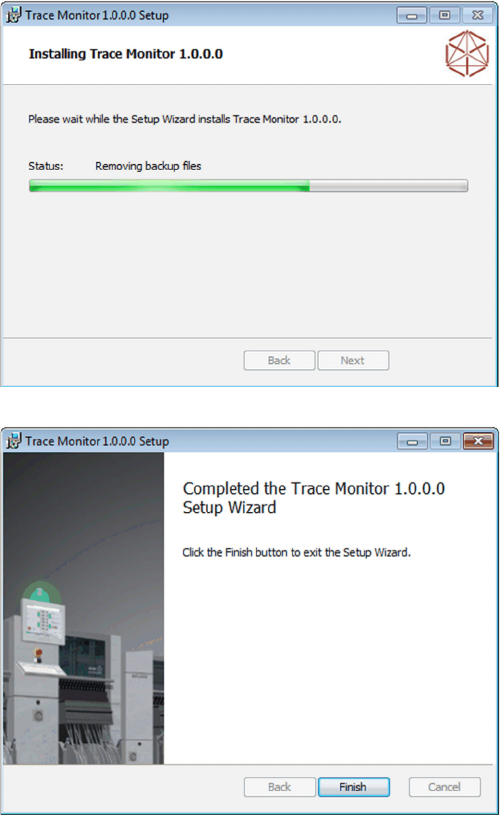
► The installation of Trace Monitor will begin.
► The installation is successfully finished.
► Click Finish to exit.
⇨ The Trace Monitor can be started within SIPLACE
Studio.
Installation of Trace Service and Monitor
Traceability Option for SIPLACE Explorer 4.3.1 Installation of Trace Monitor
24 Installation Manual SIPLACE Traceability 3.6
4.4
4.4 Traceability Option for SIPLACE Explorer
Traceability Option for SIPLACE Explorer
NOTICE
Requirement
You need administrator privilege for your operation system in order to perform this installation.
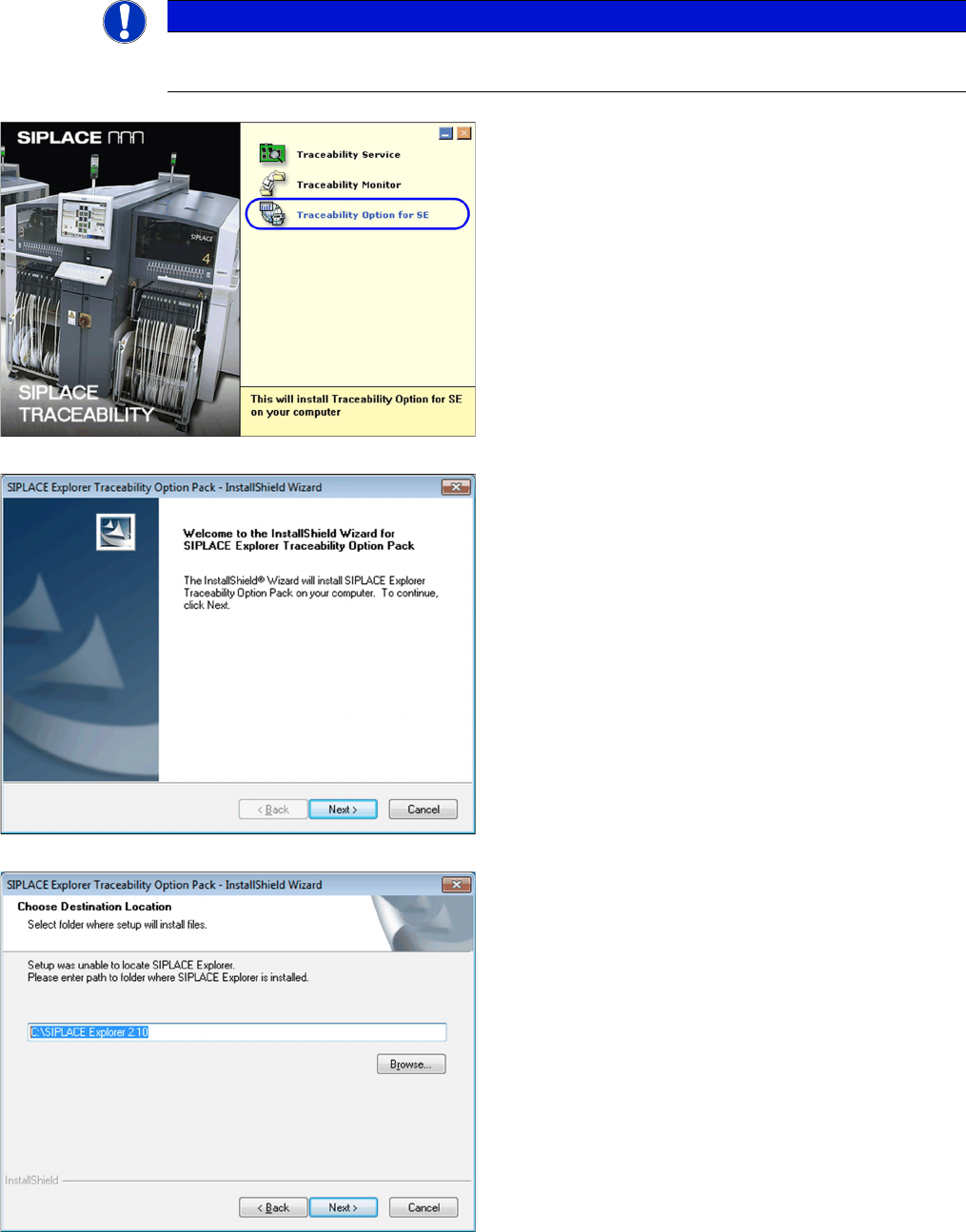
► Insert the SIPLACE Traceability CD into your CD-
ROM drive. You will see the Start screen:
► Select Traceability Option for SE.
► You will now be guided through the installation proce-
dure for the SIPLACE Explorer Traceability option.
► Close all other programs and then click on Next to
continue.
► Before the SIPLACE Explorer Traceability Option can
be installed, Trace Monitor and SIPLACE Explorer
must be installed on your network environment. If
both of these applications are already installed, in-
stallation of the SIPLACE Explorer Traceability Op-
tion will begin automatically. The SIPLACE Explorer
Traceability Option must be installed on the same
computer as SIPLACE Explorer; Trace Monitor can
be installed on a different computer.
► If the SIPLACE Explorer Traceability Option installa-
tion procedure is unable to locate SIPLACE Explorer
on your computer, you will see the following dialog
box.
► Specify the SIPLACE Explorer installation folder
here. If SIPLACE Explorer has not yet been installed
on your computer, you can click on Cancel to termi-
nate the SIPLACE Explorer Traceability Option in-
stallation procedure.
► Install Trace Monitor and SIPLACE Explorer on your
network environment and then restart the SIPLACE
Traceability installation procedure.
► If Trace Monitor and SIPLACE Explorer are already
installed on your system, the installation procedure
will continue.
Installation of Trace Service and Monitor
4.3.1 Installation of Trace Monitor Traceability Option for SIPLACE Explorer
Installation Manual SIPLACE Traceability 3.6 25
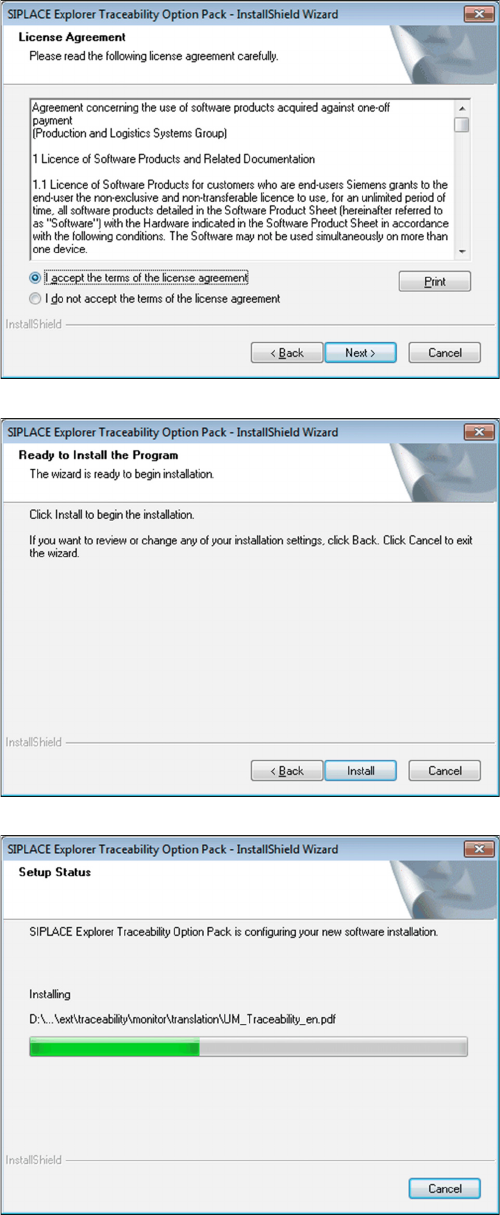
► Read the license conditions. Click on I accept ... to
accept and on I do not accept ... if you do not want to
accept. If you click on I do not accept ..., the installa-
tion procedure will be terminated.
⇨ The following dialog box will be shown:
► Click on the Install button to start the actual installa-
tion of the SIPLACE Explorer Traceability Option.
Once the installation procedure has started, the following
dialog box will open: