DEK INFINITY USER MANUAL.pdf.pdf - 第232页
INFINITY +286(.((3,1 * 5(&29(5<35 2&('85( 7.22 User Manual Software Versi on 7 RECOVER Y PROCEDURE System Description The machi nes ’ hard disk drive is partitioned to allocate both system and dynamic d…
INFINITY
+286(.((3,1*
0$1$*(0(17,1)250$7,219,(:(5
Software Version 7 User Manual 7.21
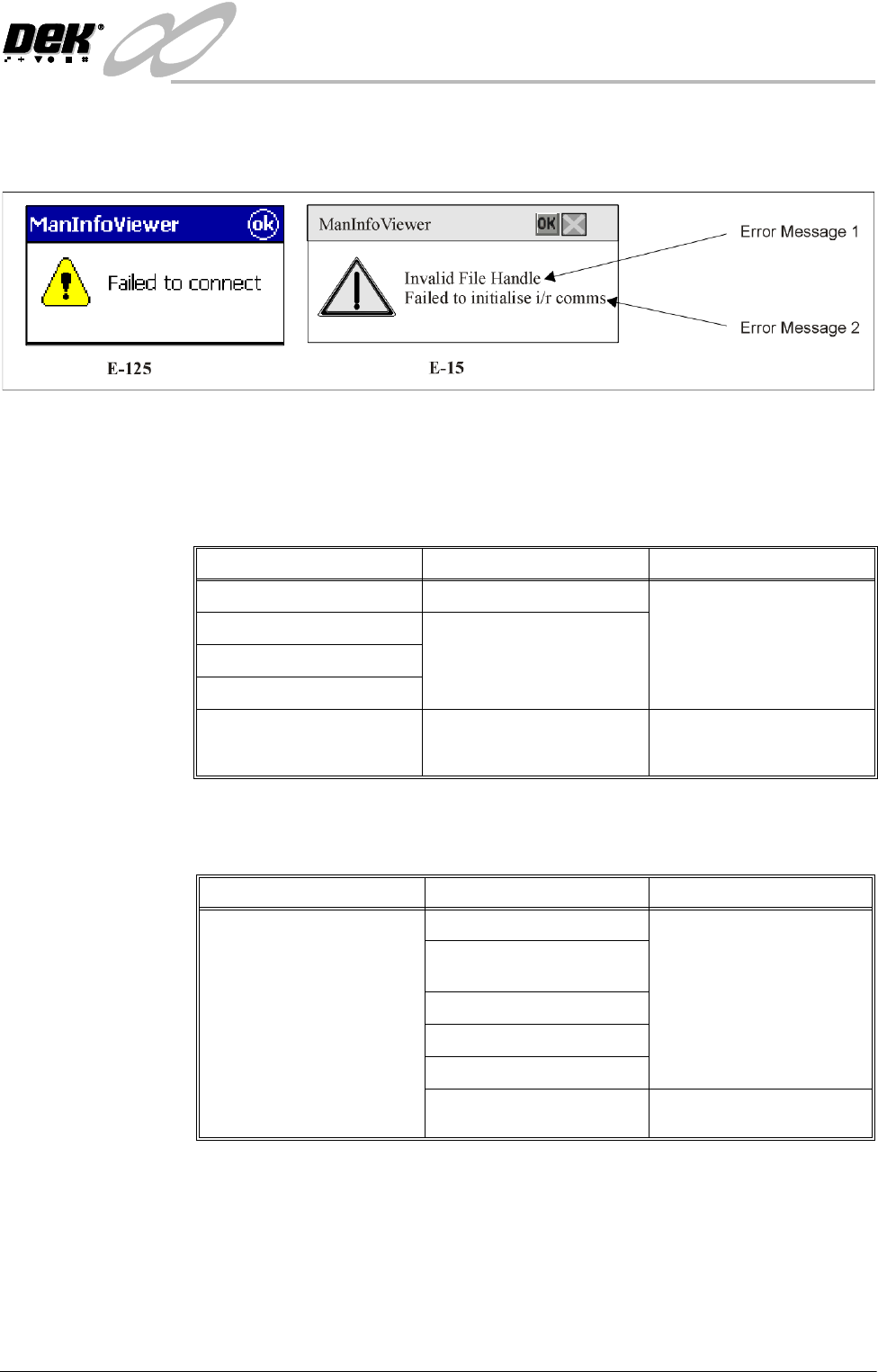
Error Messages Error messages can occur during downloading or analysis. Error messages are
displayed in the following format:
NOTE
Not all error conditions contain 2 error messages.
Downloading The following table lists the possible downloading error messages and the
recovery actions:
Analysis The following table lists the possible analysis error messages and the recovery
actions:
NOTE
If all the above actions fail to produce a result, contact DEK Customer Support.
Error Message 1 Error Message 2 Actions
Failed to initialize i/r comms N/A
Invalid File Handle Retry Download.
Failed to get port settings Failed to initialize i/r comms Reset Handheld.
Failed to connect Reinstall Handheld Software.
Download failed N/A Retry.
Restart the printer.
Reinstall handheld printer.
Error Message 1 Error Message 2 Actions
Failed to load event file
Event File Not Recognized Ensure printer is logging
events.
The server has reported an Event File Not Found Delete the event file.
error with the analysis: Failed to open event file Restart the printer.
General Failure
Data Not Ready, Please Try
Later
Retry download.

INFINITY
+286(.((3,1*
5(&29(5<352&('85(
7.22 User Manual Software Version 7
RECOVERY PROCEDURE
System Description The machines’ hard disk drive is partitioned to allocate both system and dynamic
disk space.
System information is held on drive C: which holds all the system software
including the Windows NT operating system.
The drive D: contains the machine operating software and the dynamic (change-
able) files such as product, machine configuration and calibration.
It is the files on drive D: which need to be backed up at regular intervals to enable
the machine to be brought back into an up-to-date working state should the
Windows NT operating system or the machine software fail.
Recovery Disk DEK provides an Infinity Software CD-ROM which the engineer can use to
restore the machine or the operating system software should an error occur. The
CD-ROM auto-runs, on-screen prompts provide an easy route to either full or
partial recovery. The option for full or partial recovery depends upon the extent
of the system error reported and whether the engineer deems it necessary to
complete a full or partial recovery.
At the time of machine shipment, the software CD-ROM is burnt with all the
information required to operate the machine, this disk is shipped with the
machine. It should be noted that the product specific files such as CON-
FIG.TXT files, may have changed since the time of shipment. Files that have
been archived can be used to overwrite the files on disk D: as required.
Recovery Procedure To perform a partial or full system recovery carry out the following:
1. Close down Windows.
2. Insert the Infinity Software CD-ROM into the machine PC CD-ROM tray.
3. Turn the mains isolator to OFF.
4. Turn the mains isolator to ON, the DEK set-up program runs.
5. Select C on the keyboard when the message ‘Press C to Continue or
<ESC> to quit recovery’ is displayed.
NOTE
If a current copy of the product and machine calibration data is not held,
carry out Steps 6-8.
6. Select Option 3 - Backup Product and Calibration Data.
7. Insert a blank formatted floppy disk into the A:drive.
8. Follow the on-screen prompts and copy the machine calibration and product
files to the A:drive.
9. From the main menu, select either Option 1 to replace Windows NT partition
or Option 2 to reload the entire disk and select C on the keyboard.
10.When prompted enter machine serial number and press Return. The Ghost
program now re-writes the Windows NT partition and if selected the DEK
machine software.
11. On completion, remove the CD-ROM from the PC and reboot the machine.
12.Window NT automatically scans both partitions of the hard disk for errors.
INFINITY
+286(.((3,1*
5(&29(5<352&('85(
Software Version 7 User Manual 7.23
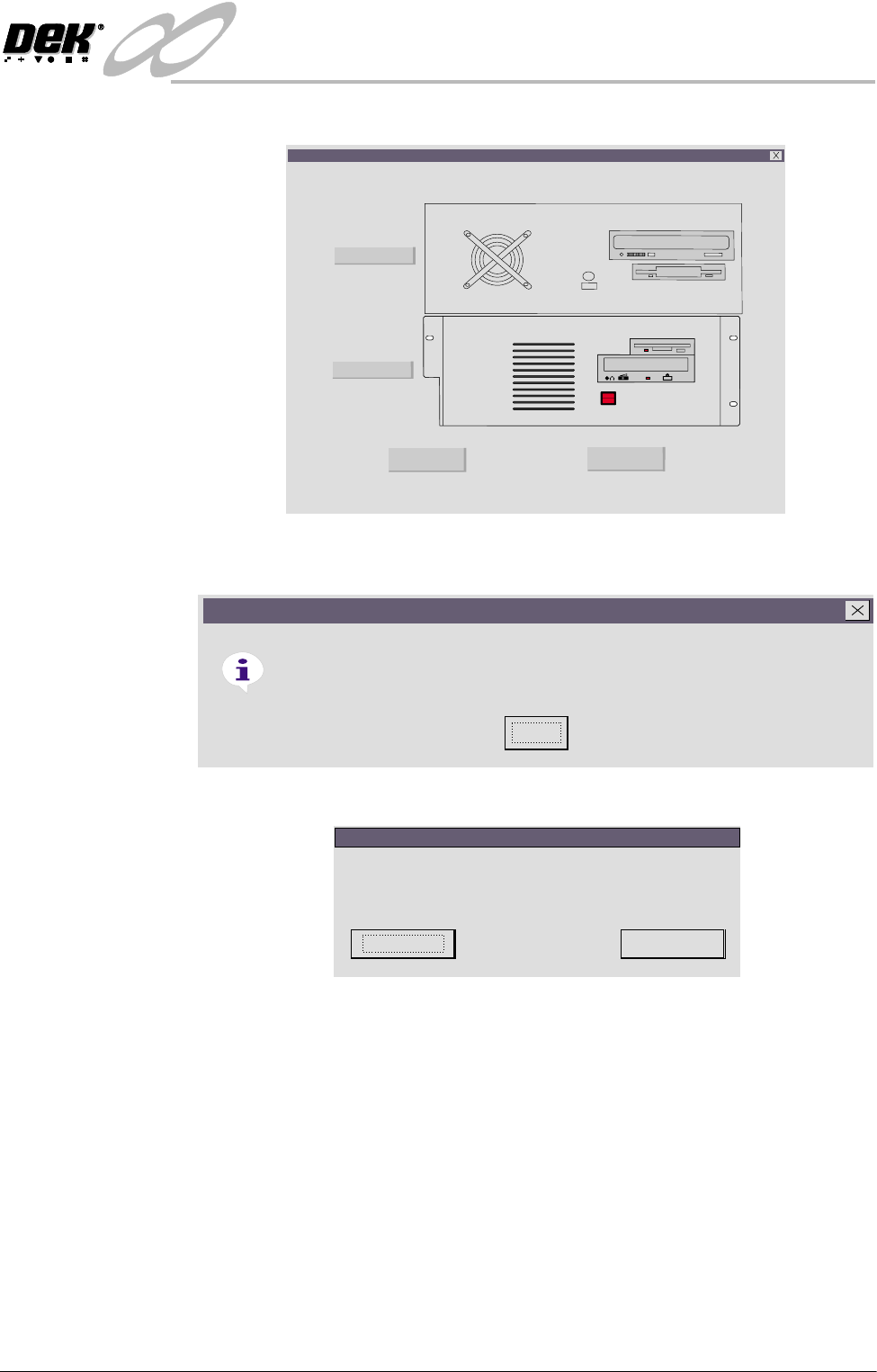
13.On completion the system restarts, the following window is displayed:
14.Select either PC Type 1 or PC Type 2 dependent upon the PC fitted to the
printer and select OK, the following window is displayed:
15.Select OK, the following window is displayed:
CD ROM DRIVE
FDD DRIVE
Infinity Configuration
Chose PC Type and press OK
PC Type 1
PC Type 2
OK
Cancel
Information in C:\RTL813~1.REG has been successfully entered into the registry.
Registry Editor
OK
OK
Cancel
Press OK to complete Printer Configuration
or Cancel to Abort
265 Configuration