DEK INFINITY USER MANUAL.pdf.pdf - 第234页
INFINITY +286(.((3,1 * 5(&29(5<35 2&('85( 7.24 User Manual Software Versi on 7 16. Se lect OK , the following window is dis played: 17. Enter the machine serial number . In the Options box, select Dual …
INFINITY
+286(.((3,1*
5(&29(5<352&('85(
Software Version 7 User Manual 7.23
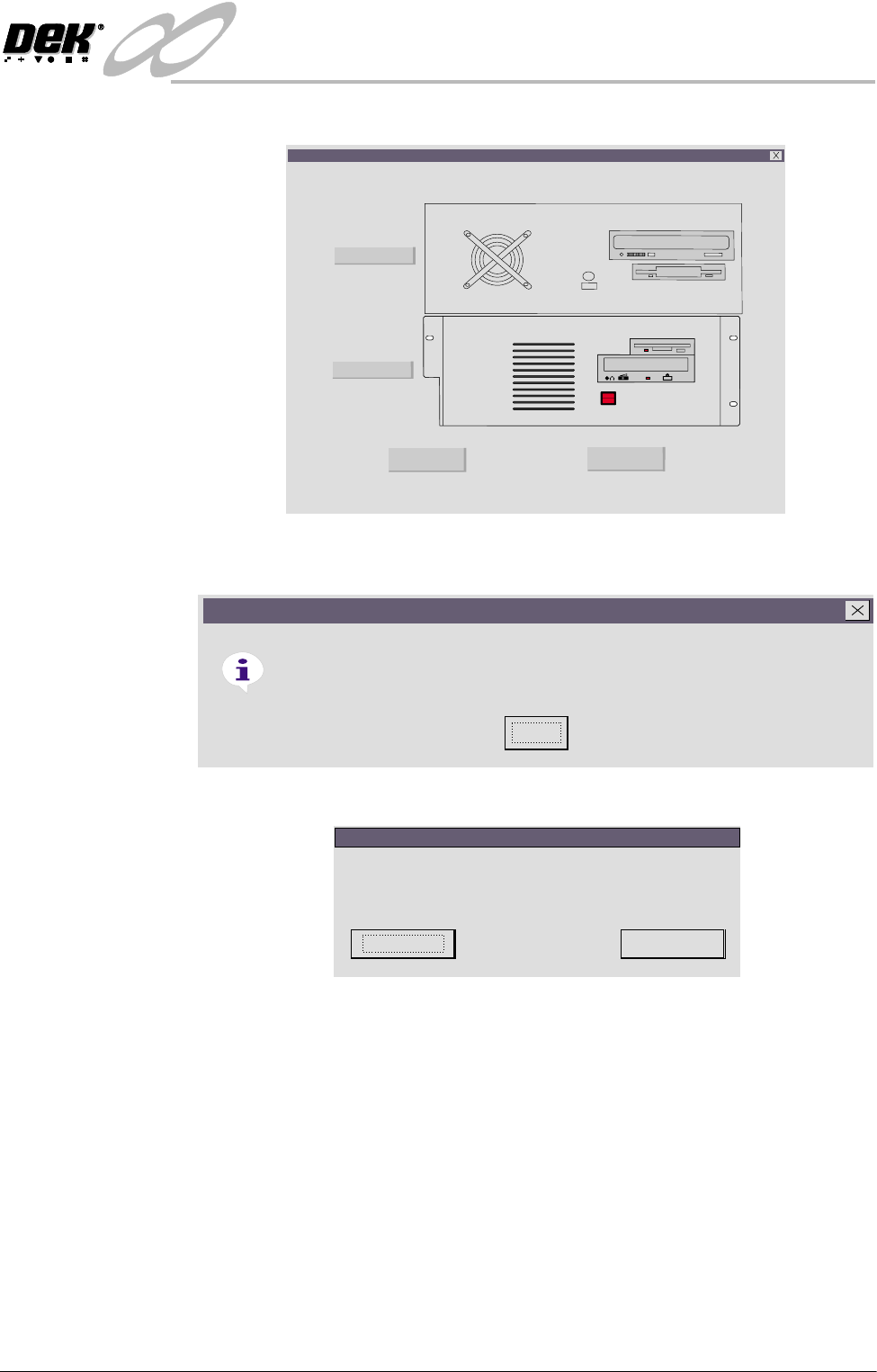
13.On completion the system restarts, the following window is displayed:
14.Select either PC Type 1 or PC Type 2 dependent upon the PC fitted to the
printer and select OK, the following window is displayed:
15.Select OK, the following window is displayed:
CD ROM DRIVE
FDD DRIVE
Infinity Configuration
Chose PC Type and press OK
PC Type 1
PC Type 2
OK
Cancel
Information in C:\RTL813~1.REG has been successfully entered into the registry.
Registry Editor
OK
OK
Cancel
Press OK to complete Printer Configuration
or Cancel to Abort
265 Configuration
INFINITY
+286(.((3,1*
5(&29(5<352&('85(
7.24 User Manual Software Version 7
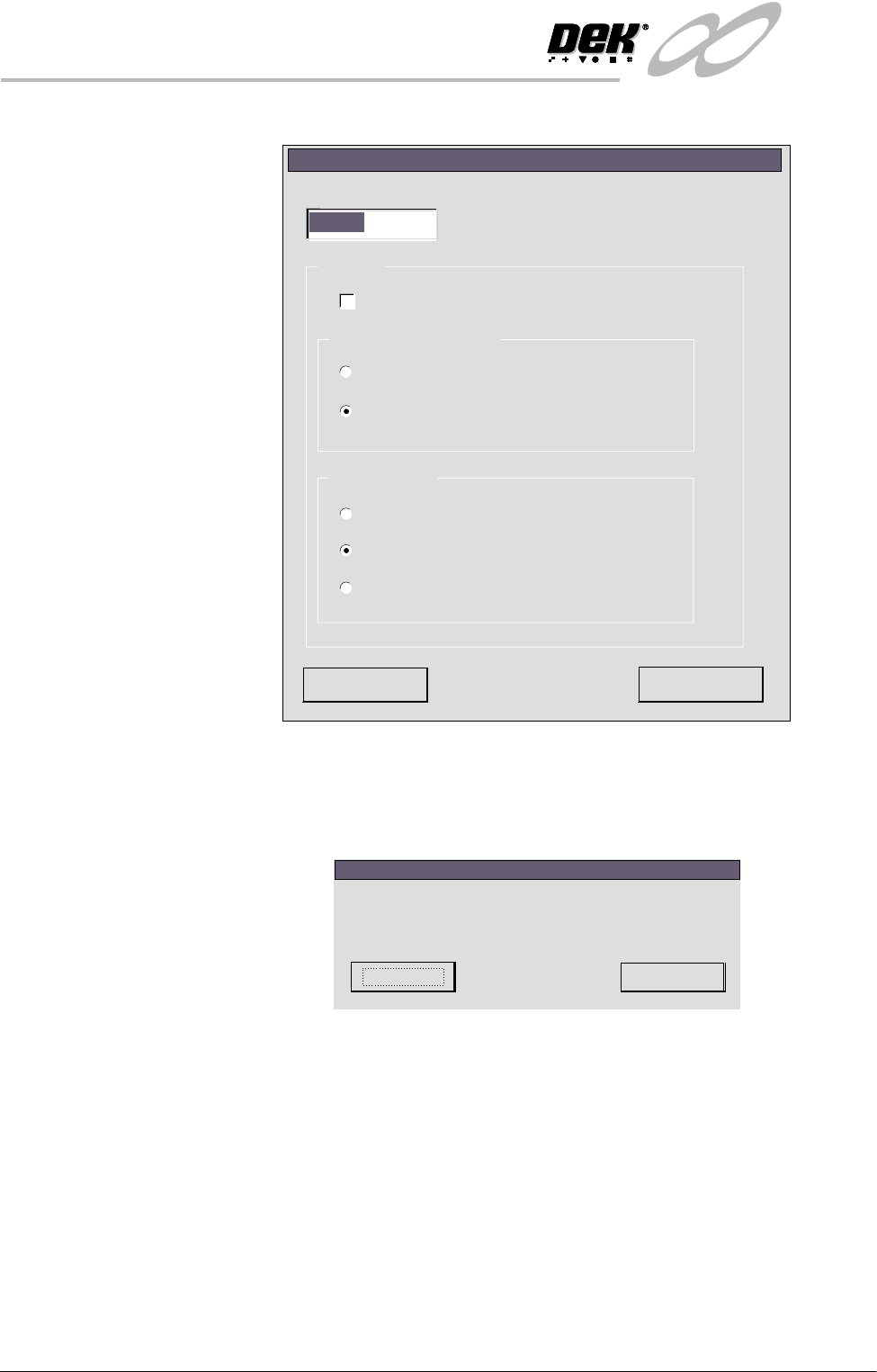
16.Select OK, the following window is displayed:
17.Enter the machine serial number. In the Options box, select Dual Stepper
and the correct camera for the type fitted to the machine. Ensure Fixed Head
is not selected.
18.Select Next, the following window is displayed:
19.Insert the diskette containing the product and calibration data into A:drive
and press OK. The calibration data is now copied onto the machine hard
disk.
20.The machine now initializes.
21.The product files can now be copied onto the machine using Copy Data
function in Housekeeping (see Copy Data in Housekeeping Chapter).
Abort
Next
265 Option Selection
Options
Fixed Head
Machine Serial Number
Single Stepper
Dual Stepper
Green Pulnix
Green Sony
Grey Sony
Camera Type
ProFlow Print Carriage
273394
OK
Cancel
Insert disk containing Calibration data in driveA:
and press OK to load, or Cancel to Abort
265 Configuration
INFINITY
+286(.((3,1*
)($785(/,&(16,1*
Software Version 7 User Manual 7.25
FEATURE LICENSING
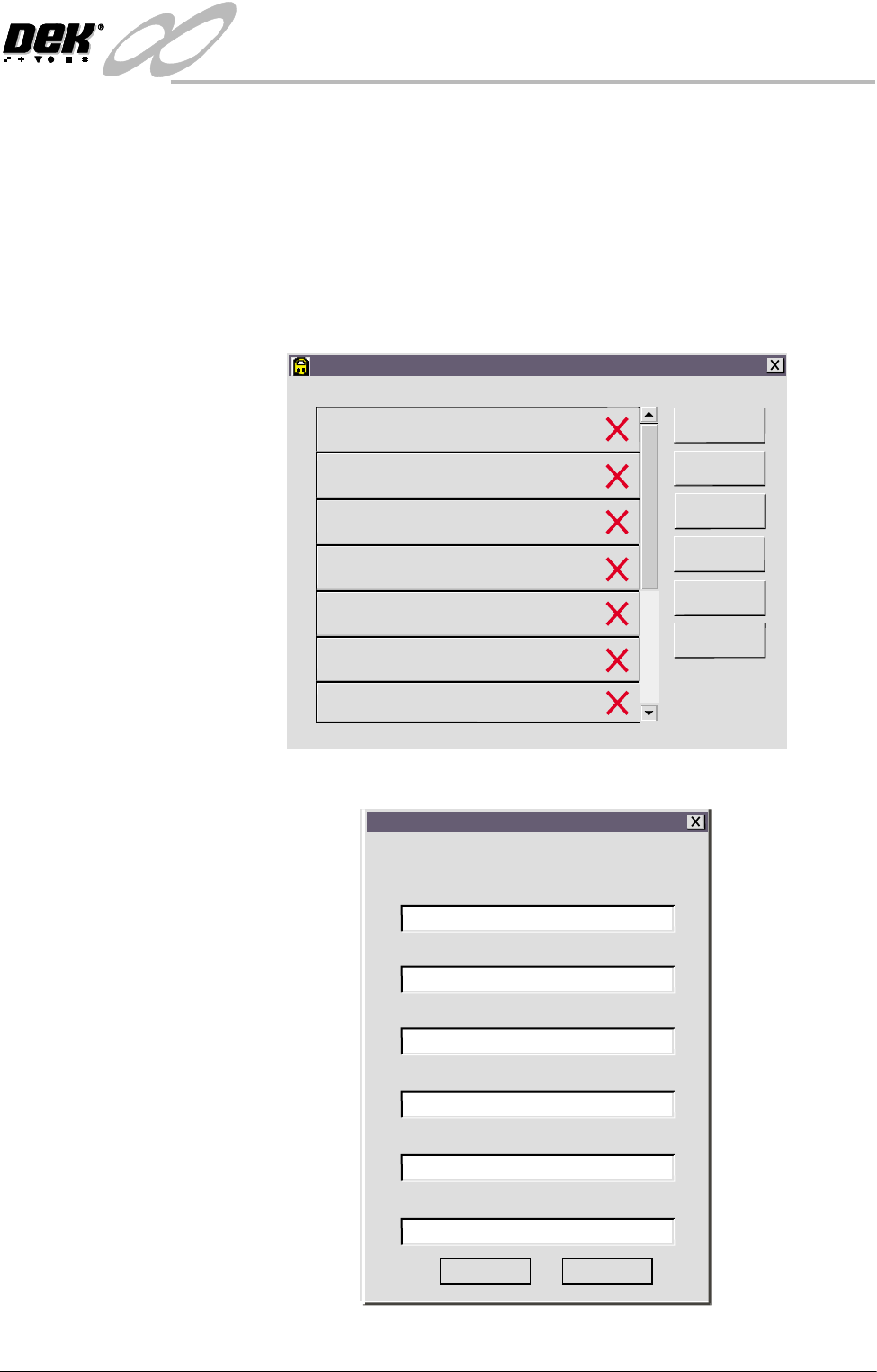
Introduction This standalone program accessed from the taskbar, enables a user to request and
install a licence to run a new feature on the machine. The opening window lists
all the licences available on the dongle and applicable to the machine. Each
licence enabled or requested is signified by a tick beside the feature listed. The
features available on the dongle are updated at software upgrades.
License Request 1. Select Start on the taskbar, Programs and Feature License. The following
window is displayed:
2. Select Customer Info. The following window is displayed:
Feature License
Version 01. 01. 01
GEM/SECS
Networking
620mm Boards
Basic Board Insp.
Advanced Board Insp.
Basic Stencil Insp.
Advanced Stencil Insp.
PC Type 1
PC Type 2
Customer Info
Print Features
Print Request
Install Licence
Refresh
Exit
Customer's Own Information
Company
Contact
Company Purchase Order Number
Another Company
1234567
01305 1234567
01305 7654321
Craig
Phone
Fax
Email
craig@another.com
Save
Cancel