DEK INFINITY USER MANUAL.pdf.pdf - 第268页
INFINIT Y ',163(&7,21 ',163(&7,21 6(78 3 8.28 User Manual Software Versi on 7 If the graphics on the board side requires adjusting, use the Incr . Decr . to adjust the X and Y of fsets to align the…
INFINITY
',163(&7,21
',163(&7,216(783
Software Version 7 User Manual 8.27
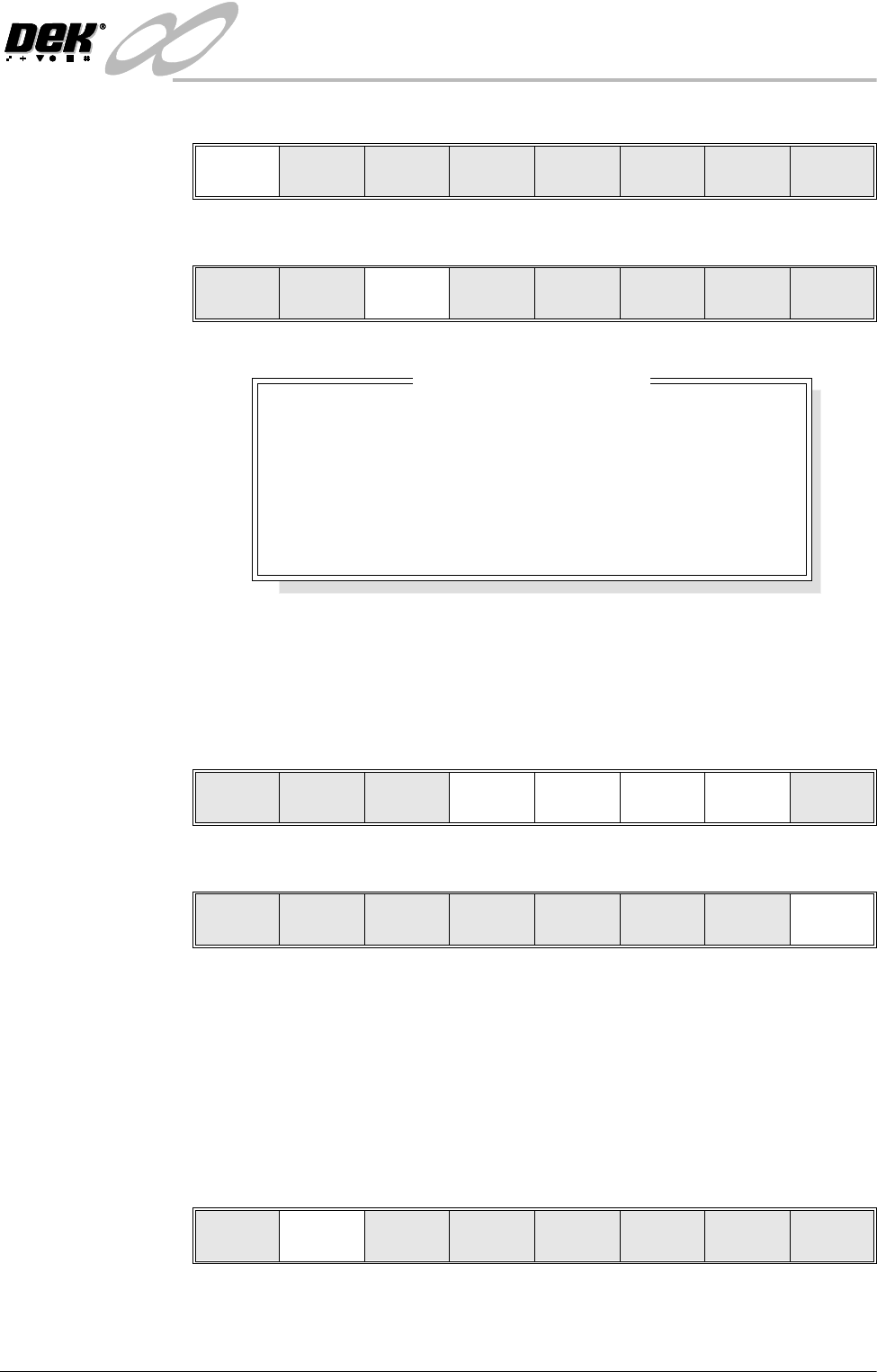
9. Select Use Limit.
Lighting Setup 1. Select Light Setup.
Figure 8-8 Green Camera Lighting Parameters
2. Using the Next, Previous, Incr. and Decr. keys, adjust the lighting
parameters to a level whereby the stencil and board pads are just whiting out,
without blooming, default level 8 is usually adequate for the majority of
setups.
3. Select Exit.
Site Setup 4. Using one of the controls listed, carry out the following:
a. Mouse - Drag and drop the red Region Of Interest box (ROI) to the desired
position.
b. Touchscreen (if available) - Drag the red ROI box to the desired position.
c. Manual Function Buttons - Next, Previous, Incr. and Decr. keys adjust
the ROI position via the parameters.
5. Select Learn Screen.
The message ‘Stencil Learnt. Use the mouse in the board view to align
the board graphic or edit the parameters’ is displayed in the message
prompt bar.
Use
Limit
Next
Limit
Previous
Limit
Exit
Learn
Screen
Light
Setup
Next Previous Incr. Decr. Exit
8
8
8
8
-1.5
-1.5
3.0
3.0
mm
mm
mm
mm
Inspection Lighting Parameters
SCREEN VERTICAL
SCREEN OBLIQUE
BOARD VERTICAL
BOARD OBLIQUE
WINDOW LEFT
WINDOW TOP
WINDOW WIDTH
WINDOW HEIGHT
Next Previous Incr. Decr. Exit
Next Previous Incr. Decr. Exit
Add
Site
Learn
Screen
Light
Setup
Next Previous Incr. Decr. Exit
INFINIT
Y
',163(&7,21
',163(&7,216(783
8.28 User Manual Software Version 7
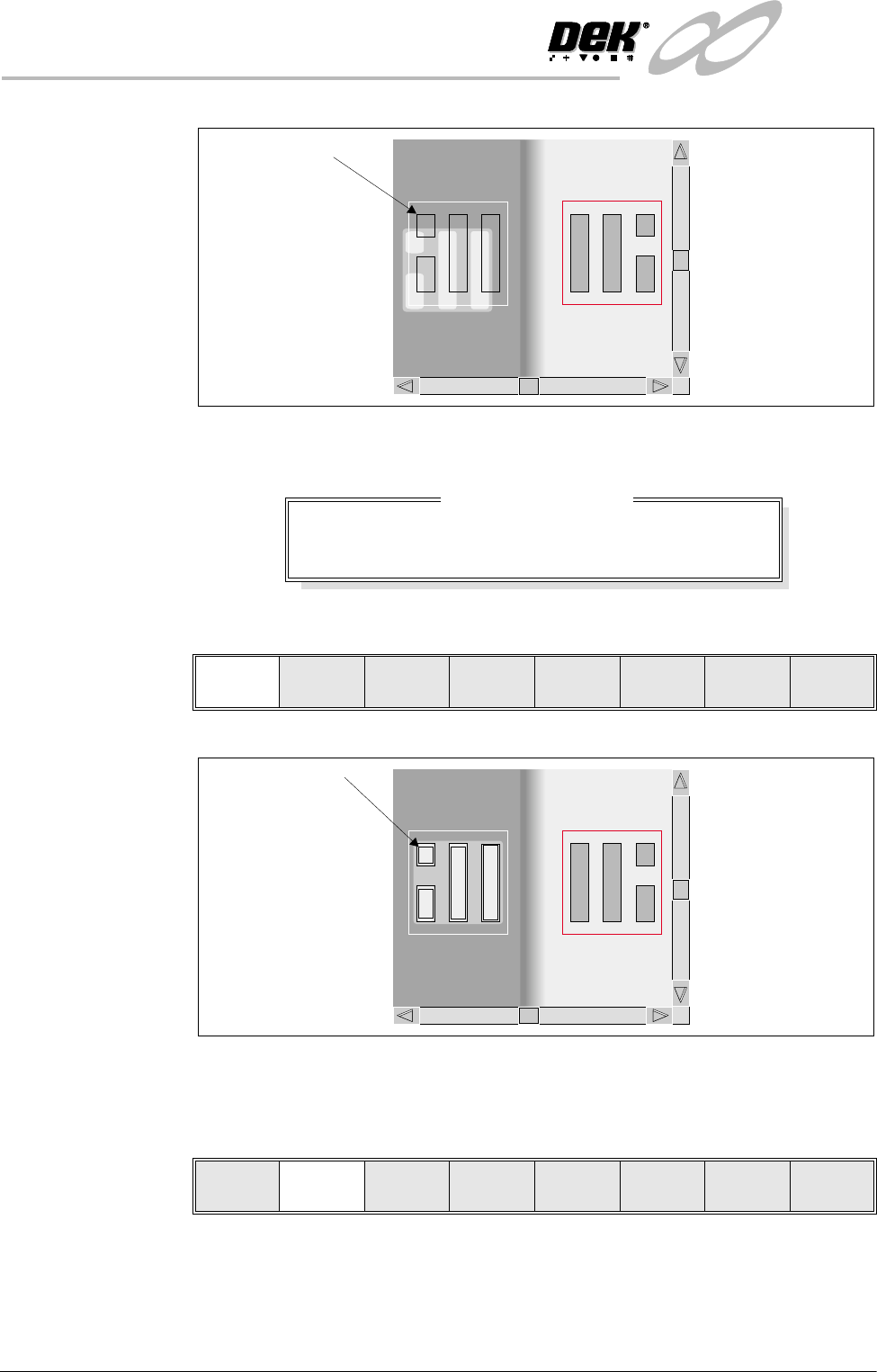
If the graphics on the board side requires adjusting, use the Incr. Decr. to
adjust the X and Y offsets to align the overlay onto the pads.
6. Select Learn Board.
The message ‘Board Learnt’ is displayed in the message prompt bar.
7. If ‘...Board Not Learnt’ is displayed, select Adjust Screen and return to
Step 4.
If device is to be learnt select Auto Learn as detailed in the next section.
Image on board does
not coincide with
board pads
BOARD GRAPHIC X
BOARD GRAPHIC Y
0.0
0.0
mm
mm
Learn Site Parameters
Learn
Board
Adjust
Screen
Next Previous Incr. Decr. Exit
Outline of pads are
superimposed on the
board display
Learn
Board
Adjust
Screen
Auto
Learn
Next Previous Incr. Decr. Exit
INFINITY
',163(&7,21
',163(&7,216(783
Software Version 7 User Manual 8.29
Auto Learn Prior to carrying out auto learn, the 2Di setup described in the preceding pages
must have been carried out. To successfully auto learn, the site setup should be
the base site of the device, (Figure 8-2 Auto Learn Site Types refers).
1. Select Auto Learn.
The message ‘Select Component type to Auto Learn:’ is displayed. The
following messages appear beneath this message in rotation.
Row - Start at left most end of horizontal
Column - Start at topmost end of vertical
QFP - (Quad Flat Pack) - Start at left most end at top of left horizontal
line
BGA - (Ball Grid Array) - Start at top left corner of array
2. Select the required component to learn.
The message bar reports the progress of the auto learn as a set of sites of the
appropriate type are created and learnt. The original site, and each site that
is created, is given the same name as the original site, but with a ‘~’ symbol
followed by a three digit number in sequence.
As each new site is created and learnt, the newly created name and data is
displayed in the Edit Site Parameters window.
NOTE
During Auto Learn, if any creating or learning sequence fails, the message
‘Adjust Site. ..........’ appears with an explanation the user is given the
opportunity to recover the sequence or abort the operation.
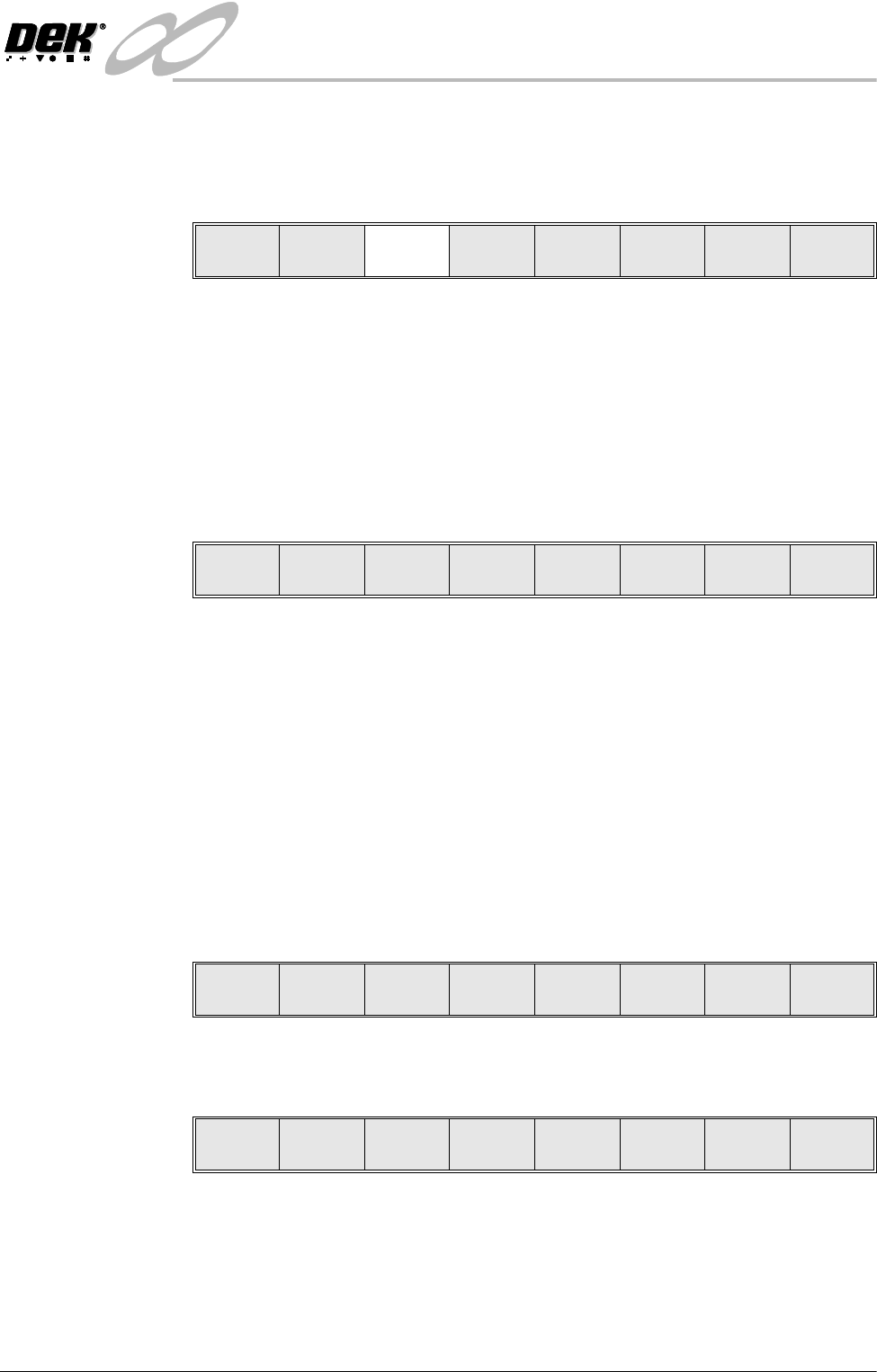
3. On completion of a successful auto learn of the selected component, the
following menu bar is displayed:
4. Repeat Steps from Site Setup for further auto learn features.
5. If feature not completely learnt, the following menu bar is displayed:
Learn
Board
Adjust
Screen
Auto
Learn
Next Previous Incr. Decr. Exit
Learn
Row
Learn
Col
Learn
QFP
Learn
BGA
Learn
BGAframe
Exit
Edit
Global
Edit
Limits
Delete
Site
Edit
Site
Inspect
Site
Exit
Adjust
Site
Learn
Board
Learn
Screen
Continue Exit