DEK INFINITY USER MANUAL.pdf.pdf - 第28页
INFINITY 0$&+,1( 352*5$ 00,1* 67$*( /2$' ,1*$6 &5((1 1.26 User Manual Software Versi on 7 ST AGE 5 - LOADING A S CREEN 1. Select Change Screen (F5). 2. Lift the front printhead cover . 3. If a screen…

INFINITY
0$&+,1(352*5$00,1*
67$*(%352)/2:6(783
Software Version 7 User Manual 1.25
STAGE 4B - PROFLOW SETUP
If squeegees were used when running the last product, carry out the Squeegees
to ProFlow Replacement Procedure, see Technical Reference Manual, ProFlow
Module Chapter - Replacement Procedures.
For setting the contact and downstop position, carry out the ProFlow Contact
Position Setup, see Technical Reference Manual, ProFlow Module Chapter -
Adjustments and Settings.
INFINITY
0$&+,1(352*5$00,1*
67$*(/2$',1*$6&5((1
1.26 User Manual Software Version 7
STAGE 5 - LOADING A SCREEN
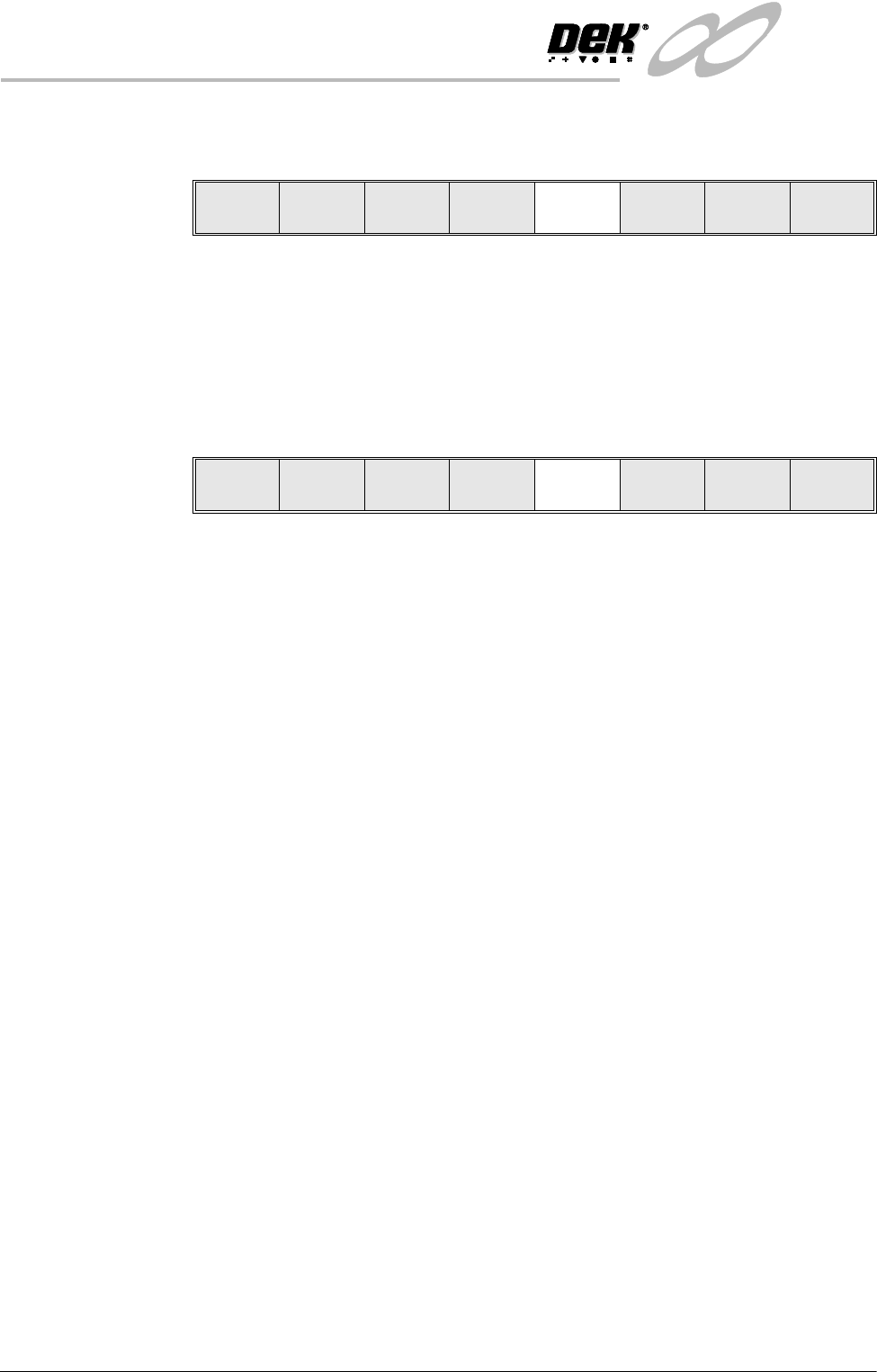
1. Select Change Screen (F5).
2. Lift the front printhead cover.
3. If a screen is already present in the printer this should be removed.
4. Fit the new screen into the printer ensuring the correct orientation of the
screen.
5. Lower the front printhead cover.
6. Select Change Screen (F5).
7. Press the System button.
Mode
Load
Data
Edit
Data
Setup
Squeegee
Change
Screen
Change
Tooling
Change
Language
Exit
Mode
Load
Data
Edit
Data
Setup
Squeegee
Change
Screen
Change
Tooling
Change
Language
Exit
INFINITY
0$&+,1(352*5$00,1*
67$*($0$*1(7,&3,//$56722/,1*
Software Version 7 User Manual 1.27
STAGE 6A - MAGNETIC PILLARS TOOLING
Setting up the board stop position is automatically done using the board dimen-
sions previously set in the board parameter file. If adjustment is necessary
proceed as follows:
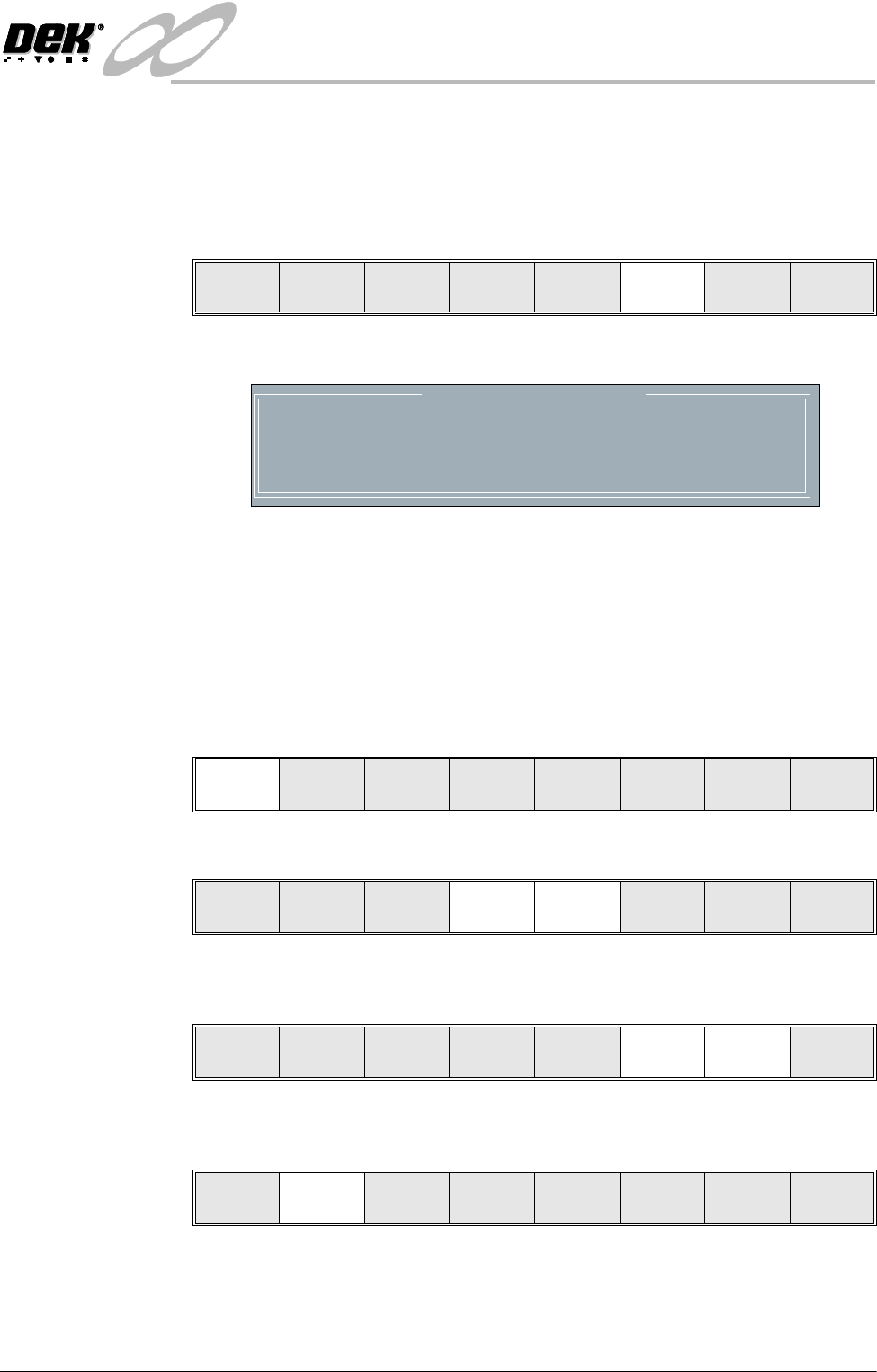
1. Select Change Tooling (F6).
The Change Tooling Parameters window is displayed:
NOTE
If the remote board stop is fitted the Board Stop X and Board Stop Y
parameters are replaced by Remote Board Stop X.
These parameters are automatically calculated from the board size parame-
ters that were entered in the product file. If they need adjustment to re-
position the board stop for any reason, ie any routing on the board edge or a
badly positioned image on the screen, this can be done now.
2. Select Adjust (F1).
3. Use the Next and Previous keys (F4 - F5) to highlight each parameter.
4. Use the Incr. and Decr. keys (F6 - F7), or the forward slash key (/) on the
keyboard, to change the parameter value.
5. Select Save (F2). The message ‘Saving fiducial data - Please wait Board
data file saved’ is displayed.
Mode
Load
Data
Edit
Data
Setup
Squeegee
Change
Screen
Change
Tooling
Change
Language
Exit
Change Tooling Parameters
BOARD WIDTH
BOARD STOP X
BOARD STOP Y
216.0
125.0
142.6
mm
mm
mm
Adjust
Raise
Head
Remove
Cleaner
Board
Stop
Full
Width
Load
Width
Print
Height
Exit
Save Next Previous Incr. Decr. Exit
Save Next Previous Incr. Decr. Exit
Save Next Previous Incr. Decr. Exit