DEK INFINITY USER MANUAL.pdf.pdf - 第301页
INFINITY &21680$ %/(5( 3/(1,6+0(1 76 %/8(81' (56&5 ((1&/($1 (5 Soft ware Ver sion 7 User Manual 9.17 3. Using the Nex t and Pr evious keys (F4 - F5) highlight the Screen Clean Rate. 4. Using the Incr …
INFINITY
&21680$%/(5(3/(1,6+0(176
%/8(81'(56&5((1&/($1(5
9.16 User Manual Software Version 7
Sweeps set with NONE option cause no action to be taken during the sequence.
For example, the settings:
DRY, NONE, NONE, DRY, NONE, WET and
DRY, DRY, WET, NONE, NONE, NONE
Both carry out two consecutive operations, directly followed by one WET
cleaning operation.
The default setting is NONE for all six steps.
Solvent Advice The following solvents MUST NOT be used in the underscreen cleaner. How-
ever, this list is not complete and does not mean that any solvent not mentioned
is compatible, with DEK machines.
• Rosstech 106FE
• Rosstech 162 ND
• Acetone
DEK are continuously evaluating alternative solvents. If you require a particular
solvent to be used, but are unsure of its suitability for DEK machines, please
contact the DEK Customer Support Group.
NOTE
Rosstech 147FD is used within DEK manufacturing division and has been found
to be compatible with DEK underscreen cleaner units.
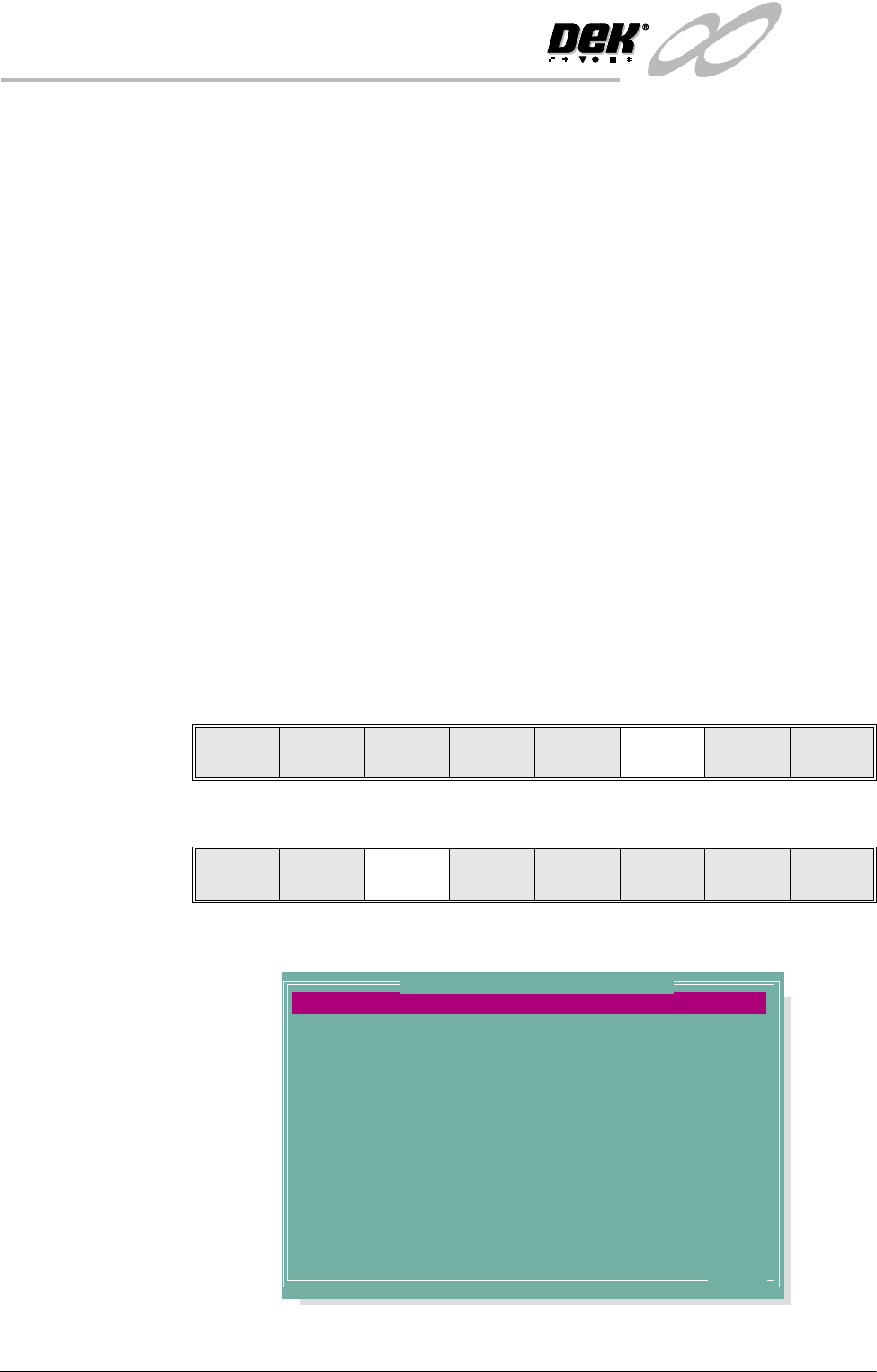
1. Press Setup (F6).
2. Press Edit Data (F3).
The following window is displayed:
Run Head
Paste
Load
Clean
Screen
Adjust Setup Monitor Maint.
Mode
Load
Data
Edit
Data
Setup
Squeegee
Change
Screen
Change
Tooling
Change
Language
Exit
PASTE DISPENSE RATE
PASTE DISPENSE SPEED
PASTE WITH BOARD
ALTERNATE DISP
ALTERNATE DISP RATE
SCREEN CLEAN MODE 1
SCREEN RATE 1
SCREEN CLEAN MODE 2
SCREEN CLEAN RATE 2
CLEAN AFTER KNEAD
CLEAN AFTER DOWNTIME
CLEAN AFTER
DRY CLEAN SPEED
WET CLEAN SPEED
0
10
DISABLED
CENTRE
0
NONE
0
NONE
0
NONE
NONE
15
40
40
Prts
mm/s
Disp Cyc
Prts
Prts
minutes
mm/s
mm
.. more
Edit Current Process Parameters
INFINITY
&21680$%/(5(3/(1,6+0(176
%/8(81'(56&5((1&/($1(5
Software Version 7 User Manual 9.17
3. Using the Next and Previous keys (F4 - F5) highlight the Screen Clean Rate.
4. Using the Incr. and Decr. keys (F6 -F7) set the Screen Clean Rate. This can
be set at any number between 0 and 200 in increments of 1.
5. Use the Previous key (F5) to highlight the Screen Clean Mode. This
parameter determines the mode of operation of the screen cleaner.
6. Press the Incr. or Decr. keys (F6 - F7) to enter the Screen Clean Mode.
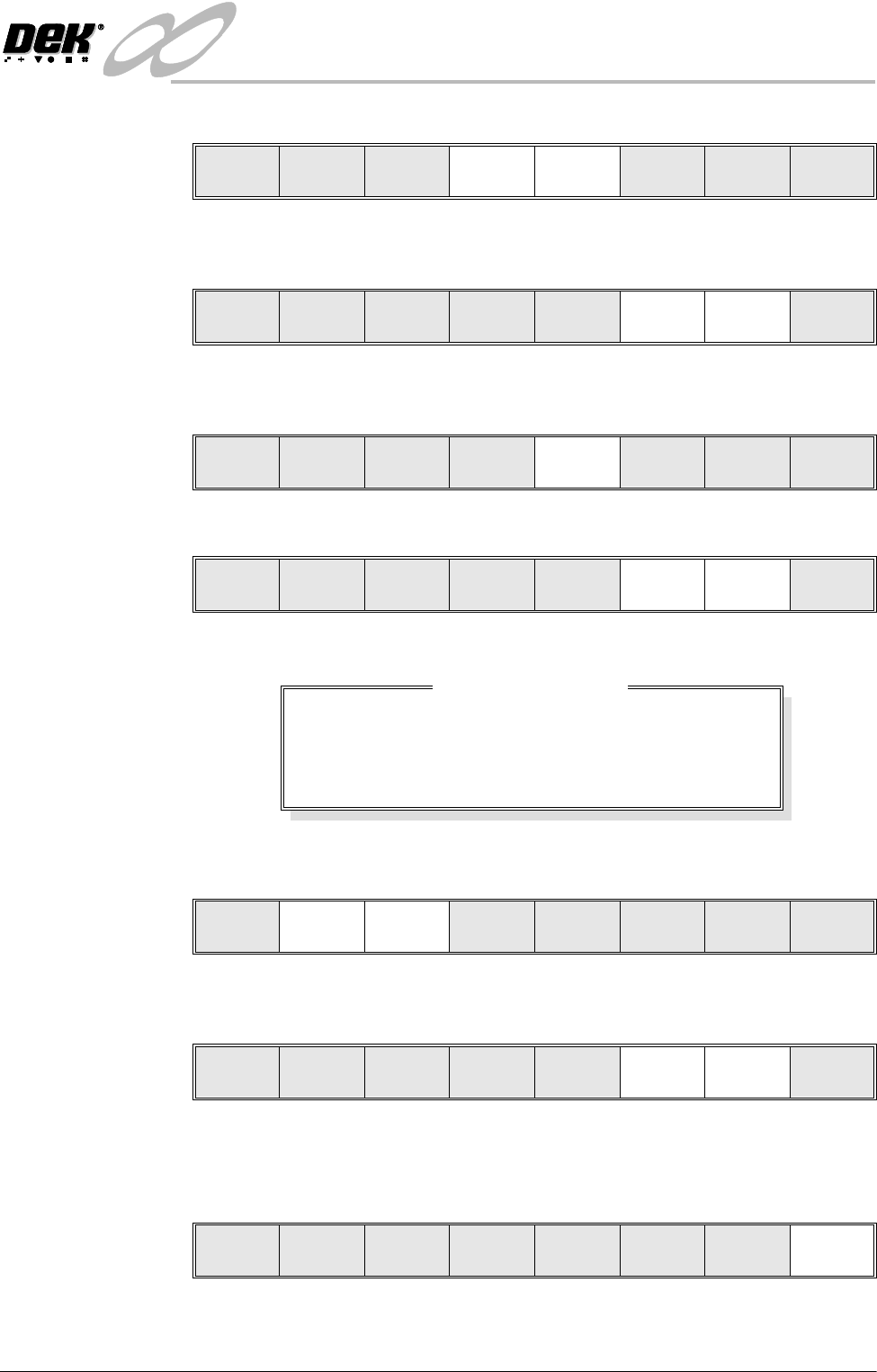
The Screen Clean Mode window is opened:
7. Use the Left and Right keys (F2 - F3) to highlight the next sweep number
to be changed.
8. Use the Incr. and Decr. keys (F6 - F7) to select the operation required for the
highlighted sweep. The four options are: VAC, DRY, WET and NONE.
9. If the six stage sequence is setup as required, go to the next step, otherwise
return to Step 7.
10.Press Exit (F8).
Save Next Previous Incr. Decr. Exit
Save Next Previous Incr. Decr. Exit
Save Next Previous Incr. Decr. Exit
Save Next Previous Incr. Decr. Exit
Screen Clean Mode 1
1
WET
2
DRY
3
DRY
4
NONE
5
NONE
6
NONE
Sweep Number
Left Right Incr. Decr. Exit
Left Right Incr. Decr. Exit
Left Right Incr. Decr. Exit
INFINITY
&21680$%/(5(3/(1,6+0(176
%/8(81'(56&5((1&/($1(5
9.18 User Manual Software Version 7
11. Press Exit (F8).
Paper and Solvent
Replenishment
Paper and solvent replenishment can take place with the cleaner unit in the
printer. When paper or solvent needs replenishment a warning window is
automatically displayed on the monitor. The warning window varies, depending
on the setting of the consumable action option in set preferences. The message
in the warning window depends on whether the solvent or paper or both require
replenishment. The procedure varies, depending on whether the replenishment
is prior to a print run or during a print run.
Replenishment Prior to a Print Run:
If the set preference is set to warn, continue with Step 1. If the set preference is
set to pause or suspend go to Step 4.
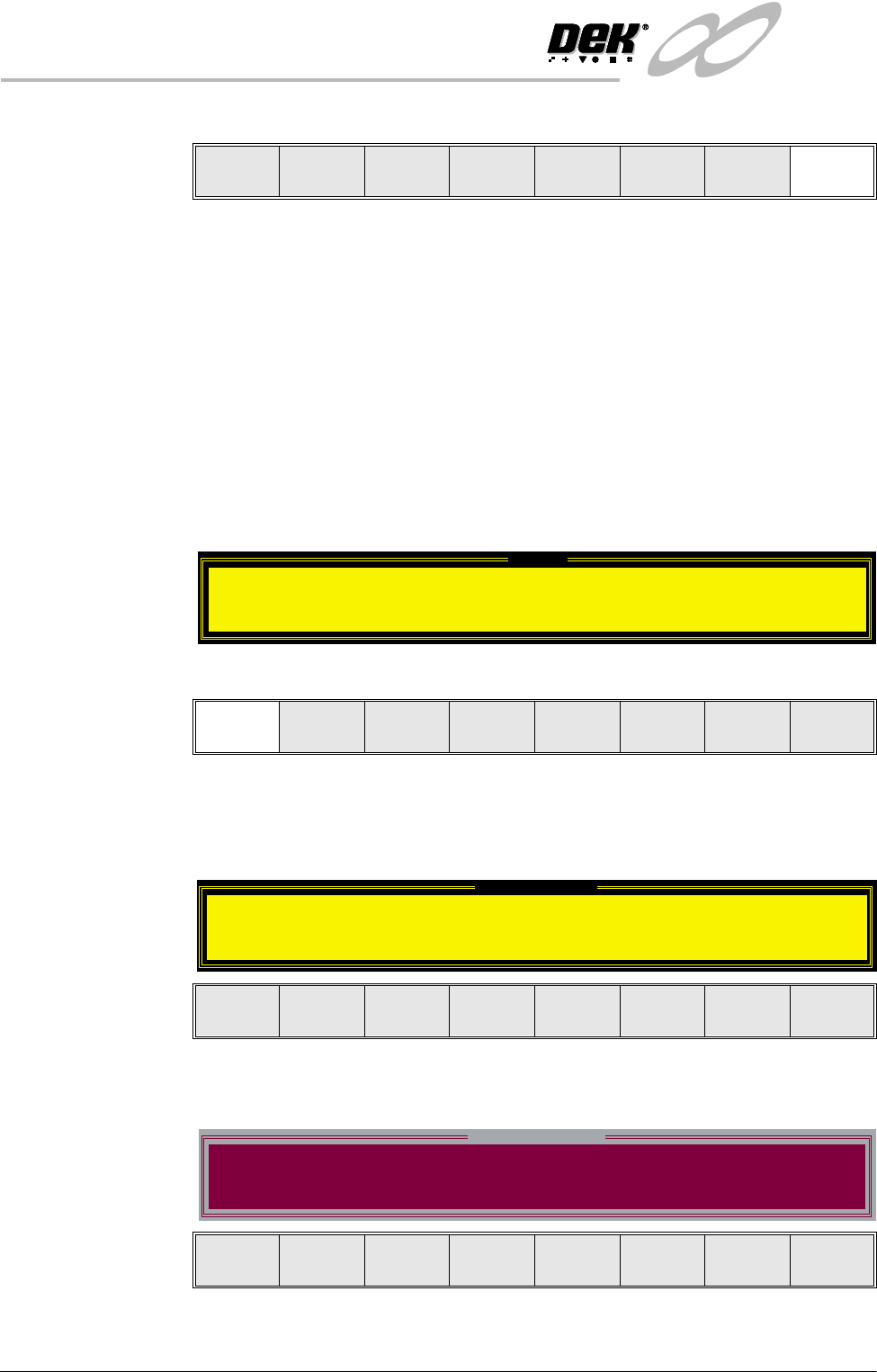
1. If the set preference is set to warn, the tricoloured beacon shows amber/green
and the following window is displayed:
2. Select Confirm (F1).
3. Go to Step 17.
4. If the set preference is set to pause, the tricoloured beacon shows red and the
following window and menu bar is displayed:
If the set preference is set to suspend, the tricoloured beacon shows red and
the following window and menu bar is displayed:
Mode
Load
Data
Edit
Data
Setup
Squeegee
Change
Screen
Change
Tooling
Change
Language
Exit
Warning
Cleaner paper Low. Please replace.
Confirm
Pause on Warning
Cleaner Solvent Low. Please refill.
Cancel
Suspend on Warning
Cleaner Solvent Low. Please refill.
Cancel