DEK INFINITY USER MANUAL.pdf.pdf - 第53页
INFINITY 0$&+,1 (352*5 $00,1* 67$*( '0 8/7,)/(;722/,1 * Soft ware Ver sion 7 User Manual 1.51 47. Se lect Home Position (F7). 48. Se lect Raise Head (F2). 49. Raise t he printhead using two button control…
INFINITY
0$&+,1(352*5$00,1*
67$*('08/7,)/(;722/,1*
1.50 User Manual Software Version 7
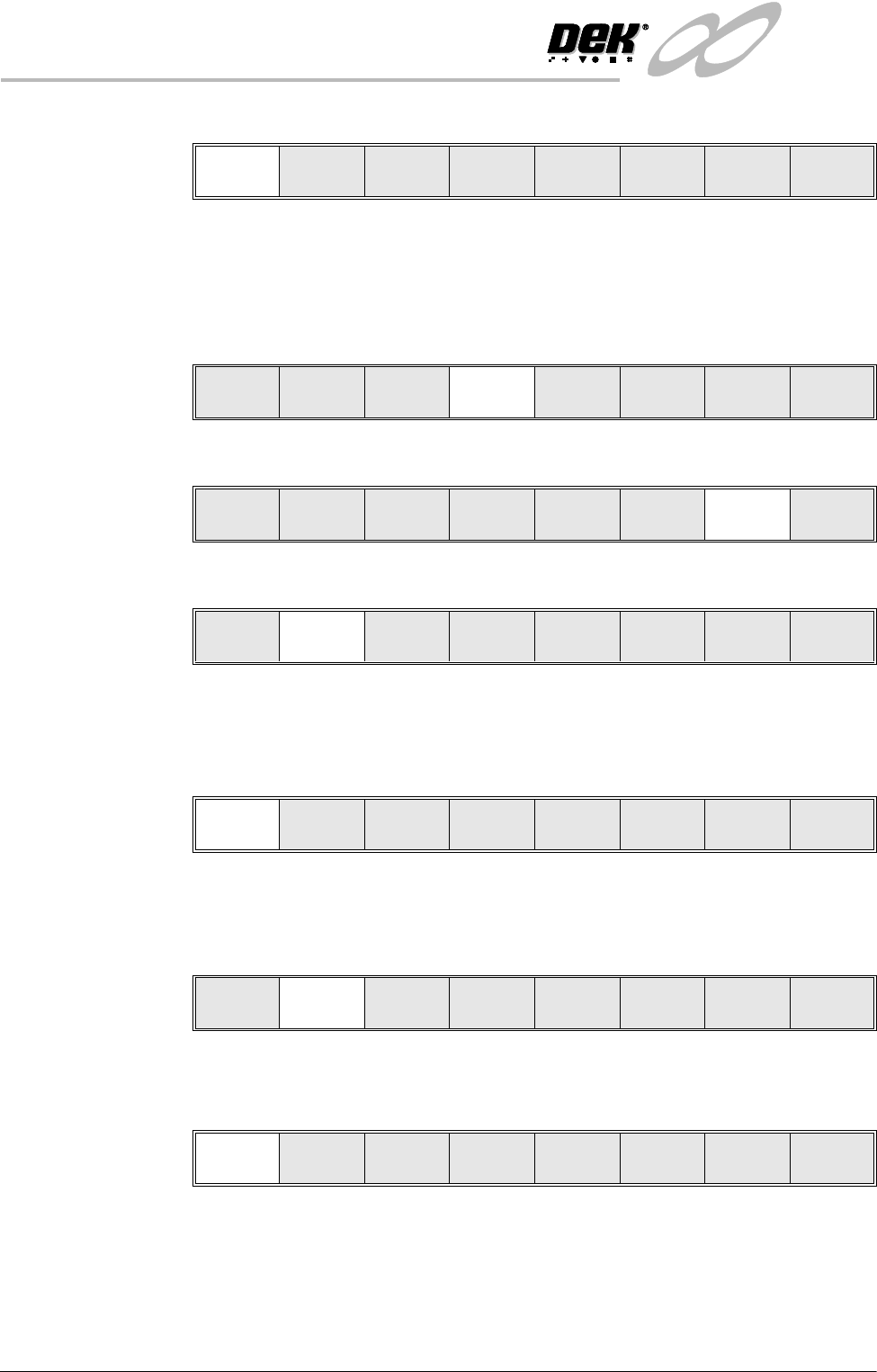
30.Select Confirm (F1).
31.Lower the printhead using two button control.
32.Close the front printhead cover.
33.Press the System button.
34.Select Home Camera (F4).
35.Select Print Height (F7).
36.Select Raise Head (F2).
37.Raise the printhead using two button control.
38.Fit the head prop.
39.Press Confirm (F1).
40.Check that the setup of the tooling is adequate for the board, adjust as
necessary.
41.Select Lower Head (F2).
42.Remove the Head Prop.
43.Select Confirm (F1).
44.Lower the printhead using two button control.
45.Close the front printhead cover.
46.Press the System button.
Confirm Cancel
Adjust
Raise
Head
Remove
Cleaner
Home
Camera
Full
Width
Load
Width
Print
Height
Exit
Adjust
Raise
Head
Remove
Cleaner
Board
Stop
Full
Width
Load
Width
Print
Height
Exit
Raise
Head
Home
Position
Exit
Confirm
Lower
Head
Adjust
Lower
Head
Board
Clamps
Set
Stop
Confirm Cancel
INFINITY
0$&+,1(352*5$00,1*
67$*('08/7,)/(;722/,1*
Software Version 7 User Manual 1.51
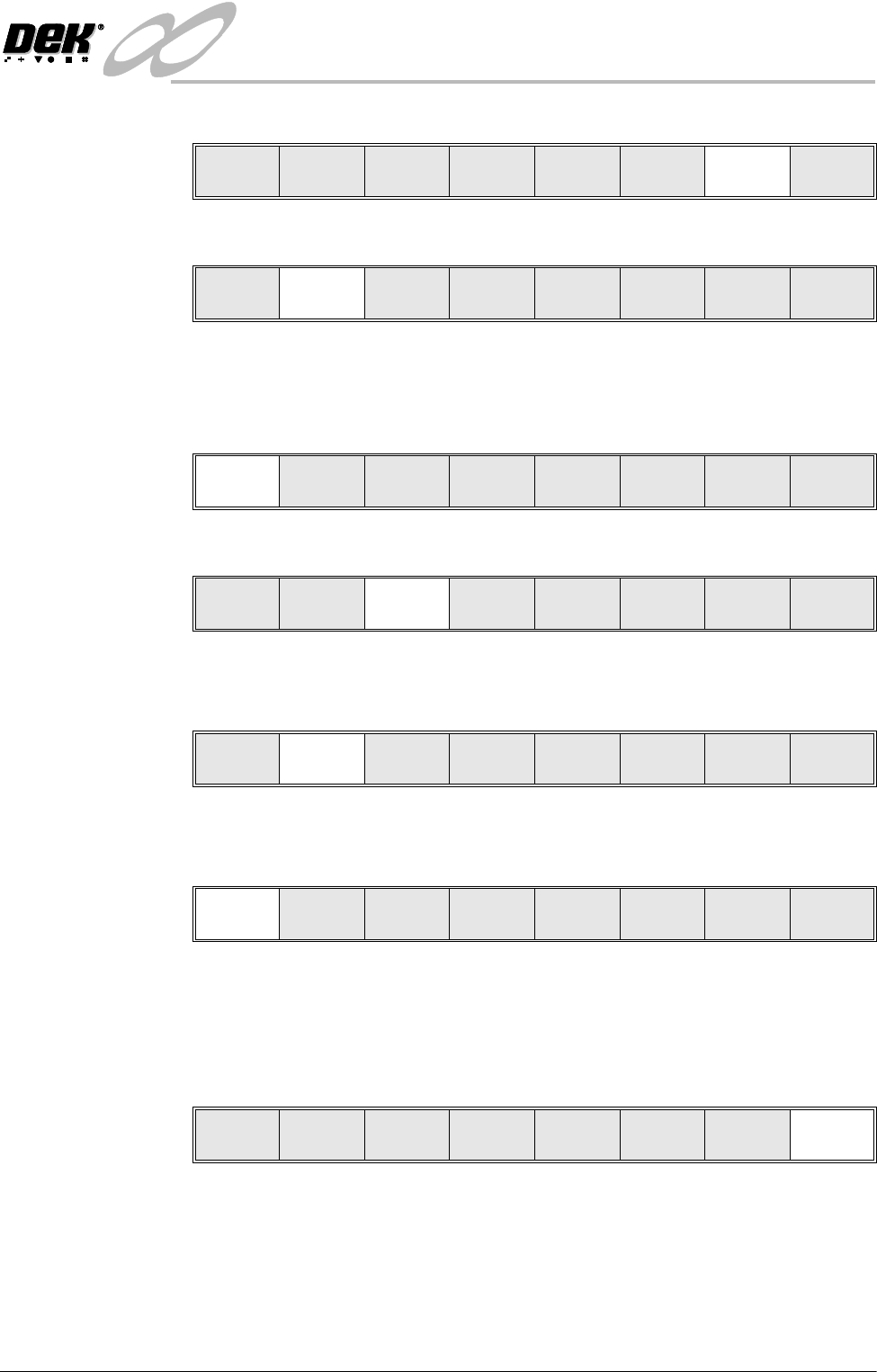
47.Select Home Position (F7).
48.Select Raise Head (F2).
49.Raise the printhead using two button control.
50.Fit the head prop.
51.Press Confirm (F1).
52.Select Board Clamps (F3) to open the clamps.
53.Remove the board from the rails.
54.Select Lower Head (F2).
55.Remove the Head Prop.
56.Select Confirm (F1).
57.Lower the printhead using two button control.
58.Close the front printhead cover.
59.Press the System button.
60.Select Exit (F8).
61.Go to Stage 7.
Raise
Head
Home
Position
Exit
Adjust
Raise
Head
Remove
Cleaner
Board
Stop
Full
Width
Load
Width
Print
Height
Exit
Confirm
Lower
Head
Adjust
Lower
Head
Board
Clamps
Set
Stop
Adjust
Lower
Head
Board
Clamps
Set
Stop
Confirm Cancel
Adjust
Raise
Head
Remove
Cleaner
Board
Stop
Full
Width
Load
Width
Print
Height
Exit
INFINITY
0$&+,1(352*5$00,1*
67$*(()250)/(;722/,1*
1.52 User Manual Software Version 7
STAGE 6E - FORMFLEX TOOLING
WARNING
BOARD CLAMPS. EXTREME CARE MUST BE EXERCISED WHEN WORKING IN
THE TOOLING AREA OF THE MACHINE TO AVOID INJURY. THE FOILS ON THE
FRONT AND REAR BOARD CLAMPS ARE VERY SHARP.
CAUTION
BOARD CLAMPS. Care must be taken to ensure that the board clamps
are not damaged when removing or replacing tooling.
NOTE
When using FormFlex, the print gap in the product file must be set to zero.
1. If FormFlex has been setup for a previous product, carry out Resetting
FormFlex procedure later in this chapter.
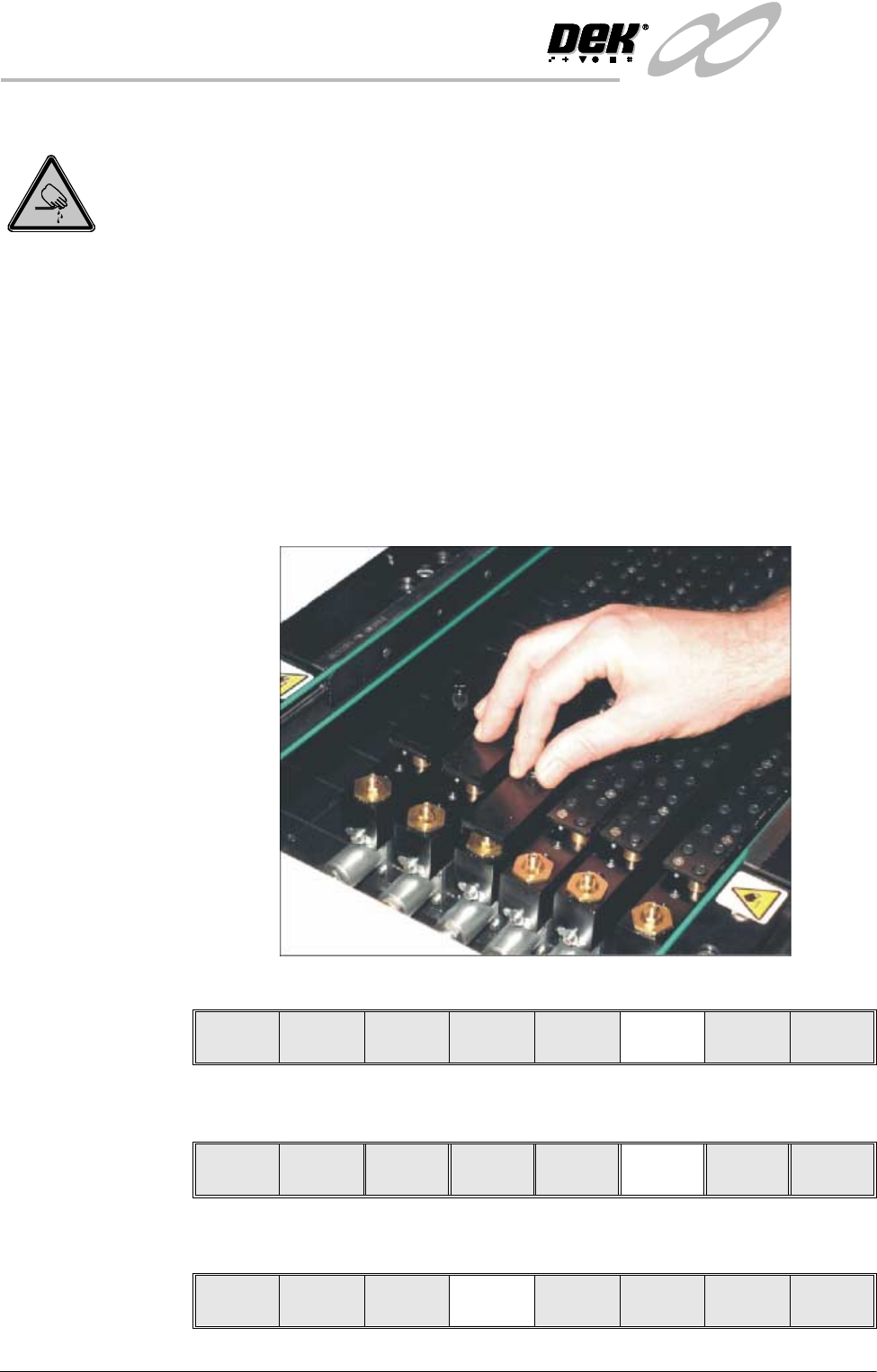
2. Slide the appropriate size and number of FormFlex blanking plates on to the
tooling modules outside the area of the squeegees/ProFlow transfer head.
Secure the plates using the thumbscrews.
3. Select Setup (F6).
4. Select Change Tooling (F6).
5. Select Board Stop (F4). The camera moves to the board stop position. The
board stop on the camera extends.
Run Head
Paste
Load
Clean
Screen
Adjust Setup Monitor Maint.
Mode
Load
Data
Edit
Data
Setup
Squeegee
Change
Screen
Change
Tooling
Change
Language
Exit
Adjust
Raise
Head
Remove
Cleaner
Board
Stop
Full
Width
Load
Width
Print
Height
Exit