DEK INFINITY USER MANUAL.pdf.pdf - 第88页
INFINITY 0$&+,1( 352*5$ 00,1* 67$*( 35,17,1 58102' ( 1.86 User Manual Software Versi on 7 If the Unload Boar d Start in Set Preference s is set to Separation, the follow- ing window and menu bar is dis…
INFINITY
0$&+,1(352*5$00,1*
67$*(35,17,158102'(
Software Version 7 User Manual 1.85
STAGE 10 - PRINT IN RUN MODE
1. Select Setup (F6).
2. Select Mode (F1) until Auto is indicated in the mode option on the screen.
3. Select Exit (F8).
4. Select Run (F1).
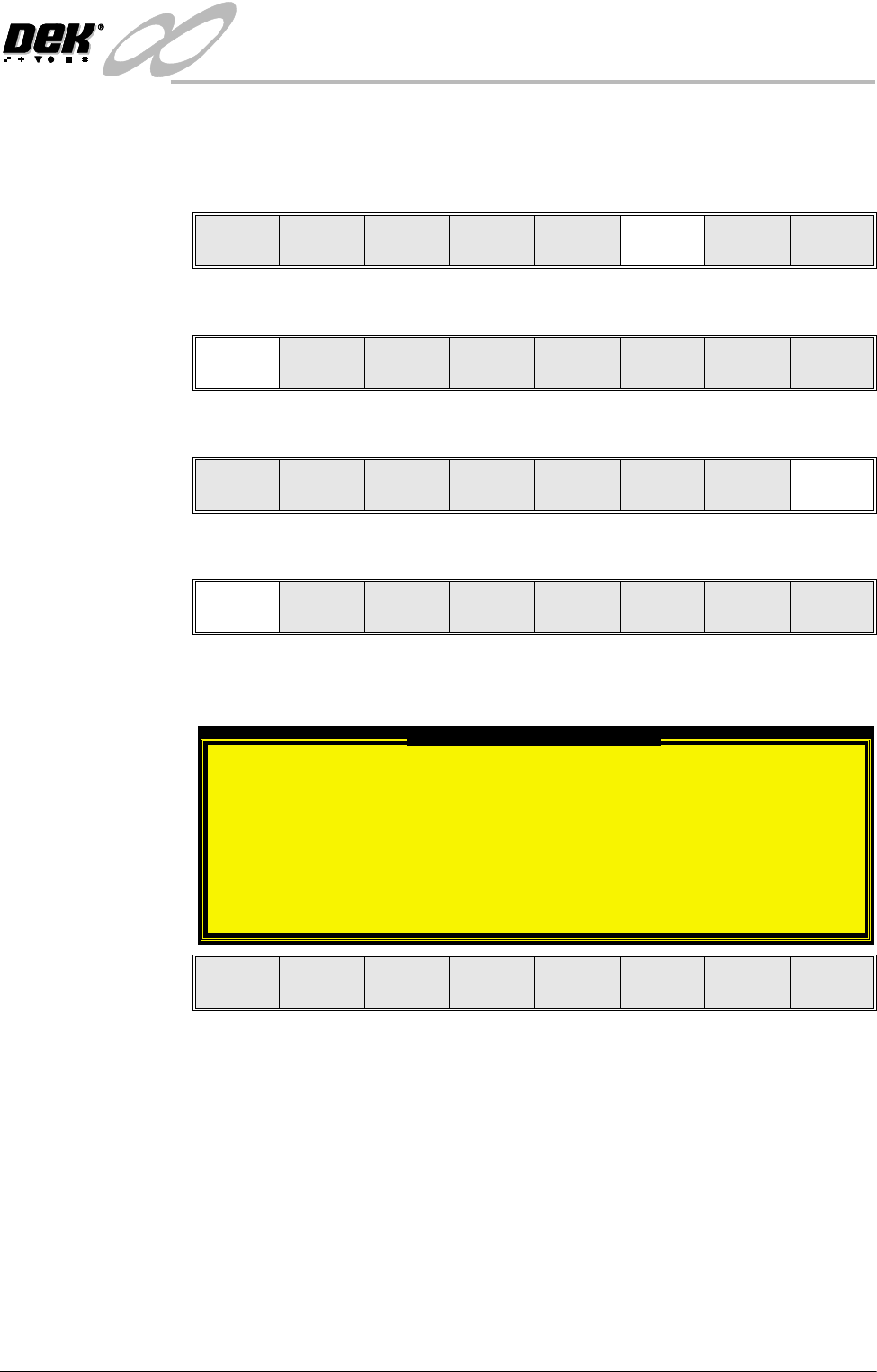
If the Camera Idle Position in Set Preferences is set to Behind Rail, the
following window and menu bar is displayed:
Selecting Continue Run clears the warning window and the print cycle
continues.
Selecting End Run clears the warning window, the print cycle is aborted and
control is returned to the ready page.
Run Head
Paste
Load
Clean
Screen
Adjust Setup Monitor Maint.
Mode
Load
Data
Edit
Data
Setup
Squeegee
Change
Screen
Change
Tooling
Change
Language
Exit
Mode
Load
Data
Edit
Data
Setup
Squeegee
Change
Screen
Change
Tooling
Change
Language
Exit
Run Head
Paste
Load
Clean
Screen
Adjust Setup Monitor Maint.
Camera Behind Rail Warning
The CAMERA HOME POSITION is set to 'Behind
Rail'
Ensure that no tooling pins or other
obstructions are on the table behind the
rear rail, as these could cause damage to
the camera.
This option will only have an effect for
boards that are less than 250mm wide.
This option can be disabled from the set
preference page.
Continue
Run
End
Run
INFINITY
0$&+,1(352*5$00,1*
67$*(35,17,158102'(
1.86 User Manual Software Version 7
If the Unload Board Start in Set Preferences is set to Separation, the follow-
ing window and menu bar is displayed:
Selecting Continue Run clears the warning window and the print cycle
continues.
Selecting End Run clears the warning window, the print cycle is aborted and
control is returned to the ready page.
NOTE
If Camera Idle Position is set to Behind Rail and Unload Board Start is set
to Separation, the warning windows appear one after the other in the order
shown above.
If squeegees are being used continue with Step 5, if ProFlow is being used
go to Step 20.
5. During the first print stroke, when the squeegee is down printing on the
board, select Stop Cycle (F2). The print cycle stops and the printer lid bolt
releases allowing access to the print carriage.
6. Open the front printhead cover.
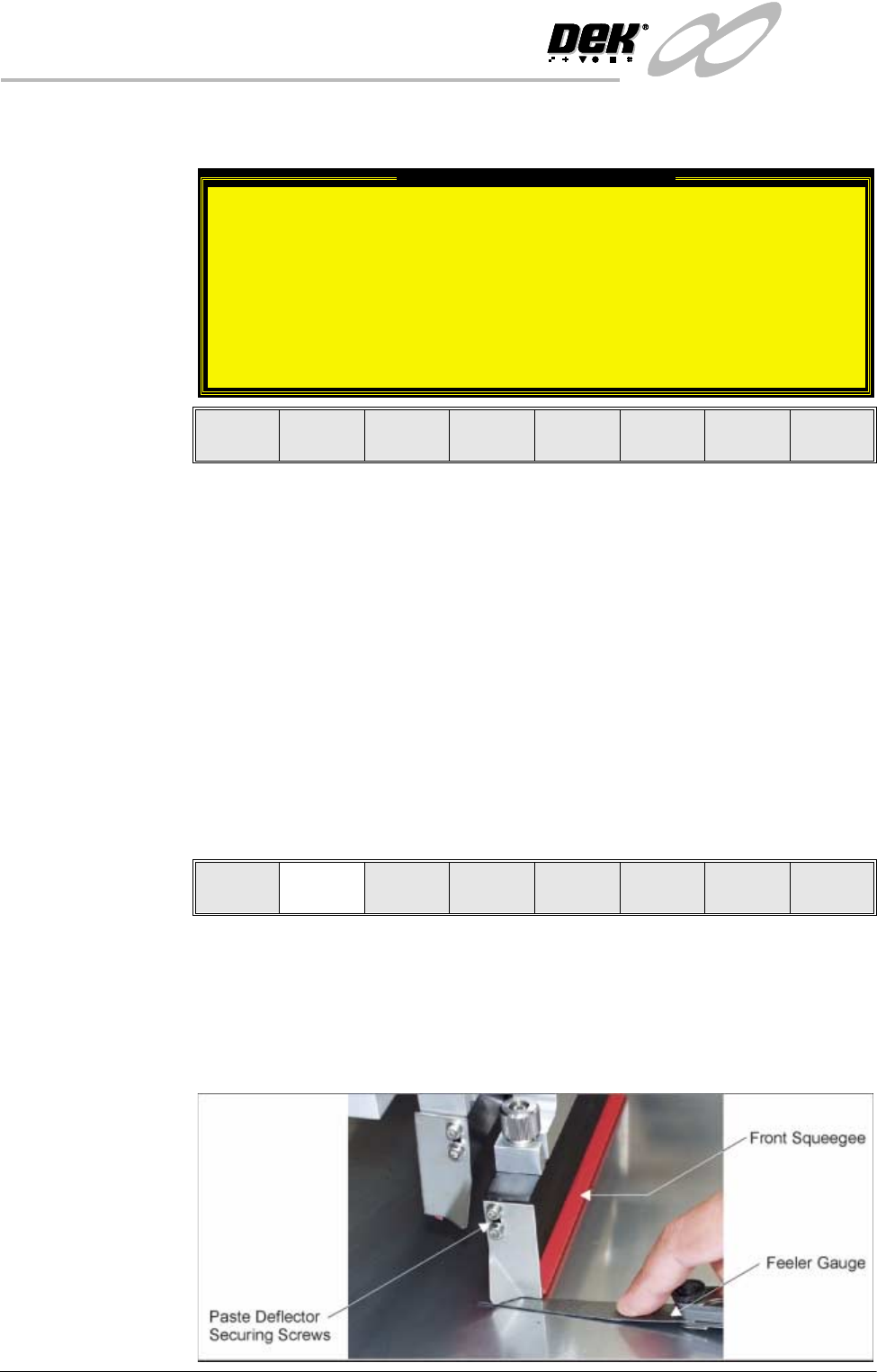
7. Release the screws holding one paste deflector allowing it to drop into
contact with the screen.
8. Insert a 0.25mm feeler between the deflector and the screen. Tighten the
screws checking that the 0.25mm gap remains.
Unload Board Speedup Warning
The UNLOAD BOARD SPEEDUP option is set to
'Separation'
With this option enabled it should be noted
that there is only a minimal clearance
between the underside of the board and any
tooling being used, while the board is being
unloaded.
This option must not be used for boards that
are populated on the underside, as this
could damage the boards.
Continue
Run
End
Run
End
Run
Stop
Cycle
Paste
Load
Clean
Screen
Adjust
Knead
Paste
Adjust
Inspect
INFINITY
0$&+,1(352*5$00,1*
67$*(35,17,158102'(
Software Version 7 User Manual 1.87
9. Repeat Steps 7 and 8 for the other deflector.
10.Close the front printhead cover.
11. Press the System button.
12.Select Continue (F1).
13.After the squeegee has moved approximately 20mm, select Stop Cycle (F2).
14.Open the front printhead cover.
15.Check the deflectors are not touching the screen.
16.Close the front printhead cover.
17.Press the System button.
18.Select Continue (F1).
19.Repeat Steps 5-18 for the other squeegee.
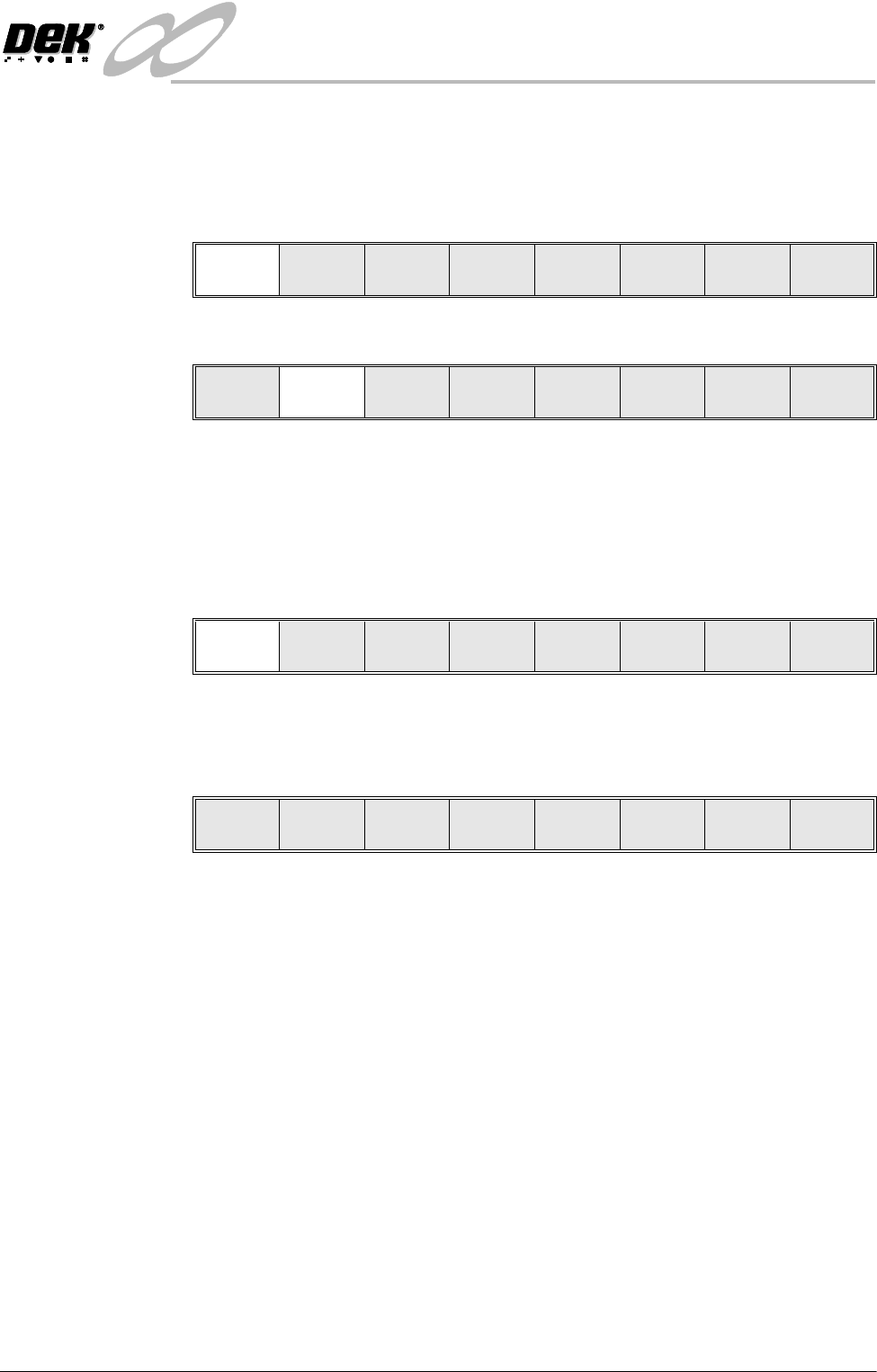
20.The printer operates continuously. The menu bar displays the following
options, these may be selected at any time during a print run:
End Run Selecting this option stops the printer on completion of the current print cycle.
Stop Cycle Selecting this option stops the printer immediately, halting all actions.
Paste Load Selecting this option allows the operator to load paste to the screen either
manually or automatically.
Clean Screen Selecting this option allows the operator to clean the screen in addition to the
programmed cleaning intervals.
Adjust Selecting this option allows the operator to adjust any of the main process
parameters displayed on the pop-up menu without having to access the main
menu or stop the machine.
Continue
End
Run
Stop
Cycle
Paste
Load
Clean
Screen
Adjust
Knead
Paste
Adjust
Inspect
Continue
End
Run
Stop
Cycle
Paste
Load
Clean
Screen
Adjust
Knead
Paste
Adjust
Inspect