ASM_Guide To Adhesive Dot Dispensing_Stinger_en_0321_online.pdf - 第24页
2 STINGER, A GUIDE TO ADHESIVE DOT DISPENSING 2.3 SOFTWARE INTERFACE 24 GUIDE TO ADHESIVE DOT DISPENSING STINGER 03/2021 2.3.2.5 Calibrate Purge Pot Locations Calibrate Purge Pot Locations allows the precise position of …
2 STINGER, A GUIDE TO ADHESIVE DOT DISPENSING
2.3 SOFTWARE INTERFACE
GUIDE TO ADHESIVE DOT DISPENSING STINGER 03/2021 23
2.3.2.4 Accumulated Purge Time Limit
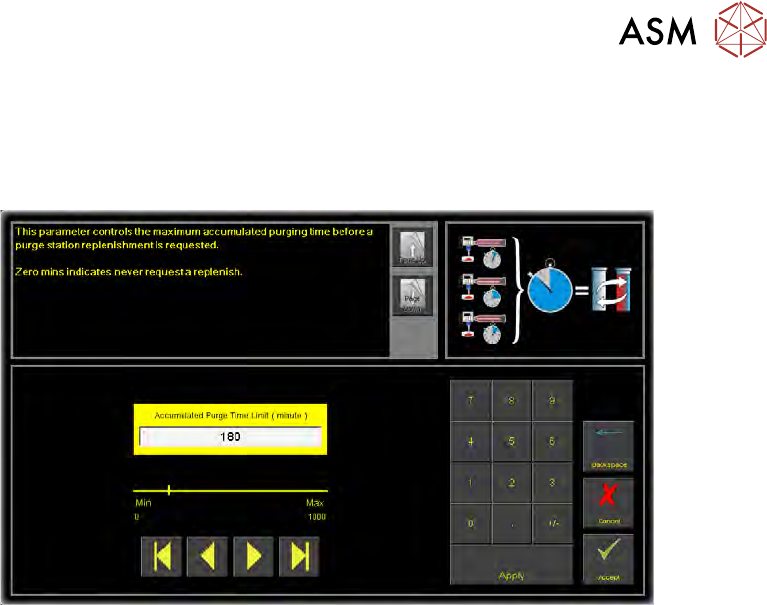
Accumulated Purge Time Limit is set to control the maximum accumulated purge time, before a
purge station replenishment is requested. After flagging the replenishment need, the user can open
the printhead front cover and examine the view port to decide if replenishment is needed.
The purge station lid is fitted so that it pivots inward when fixed to either side of the rising table; this
allows the pot to be removed with the station in-situ.
As the level of the adhesive in the purge station increases, an estimate of the amount of adhesive
purged (based on the programmed parameter - Accumulated Purge Time Limit) is made each time
a purge event occurs.
At the end of the purge, a wipe action takes place to clean the nozzle in the target.
1. Select Accumulated Purge TIme Limit.
2. Set a time limit.
3. Select Accept.
2 STINGER, A GUIDE TO ADHESIVE DOT DISPENSING
2.3 SOFTWARE INTERFACE
24 GUIDE TO ADHESIVE DOT DISPENSING STINGER 03/2021
2.3.2.5 Calibrate Purge Pot Locations
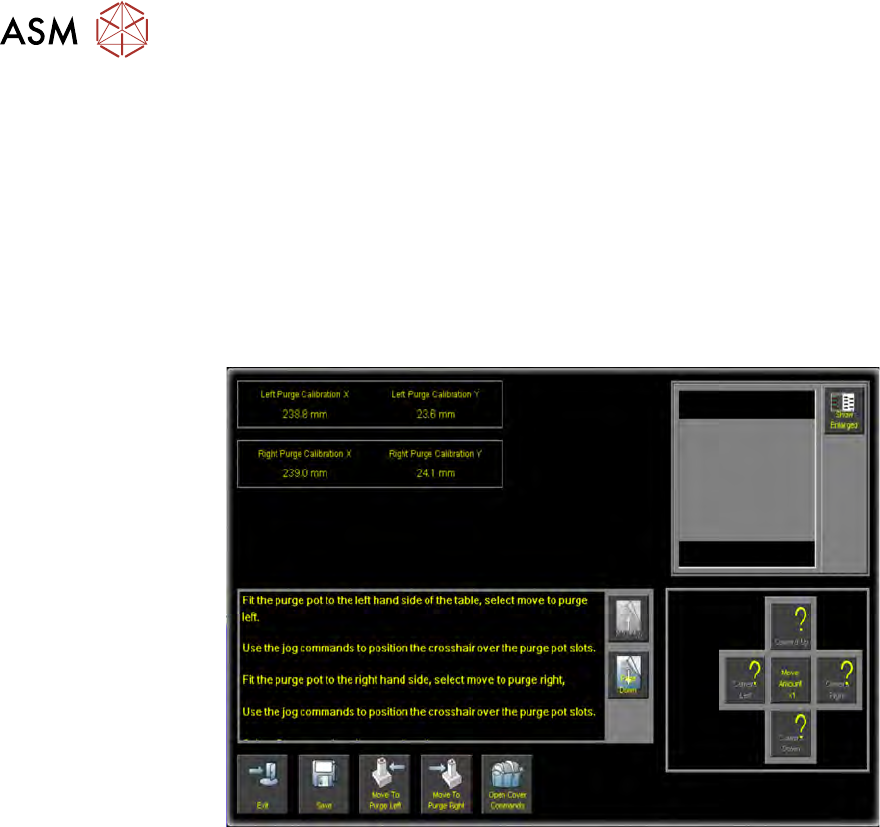
Calibrate Purge Pot Locations allows the precise position of the purge station wiper target to be
programmed. Physically, its mechanical constraints and those of the table and the transport rails
determine the purge station placement. To enable the nozzle to be precisely placed, in the wiper
target, the station is placed correctly on the rising table front edge. The target location is measured
and programmed, from the centre of the wiper target cross to the centre of the camera reference
dot on the front rail.
1. Select Calibrate Purge Pot Locations.
A window with command buttons, a camera view vision window and set of nudge/move
amount (x1, x 10, x100) control buttons is displayed.
2. Select Open Cover Commands.
NOTE
The purge station must be seated correctly, fully down on the corner of the rising table, with
its barriers snugly fitting the front and side edges of the table.
3. Follow the on-screen instruction to, in turn, place the purge station in both the left hand side
front and right hand side front locations.
4. With the purge station in the left location; select Move To Purge Left. The camera moves
over the purge station in left hand location; the vision window displays an alignment crosshair.
5. If required, use the nudge/move buttons to align the crosshair over the purge station slots.
6. Select Open Cover Commands.
7. Fit the purge station to the right hand side.
8. Select Move To Purge Right.
9. Align the crosshair over the purge station slots.
NOTE
Use the Show Enlarged button to enlarge the vision window image for higher precision.
10. Select Save.
11. Select Exit.
12. Select Back.
13. Select Back.
14. Select Back.
2 STINGER, A GUIDE TO ADHESIVE DOT DISPENSING
2.3 SOFTWARE INTERFACE
GUIDE TO ADHESIVE DOT DISPENSING STINGER 03/2021 25
2.3.3 Product Setup Functionality
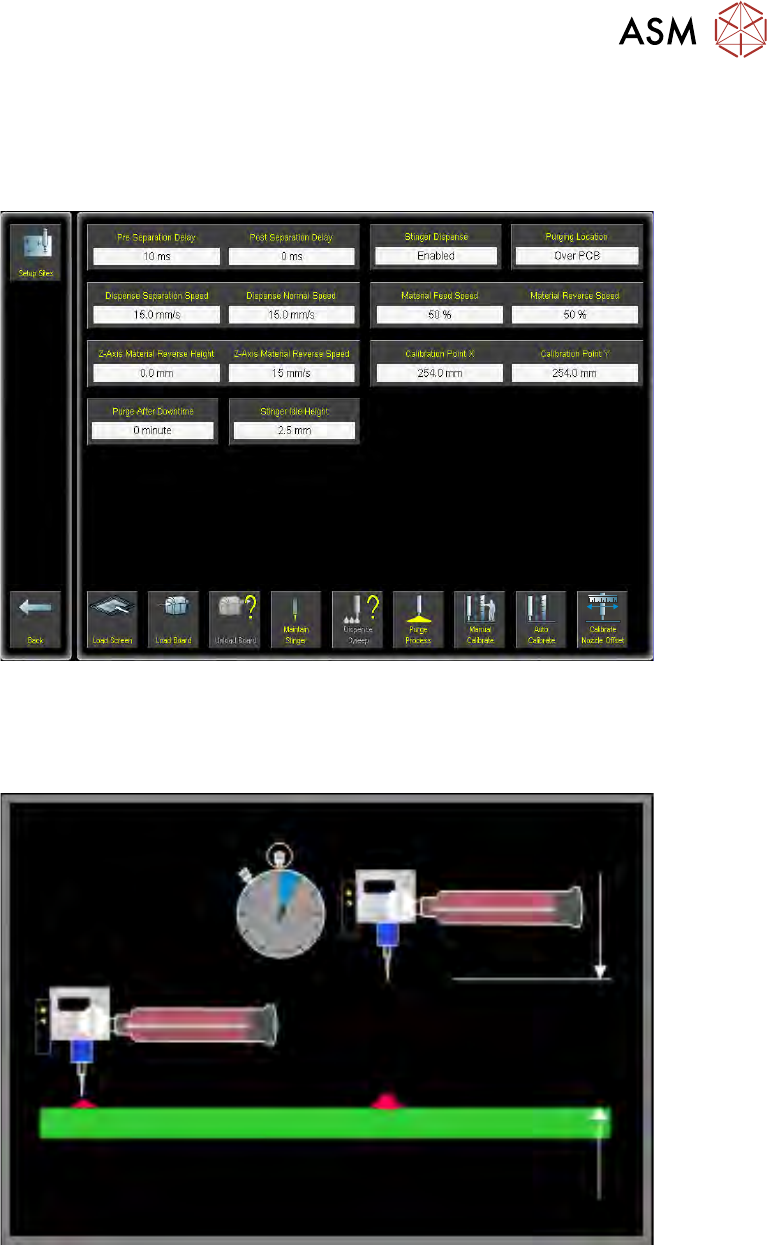
Parameter settings on the options page (Setup Product\Options\Stinger Dispenser) are derived
by trial and testing products prior to a production run. The user is provided with default values;
these are good for pre-production trials but may need modifying to suit a particular process.
2.3.3.1 Pre Separation Delay/Post Separation Delay
Pre Separation Delay/Post Separation Delay sets the time in milliseconds from when the dispense
valve is closed, to when the dispense nozzle moves back to idle height.
Pre Separation Delay sets the time taken when the dispenser auger valve stops rotating and the
dispenser rising to the idle position.
Post Separation Delay allows the user to set the time taken between the dispenser rising to the
idle position and when the camera moves.
This delay can be used to reduce adhesive stringing.