ASM_Guide To Adhesive Dot Dispensing_Stinger_en_0321_online.pdf - 第60页
2 STINGER, A GUIDE TO ADHESIVE DOT DISPENSING 2.8 APPENDIX 60 GUIDE TO ADHESIVE DOT DISPENSING STINGER 03/2021 16. The camera axis moves the unit to the right hand edge of the board. This is the Range Posi- tion where th…
2 STINGER, A GUIDE TO ADHESIVE DOT DISPENSING
2.8 APPENDIX
GUIDE TO ADHESIVE DOT DISPENSING STINGER 03/2021 59
2.8.2.1 Setting Contact Height (Manual)
WARNING
BOARD CLAMPS. EXTREME CARE MUST BE EXERCISED WHEN WORKING IN
THE TOOLING AREA OF THE MACHINE TO AVOID INJURY. THE FOILS ON THE
FRONT AND REAR BOARD CLAMPS ARE VERY SHARP.
ADJUSTMENTS OR PERFORMANCE OF PROCEDURES OTHER THAN THOSE
SPECIFIED HEREIN MAY RESULT IN HAZARDOUS RADIATION EXPOSURE.
CAUTION
LASER/LED CONTROLS AND ADJUSTMENTS. USE OF CONTROLS OR
MANDATORY
TOXIC SUBSTANCES MAY BE PRESENT. SAFETY GLOVES MUST BE WORN.
MANDATORY
TOXIC SUBSTANCES MAY BE PRESENT. EYE PROTECTION MUST BE WORN.
Contact height sets the laser to nozzle tip height in relation to the upper surface of the product, it
becomes known to the system and a relative measure is made for all other programmed locations.
1. Ensure that the screen has been removed from the printer.
2. Select Setup Product.
3. Select Options.
4. Select Stinger Dispenser.
5. Select Load Board and load a product.
6. Select Manual Calibrate to open the dispenser contact height calibration page.
7. The camera axis moves the Stinger unit to the centre of board location by default, however,
this position can be set to any location using the Calibration Point X/Calibration Point Y
parameter pair. See information on siting the calibration point.
8. Select Stinger Jog Mode and initially set the mode to Coarse (1 step = 0.5mm).
9. Open the printhead cover.
10. Select Step Up or Step Down to move the nozzle into position just above the board (a min-
imum of six steps down.)
11. Place the 0.05mm feeler gauge on the board directly below the nozzle tip.
12. Select Stinger Jog Mode and set the mode to Fine (1 step = 0.05mm).
13. Continue jogging down until the feeler gauge has a small amount of resistance to being pulled
from under the nozzle.
Do not jog down beyond this point; any deflection of the board results in poor output
and must be avoided. The feeler gauge and the nozzle should not deflect the product down.
Any movement of the product away from the nozzle causes a discrepancy in the laser read-
ing.
14. Select Save Contact.
15. Select Back.
2 STINGER, A GUIDE TO ADHESIVE DOT DISPENSING
2.8 APPENDIX
60 GUIDE TO ADHESIVE DOT DISPENSING STINGER 03/2021
16. The camera axis moves the unit to the right hand edge of the board. This is the Range Posi-
tion where the unit performs a Range Check.
17. The nozzle moves down, either 1mm or 1.5mm dependent upon which Stinger option is fitted,
from contact height.
18. The nozzle moves up through contact height to 1mm or 1.5mm above contact height. This
completes the Range Check.
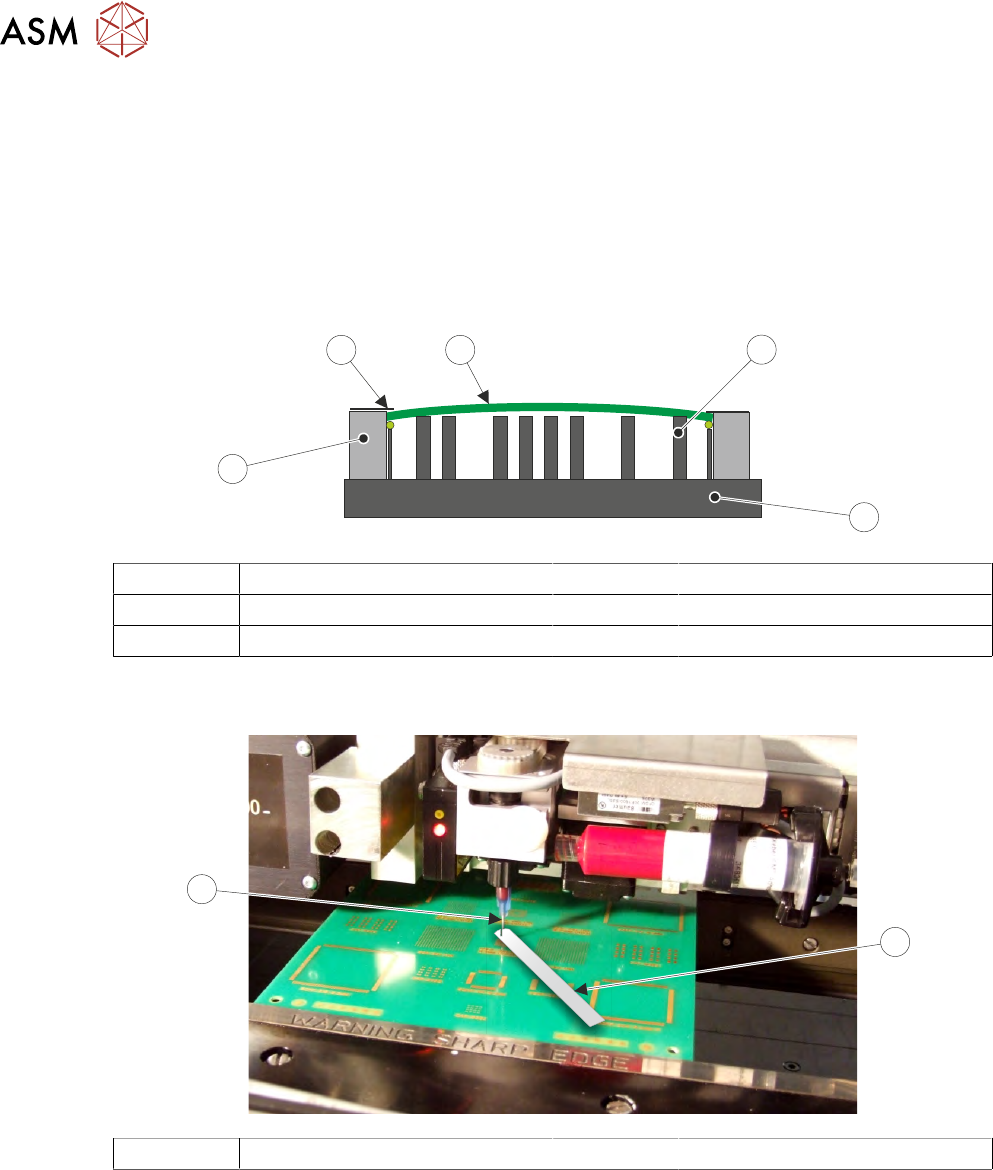
Board Clamps may cause boards to bow slightly in the centre.
This may cause the measurement to fall outside the 0.1mm minimum Z Axis contact position.
1
2
4
3
5
1 Tooling 4 Board Clamps
2 Rising Table 5 Board
3 Rails
The feeler gauge thickness is the equivalent of one step of the Z Axis stepper motor. It is essential
that when setting this contact point no board deflection occurs.
1
2
1 Feeler Gauge 2 Nozzle Tip
For non-automatic calibration options, the user must set the idle height next. For automatic cali-
bration options, the idle height parameter has been programmed in Setup Product\Options
\Stinger Dispenser and the unit can track this value above contact height. Stinger can track the
rises and falls on the product surface within the range check limits.
2.8.2.2 Stinger Laser Offsets X and Y
This parameter sets a factor to compensate for any offsets of the nozzle to laser, in the X and Y
planes, at the point where the laser actually measures. This can be any value between -5mm
and
5mm
. As with the calibrated offsets, a deposit point is marked on the calibration board. The offset
is set to zero and a deposit is made; the difference between the deposit centre and the laser centre
is the amount of compensation to be set.
1. Select Setup Product.
2. Select Options.

2 STINGER, A GUIDE TO ADHESIVE DOT DISPENSING
2.8 APPENDIX
GUIDE TO ADHESIVE DOT DISPENSING STINGER 03/2021 61
3. Select Stinger Dispenser.
4. Select Setup Sites.
5. Select Create Site.
6. Set the dispense mode to Measure Only (on a single site).
7. Select Confirm.
8. Select Back.
9. Select Load Screen.
10. Open the cover.
11. Cover the screen present sensor and select Continue. The screen clamps actuate.
12. Select Back.
13. Select Fiducials.
14. Select Global Settings.
15. Select Alignment Mode.
16. Select Non Vision.
17. Select Accept.
18. Select Back.
19. Select Back.
20. Select Options.
21. Select Stinger Dispenser.
22. Select Load Board. Choose the preferred load board method, auto or manual.
23. Select Dispense Sweep.
24. Select Back.
25. Select Open Cover Commands.
26. Open the printhead front cover.
27. Measure the Laser Offset X and Y between the dispensed dot and the laser beam position.
The object must have the laser beam shining on the dot centre. Edit the laser X and Y offsets
as required (see illustration at end of procedure).
28. Close the printhead front cover.
29. Select Save.
30. Select Setup Sites.
31. Select Adjust Site, set the dispense mode to its original state.
32. Select Fiducials.
33. Select Confirm.
34. Select Back.
35. Select Back.
36. Select Back.