TR7600 SIII_Operation_en_v_2_0_2 - 第14页
Test Research, Inc. 6 TR7600 SIII Se ries User G uide – Op eration 2.3 Start the Inspection So ftware 1) Double-cli ck on the shortcut icon to open t he m ain progra m . Figure 7: Shortcut of Soft ware 2) Enter the user …
Test Research, Inc.
TR7600 SIII Series User Guide – Operation 5
2.2 Turning On the Machine
1) Open the front and rear door to check there is no foreign material in the machine.
2) The emergency stops should be released, and the safety interlock is turned to [ON].
3) Close the front and rear doors exactly.
4) Ensure the power cable is connected correctly.
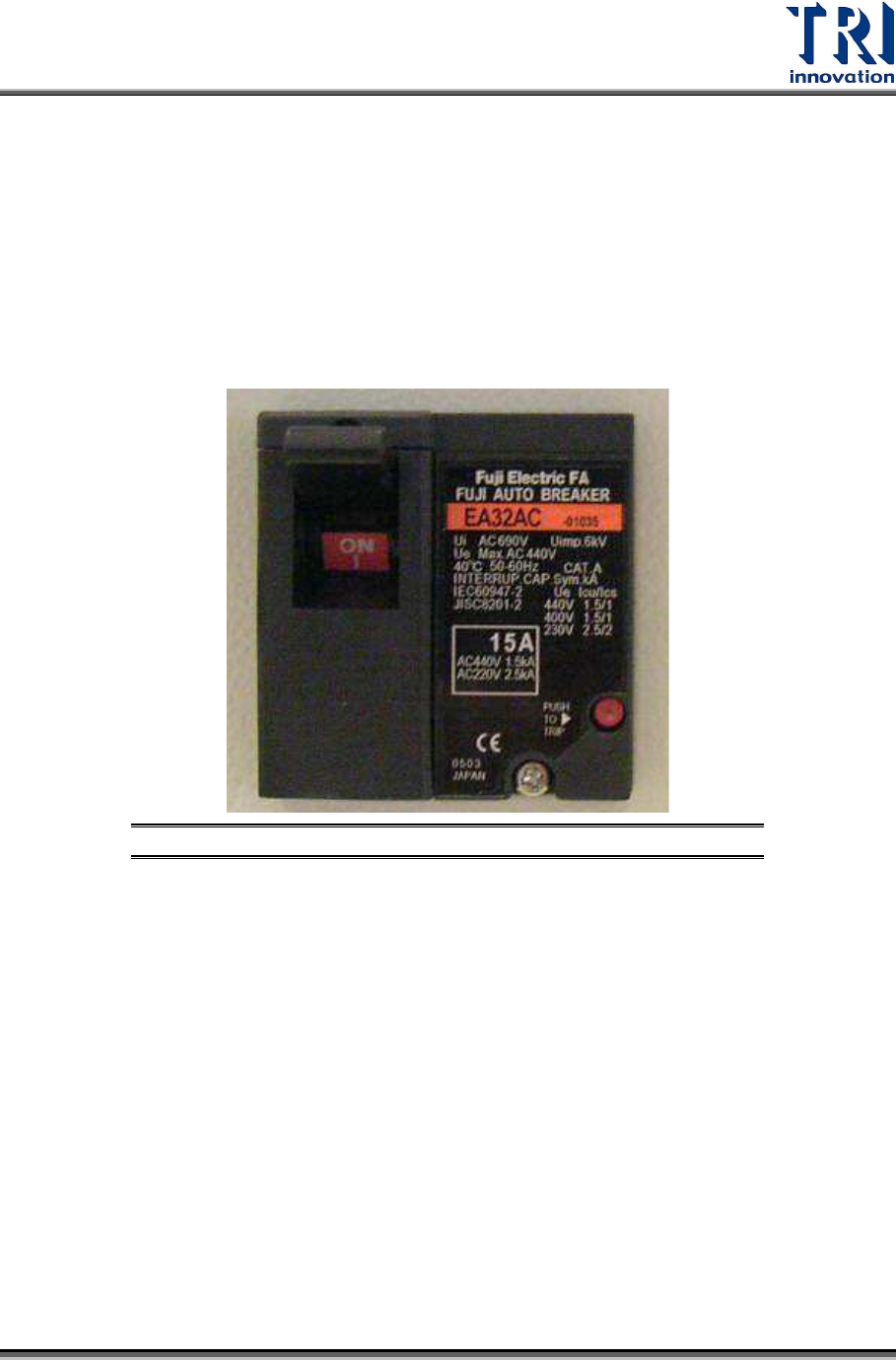
5) Pull up the breaker. Different types of machines may have different breakers. The figure
below is just an example.
Figure 6: Breaker
6) Turn the Power Switch clockwise to turn on the machine.
Test Research, Inc.
6 TR7600 SIII Series User Guide – Operation
2.3 Start the Inspection Software
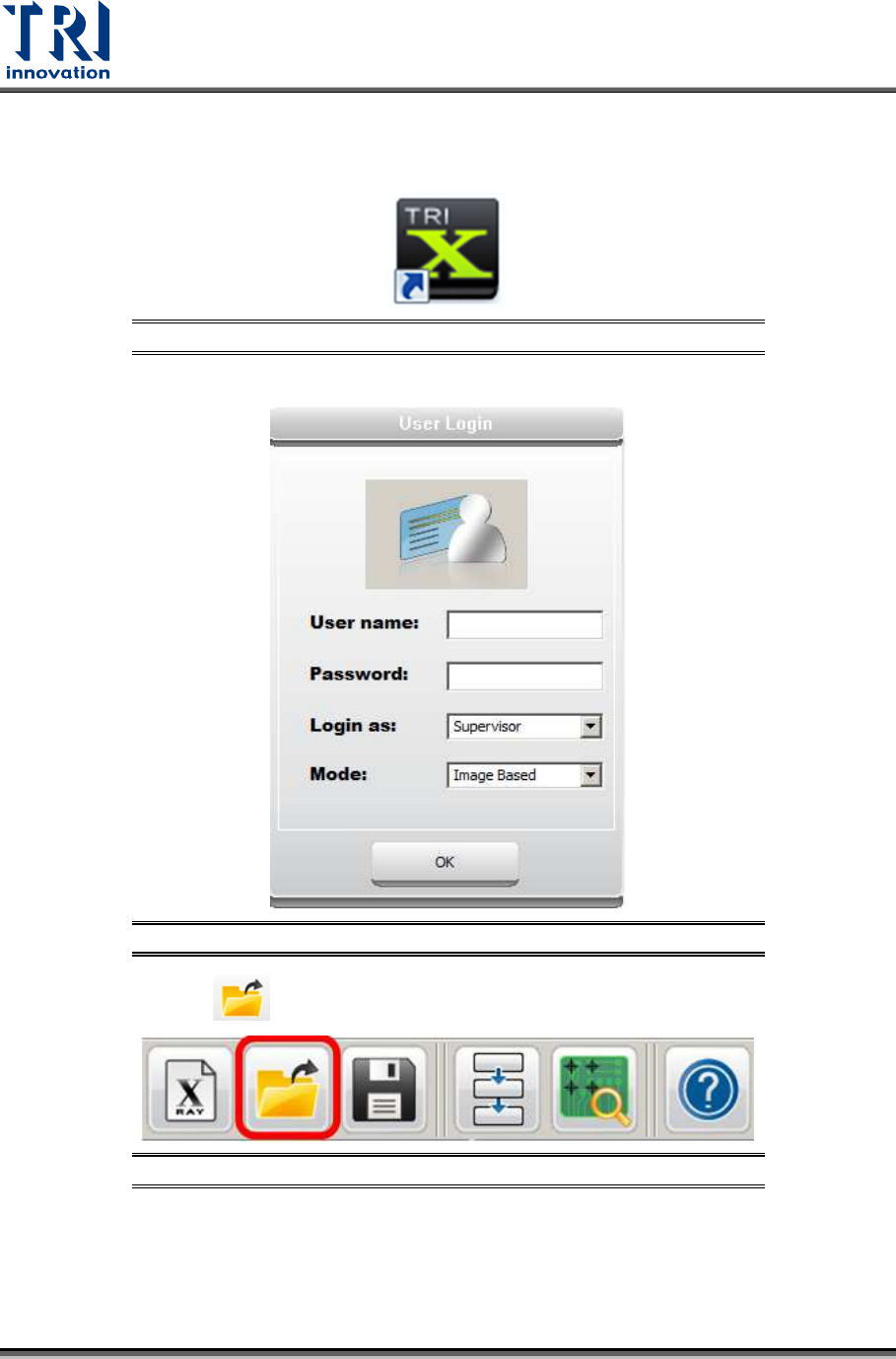
1) Double-click on the shortcut icon to open the main program.
Figure 7: Shortcut of Software
2) Enter the user name and password to access the main software.
Figure 8: Login Dialog Box
3) Click the [Open] button to load the inspection project (*.rcp).
Figure 9: Open an Inspection Project
4) Before conducting the inspection, check if the conveyor setup is correct.
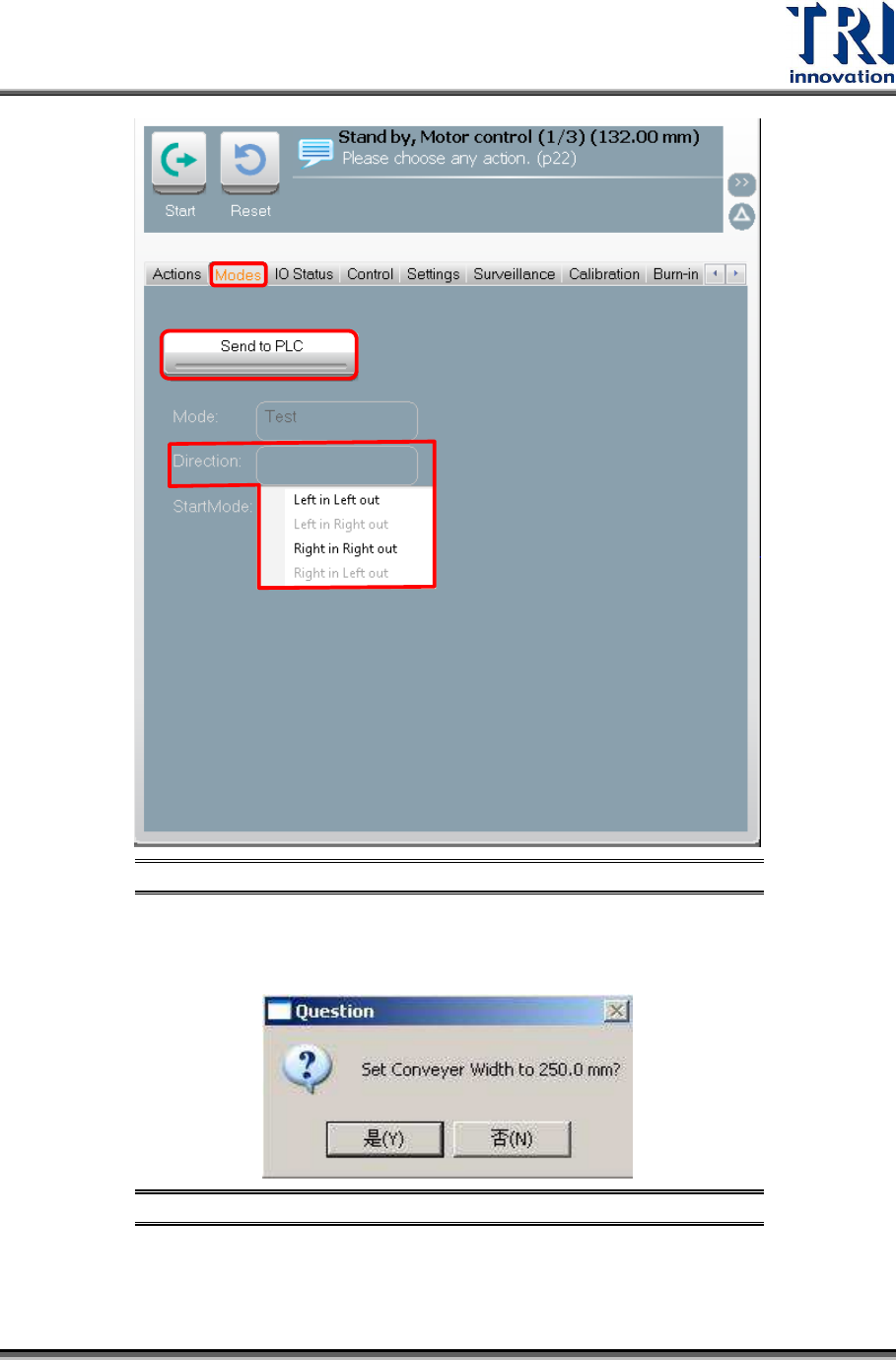
5) Go to VPLC and click on “Mode” tab to change the board-in-and-out direction. Set the
conveyor moving direction, and click on “Send to PLC” to make this setting effective.
Test Research, Inc.
TR7600 SIII Series User Guide – Operation 7
Figure 10: VPLC Board In/Out Direction
6) Check the board direction if it matches with program setup. (If the Automatic Width
window pops up, press “Yes” so the conveyor will move to the width according to the
setup.)
Figure 11: Set Conveyor Width