TR7600 SIII_Operation_en_v_2_0_2 - 第15页
Test Research, Inc . TR7600 SIII Series User Gu ide – Operat ion 7 Figure 10: VPLC Board In/Out Direction 6) Check the board direction if it m atches with pr ogram s etup. (If the Auto matic W idth window pops up, press …
Test Research, Inc.
6 TR7600 SIII Series User Guide – Operation
2.3 Start the Inspection Software
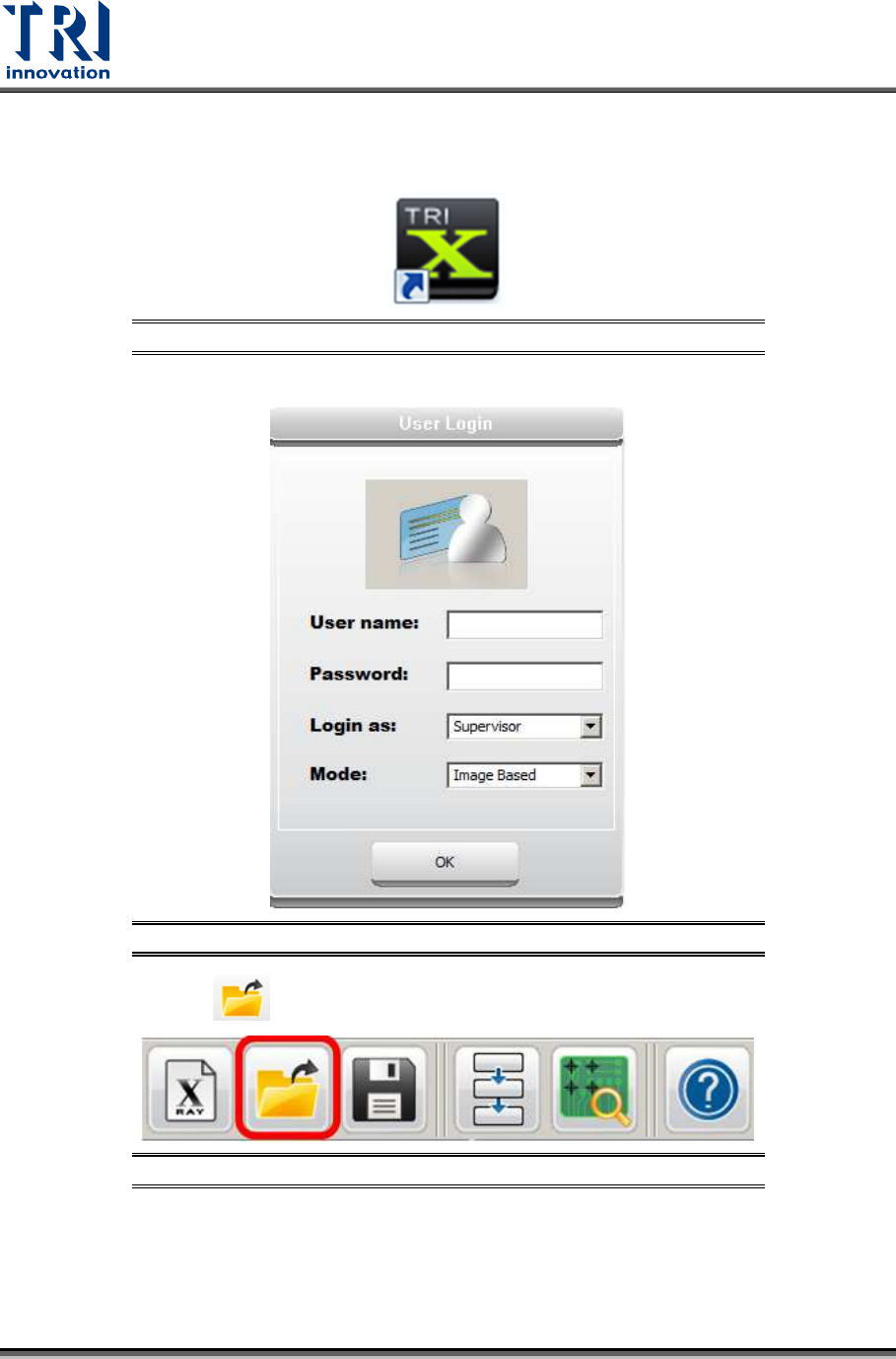
1) Double-click on the shortcut icon to open the main program.
Figure 7: Shortcut of Software
2) Enter the user name and password to access the main software.
Figure 8: Login Dialog Box
3) Click the [Open] button to load the inspection project (*.rcp).
Figure 9: Open an Inspection Project
4) Before conducting the inspection, check if the conveyor setup is correct.
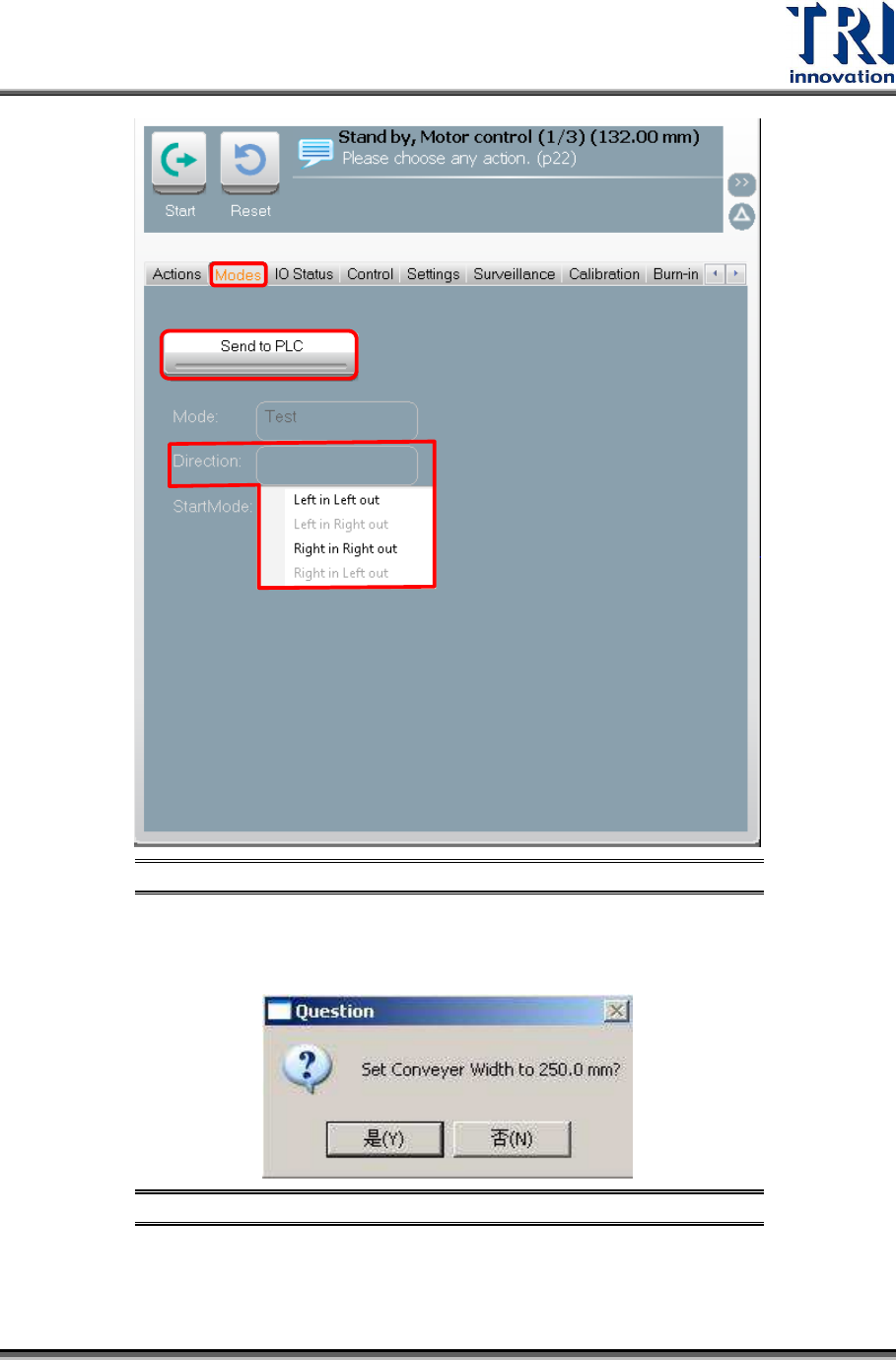
5) Go to VPLC and click on “Mode” tab to change the board-in-and-out direction. Set the
conveyor moving direction, and click on “Send to PLC” to make this setting effective.
Test Research, Inc.
TR7600 SIII Series User Guide – Operation 7
Figure 10: VPLC Board In/Out Direction
6) Check the board direction if it matches with program setup. (If the Automatic Width
window pops up, press “Yes” so the conveyor will move to the width according to the
setup.)
Figure 11: Set Conveyor Width
Test Research, Inc.
8 TR7600 SIII Series User Guide – Operation
2.4 Start to Inspect
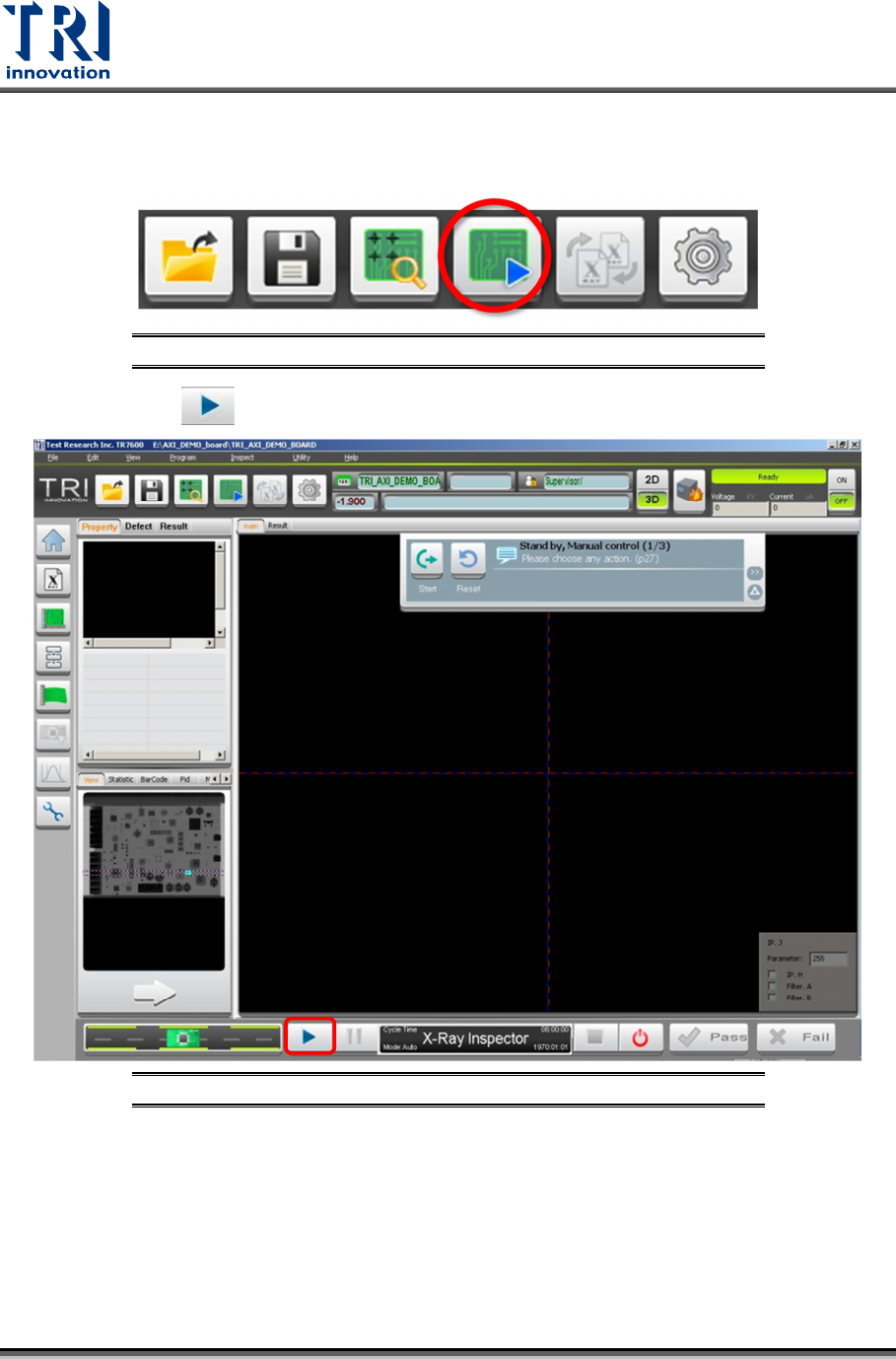
1) Click on “Inspection Mode” button to proceed.
Figure 12: Inspection Mode
2) Press “Start” button to initiate the inspection.
Figure 13: “Start” Button