TR7600 SIII_Operation_en_v_2_0_2 - 第26页
Test Research, Inc. 18 TR7600 SI II Series User G uide – Op eration 2) [Chart] tab : O bserve the cum ulative c hanges o f de sir ed c omponents to surveillance the production line. Figure 27: Cumulative Changes of Desir…
Test Research, Inc.
16 TR7600 SIII Series User Guide – Operation
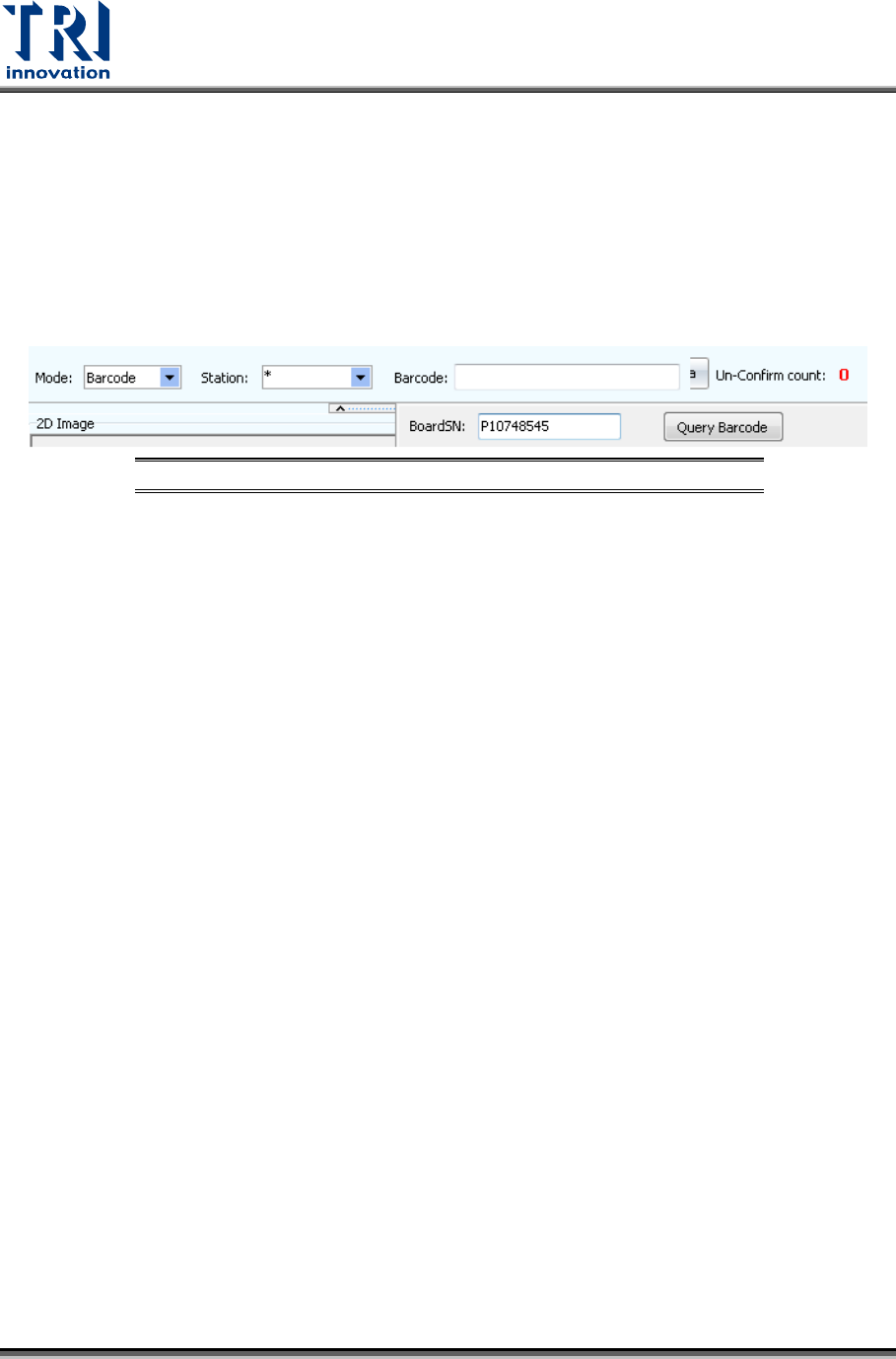
a) Query by Auto mode, in-line mode or barcode mode. Number displayed on the right
hand side is the number of un-confirmed units.
b) Check the defect images and use the keyboard or mouse to confirm the image defect
type displayed at the right side of the window.
c) Press [Enter] button to send out the data.
4) In Offline mode, type in the barcode manually or using barcode scanner, and then click
“Query” to retrieve the board data.
Figure 24: Query Data by Offline Mode
Test Research, Inc.
TR7600 SIII Series User Guide – Operation 17
3.2 Report Generation
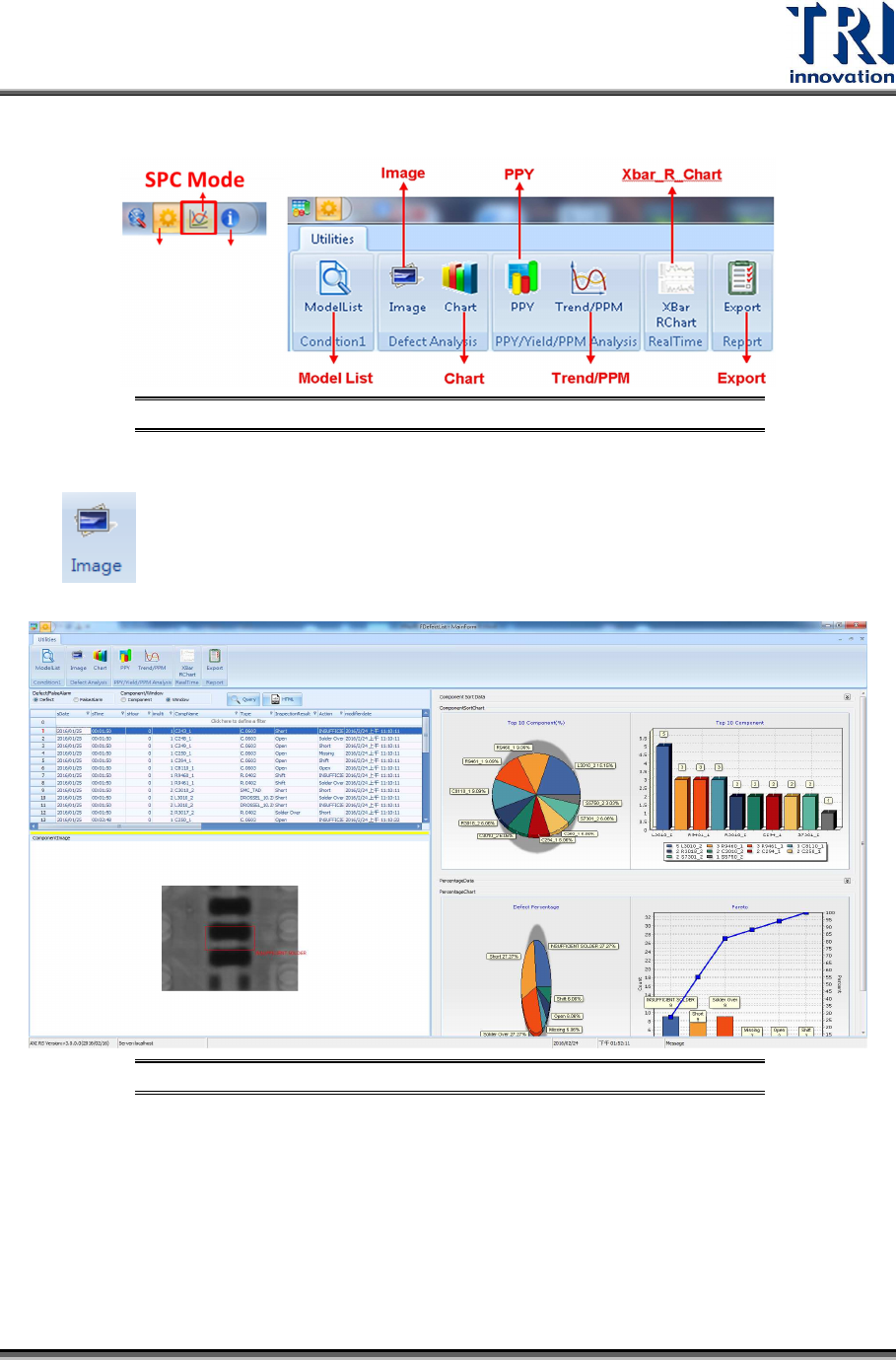
Figure 25: SPC Mode
Here you can decide which type of format you want to display and export as a report.
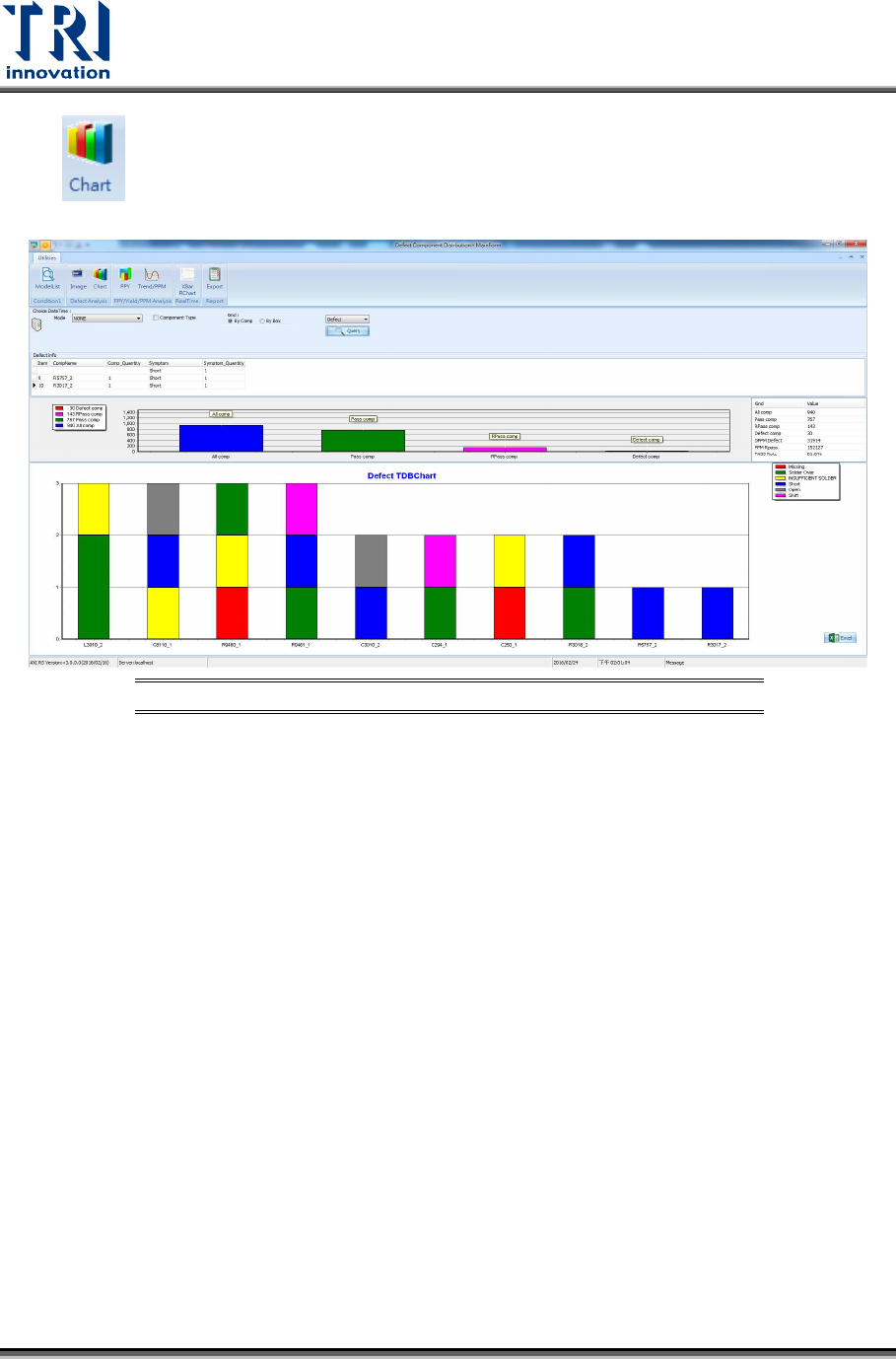
1) [Image] tab: Display defect images for you to double confirm and present simple
charts to help you find out defect components and improve production quality.
Figure 26: Defect Image and Simple Charts Display
Test Research, Inc.
18 TR7600 SIII Series User Guide – Operation
2) [Chart] tab: Observe the cumulative changes of desired components to
surveillance the production line.
Figure 27: Cumulative Changes of Desired Components
3) [Export] tab: Produce and combine multi-reports into the same report.