JO-109-002_JG-0209.pdf - 第69页
3-17 JO-109 1005-001 4. "T ype Setting" Window Manual T ype Change • Specication in "T ype Listup" W indow When the "T ype Setting" window is active, press the [Setting] button. The "T…
3-16
JO-109
1005-001
4. "Type Setting" Window
•
5: Lane Origin Offset Adjustment and Recognition Mark
Position Adjustment
This complicated processing is used to perform the lane origin offset
adjustment and recognition mark position adjustment in a single
inspection using the sprocket offset value set in the feeder.
This [Measurement Type 5] is selected preferentially in the automatic
type change. The adjustment and inspection procedure after the
master tape setup is the same as for [Measurement Type 2] or
[Measurement Type 3]. Before the master tape setup, the sprocket
reference positioning operation is to be performed.
Reference
Refer to the Item of "2.2 Operation Procedure for [Measurement
Type 5]" in Section 4, for details.
(3) Type Change
The type change method can be divided roughly into "Automatic Type
Change" and "Manual Type Change".
Automatic Type Change
After a certain type and serial No. are read, the corresponding type is
selected automatically.
In the type retrieval process, it is checked if the read type exists or not
by using the type name of the type data.
Note
When the specied type data is the same as the read one, no type
retrieval is made.
When the required type cannot be retrieved automatically, it is
required to create it.
3-17
JO-109
1005-001
4. "Type Setting" Window
Manual Type Change
•
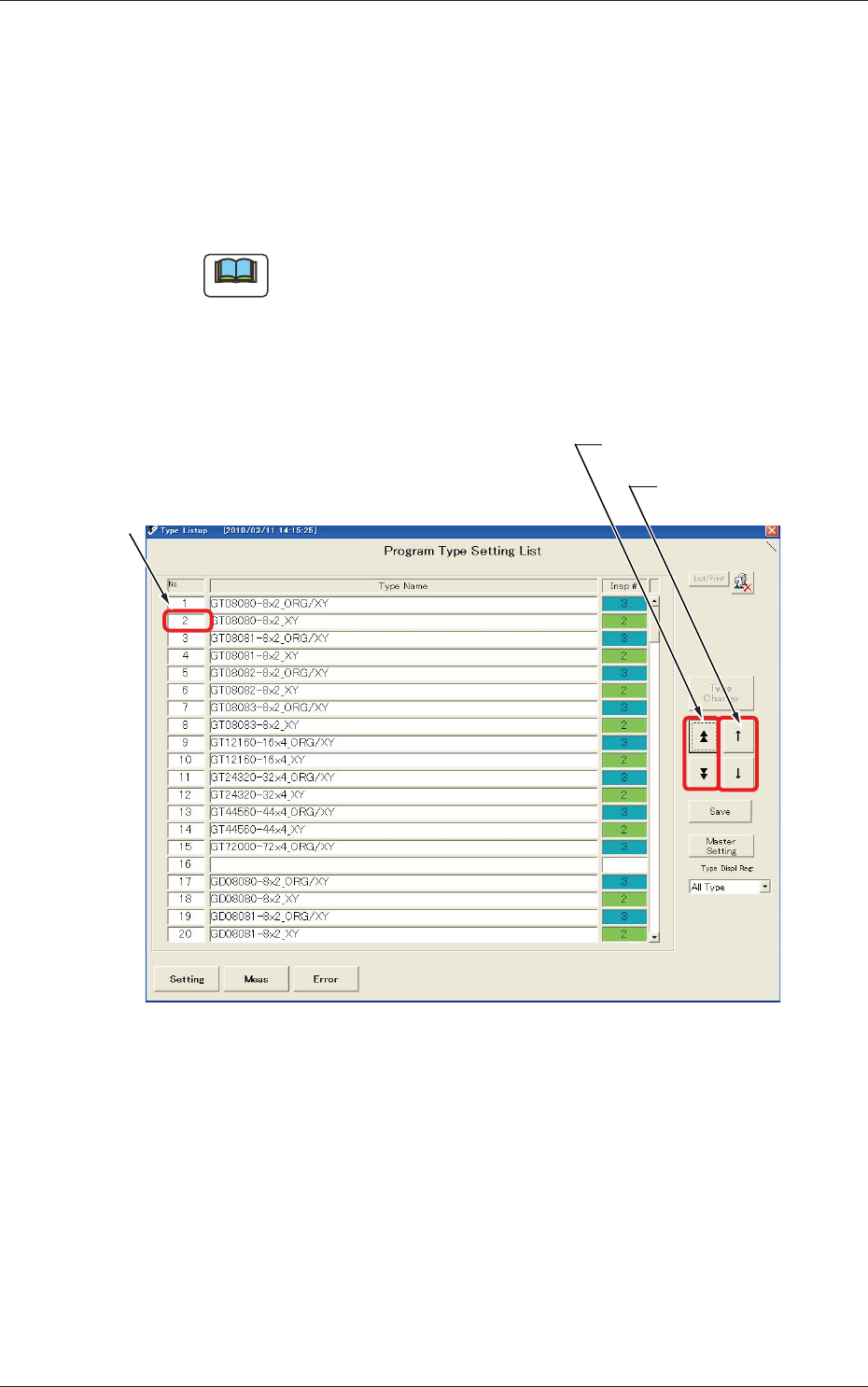
Specication in "Type Listup"
Window When the "Type Setting" window is active, press the [Setting]
button.
The "Type Listup" window opens.
Use the [Page Selection] or [Cursor Movement] button to move the
subcursor to the target type No.
Note
The subcursor can also be moved by clicking the scroll bar, directly
the No. of the pertinent line in the list, or the type name area.
Press the [Type Change] button.
The type data corresponding to the No. specied by the subcursor is
called and displayed.
Subcursor
[Page Selection] Button
[Cursor Movement]
Button
Fig. C13 "Type Listup" Window
3-18
JO-109
1005-001
5. "System Setting" Window
5. "System Setting" Window
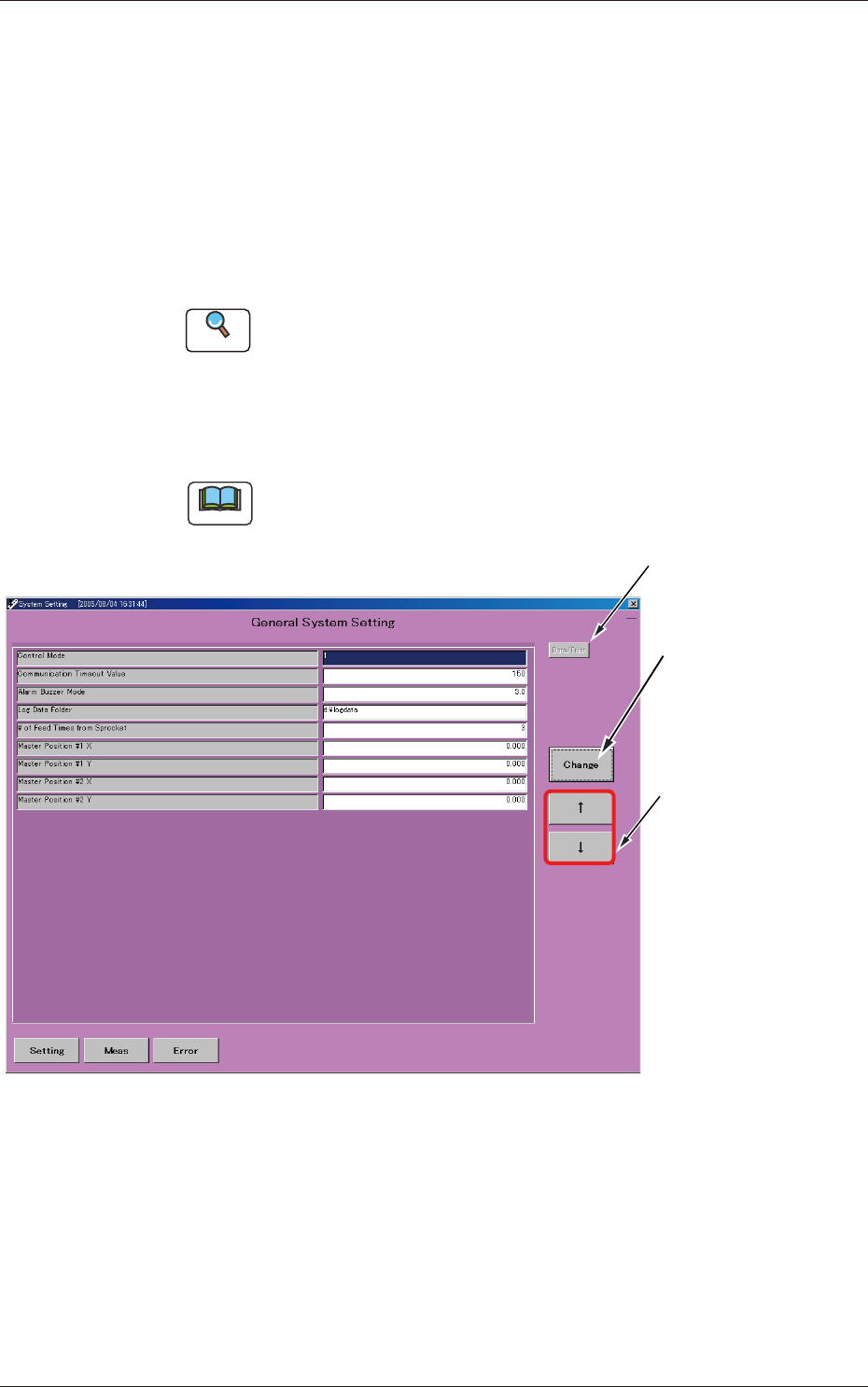
In the "System Setting" window, the set value peculiar to the machine can be
dened
(1) How to open the "System Setting" window
Only "Administrator" can open the "System Setting" window and
change the settings.
Change the current authority level to "Administrator".
Reference
Refer to "1. Administrative Authority Change" in "Section 3" for
how to change the authority.
Make the subcursor appear in the "Type Listup" window and press the
[Setting] button.
Note
The subcursor can be located at any place regardless of whether the
type data is already registered or not.
Used to print the
system data.
Used to move
the cursor.
The entry window
for the pertinent set
value opens,
enabling you to change
the set value.
Fig. C14 "System Setting" Window