Process Lens PL Service Manual_EN.pdf - 第48页
3 Replacing spare parts 48 Se rv ic e Ma nu al P ro ce ss L en s PL - 0 3/ 20 25 Fig.54: Alignment 1. Pin 2. Connector 3. DMD to DLP Controller ü DLP module is dismantled. ► Put the DLP module in its position. ► Make su…
3 Replacing spare parts
Service Manual Process Lens PL - 03/2025 47
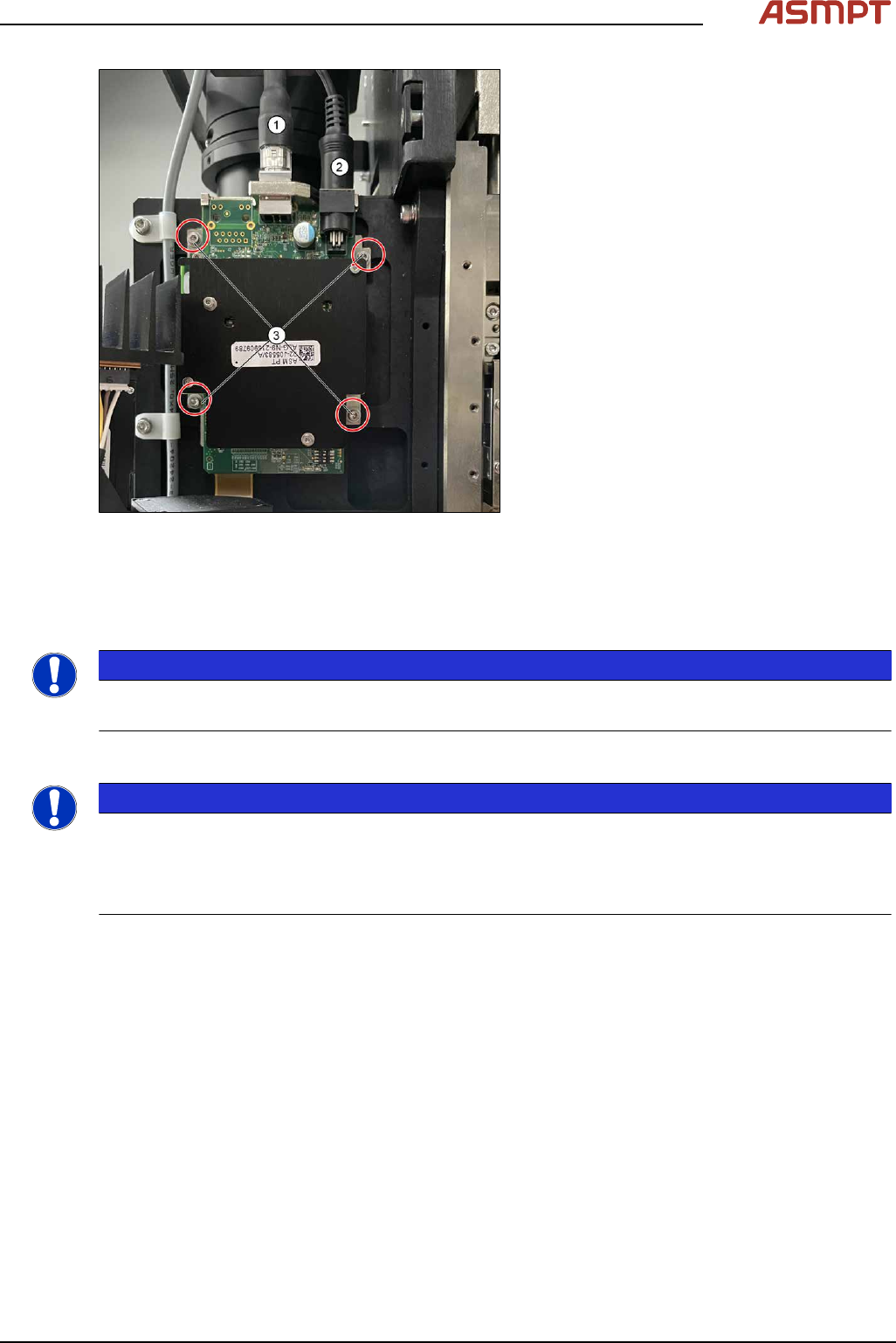
Fig.53: Removing cables and board
► Remove cables (1) and (2).
► Remove the four screw (3) with Allen Key
size 2.5.
► Remove the circuit board and replace it.
► The steps for the left and the right module
are identical.
Installation
► Follow the removal instructions in reverse order for installation. Also observe the following
instructions:
NOTICE
Modules are not interchangeable
Be aware that the two modules are not interchangeable.
DLP Controller ID Setting
NOTICE
Modules Identical
The two modules are identical, user has to ensure ID setting has to set accordingly.
Left side DLP Controller – 0
Right Side DLP Controller - 1
3 Replacing spare parts
48 Service Manual Process Lens PL - 03/2025
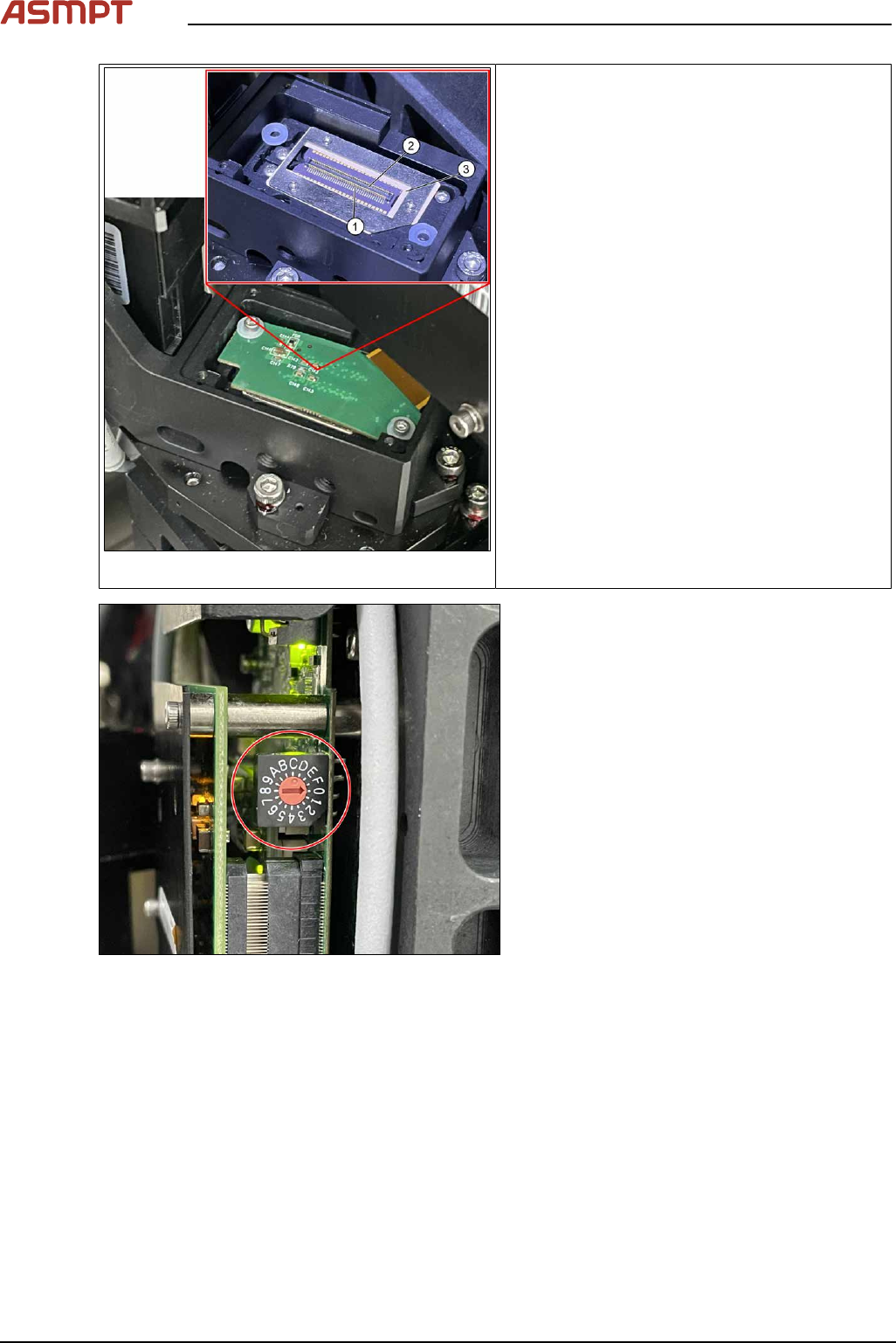
Fig.54: Alignment
1. Pin
2. Connector
3. DMD to DLP Controller
ü DLP module is dismantled.
► Put the DLP module in its position.
► Make sure that the connector is in the right
position and doesn’t bend the pin. Use an
external light to check that the holes of the
connector and the drilling holes for the
screws are in line.
Fig.55: Setting controller ID
► Set DLP controller ID.
Left side DLP controller should be configured
as 0, right side DLP controller should be con-
figured as 1.
Check the calibration of the optical head
When the DLP Controller is removed from the optical head, calibration is to be calibrated again. Refer
to chapter "4 Machine - Calibrations".
3 Replacing spare parts
Service Manual Process Lens PL - 03/2025 49
3.2.2.2 Checking the DLP connection
In the device manager, we should see two devices as “DLPGTwo_Device”, that means both side of
the DLP are connected.
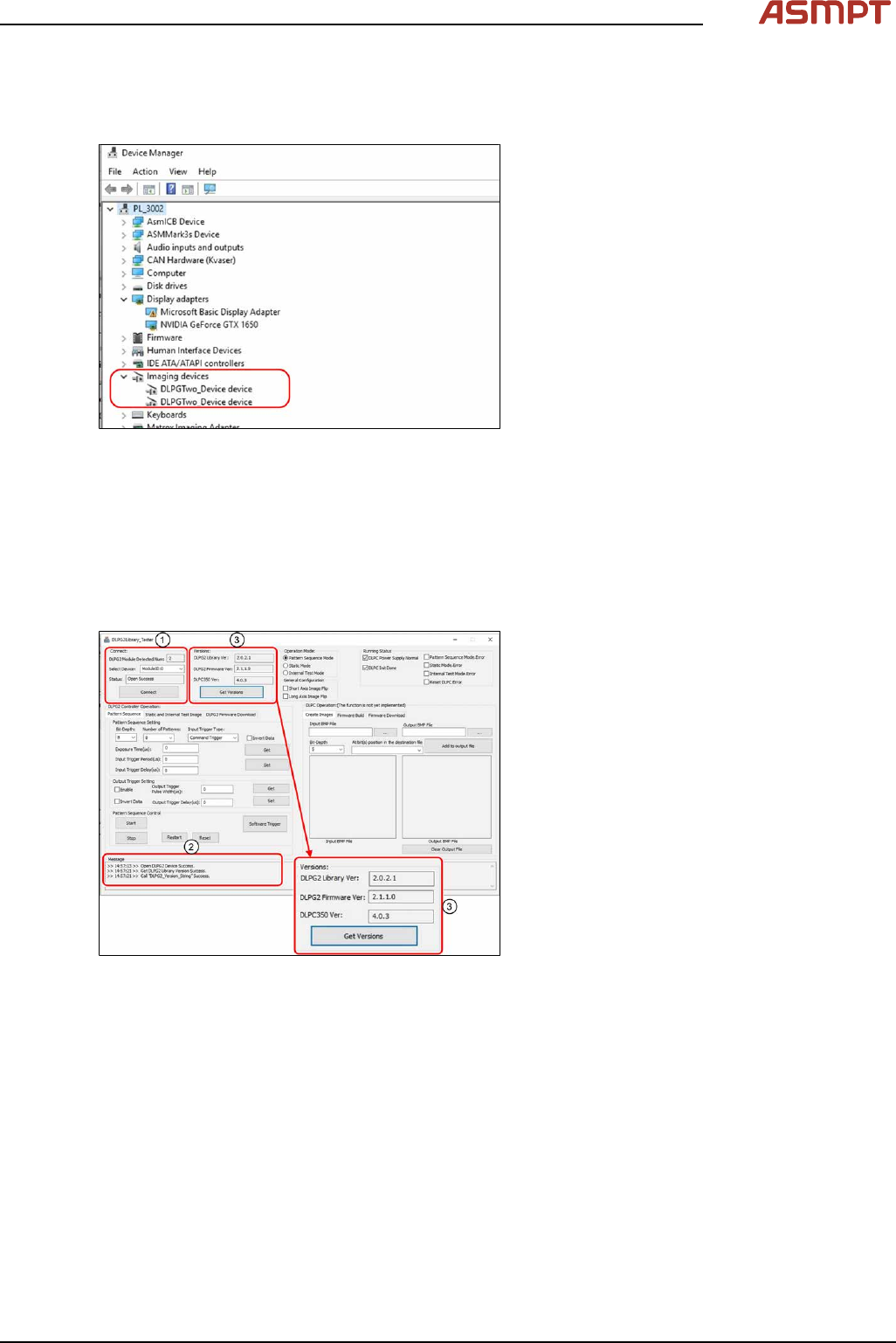
Fig.56: Checking the Device Manager
► Open Device Manager.
► Check if Device Manager displays two
Imaging devices.
3.2.2.3 Checking the connection and firmware version of the DLP module
When the DLP module and the DMD module have been changed, a software check for the latest Ver-
sion is needed.
Requirements
●
Machine is switched on.
Fig.57: Checking connection and firmware
► Open DLPG2Library_Tester.exe
► Select ModuleID:=0 for Select Device,
press Connect (1).
► Check that the connection is successful,
i.e. status becomes open success and
Message box (2) shows Open DLPG2
Device Success.
► Press Get Version (3) to obtain version
numbers.
► Compare version numbers with the follow-
ing. If not the same, please contact with
the engineers in charge (mentioned in IN-
TRODUCTION section).
Repeat steps with ModuleID:=1.