00900156-01_IM_Mobile_Device_Manager_1.1_EN - 第10页
ASM Mobile Device Manager 1.1 / Insta llation Manual 05/2019 Edition 10 Figure 5-1: Wel come dialog ► Click the Next but ton. The Show License dialog is displayed.
ASM Mobile Device Manager 1.1 / Installation Manual 05/2019 Edition
9
5 Installing ASM Mobile Device Manager
This chapter describes important preparations to be performed prior to installation and how to
install the ASM Mobile Device Manager software respectively.
5.1 Preparations prior to Installation
For more detailed information which software is essential and has to be successfully installed
before performing the installation of ASM Mobile Device Manager, please refer to the Support
Media and the respective manual.
► Make sure you use the Prerequisite Analyzer of Support Media.
► Select ASM Mobile Device Manager as planned Product to install all required missing
prerequisites for ASM Mobile Device Manager (e.g. Error Reporter, Net Framework).
5.2 First Steps
NOTICE
Languages
The setup wizard is available in English only. After installation, other GUI languages can
be selected in ASM Mobile Device Manager.
NOTICE
You require administrator rights for the installation procedure!
Starting the Installation
► Login using an administrative user account on the computer.
► Insert the installation media and mount the *.iso file.
► Open Windows Explorer.
► Double-click the DeviceManager.Bundle.exe file to start installing ASM Mobile Device
Manager.
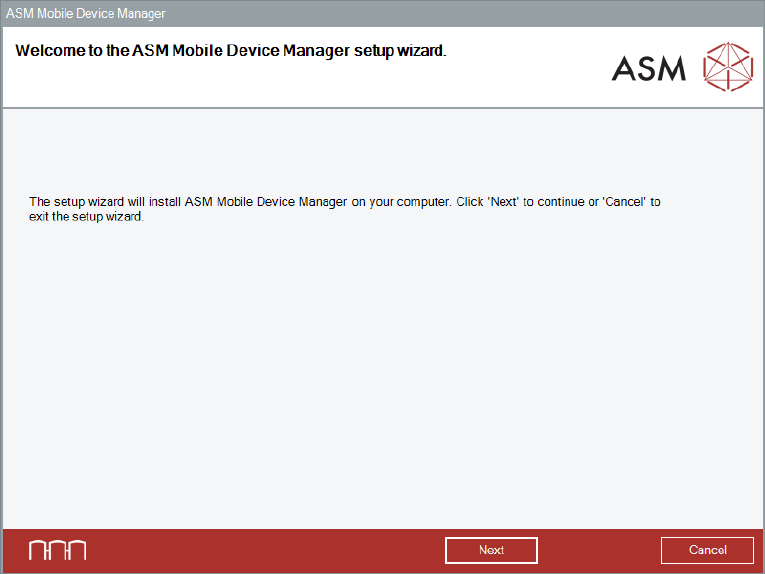
The Welcome dialog of the ASM Mobile Device Manager setup wizard is displayed.
ASM Mobile Device Manager 1.1 / Installation Manual 05/2019 Edition
10
Figure 5-1: Welcome dialog
► Click the Next button.
The Show License dialog is displayed.
ASM Mobile Device Manager 1.1 / Installation Manual 05/2019 Edition
11
Accepting the License Conditions
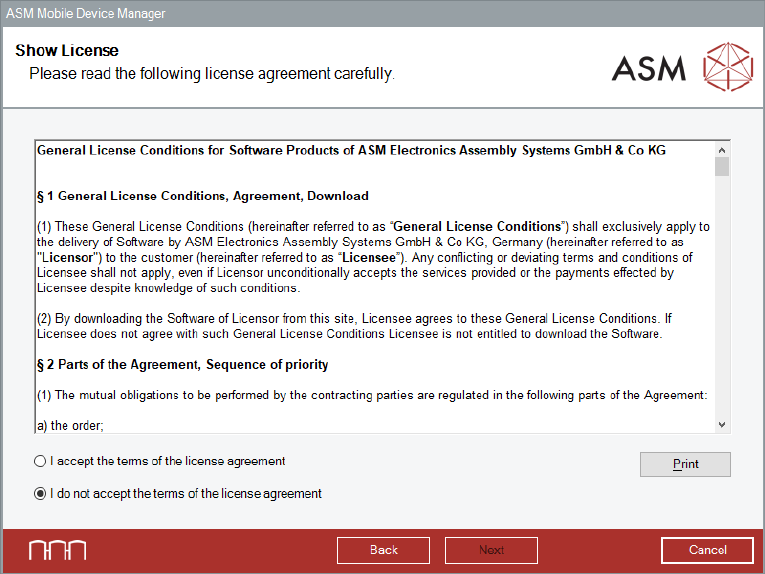
Figure 5-2: Show License dialog
► Read the license agreement of ASM Assembly Systems GmbH & Co. KG relating to use of this
software.
► Select I accept the terms of the license agreement to accept the license conditions.
► Click the Next button.
The Packages and Features dialog is displayed.