00900156-01_IM_Mobile_Device_Manager_1.1_EN - 第17页
ASM Mobile Device Manager 1.1 / Insta llation Manual 05/2019 Edition 17 After successf ul installation, the following d ialog is displa yed. Figure 5-8: Setup successfull y com pleted dialog ► Click the OK butto n to exi…
ASM Mobile Device Manager 1.1 / Installation Manual 05/2019 Edition
16
Now the setup explicitly checks the available, required and recommended disk space again. If your
free disk space does not match the recommended disk space the following dialog is displayed.
► Click the OK button and solve the problem.
The Ready to install dialog will be automatically displayed as soon as the required disk space is
available.
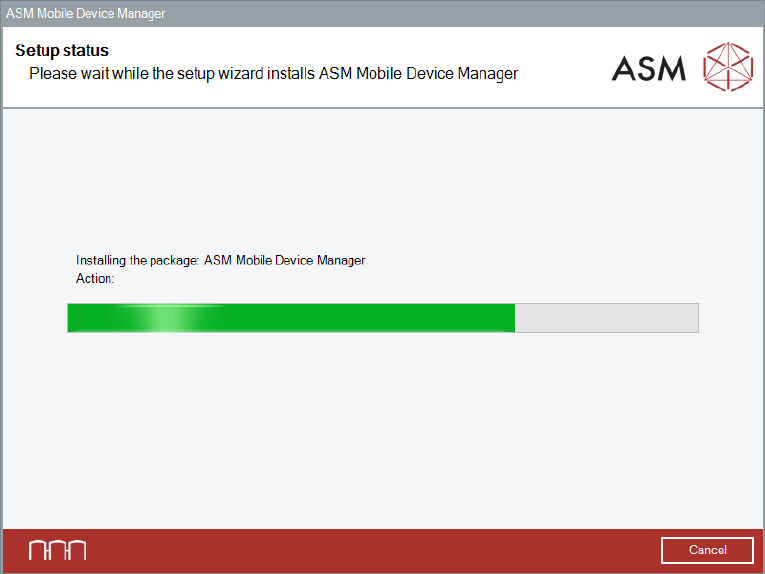
The setup status is displayed during installation.
Figure 5-7: Setup status dialog
ASM Mobile Device Manager 1.1 / Installation Manual 05/2019 Edition
17
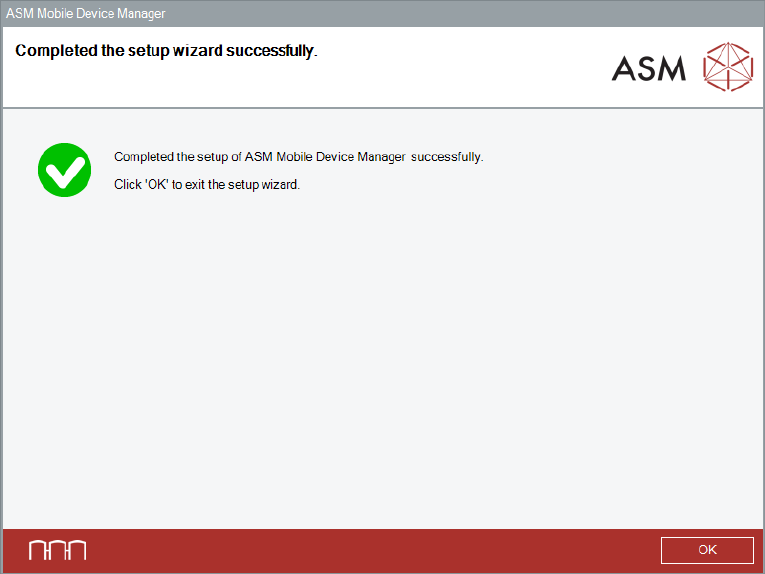
After successful installation, the following dialog is displayed.
Figure 5-8: Setup successfully completed dialog
► Click the OK button to exit the setup wizard.
ASM Mobile Device Manager 1.1 / Installation Manual 05/2019 Edition
18
5.7 Installation of additional ASM Mobile Device Manager Module
If ASM Mobile Device Manager Server has already been installed on a remote computer this
software component has to be disabled during the ASM Mobile Device Manager installation.
► Ensure that the remote computer is connected to the network and available.
► Start installing ASM Mobile Device Manager as described in section 5.2.
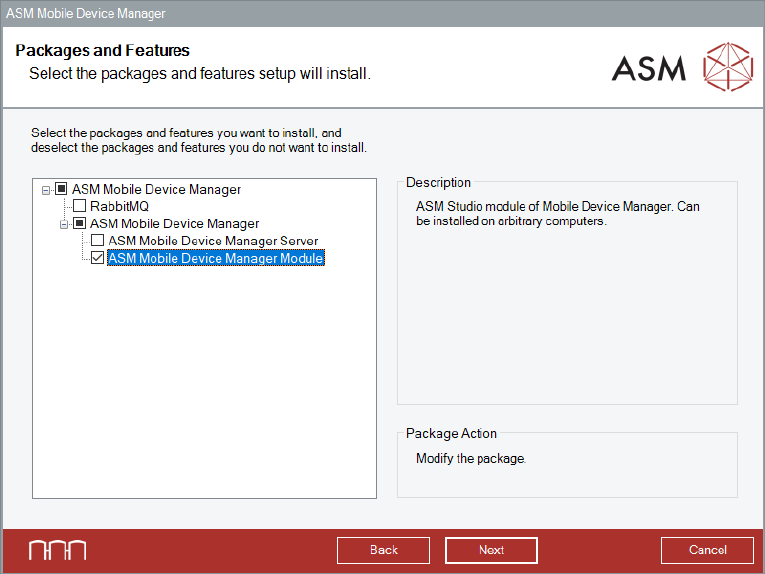
► Proceed as follows when the Packages and Features dialog is displayed.
Figure 5-9: Packages and Features dialog
► Disable RabbitMQ and ASM Mobile Device Manager Server software feature.
► Click the Next button.
The ASM OIB Core connection dialog is displayed.