00900156-01_IM_Mobile_Device_Manager_1.1_EN - 第20页
ASM Mobile Device Manager 1.1 / Insta llation Manual 05/2019 Edition 20 6 Modifying, Repairing or Remov ing A SM Mob ile Device Manager It is possible to m odify, remove or rep air the installation b y starting the Dev i…
ASM Mobile Device Manager 1.1 / Installation Manual 05/2019 Edition
19
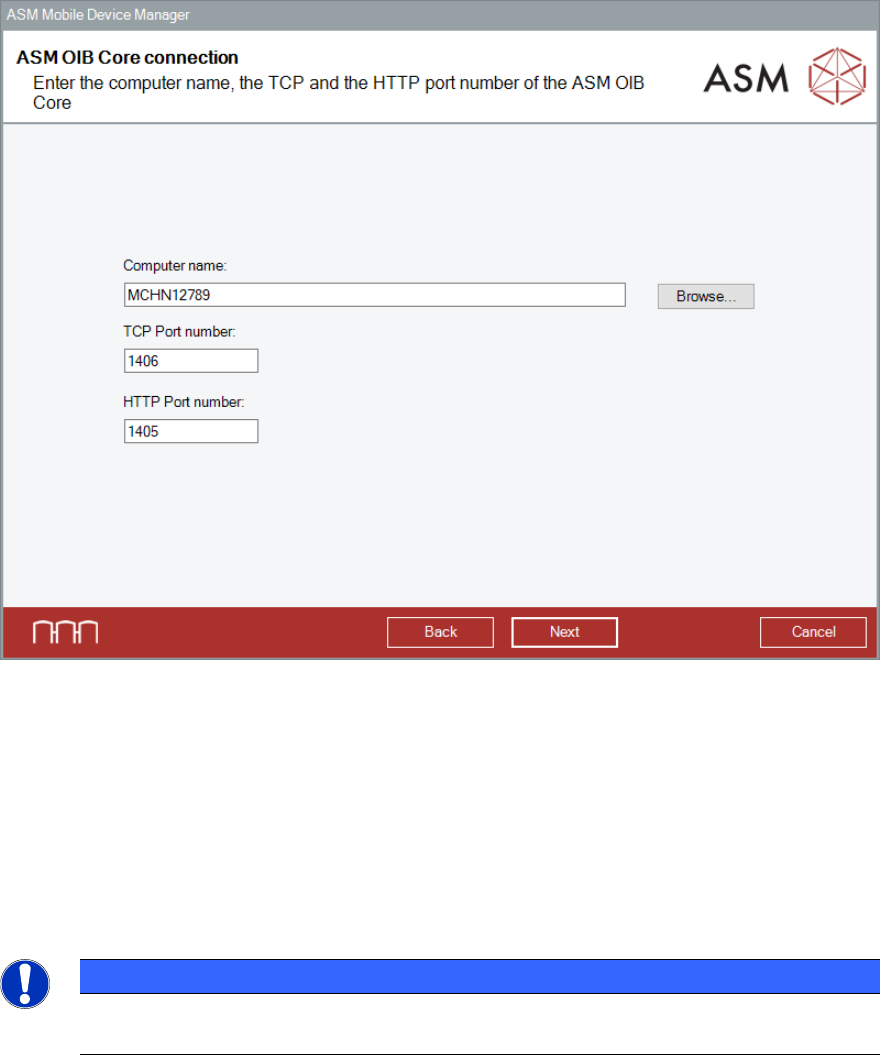
Figure 5-10: ASM OIB Core connection dialog
► Enter the computer name and port number of the computer on which the ASM OIB Server
component is installed.
► Click the Next button.
If the remote computer is unavailable, an error message is displayed.
► In this case, solve the problem and click the Next button.
The installation continues with the configuration of Device Manager Server as described in
Figure 5-5.
NOTICE
After installation, the remote server must be running. Otherwise, the required
configuration steps cannot be done and, as a consequence, the product will not work!
ASM Mobile Device Manager 1.1 / Installation Manual 05/2019 Edition
20
6 Modifying, Repairing or Removing ASM Mobile
Device Manager
It is possible to modify, remove or repair the installation by starting the DeviceManager.Bundle.exe
file on a computer on which ASM Mobile Device Manager is installed. The Installer detects the
installation automatically and offers the respective options.
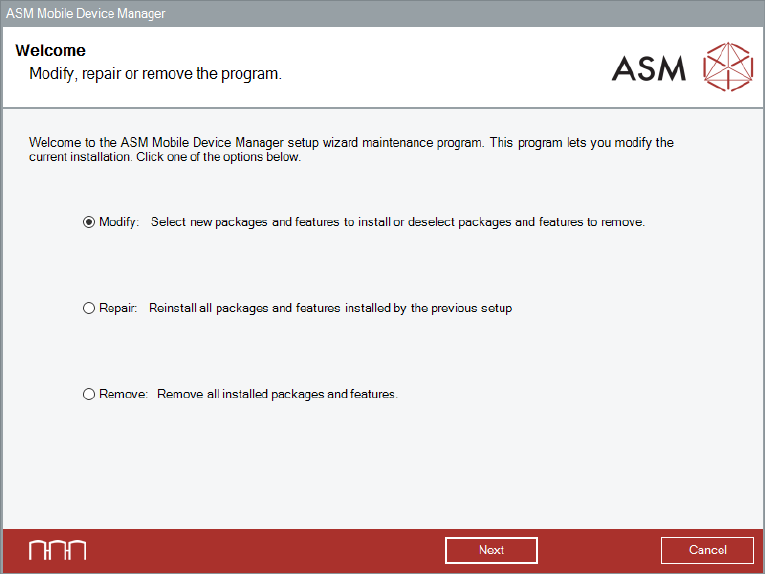
Figure 6-1: Modify, repair or remove dialog
► Select the option that you want to perform.
The ASM Mobile Device Manager setup wizard will guide you through the respective procedures.
ASM Mobile Device Manager 1.1 / Installation Manual 05/2019 Edition
21
6.1 Uninstalling ASM Mobile Device Manager via Control Panel
The ASM Mobile Device Manager software can also be removed via the Control Panel.
NOTICE
You must be logged in as Administrator to uninstall the software.
► Open the Start menu and select Control Panel – (All) Programs – Uninstall a program.
► Click with the right mouse key on the ASM Mobile Device Manager entry in the list of installed
programs.
► Select Uninstall from the context menu.
A confirmation dialog is displayed.
► Click Yes to confirm uninstalling the ASM Mobile Device Manager software.
► Click the Next button.
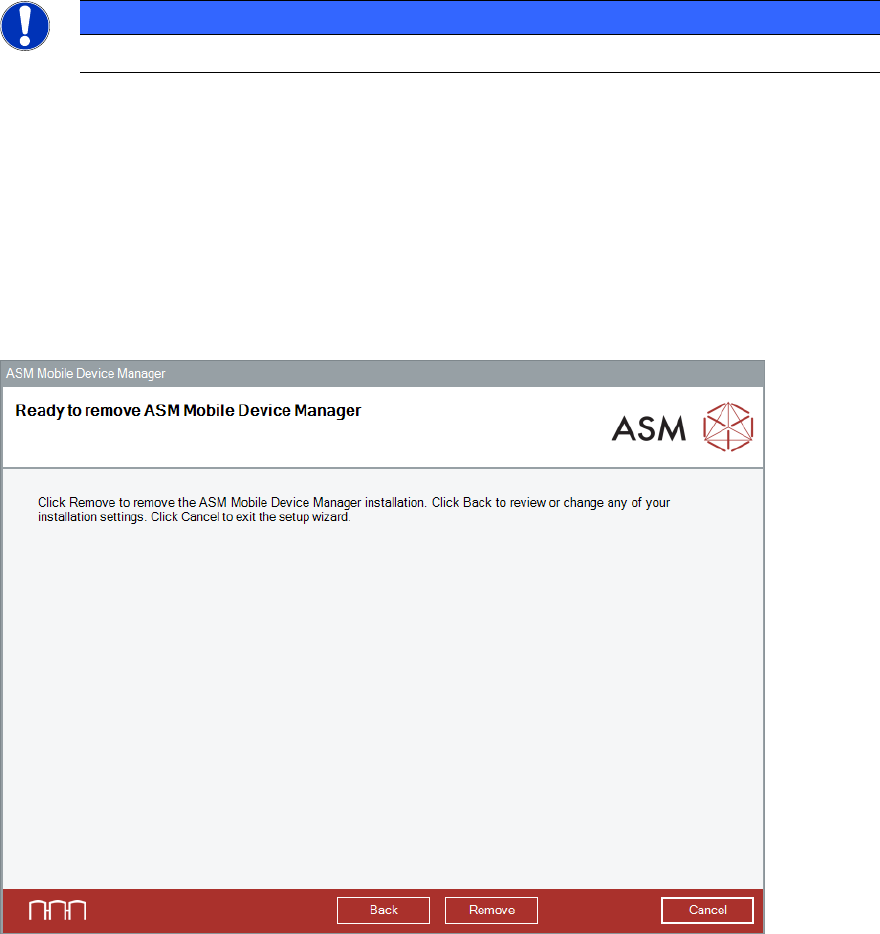
ASM Mobile Device Manager is now ready to be removed. The following dialog is displayed.
Figure 6-2: Ready to remove dialog
► Click the Remove button to confirm removing the ASM Mobile Device Manager software.
If User Account Control is enabled, a corresponding dialog is additionally displayed before
removing starts.
► Click the Yes button in this dialog to allow the software installation.