00900156-01_IM_Mobile_Device_Manager_1.1_EN - 第22页
ASM Mobile Device Manager 1.1 / Insta llation Manual 05/2019 Edition 22 The setup status is displayed durin g removal. After s uccessf ul removal, the following dialog is displayed. Figure 6-3: Rem oving ASM De vice Mana…
ASM Mobile Device Manager 1.1 / Installation Manual 05/2019 Edition
21
6.1 Uninstalling ASM Mobile Device Manager via Control Panel
The ASM Mobile Device Manager software can also be removed via the Control Panel.
NOTICE
You must be logged in as Administrator to uninstall the software.
► Open the Start menu and select Control Panel – (All) Programs – Uninstall a program.
► Click with the right mouse key on the ASM Mobile Device Manager entry in the list of installed
programs.
► Select Uninstall from the context menu.
A confirmation dialog is displayed.
► Click Yes to confirm uninstalling the ASM Mobile Device Manager software.
► Click the Next button.
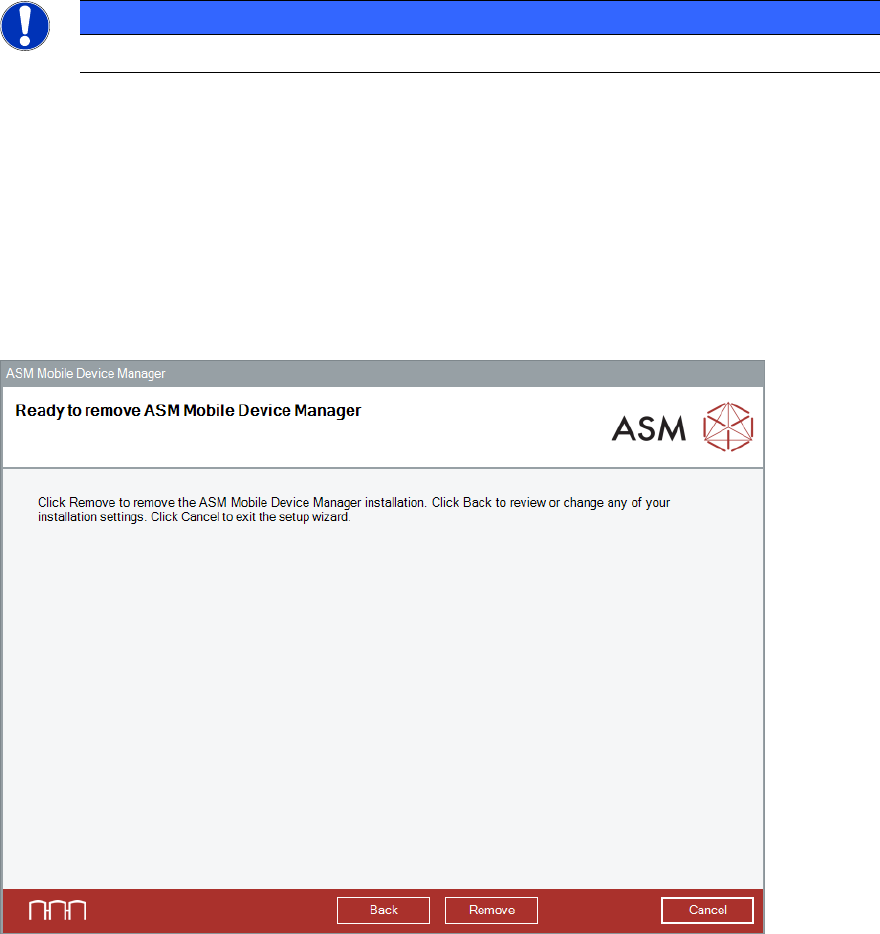
ASM Mobile Device Manager is now ready to be removed. The following dialog is displayed.
Figure 6-2: Ready to remove dialog
► Click the Remove button to confirm removing the ASM Mobile Device Manager software.
If User Account Control is enabled, a corresponding dialog is additionally displayed before
removing starts.
► Click the Yes button in this dialog to allow the software installation.
ASM Mobile Device Manager 1.1 / Installation Manual 05/2019 Edition
22
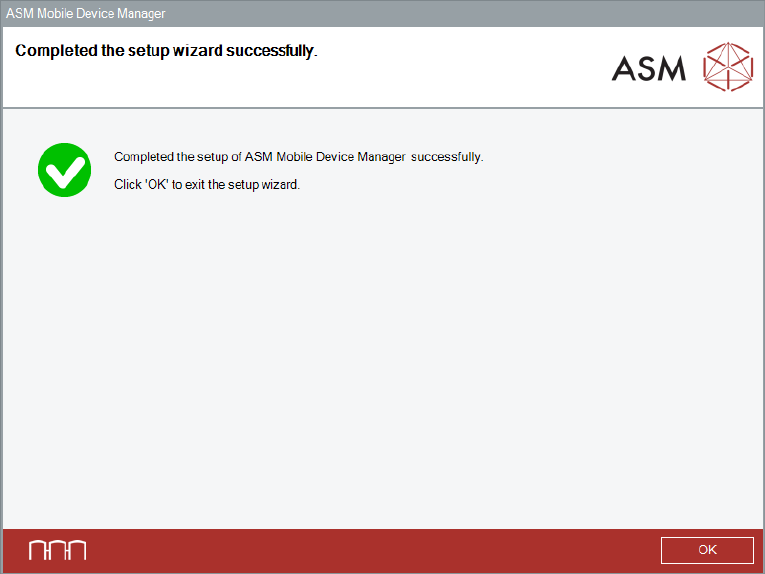
The setup status is displayed during removal. After successful removal, the following dialog is
displayed.
Figure 6-3: Removing ASM Device Manager completed
► Click the OK button to exit the setup wizard.
ASM Mobile Device Manager 1.1 / Installation Manual 05/2019 Edition
23