CP43维护手册.pdf.pdf - 第155页
18 – 3 V ersion 7.0 Chapter 18 Camera Proper Data Backup Procedure (8) Remove the ROM memory card fr om the memory boar d by pressing the eject button, as shown in the illustration below . Insert the SRAM memory card unt…
Chapter 18 Camera Proper Data Backup Procedure
18.1Saving Camera Proper Data
(1) Turn ON the power and boot up the machine. Delete all production
programs from machine memory using the MCS “Delete M/C
program” command in the Transmission menu.
Note: Refer to the MCS/2 System Instruction Manual, Part 3, for a
detailed explanation of the “Delete M/C program” command.
(2) If camera Proper data has not been measured, measure it.
(3) Press [SET], [MANUAL] and [VISION]. An ID code must be entered
to access vision commands.
(4) Press [BACKUP].
(5) To save camera Proper data, press [SAVE DATA].
(6) Open the control box and put on the anti-static wristband.
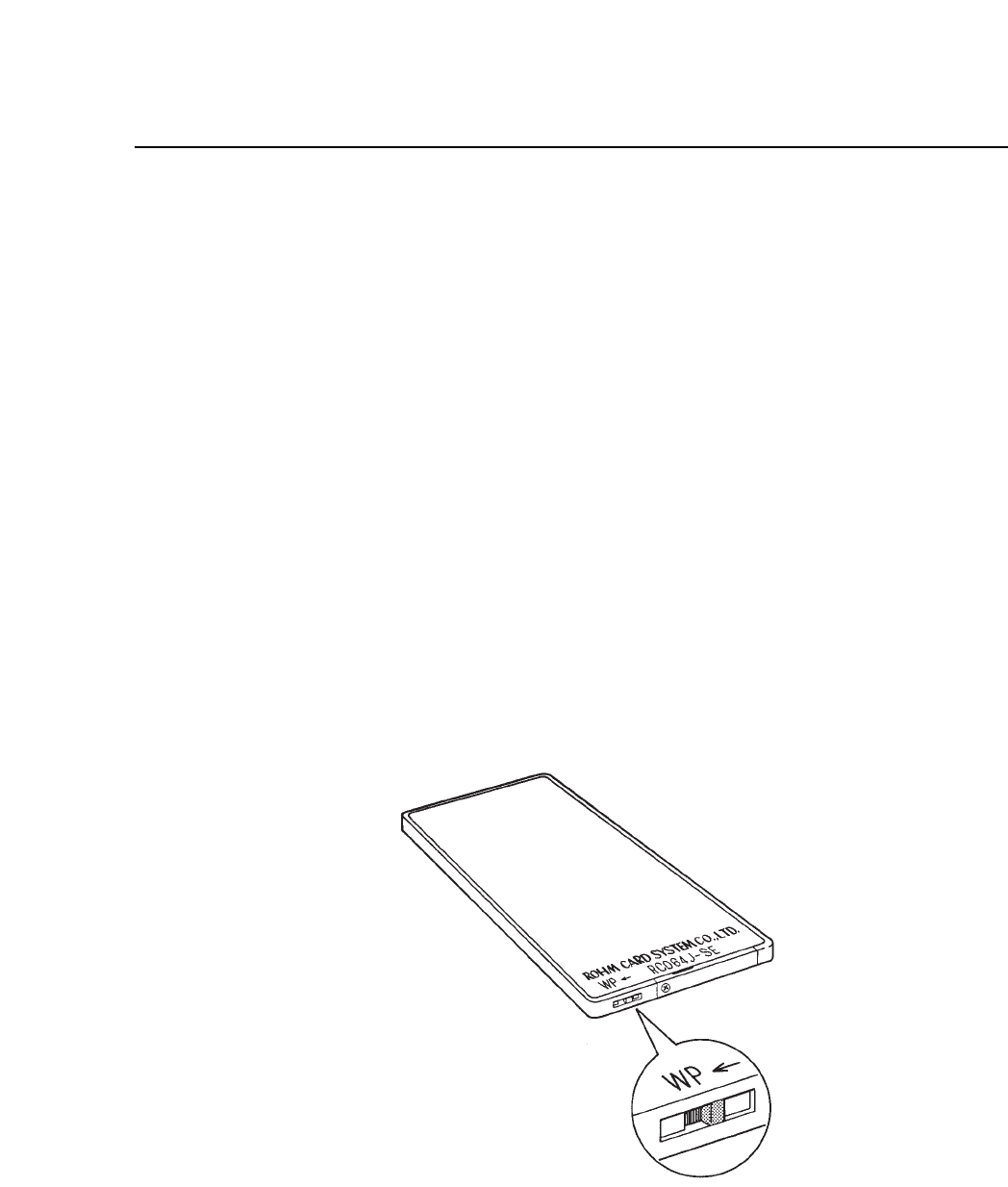
(7) Make sure that the SRAM card is NOT write-protected. The write-
protection switch is located on the edge of the card. The arrow
indicates that the SRAM card is write-protected when the switch is
pushed to the left.
Fig. 18-1 Write-protect Switch
18 – 2
Version 7.0
CP IV-3 Maintenance
18 – 3
Version 7.0
Chapter 18 Camera Proper Data Backup Procedure
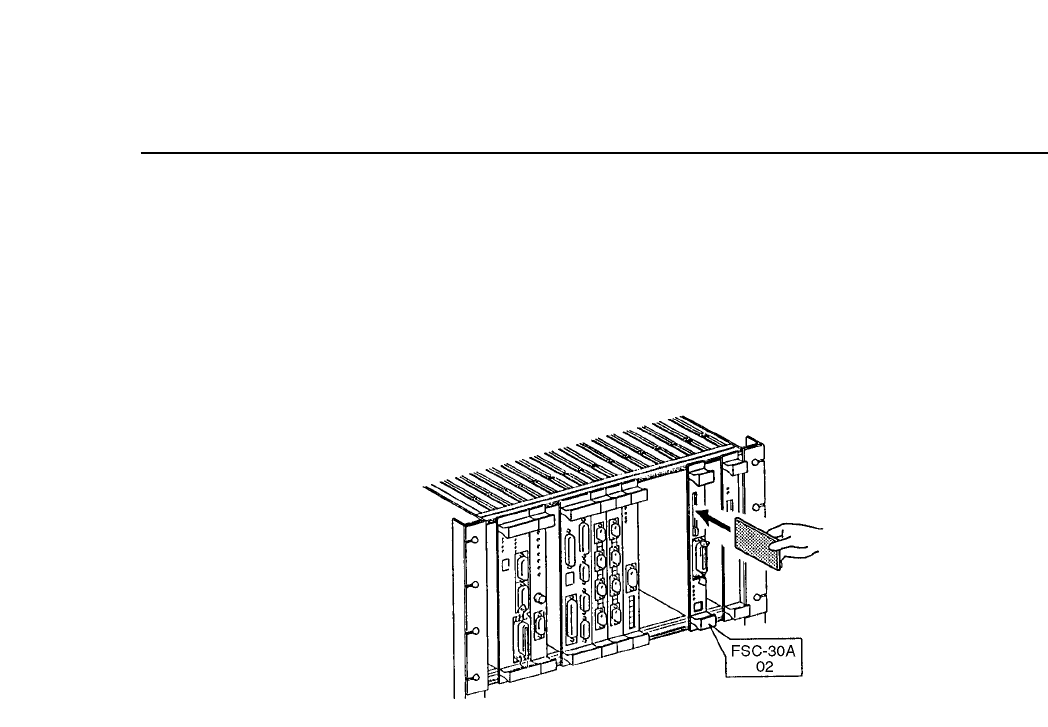
(8) Remove the ROM memory card from the memory board by pressing
the eject button, as shown in the illustration below. Insert the SRAM
memory card until the eject button sticks out. Be sure that the button
sticks out, since the system cannot save Proper data if the SRAM
memory card is not inserted correctly.
Fig. 18-2 Changing the ROM and SRAM Cards
(9) Press the [START] button. The system initializes the SRAM memory
card, then saves camera Proper data on it. (The system also deletes all
nozzle measurement data and device descriptions from memory
board RAM.)
(10)Remove the SRAM memory card from the memory board and insert
the original ROM memory card.
(11)Turn off the power, then turn it back ON and boot up the machine.
(12)Transmit a program from MCS to the machine and measure nozzle
centers.
CP IV-3 Maintenance

Chapter 18 Camera Proper Data Backup Procedure
18.2Loading Camera Proper Data
(1) Turn on the power and boot up the machine. Delete all production
programs from machine memory using the MCS “Delete M/C
program” command in the Transmission menu.
Note: Refer to the MCS/2 System Instruction Manual, Part 3, for a
detailed explanation of the “Delete M/C program” command.
(2) Press [SET], [MANUAL] and [VISION]. An ID code must be entered
to access vision commands.
(3) Press [BACKUP].
(4) Press [LOAD DATA].
(5) Open the control box and put on the anti-static wristband.
(6) Remove the ROM memory card from the memory board by pressing
the eject button. Insert the SRAM memory card until the eject button
sticks out. Be sure that the button sticks out, since the system cannot
load Proper data if the SRAM memory card is not inserted correctly.
(7) Press the [START] button. The system initializes the memory board
RAM, then loads camera Proper data to it from the SRAM memory
card.
(8) Remove the SRAM card from the memory board and insert the
original ROM memory card.
(9) Turn off the power, then turn it back on and boot up the machine.
(10)Press [SET] and [PROPER]. Enter the ID code and press [CAMERA].
If the pixel size for all cameras displays the default value of 80
microns in both X and Y dimensions, Proper data did not load
successfully. Refer to section 2.3 to determine and correct the cause of
the problem.
If the pixel size does not display as 80 microns for all cameras in both
X and Y dimensions, Proper data loaded successfully. Continue with
the next step.
(11)Transmit a program from MCS to the machine and measure nozzle
centers.
18 – 4
Version 7.0
CP IV-3 Maintenance