80S-2080F480F5.pdf - 第100页
2 Introduction and Ba sic Concepts SIPLACE 80S-20/F4/F5 User Manual 2.2 Principles and Structure of the User Interface 05/99 Issue from Software Version SR.405.xx 2 - 16 2.2.3 Screen Displays Once m enus hav e been se le…
SIPLACE 80S-20/F4/F5 User Manual 2 Introduction and Basic Concepts
05/99 Issue from Software Version SR.405.xx 2.2 Principles and Structure of the User Interface
2 - 15
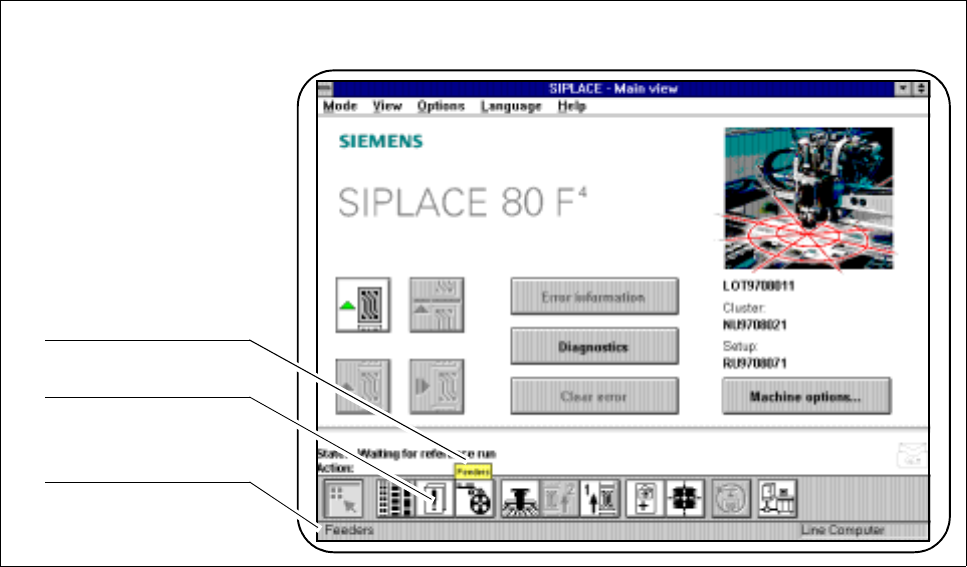
2.2.2.5 Symbol and Status Strips
The symbol strip contains icons (buttons) which are used for selecting the view or an object.
When the trackball pointer is positioned over an icon the corresponding help text will appear within a bubble.
Fig. 2.2.5 Example of symbol strip and status strip
- Key to Fig. 2.2.5
1 Bubble help text 2 Icons (buttons) for submenus
3 Information concerning menu entries and icons
The status strip displays some brief information concerning menu entries and icons when these have been
selected with the trackball or finger but not actually executed.
1
2
3
2 Introduction and Basic Concepts SIPLACE 80S-20/F4/F5 User Manual
2.2 Principles and Structure of the User Interface 05/99 Issue from Software Version SR.405.xx
2 - 16
2.2.3 Screen Displays
Once menus have been selected and actions executed, various messages and input fields may appear.
These are explained in more details in the following text.
In the following user’s manual, the finger in the screen menus indicates where actions are to be car-
ried out or inputs are to be made.
NOTE
Message boxes, input boxes and the like can be shifted on the screen to allow hidden text to be read.
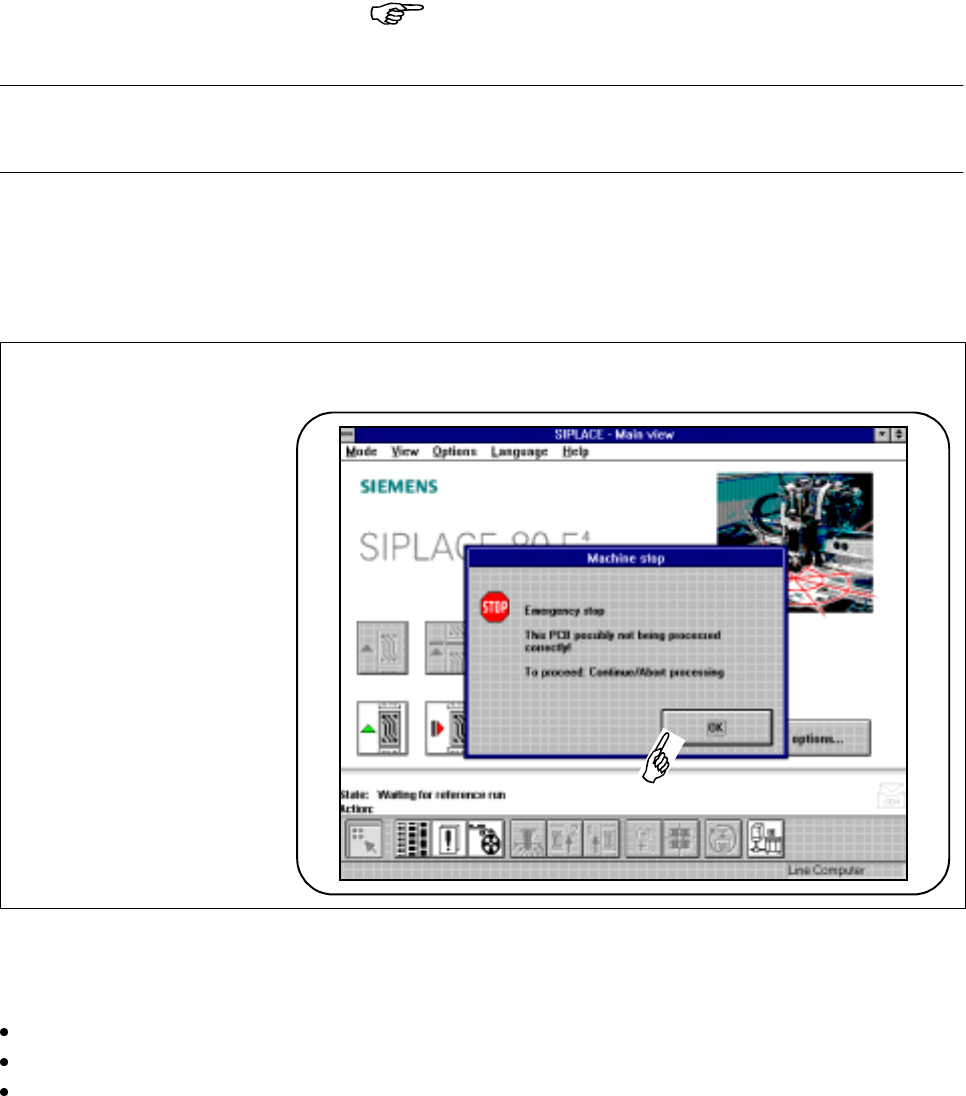
2.2.3.1 Warning and Message Boxes
Fig. 2.2.6 Example of warning and message box
Warning and message boxes show which action has been carried out with the machine and which action is
required of the operator.
Read and comply with the message in the warning and message box.
Click on the OK button.
Carry out the action which you have been asked to perform.
SIPLACE 80S-20/F4/F5 User Manual 2 Introduction and Basic Concepts
05/99 Issue from Software Version SR.405.xx 2.2 Principles and Structure of the User Interface
2 - 17
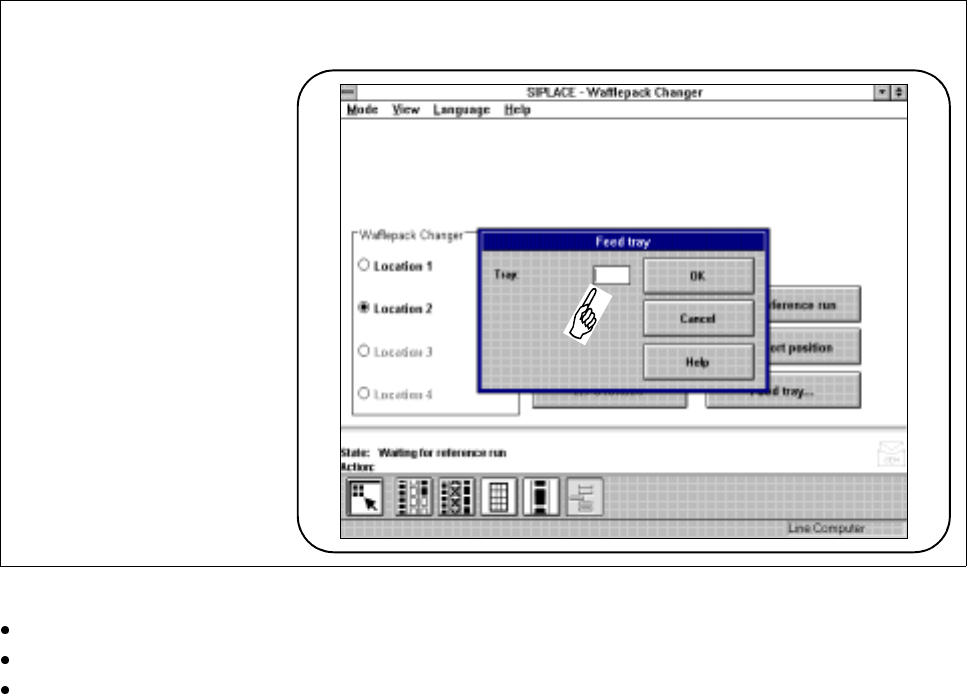
2.2.3.2 Input Boxes
Input boxes require of the operator that he make an entry in the input field.
Fig. 2.2.7 Example of input box
Position the cursor within the input field.
Type into the input field the input which is required.
Confirm your input by clicking on
OK
. You can break off your input by clicking on the
Cancel
button or you
can call up on-line help on the corresponding topic by clicking on the
Help
button (see also Chapter 8).